
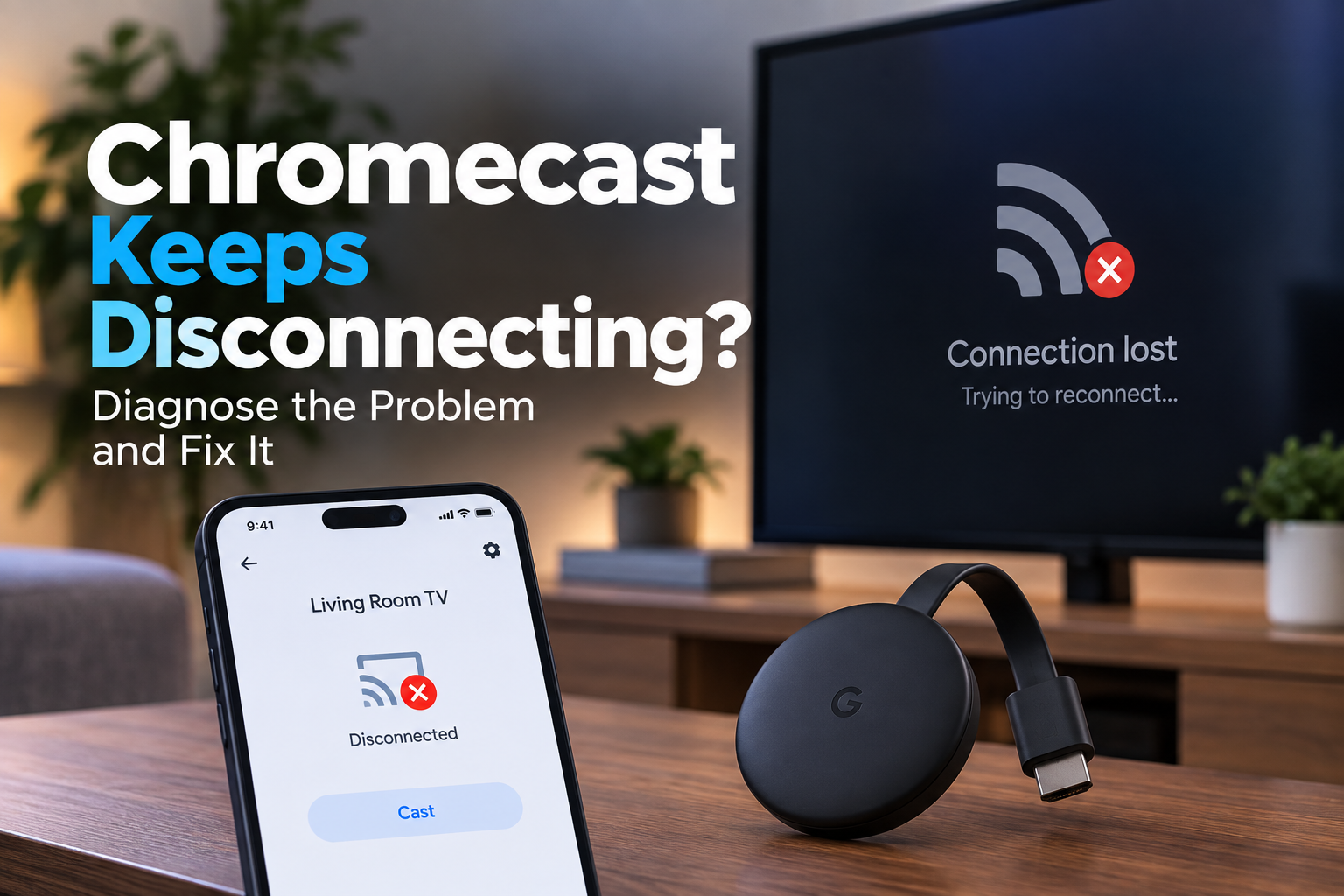
Chromecast Keeps Disconnecting? Diagnose the Problem and Fix It
Your Chromecast connects normally, you start watching something, and then the connection suddenly drops. Sometimes it reconnects on its own. Other times, you have to start casting all over again.
If your Chromecast keeps disconnecting, the first thing to determine is what is actually disconnecting. Is the Chromecast itself dropping off Wi-Fi? Is your phone losing the Cast connection? Or does the problem happen only while using one particular app?
Those symptoms can point to different causes.
This guide will help you narrow down the problem first and then work through the fixes that actually apply.
Quick Diagnosis: Start Here
| What you’re seeing | Start here |
|---|---|
| Chromecast repeatedly goes offline or disappears from Google Home | Go to Fix 1 |
| Casting disconnects but your internet still works on other devices | Go to Fix 2 |
| Phone and Chromecast sometimes stop seeing each other | Go to Fix 3 |
| Chromecast disconnects more often when it is behind the TV | Go to Fix 4 |
| Only one streaming app keeps dropping the Cast session | Go to Fix 5 |
| Chromecast is still unstable after checking Wi-Fi | Go to Fix 6 |
| Disconnects continue despite a strong connection | Go to Fix 7 |
Why This Happens
A Chromecast that keeps disconnecting is usually dealing with an unstable connection rather than a complete inability to connect.
Possible causes include:
- Weak or inconsistent Wi-Fi near the Chromecast
- Your phone and Chromecast being connected to different Wi-Fi networks
- Wi-Fi interference around the TV
- A temporary problem with the Chromecast or router
- Too many devices competing for the wireless network
- A problem limited to a particular streaming app
- Router software or network configuration issues
That distinction matters.
If your Chromecast cannot connect to Wi-Fi at all, use our Chromecast Not Connecting to Wi-Fi guide instead.
If it connects successfully but repeatedly drops offline or loses the casting session, continue below.
Fix 1: Check Whether Chromecast Is Actually Going Offline
Start by determining whether the Chromecast itself is losing its connection.
Open the Google Home app and find your Chromecast.
If the device appears offline when the problem occurs, the issue is more likely between the Chromecast and your Wi-Fi network.
Also check whether other devices in your home still have internet access.
If your phone, laptop and other devices lose internet at the same time, troubleshoot your router or internet connection first.
If everything else stays connected while Chromecast repeatedly goes offline, continue with the Chromecast-specific checks below.
Fix 2: Restart the Chromecast Properly
A restart can clear a temporary connection problem, but make sure you actually reboot the Chromecast.
For Chromecast devices:
- Disconnect the power cable from the Chromecast.
- Leave it disconnected for about one minute.
- Reconnect the power cable.
- Wait for Chromecast to start completely.
- Try casting again.
Simply removing the Chromecast from the TV’s HDMI port does not reboot it. The device needs to be disconnected from power.
If you have Chromecast with Google TV, you can also restart it from:
Settings → System → Restart
Test the connection again before changing anything else.
Fix 3: Make Sure Both Devices Are on the Same Wi-Fi Network
Your phone, tablet or computer and Chromecast need to be on the same Wi-Fi network for normal casting.
This can become confusing when a router has multiple network names.
For example, your phone may be connected to:
HomeWiFi
while Chromecast is connected to:
HomeWiFi_5G
Check the Wi-Fi network on both devices.
For Chromecast with Google TV, you can check under:
Settings → Network & Internet
For other Chromecast models, open the Google Home app, select your Chromecast and check its device information and Wi-Fi details.
Reconnect the devices to the same network if necessary and test casting again.
Fix 4: Improve the Wi-Fi Connection Around Your Chromecast
Chromecast devices often sit directly behind a television, which isn’t always an ideal location for wireless reception.
If the connection keeps dropping, check the physical setup.
Try the following:
- Make sure your router isn’t unnecessarily far from the Chromecast.
- Avoid enclosing the router inside a cabinet.
- Move Chromecast away from other cables and electronic devices where possible.
- If practical, reposition the Chromecast so it isn’t pressed tightly against the back of the television.
- Test the connection again.
Google recommends keeping the router within about 6 metres (20 feet) of the Chromecast where practical.
You don’t necessarily need to redesign your network. The goal is simply to determine whether signal quality or interference is responsible for the repeated disconnects.
Fix 5: Check Whether the Problem Happens in Only One App
Before changing your network settings, test another Chromecast-enabled app.
For example, if casting repeatedly disconnects from one streaming service:
- Stop the current Cast session.
- Open another Chromecast-enabled app.
- Cast something for several minutes.
- See whether the second app also disconnects.
If several apps disconnect, the Chromecast or network connection becomes the more likely suspect.
If only one app consistently loses the Cast session while everything else works normally, troubleshoot that app first.
Also make sure you’re using the latest available version of the affected Chromecast-enabled app.
Fix 6: Restart Your Router
If Chromecast continues dropping its connection, restart the router.
Follow your router manufacturer’s restart instructions. In most cases, this involves disconnecting the router from power, waiting for it to shut down fully and then reconnecting it.
Wait until your Wi-Fi network and internet connection are fully available again before testing Chromecast.
Then reconnect your phone and Chromecast and try another Cast session.
If the connection is now stable, the router may have been experiencing a temporary networking problem.
Fix 7: Check Your Wi-Fi Band and Router
If your router supports both 2.4 GHz and 5 GHz, check which network Chromecast is using.
Google recommends using the 5 GHz network with Chromecast when your router and setup support it.
You should also check whether your router has a firmware update available. Router manufacturers sometimes release updates that correct wireless stability and compatibility problems.
Don’t start changing advanced router settings randomly.
First test the simpler things:
- Confirm the correct Wi-Fi network.
- Restart Chromecast.
- Restart the router.
- Improve device placement.
- Test the other Wi-Fi band where appropriate.
Then see whether the disconnects continue.
Fix 8: Test an Ethernet Connection If Your Setup Supports It
If your Chromecast works reliably over Ethernet but repeatedly disconnects over Wi-Fi, you’ve isolated the problem.
The Chromecast itself is probably functioning, while the wireless connection needs attention.
Compatible Chromecast devices can use an appropriate Ethernet adapter because they don’t have a built-in Ethernet port.
You don’t necessarily need to switch permanently to Ethernet. It can simply be a useful diagnostic test.
If Ethernet solves the problem, focus further troubleshooting on Wi-Fi coverage, interference or the router.
Fix 9: Factory Reset Only as a Last Resort
A factory reset erases the Chromecast’s settings and requires you to set it up again.
Because of that, don’t jump to a reset just because Chromecast disconnected once or twice.
First work through:
- Wi-Fi network checks
- Chromecast restart
- Router restart
- Placement and interference
- Different apps
- Wi-Fi band
- Ethernet testing where available
If the Chromecast continues going offline despite a stable network and the other troubleshooting steps haven’t helped, a factory reset can be considered as a final software troubleshooting step.
The reset procedure varies by Chromecast model, so use the instructions specifically for your device rather than following a button sequence intended for another generation.
How to Prevent Chromecast From Disconnecting
You can’t prevent every temporary network or streaming-service problem, but you can reduce recurring Chromecast connection issues.
Keep your Chromecast and router reasonably close together, avoid placing networking equipment inside enclosed furniture, and make sure your Chromecast and casting device use the same Wi-Fi network.
It’s also worth keeping your router firmware, phone software and Chromecast-enabled apps updated.
If disconnects happen frequently across multiple devices — not just Chromecast — the broader home network or internet connection deserves attention.
Frequently Asked Questions
Why does my Chromecast keep disconnecting from Wi-Fi?
An unstable Wi-Fi signal, interference, router problems or network congestion can cause Chromecast to repeatedly lose its connection. Check whether Chromecast appears offline in Google Home when the problem happens and whether other devices remain connected.
Why does Chromecast disconnect while I’m casting?
First determine whether the Chromecast itself goes offline or whether only the Cast session stops. If Chromecast remains online and other apps cast normally, the issue may be limited to the app you were using.
Why does my Chromecast keep disappearing from my phone?
Check that your phone and Chromecast are connected to the same Wi-Fi network. If Chromecast also appears offline in Google Home, troubleshoot its Wi-Fi connection rather than the phone alone.
Should Chromecast and my phone be on the same Wi-Fi?
Yes. Your casting device and Chromecast should be connected to the same Wi-Fi network for casting.
Should I use 2.4 GHz or 5 GHz for Chromecast?
Google recommends 5 GHz when your router and Chromecast setup support it. However, wireless performance also depends on distance, interference and your home layout.
Will restarting Chromecast fix connection drops?
It can resolve temporary connection problems. Disconnect Chromecast from its power source, not simply the HDMI port, wait about a minute and reconnect it.
Should I factory reset a Chromecast that keeps disconnecting?
Not initially. A factory reset removes the device’s settings and forces you to set it up again. Try network checks, restarts, placement changes and other connection troubleshooting first.
Related Troubleshooting
Chromecast Not Connecting to Wi-Fi? Diagnose the Problem and Fix It →
Chromecast Not Showing Up for Casting? Diagnose the Problem and Fix It →
3 Comments
Comments are closed.