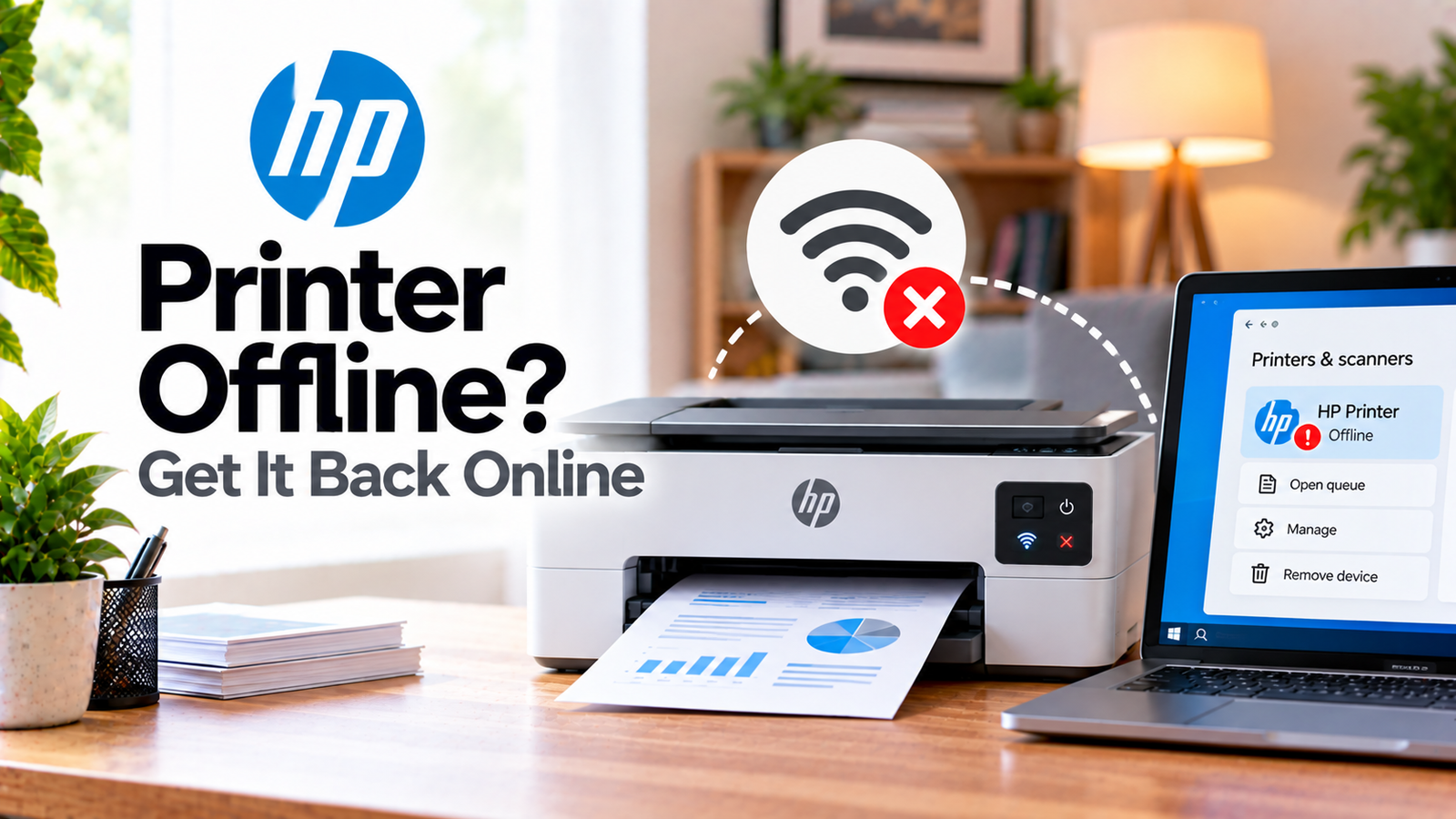
HP Printer Offline? Get It Back Online
If your HP printer is offline, your computer or phone may be unable to communicate with it even though the printer itself appears powered on and ready. This is particularly common with wireless printers after a router change, Wi-Fi password change or temporary network problem.
An offline status doesn’t automatically mean the printer is broken. In many cases, the printer simply isn’t connected to the same network as the device you’re printing from.
Quick Diagnosis: Start Here
| What you’re seeing | Start here |
|---|---|
| Printer suddenly went offline | Go to Fix 1 |
| You recently restarted or changed the router | Go to Fix 2 |
| Printer and computer use different Wi-Fi networks | Go to Fix 3 |
| HP app says Printer Offline | Go to Fix 4 |
| Wi-Fi signal seems weak | Go to Fix 5 |
| Printer works through USB but not Wi-Fi | Go to Fix 6 |
| Printer remains offline after everything else | Go to Fix 7 |
Why This Happens
An HP printer can show as offline because:
- The printer lost its Wi-Fi connection
- Your computer is on another network
- The router has temporarily stopped communicating with the printer
- The printer is too far from the router
- The Wi-Fi password or network name changed
- A print connection on the computer needs to be refreshed
- The printer’s network configuration needs to be restored
Fix 1: Restart the Printer
Start with the simplest fix.
Turn the printer off.
If necessary, disconnect its power cable.
Wait about 60 seconds.
Reconnect the printer directly to a wall outlet and turn it back on.
Wait until the printer finishes starting up before checking its status on your computer.
Then try printing again.
Fix 2: Restart the Router
If the HP printer uses Wi-Fi, restart your router as well.
Turn the router off or disconnect its power.
Wait for it to fully restart.
Then give the printer time to reconnect.
If your phone and computer also lost internet access, this points toward a network issue rather than an isolated printer problem.
Fix 3: Make Sure Both Devices Use the Same Network
This is one of the most important checks for a wireless HP printer.
Look at the Wi-Fi network currently used by your computer or phone.
Then check the network configured on the printer.
They should normally be connected to the same local network.
Be particularly careful if your router has separate networks for:
- 2.4 GHz
- 5 GHz
- Guest Wi-Fi
- Main Wi-Fi
A guest network can also isolate devices from one another.
Fix 4: Check the Printer in the HP App
Open the current HP app and select your printer.
Check the status.
If it says Printer Offline, Unavailable or Not Connected, follow the connection troubleshooting shown by the app.
For supported printers, the app may also offer Diagnose & Fix.
If the app cannot communicate with the printer at all, check the printer’s Wi-Fi status directly.
Fix 5: Improve the Wi-Fi Connection
If your printer is far from the router, temporarily move it closer.
HP recommends checking Wi-Fi signal strength and, for some printer troubleshooting, moving the printer within about 8 metres of the router or range extender as a test.
If the printer becomes available after moving closer, the original location may have weak coverage or interference.
Don’t permanently relocate the printer yet. First confirm that signal strength is actually the cause.
Fix 6: Reconnect the Printer to Wi-Fi
If your printer has lost its network configuration, reconnect it to Wi-Fi.
The exact process depends on the model.
Some HP printers use a touchscreen network setup menu. Others use buttons and the HP app.
If your printer’s Wi-Fi setup mode has expired or been lost, you may need to restore its network setup mode before the HP app can find it again.
Do not use a model-specific button combination from another HP printer. Reset procedures differ between models.
Fix 7: Remove and Add the Printer Again
If the printer is connected to Wi-Fi but your computer continues showing it as offline, remove the printer from the operating system and add it again.
On Windows, go to:
Settings → Bluetooth & devices → Printers & scanners
Select the HP printer and remove it.
Then add the printer again.
On macOS:
System Settings → Printers & Scanners
Remove the affected printer and add it again.
Only do this after confirming that the printer itself is actually connected to Wi-Fi.
How to Prevent HP Printer Offline Problems
Keep the printer within reliable Wi-Fi range.
If you change your router, Wi-Fi name or password, expect to reconnect the printer.
Also avoid using a guest network for the printer unless you know that it permits communication between connected devices.
Frequently Asked Questions
Why does my HP printer keep going offline?
An unstable Wi-Fi connection, router problem, network change or computer-side printer configuration can cause repeated offline status.
Why is my HP printer offline when Wi-Fi works on my phone?
Your phone may be connected to a different network, or the printer may have lost its own Wi-Fi connection.
How do I get an HP printer back online?
Restart the printer and router, confirm both devices use the same network, then reconnect the printer through the HP app if necessary.
Does resetting Wi-Fi delete everything from my HP printer?
Network reset procedures vary by model. They can remove saved network settings, so you may need to reconnect the printer afterward.