HP Printer Paper Jam? Find and Clear the Problem
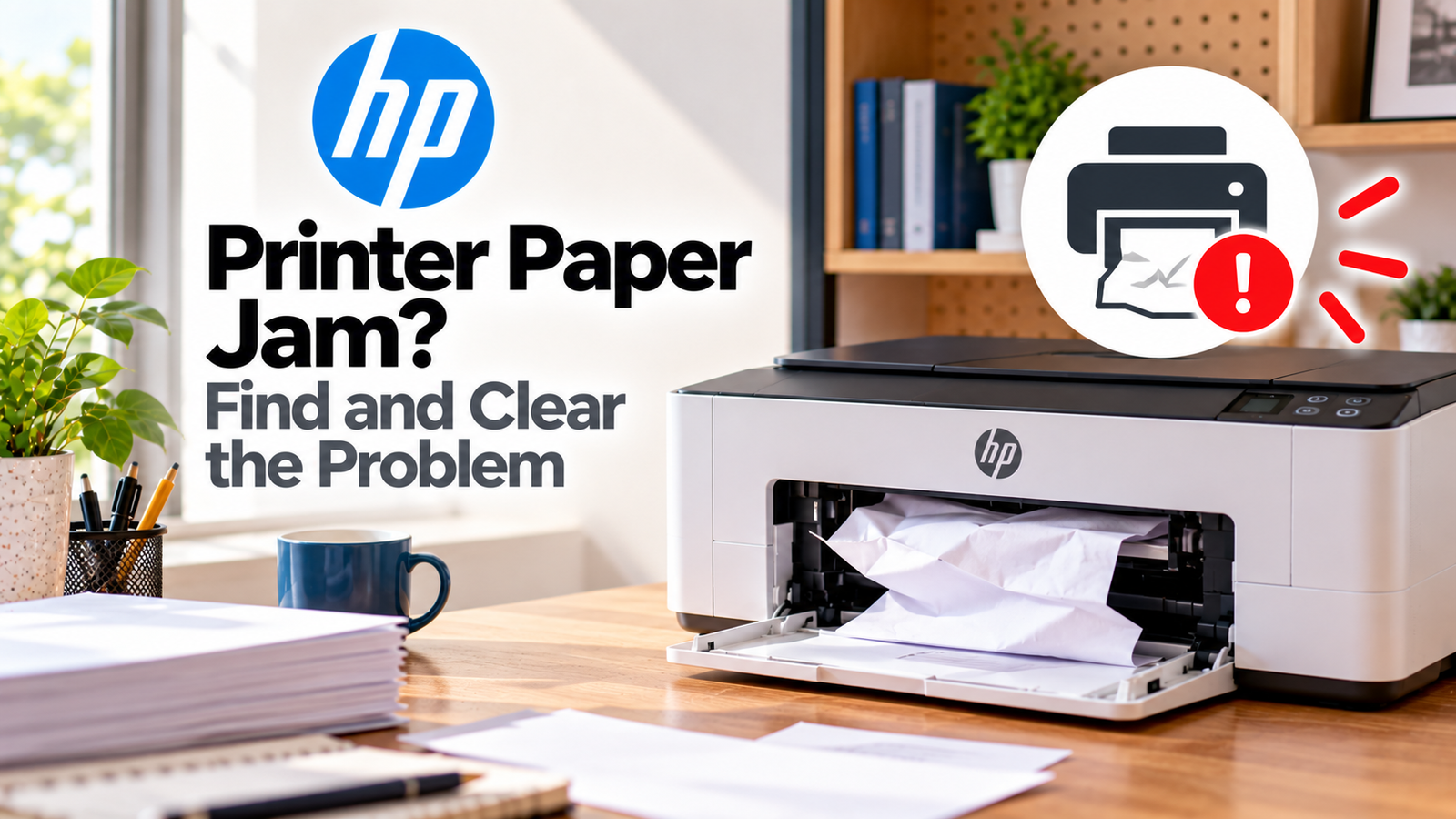
If your HP printer has a paper jam, the printer may stop printing and display a paper-jam message or warning light. Sometimes the jam is obvious, but other times a small torn piece of paper remains inside the printer and continues triggering the error.
Don’t keep sending print jobs while a jam is present. The first priority is to safely clear the paper path.
Quick Diagnosis: Start Here
| What you’re seeing | Start here |
|---|---|
| Paper is visible in the input tray | Go to Fix 1 |
| Paper is stuck inside the printer | Go to Fix 2 |
| Paper is stuck near the output area | Go to Fix 3 |
| A tiny torn piece may remain | Go to Fix 4 |
| Printer still says Paper Jam after clearing it | Go to Fix 5 |
| Jams happen repeatedly | Go to Fix 6 |
| Paper keeps feeding incorrectly | Go to Fix 7 |
Why This Happens
Paper jams can occur because of:
- Incorrectly loaded paper
- Bent or damaged sheets
- Overfilled trays
- Incorrect paper type
- Paper guides positioned incorrectly
- Torn paper left from an earlier jam
- Foreign objects inside the paper path
- Dirty or worn rollers
- A mechanical paper-feed problem
A printer can also report a false paper jam when no large sheet is visible.
Fix 1: Check the Paper Tray
Remove the loose paper from the tray.
Look for:
- Bent sheets
- Torn paper
- Damp paper
- Curled paper
- Mixed paper sizes
- An overfilled tray
Reload a small, neat stack of compatible paper.
Adjust the paper guides so they rest correctly against the stack without squeezing it.
Then try printing again.
Fix 2: Check Inside the Printer
If paper is visible inside the printer, turn the printer off before accessing internal areas where appropriate.
Open the access doors specified for your HP model.
Look carefully for:
- Whole sheets
- Torn pieces
- Paper wrapped around rollers
- Small scraps near the feed path
Use a flashlight if necessary.
Don’t reach into areas you cannot safely access.
Fix 3: Check the Output Area
Paper can also become stuck as it leaves the printer.
Check the output path and rear access area if your model provides one.
If the paper is accessible, remove it gently.
Avoid pulling aggressively because the sheet may tear and leave pieces behind.
HP’s instructions for many models recommend accessing the jam through the appropriate rear or internal access area rather than simply yanking paper from the front.
Fix 4: Look for Small Torn Pieces
A printer may continue reporting a paper jam even after the main sheet has been removed.
This is often because a small piece remains in the paper path.
Check:
- Feed rollers
- Tray area
- Cartridge access area
- Rear access door
- Output path
Don’t dismantle the printer to reach a hidden component.
If the remaining paper cannot be safely accessed, use model-specific HP instructions.
Fix 5: Restart and Clear the Error
Once you’re confident the paper path is clear, close every access door properly.
Turn the printer off.
Wait briefly.
Turn it back on.
The printer may clear the jam message automatically during startup.
If the message remains even though no paper is visible, the printer may be detecting residual paper or another mechanical problem.
Fix 6: Prevent Recurring Jams
If jams happen repeatedly, don’t simply keep clearing them.
Check the paper itself.
Avoid using:
- Damp paper
- Torn paper
- Heavily curled sheets
- Paper outside the printer’s supported specifications
Also check the tray capacity and guides.
Don’t add paper to a stack while the printer is actively feeding pages.
Fix 7: Check the Rollers and Paper Path
If paper repeatedly fails to feed correctly, dirty or worn rollers may be involved.
Follow the maintenance instructions for your exact HP model.
Don’t use aggressive cleaning methods or disassemble the printer unless HP specifically instructs you to do so.
If the printer repeatedly jams with good-quality paper loaded correctly, the problem may be mechanical.
How to Prevent HP Printer Paper Jams
Store paper flat and dry.
Use paper compatible with the printer.
Don’t overload the input tray.
Make sure the paper guides are correctly positioned.
After clearing a jam, check carefully for torn pieces before closing the printer.
Frequently Asked Questions
Why does my HP printer keep saying Paper Jam when there is no paper?
A small piece of torn paper may remain inside, or the printer may be detecting a problem with the paper path or sensors.
Should I pull jammed paper from the front?
Don’t pull aggressively from the front. Follow the access procedure for your exact HP model to reduce the chance of tearing the paper or damaging the mechanism.
Why does my HP printer keep jamming?
Incorrect paper, overloaded trays, damaged sheets, misaligned guides, rollers or mechanical problems can cause recurring jams.
Can wet or curled paper cause a jam?
Yes. Paper that is damp, curled, wrinkled or damaged is more likely to feed incorrectly.
Do I need to reset the printer after clearing a jam?
Not always. Some printers clear the message automatically after the jam is removed. If the error remains, restarting the printer can help.