
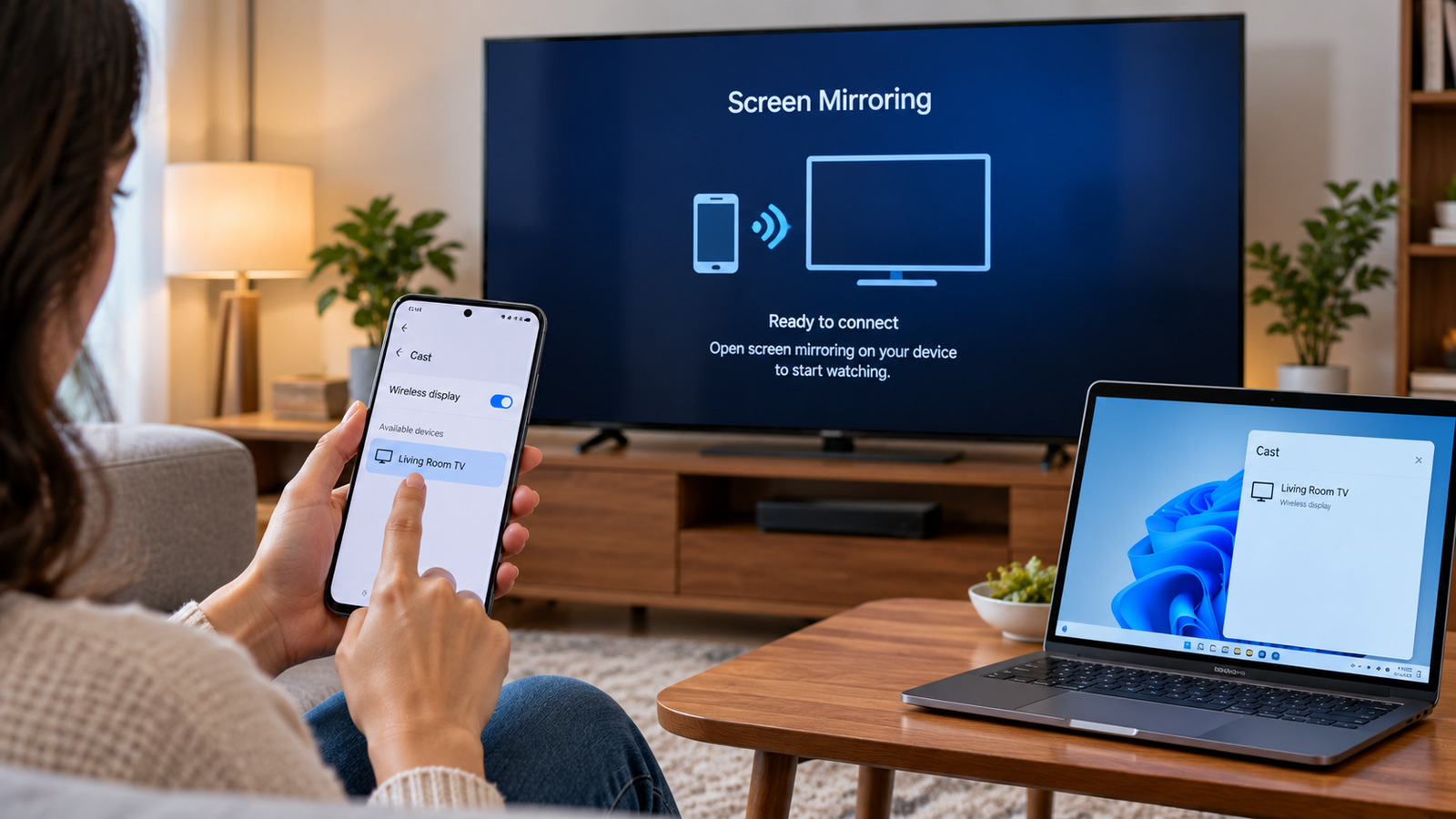
Roku Screen Mirroring Not Working? How to Fix It
If your Roku device does not appear in your phone or computer’s screen-mirroring list, refuses a connection, or connects without displaying your screen, the cause may be device compatibility, a Roku permission setting, or a problem with the wireless connection.
Roku screen mirroring is designed for compatible Android and Windows devices. It is not the same as casting a video from an app, and Apple devices use AirPlay on supported Roku models. Identifying which feature you are trying to use is the first step toward finding the right fix.
Work through the checks below in order. Start with compatibility and Roku’s screen-mirroring permissions before changing network settings or resetting anything.
First, make sure you are using the right feature
These three options can look similar, but they work differently:
- Screen mirroring: Displays your Android phone or Windows computer screen on the TV. What appears on your device is replicated on the larger screen.
- App casting: Sends supported content from an app such as YouTube to your Roku. The Roku handles playback, so you can use your phone for something else.
- Apple AirPlay: Lets compatible iPhones, iPads, and Macs share or mirror content to supported Roku devices.
If you are trying to mirror an iPhone or Mac, follow the AirPlay route rather than looking for your Roku in an Android-style screen-mirroring menu.
Quick Diagnosis: Start Here
| What you’re seeing | Start with |
|---|---|
| Your Roku does not appear in the phone or PC mirroring list | Go to Fix 1 |
| Your Roku appears, but the connection is rejected or never approved | Go to Fix 2 |
| A device was blocked previously and cannot reconnect | Go to Fix 3 |
| The devices are on different or isolated Wi-Fi networks | Go to Fix 4 |
| The Roku appears, but a fresh connection will not complete | Go to Fix 5 |
Fix 1: Check Whether Your Devices Support Screen Mirroring
Before changing settings, confirm that both the Roku device and the phone or computer support the feature.
Most current-generation Roku streaming players and Roku TV models support screen mirroring, but some older models do not. Roku lists the model number in Settings > System > About.
For example, Roku lists the Express models 3960, 3930, and 3900 as compatible, but not model 3700. Some Roku Express+ models also have limitations.
Your Android device must support a compatible wireless-display feature. Roku identifies common names such as Smart View, Quick Connect, SmartShare, AllShare Cast, Wireless display, and Display mirroring. Availability varies by manufacturer and model. Google-branded phones such as Pixel devices are an important compatibility exception in Roku’s guidance.
For a Windows PC, wireless display support depends on the computer’s Wi-Fi hardware and drivers. Press Windows key + K to open the wireless-display connection panel. If Windows reports that the device does not support Miracast, the PC may not be able to mirror wirelessly to Roku.
What to do: Check the exact Roku model and the phone or PC’s wireless-display support. If either device is incompatible, changing Roku settings will not make the connection work. Consider a wired HDMI connection or another supported way to share content.
Fix 2: Make Sure Screen Mirroring Is Allowed on Roku
Roku can reject incoming mirroring requests if its screen-mirroring mode is set to block connections.
Using your Roku remote:
- Press Home.
- Open Settings.
- Select System.
- Select Screen mirroring.
- Open Screen mirroring mode.
- Choose Prompt or Always allow, depending on how you want connection requests handled.
With Prompt, Roku asks you to approve a device when it tries to connect. With Always allow, it accepts compatible mirroring requests without asking each time.
Avoid choosing Never allow if you want to mirror a phone or computer.
For better control over access, Prompt is a sensible default on a shared or household network. It lets you approve each device rather than automatically accepting every request.
Fix 3: Check the Screen-Mirroring Device List
A previous selection can prevent a device from connecting again.
When Roku displays a mirroring request, it offers different responses:
- Allow: Accepts the current connection.
- Always allow: Saves the device as an approved device.
- Block: Rejects the current request.
- Always block: Adds the device to the blocked list and prevents future requests from that device.
If you previously selected Always block, Roku may not show another approval prompt for that device.
To review the saved list:
- Open Settings on Roku.
- Select System.
- Select Screen mirroring.
- Open Screen mirroring devices.
- Look for the phone or computer in the blocked-device list.
- Change its permission if the menu offers that option, or remove the saved block so you can try connecting again.
Menu labels can vary with Roku software and device model. If you do not see the same options, check the user guide for your specific Roku device.
Fix 4: Check the Wi-Fi Connection on Both Devices
A wireless-display connection can fail when the Roku and the device trying to mirror it cannot communicate over the network.
Check the network details on both sides:
- On Roku, open Settings > Network > About.
- Note the connected wireless network.
- On your Android phone or Windows PC, open Wi-Fi settings.
- Confirm that it is connected to the same home network.
- If your router shows separate network names for 2.4 GHz and 5 GHz, check that both devices are using the intended home network rather than a guest network.
Also check whether a guest-network setting, device-isolation feature, or router access rule is preventing devices from communicating.
If the Roku itself is disconnected or repeatedly losing its Wi-Fi connection, use our guide to fix a Roku that is not connecting to Wi-Fi before continuing with screen mirroring.
Do not change advanced router settings at random. If the devices are on different networks or a guest network is isolating them, correct that specific issue first.
Fix 5: Start a New Connection From Your Phone or Computer
Once compatibility, Roku permissions, and the network have been checked, try initiating a fresh connection.
From an Android phone
The exact name of the setting depends on the phone manufacturer.
- Unlock your phone.
- Open the Quick Settings panel by swiping down from the top of the screen.
- Look for Smart View, Screen Cast, Wireless display, or the equivalent option supported by your phone.
- Select your Roku device from the available list.
- Watch the TV for a connection request.
- Use the Roku remote to select Allow.
On Samsung phones, the feature is commonly called Smart View. Other Android manufacturers may use different names or place it in display or connection settings.
From a Windows 11 PC
- Turn on the Roku device and leave it on the Home screen.
- On the PC, press Windows key + K.
- Open the wireless-display connection panel.
- Select your Roku device if it appears.
- Approve the request on the TV using the Roku remote.
If the Roku appears but the connection fails, disconnect the attempted session and try again after checking the next steps.
Fix 6: Restart the Roku, Phone or PC, and Router
Temporary wireless or software problems can interrupt device discovery and connection requests.
Restart the devices in this order:
- Close the screen-mirroring or wireless-display menu on your phone or computer.
- Restart the Android phone or Windows PC.
- Restart the Roku from Settings > System > Power > System restart, if that option is available. On some models, the path may be Settings > System > System restart.
- If the Roku menu is unresponsive, disconnect its power cable, wait briefly, and reconnect it.
- Restart your router if other devices are also having wireless connection problems.
- Wait for the Roku and the network to come back online, then try mirroring again.
A restart is a troubleshooting step, not a guarantee. If other devices can connect to the same Roku but one phone or computer cannot, focus on that device’s compatibility and wireless-display settings.
Fix 7: Update Roku and Your Phone or Computer
Outdated software or wireless drivers can cause connection problems, particularly if mirroring stopped working after an operating-system or device update.
Check for a Roku software update
- Press Home on the Roku remote.
- Open Settings.
- Select System.
- Select Software update.
- Choose Check now if the option is available.
- Install any available update and allow the device to restart.
Update Windows
Open Settings > Windows Update and check for available updates. Also check your computer manufacturer’s support page for updated Wi-Fi and wireless-display drivers if Windows still cannot find compatible displays.
Update Android
Open your phone’s system-update settings and check for available software updates. If the phone manufacturer provides updates for wireless-display or connectivity features, install those as well.
After updating, restart the devices and test the connection again.
If Roku Screen Mirroring Still Does Not Work
If the Roku does not appear on any compatible phone or PC, confirm the Roku model and its screen-mirroring mode again. If it appears on one device but not another, the problem is more likely to be specific to the phone or computer.
You can also test with another compatible Android device or Windows PC. This helps separate a Roku-side problem from a device-specific compatibility or driver issue.
If the connection works but a particular app displays a black screen or refuses to show protected video, the app may restrict screen capture or mirroring. Try mirroring the device’s home screen or a photo instead. For supported streaming services, use the app’s own casting option or the Roku channel when available.
A factory reset should not be the first response to a screen-mirroring problem. It removes device settings and requires setup again, and it will not fix an incompatible phone, an unsupported Roku model, or a Windows PC without Miracast support. Consider it only after checking the device-specific support guidance and understanding what will need to be set up again.
FAQs
Why does my Roku not appear in the screen-mirroring list?
The Roku may not support the feature, screen mirroring may be disabled, or the phone or computer may not support a compatible wireless-display standard. Check the Roku model, its screen-mirroring mode, and the sending device’s compatibility.
Why does Roku ask for permission every time I mirror?
The Roku’s screen-mirroring mode may be set to Prompt, or you may have selected Allow rather than Always allow for the device. Prompt asks for approval for each new attempt; Always allow saves that device as approved.
Can I screen mirror an iPhone to Roku?
Apple devices use AirPlay on compatible Roku models. They do not use the Android/Windows screen-mirroring process described in this guide. Check that AirPlay is supported and enabled on your Roku device.
Is screen mirroring the same as casting?
No. Screen mirroring duplicates your device’s screen on the TV. Casting sends supported content from an app to Roku for playback, allowing you to use your phone for other tasks.
Do I need the Roku and my phone to be on the same Wi-Fi network?
Roku’s troubleshooting guidance recommends connecting the phone or computer and Roku to the same network when screen mirroring fails. Check that neither device is on a guest network or an isolated connection.
