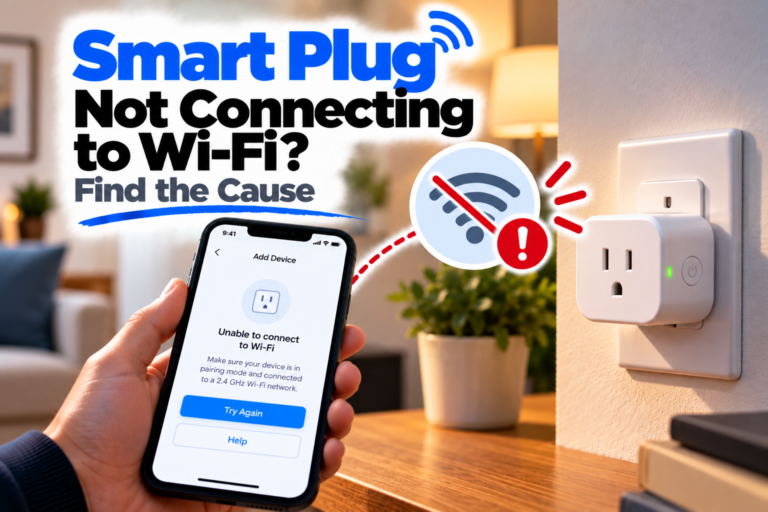
Smart Plug Not Working With Alexa? Find the Problem
Smart Plug is not working with Alexa, the plug may still work perfectly from its own app while Alexa says it can’t find the device, can’t reach it, or simply doesn’t respond to your voice command.
That distinction is important. Alexa isn’t necessarily the part that’s failing. A smart plug usually reaches Alexa through its manufacturer’s app and integration, so you need to find out whether the plug itself works first and then trace the connection into Alexa.
Quick Diagnosis: Smart Plug Not Working With Alexa?
| What you’re seeing | Start here |
|---|---|
| Alexa can’t find the smart plug | Go to Fix 1 |
| Alexa finds the plug but says it’s unresponsive | Go to Fix 2 |
| The plug works in its own app but not with Alexa | Go to Fix 3 |
| Alexa responds but controls the wrong plug | Go to Fix 4 |
| Alexa says it can’t connect to the plug | Go to Fix 5 |
| The plug stopped working with Alexa after a Wi-Fi change | Go to Fix 6 |
| Voice commands fail but the Alexa app works | Go to Fix 7 |
| Nothing restores Alexa control | Go to Fix 8 |
Fix 1: Make Sure the Plug Is Compatible With Alexa
Start with compatibility rather than troubleshooting the connection.
Not every smart plug works with Alexa, and compatible models can use different connection methods.
Check the plug’s packaging, product information or manufacturer’s app for Alexa compatibility.
Look for wording such as Works with Alexa or confirmation from the manufacturer that the particular model supports Alexa.
If the plug isn’t compatible, Alexa won’t be able to control it simply because both devices are connected to the same Wi-Fi network.
If it is compatible, continue with the setup checks.
Fix 2: Check Whether Alexa Actually Sees the Plug
Open the Alexa app and go to Devices.
Look for the smart plug in your device list.
If you can’t find it, use Alexa’s device-discovery process and allow it time to search.
You can also try saying:
“Alexa, discover my devices.”
If the plug appears after discovery, try controlling it from the Alexa app before testing voice commands.
If Alexa still can’t find it, don’t keep repeating discovery. The plug may not be properly connected to its manufacturer’s service yet.
Fix 3: Test the Plug From Its Manufacturer’s App
This is the most important diagnostic step in this article.
Open the app that normally controls your smart plug.
Try turning the plug on and off from there.
If the manufacturer’s app works
The plug itself is probably online and responding correctly.
The problem is more likely with the Alexa integration, account linking or the Alexa skill used by the device.
In that situation, reconnect the manufacturer’s Alexa integration rather than resetting the plug immediately.
If the manufacturer’s app doesn’t work
Alexa isn’t your primary problem.
Check the plug’s Wi-Fi connection, power and device status in the manufacturer’s app first.
Once the plug works normally there, return to Alexa.
This one test can save you from resetting both your Echo and your smart plug unnecessarily.
Fix 4: Check the Plug’s Name in Alexa
Sometimes Alexa is controlling the wrong device because the names are too similar.
For example, you might have:
- Bedroom Plug
- Bedroom Lamp
- Bedroom Socket
- Bedside Plug
If Alexa hears a name that matches more than one device, your command may not affect the plug you intended.
Open the Alexa app and check the smart plug’s device name.
Give it a simple, distinctive name that is easy to say.
Then test a direct command such as:
“Alexa, turn on Bedroom Plug.”
If you have multiple plugs with similar names, renaming them can make voice control much more reliable.
Fix 5: Check the Alexa Skill or Device Integration
Many third-party Wi-Fi smart plugs connect to Alexa through the manufacturer’s Alexa integration or skill.
If the plug works in its own app but Alexa says it is unavailable, the integration may need to be refreshed.
Open the Alexa app and find the integration associated with your smart plug’s brand.
If necessary, disable the relevant skill and add or enable it again.
You may need to sign back into the manufacturer’s account during the process.
After reconnecting it, run device discovery again.
Then check whether the plug appears correctly under Devices.
Don’t reset the physical plug unless the manufacturer’s app itself is also having trouble.
Fix 6: Check What Changed on Your Wi-Fi
If Alexa worked yesterday and suddenly stopped controlling the plug today, think about what changed.
Did you:
- Replace the router?
- Change the Wi-Fi password?
- Change the Wi-Fi network name?
- Move the plug?
- Reconfigure your network?
- Change the smart-home account?
Most Wi-Fi smart plugs need to remain connected to the network they were configured with.
If the plug has lost its Wi-Fi connection, fix that in the manufacturer’s app first.
Also remember that many smart-home Wi-Fi devices use 2.4 GHz Wi-Fi, so router changes that affect the 2.4 GHz network can matter.
Once the plug is working normally in its own app again, test Alexa.
Fix 7: Check Alexa and Echo Connectivity
If the plug works in its manufacturer’s app and appears correctly in Alexa, but voice commands fail, check the Alexa side.
Make sure your Echo device is:
- Powered on
- Connected to the internet
- Signed into the expected Amazon account
- Running current software
Try controlling the plug directly from the Alexa app.
If the app can control it but the voice command doesn’t work, check the device name and try a simpler command.
If Alexa can’t control the plug from the app either, restart your Echo and try again.
Also check whether other Alexa smart-home devices are responding.
If multiple devices have stopped responding, the issue may be with Alexa, the Echo or your network rather than the individual plug.
Fix 8: Remove and Reconnect the Plug
If the smart plug works in its own app but remains unresponsive through Alexa after refreshing the integration, remove the Alexa connection and set it up again.
Start by removing the affected device or integration from Alexa as appropriate for your setup.
Then reconnect the manufacturer’s account or skill and run device discovery again.
Once the plug appears:
- Give it a clear name.
- Check its device status.
- Control it from the Alexa app.
- Test a voice command.
- Recheck any routines that use the plug.
If the plug still works perfectly through its manufacturer’s app but Alexa refuses to control it, the issue is likely with the integration rather than the physical plug.
A reset of both the smart plug and Alexa device should be a final step, not the starting point.
Why This Happens
A smart plug controlled by Alexa usually has several layers between your voice command and the electrical outlet.
The chain can look roughly like this:
Your voice → Alexa → Alexa integration → manufacturer’s service → smart plug → connected appliance
A problem at any point can produce the same message: Alexa isn’t controlling my plug.
That’s why testing the manufacturer’s app first is so valuable.
Common causes include:
- The plug isn’t Alexa-compatible
- Alexa hasn’t discovered the device
- The manufacturer’s integration isn’t connected correctly
- The plug is offline
- Wi-Fi credentials have changed
- Alexa has the wrong device name
- The Echo itself has a connectivity problem
- Multiple devices have similar names
- An Alexa routine is changing the plug’s state
How to Prevent Smart Plug Alexa Problems
Give your smart plugs simple, distinctive names rather than names that sound almost identical.
When setting up a new plug, configure it through the manufacturer’s app first and then connect it to Alexa.
If you change your Wi-Fi network or password, check your smart-home devices afterward rather than assuming they’ll all reconnect automatically.
It’s also worth testing a plug from its original app occasionally. If it stops responding there, you’ll know the problem exists before Alexa becomes involved.
And if you have several smart plugs, keep their names and room assignments organised. That makes voice control much less error-prone.
Frequently Asked Questions
Why is Alexa not controlling my smart plug?
First check whether the plug works from its manufacturer’s app. If it does, the problem is likely with the Alexa integration, skill, device discovery or account linking.
Why can’t Alexa find my smart plug?
Make sure the plug is compatible with Alexa and properly configured through its manufacturer’s app. Then run device discovery in Alexa.
Why does my smart plug work in its own app but not Alexa?
The plug is probably connected correctly. Check the manufacturer’s Alexa integration or skill, reconnect the account if necessary and run device discovery again.
Why does Alexa control the wrong smart plug?
The device names may be too similar. Rename your plugs with simple, distinctive names and make sure each one is assigned to the appropriate room.
Why did Alexa stop controlling my smart plug after I changed Wi-Fi?
The plug may have lost its connection to the new network. Restore the plug’s Wi-Fi connection through its manufacturer’s app before troubleshooting Alexa.
Do smart plugs need 2.4 GHz Wi-Fi for Alexa?
Many Wi-Fi smart plugs support 2.4 GHz and may not support 5 GHz. The exact requirement depends on the plug, so check its specifications.
Should I reset my smart plug if Alexa isn’t working?
Not immediately. First check the plug in its manufacturer’s app, then troubleshoot Alexa discovery and the manufacturer’s integration. Resetting should be one of the final steps.