Roku App Not Finding Your Roku Device? How to Fix It
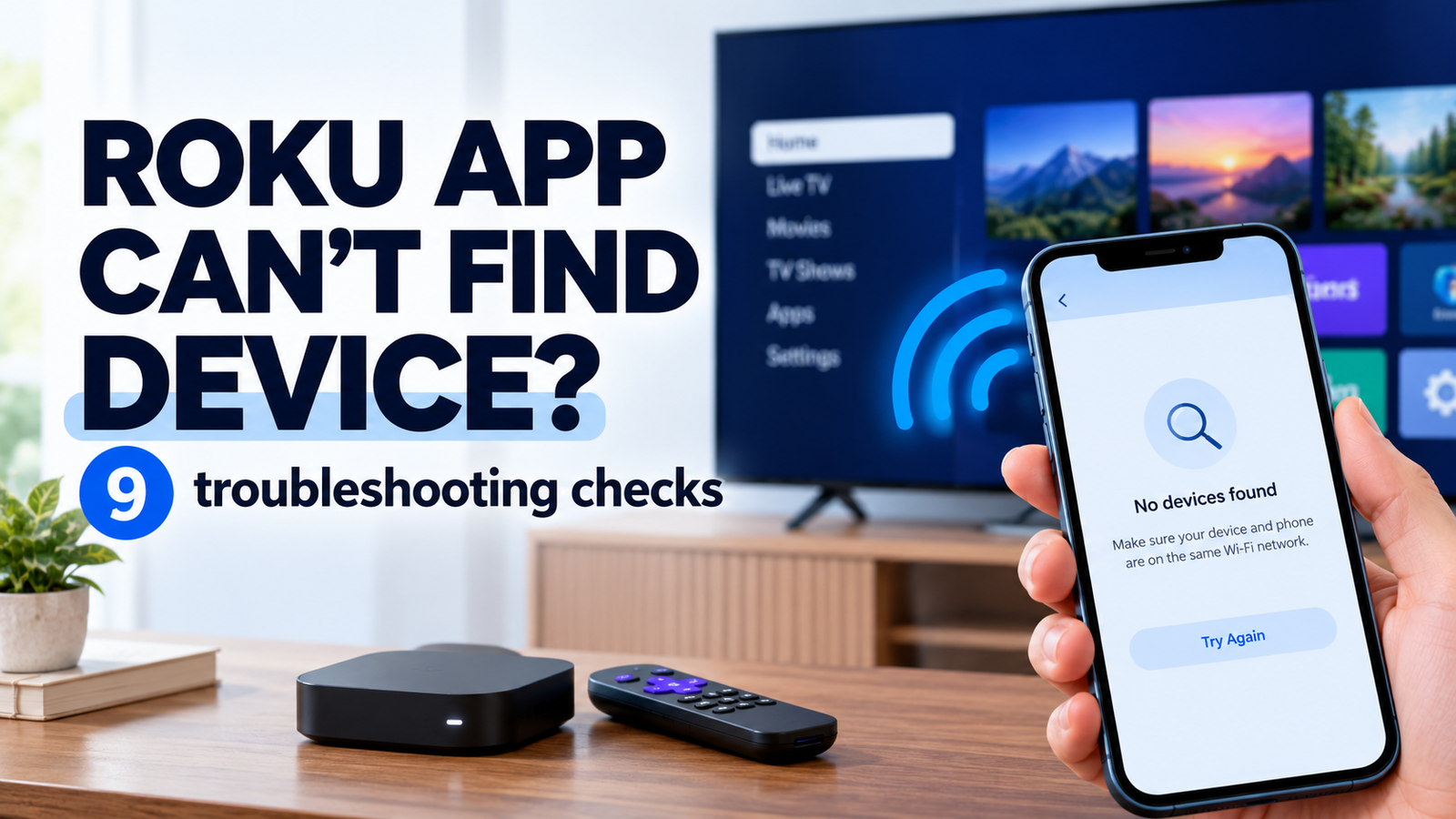
When the Roku mobile app cannot find your Roku TV or streaming player, the device may be missing from the app’s device list even though it appears to be working normally. You might also see a “No devices found” message or find that the app detects your Roku but cannot connect to it.
The most common causes of Roku app not finding device include the phone and Roku being on different networks, a missing permission on your phone, a VPN interfering with local connections, or a network setting preventing devices from communicating.
Work through the checks below in order. Start with the network connection before changing settings or reinstalling the app.
| What you’re experiencing | Where to start |
|---|---|
| The Roku device doesn’t appear in the app at all | Go to Fix 1 |
| Your phone and Roku use the same Wi-Fi, but the app still finds nothing | Go to Fix 3 |
| The app stopped finding Roku after a network or router change | Go to Fix 4 |
| The Roku appears in the app, but the connection fails | Go to Fix 5 |
| The Roku app stopped working after a phone update or permission change | Go to Fix 2 |
| The app worked previously but suddenly stopped detecting Roku | Go to Fix 7 |
Fix 1: Make sure your phone and Roku are on the same Wi-Fi network
The Roku mobile app needs a local network connection to discover and control your Roku device. Having both devices connected to the internet is not enough if they are connected to separate networks.
For example, your phone might be using a guest Wi-Fi network while the Roku is connected to your main home network. The network names may look similar, but the devices might not be able to communicate.
Check the connection on your Roku:
- Use your physical Roku remote to open the Home screen.
- Go to Settings → Network → About.
- Note the network name.
- Open Wi-Fi settings on your phone and connect to that same network.
- Open the Roku app and select Devices to check whether your Roku appears.
If your Roku has lost its network connection, reconnect it before trying the app again.
If the Roku itself cannot connect to Wi-Fi, follow the separate Roku Wi-Fi troubleshooting guide.
Fix 2: Allow the Roku app to access your local network
On an iPhone or iPad, the Roku app needs permission to discover devices on your local network. If that permission is disabled, the app may not find your Roku even when both devices use the same Wi-Fi.
On iPhone or iPad
- Open Settings.
- Scroll down to Apps and select Roku. The location may differ slightly by iOS version.
- Find Local Network.
- Turn the permission on if it is disabled.
- Return to the Roku app and check the device list again.
If the permission is already enabled, leave it on and continue to the next check.
On Android
Android menu names and available permissions vary by version and device manufacturer.
- Open Settings → Apps → Roku.
- Open Permissions.
- Review any relevant nearby-device or network-related permissions that your Android version exposes.
- Allow a permission if it is required by the app and currently denied.
- Reopen the Roku app and check Devices.
Do not assume that every Android phone has a permission with the same name. If no relevant permission is listed, continue troubleshooting.
Fix 3: Turn off your VPN temporarily
A VPN can route your phone’s traffic through a virtual network, which may prevent it from discovering devices on your home network. Roku’s own guidance identifies VPN use as a possible reason the mobile app cannot see a Roku device.
To test this:
- Open your VPN app.
- Disconnect the VPN temporarily.
- Make sure your phone remains connected to your home Wi-Fi.
- Reopen the Roku app and check the device list.
If Roku appears after you disconnect the VPN, the VPN or its network-routing settings may be interfering with local discovery.
Reconnect the VPN after the test if you need it. If the problem returns, check whether your VPN supports local-network access or split tunneling. Avoid leaving the VPN disabled as a permanent workaround unless that is appropriate for your needs.
Fix 4: Check whether your router is isolating devices
Some routers and Wi-Fi systems have settings that prevent connected devices from communicating with one another. This can happen on guest networks or when a feature such as client isolation, AP isolation, or wireless isolation is enabled.
That can explain a confusing situation: your phone can browse the internet, your Roku can stream content, and yet the Roku app cannot discover the device.
Try these checks:
- Confirm that neither device is connected to a guest network.
- If your router has separate main and guest networks, connect both devices to the main network for testing.
- If you use a mesh Wi-Fi system or Wi-Fi extenders, check whether the phone and Roku are being placed on networks that allow local device communication.
- If you manage the router, review its client-isolation settings. Change them only if you understand the security implications.
You do not normally need to disable your router’s firewall or open random ports for the Roku app. If the router is managed by your internet provider, workplace, or building, ask the administrator whether local devices are allowed to communicate.
Fix 5: Enable control by mobile apps on your Roku
Your Roku device has a setting that governs whether mobile apps can control it. If mobile-app control is restricted or disabled, discovery or connection may not work as expected.
Using your physical Roku remote:
- Open Settings.
- Select System.
- Open Advanced system settings.
- Select Control by mobile apps if that option is available.
- Review the current setting and choose an appropriate enabled option.
The exact menu wording can vary by Roku software version. Some versions use an External Control menu instead.
Choose the default or enabled option intended for normal control over your home network. Avoid permissive settings intended for unusual network configurations, because they can expose device control more broadly than necessary.
If you cannot find the setting, consult the official Roku instructions for your device and software version. Do not change unrelated security settings to make the app work.
Fix 6: Check that your Roku is powered on and connected
The Roku mobile app cannot act as a replacement remote if the Roku device is offline or has not been connected to the network.
This matters if you recently moved your Roku to another room or home, changed your Wi-Fi name or password, reset the device, or unplugged it for an extended period.
Check the following:
- The Roku TV or streaming player is powered on and responsive.
- Its Home screen loads normally.
- The device is still connected to the expected network.
- It has not been reset or disconnected from Wi-Fi since you last used the app.
If you are using a Roku streaming stick or player, confirm that it receives power. If your Roku is connected through a TV’s USB port, try the power arrangement recommended for your model if you suspect it is not starting reliably.
If you no longer have the physical remote and the Roku is not connected to Wi-Fi, the mobile app generally cannot discover it and connect it to a new network by itself. You may need a compatible physical remote or another supported way to reconnect the Roku first.
Fix 7: Restart the Roku, phone, and router in the right order
If the network and permissions look correct, restart the devices to clear temporary connection or discovery problems.
Follow this sequence:
- Close the Roku app on your phone.
- Restart your Roku using Settings → System → Power → System restart, if available. Otherwise, use the restart option provided by your model.
- Restart your phone.
- If the app still cannot find the Roku, restart your router according to its manufacturer’s instructions.
- Wait for the Wi-Fi network to return and confirm that both devices are connected.
- Open the Roku app and check the device list again.
If your router is also your modem, you may have a single gateway device. Restarting it can temporarily disconnect other devices, so choose a convenient time.
A restart can resolve temporary faults, but it will not fix a persistent permission problem, a guest-network restriction, or a router configuration that blocks local communication.
Fix 8: Update the Roku app and check for device software updates
An outdated app or a pending device update may contribute to connection problems. Updating is worth trying once the network checks are complete.
Update the Roku mobile app
- iPhone or iPad: Open the App Store, search for the official Roku app, and install an available update.
- Android: Open the Google Play Store, find the official Roku app, and install an available update.
After updating, reopen the app and check whether the device appears.
Check your Roku software
Using your physical remote, open Settings → System → Software update if that option is available. Check for updates and follow the on-screen instructions.
Menu labels can vary by model and software version. Do not interrupt a software update while it is installing.
If the app is already up to date and the Roku is running current software, move on rather than repeatedly reinstalling the same versions.
Fix 9: Clear temporary app problems or reinstall the app
Use this step only after checking the network, permissions, VPN, router settings, and Roku’s mobile-control setting.
On Android
- Open Settings → Apps → Roku.
- Select Storage or Storage & cache, depending on your phone.
- Choose Clear cache, if available.
- Reopen the Roku app and test device discovery.
Avoid choosing Clear data as your first step. It can reset app settings and require you to set up the app again.
On iPhone or iPad
iOS does not offer the same general-purpose app-cache control available on many Android phones. Close and reopen the app first. If the issue persists, reinstall the official Roku app from the App Store.
Before reinstalling, make sure you know any account details you may need to sign in again.
After reinstalling, grant Local Network permission if prompted, confirm the phone is on the correct Wi-Fi network, and open the app’s device list.
Important: Reinstalling the app will not fix a Roku device that is offline or a router that blocks communication between devices. If the Roku remains missing, return to the network checks rather than repeating the reinstall process.
If the Roku app still cannot find your device
If none of these steps works, narrow down where the failure occurs:
- The Roku itself is offline: Resolve the Roku’s Wi-Fi connection first.
- The Roku streams normally, but the phone cannot find it: Focus on local-network permission, VPN routing, guest Wi-Fi, and router isolation.
- The Roku appears, but the app cannot connect: Check the mobile-control setting and network configuration.
- The issue started after a router or phone change: Recheck the relevant permissions and network settings before resetting anything.
If the problem continues, note your Roku model, phone model, operating-system version, router setup, and any recent network changes before contacting Roku support. These details can help narrow down a discovery issue.
Avoid a factory reset as an early troubleshooting step. It can erase device settings and require you to set up the Roku again without necessarily fixing the underlying network problem.