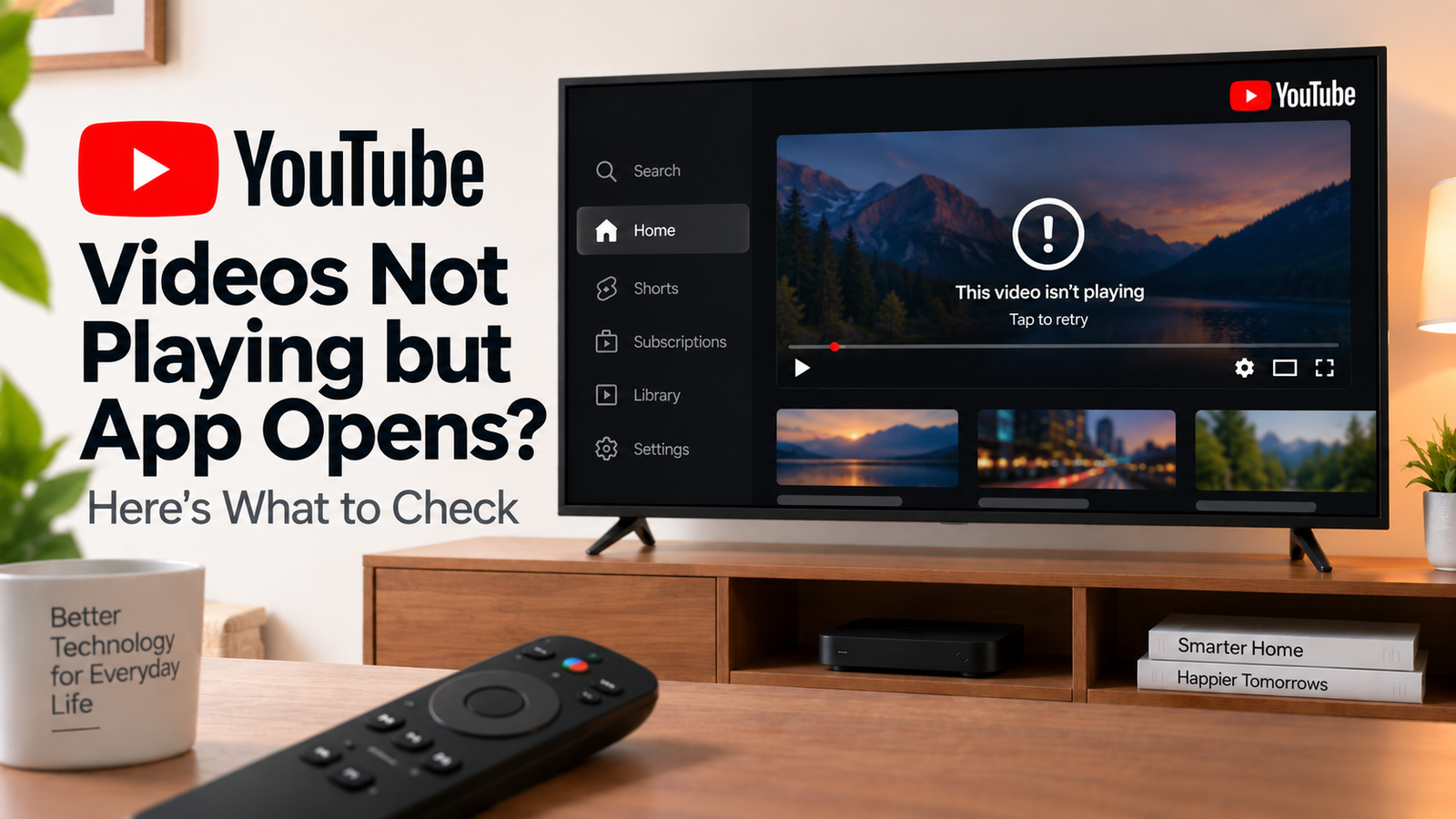
YouTube Videos Not Playing but App Opens? Here’s What to Check
If YouTube videos are not playing on TV but the app opens normally, the problem is usually different from an app that won’t launch. You may be able to browse, search and see thumbnails while the actual video remains stuck, shows an error or refuses to start.
The key is to determine whether the problem affects every video, only certain videos or only higher-quality playback.
YouTube videos not playing on TV?
Quick Diagnosis: Start Here
| What you’re seeing | Start here |
|---|---|
| YouTube opens but videos stay loading | Go to Fix 1 |
| One video won’t play | Go to Fix 2 |
| All videos show an error | Go to Fix 3 |
| Videos play after lowering quality | Go to Fix 4 |
| Other apps play normally | Go to Fix 5 |
| YouTube stopped playing after an update | Go to Fix 6 |
| Videos work on another device | Go to Fix 7 |
| Nothing plays on the TV | Go to Fix 8 |
Why This Happens
Video playback can fail even when the YouTube app itself opens correctly.
Possible causes include:
- Unstable internet
- Network congestion
- Video-quality settings
- A YouTube app problem
- Outdated TV software
- Temporary device problems
- Content-specific restrictions
- An unsupported or outdated device
Fix 1: Restart the YouTube App
Return to the TV home screen and reopen YouTube.
Then select a different video.
If your TV offers a force-stop option, use it before reopening the app.
A simple app restart can resolve temporary playback errors without changing any account or network settings.
Fix 2: Try Several Different Videos
Don’t troubleshoot using only the original video.
Search for three unrelated videos and test them.
If one video fails but others play normally, the issue may be specific to that video.
If everything fails, continue with the connection and device checks.
This distinction is especially useful when an error appears only with a particular title.
Fix 3: Check Your Internet Connection
YouTube recommends checking your internet connection when videos won’t play.
Restart your router and test again.
Also check another app on the TV.
If multiple streaming services have playback problems, focus on the network.
If YouTube alone has the problem, continue with YouTube-specific troubleshooting.
You can also run a speed test near the TV. Remember that the connection available to the TV can be affected by Wi-Fi signal quality and other devices using the network.
Fix 4: Lower the Video Quality Temporarily
Start the video and open its quality settings.
Choose a lower resolution and test playback.
If the video begins playing normally at a lower quality, the issue may involve available bandwidth or network stability.
This doesn’t necessarily mean your internet connection is permanently too slow. Network congestion, Wi-Fi interference and simultaneous use by other devices can reduce the bandwidth available to the TV.
Fix 5: Restart the TV or Streaming Device
If the network is working and the YouTube app still won’t play videos, restart the device.
For a streaming stick or box, disconnect the power for at least 30 seconds and reconnect it.
For Google TV, you can use the system restart option.
After restarting, open YouTube and test multiple videos.
Fix 6: Update YouTube and Device Software
Check the TV’s app store for a YouTube update.
Also check the TV or streaming device for a system update.
YouTube’s official troubleshooting guidance recommends keeping both the app and device software up to date when dealing with playback errors.
Restart the TV after updating and test again.
Fix 7: Test YouTube on Another Device
Open the same YouTube video on a phone, computer or another supported device.
If it plays normally elsewhere but not on your TV, the problem is likely related to the TV, its app installation, software or network connection.
You can also test another way of getting YouTube onto the TV, such as casting from a supported phone or using another streaming device.
If the alternative method works, you’ve narrowed the problem considerably.
Fix 8: Refresh or Reinstall YouTube
If YouTube still opens but no videos play, check whether your TV provides options to:
- Force stop YouTube
- Clear cache
- Reset the app
- Uninstall YouTube
- Reinstall YouTube
Try the least disruptive option first.
If the app can be reinstalled, download it again from the official TV app store.
Avoid performing a complete TV factory reset unless the broader device is malfunctioning and other troubleshooting has failed.
How to Prevent YouTube Playback Problems
- Keep YouTube updated.
- Keep TV software current.
- Maintain a stable Wi-Fi connection.
- Avoid unnecessary network congestion during high-quality streaming.
- Restart the TV or streaming device when playback becomes unusually unstable.
- Test multiple videos before assuming YouTube itself is completely down.
Frequently Asked Questions
Why does YouTube open but videos won’t play?
The app can function normally while the playback connection fails. Check the network, try another video, restart the TV and test a lower video quality.
Why does YouTube say an error occurred?
The message can result from connection problems, an outdated app, device software or a temporary playback issue. Restart the connection and device, then check for updates.
Why do YouTube videos work on my phone but not my TV?
The TV may have a weaker network connection or a problem with its YouTube installation or software. Compare the two devices using the same network.
Why do some YouTube videos play while others don’t?
If only particular videos fail, the issue may be specific to those videos rather than the TV’s YouTube installation.