Google TV Bluetooth Headphones Not Connecting? How to Fix It
Your Bluetooth headphones may work perfectly with your phone but refuse to connect to Google TV. The headphones might not appear in the accessory list, pairing may fail, or the TV may show the headphones as paired without reconnecting to them.
The right fix depends on where the connection fails. Start by checking whether the headphones are discoverable, then work through pairing, saved-device settings, and a restart before considering more disruptive options.
If you can’t navigate Google TV settings because the remote itself is not responding, our guide to Google TV remote problems can help you address that separate issue first.
| What you’re seeing | Start with |
|---|---|
| Headphones do not appear in the accessory list | Go to Fix 1 |
| Headphones keep reconnecting to a phone or computer | Go to Fix 2 |
| Previously paired headphones will not connect | Go to Fix 3 |
| Another Bluetooth audio device is connected | Go to Fix 4 |
| Pairing still fails after the basic checks | Go to Fix 5 |
Why Google TV Bluetooth Headphones Won’t Connect
The problem can occur at different stages of the Bluetooth connection:
- The headphones are not in pairing mode or are not discoverable.
- The headphones are still connected to a phone, tablet, or computer.
- Google TV has a saved pairing that is no longer connecting correctly.
- Another Bluetooth audio device is already connected.
- The headphones themselves have a connection or software problem.
- Google TV needs to be restarted.
Google TV supports Bluetooth accessories, but menu names and available options can vary by TV brand, streaming device, and software version. The steps below use the common Google TV settings path; if your device uses different wording, look for the equivalent Remote & Accessories or Bluetooth menu.
Fix 1: Put the Headphones in Pairing Mode
Start here if your headphones do not appear in the Google TV accessory list.
- Turn on the headphones.
- Activate their Bluetooth pairing mode using the method specified by the headphone manufacturer.
- Keep the headphones close to the TV or streaming device while pairing.
- On Google TV, open your profile picture or initial from the home screen and select Settings.
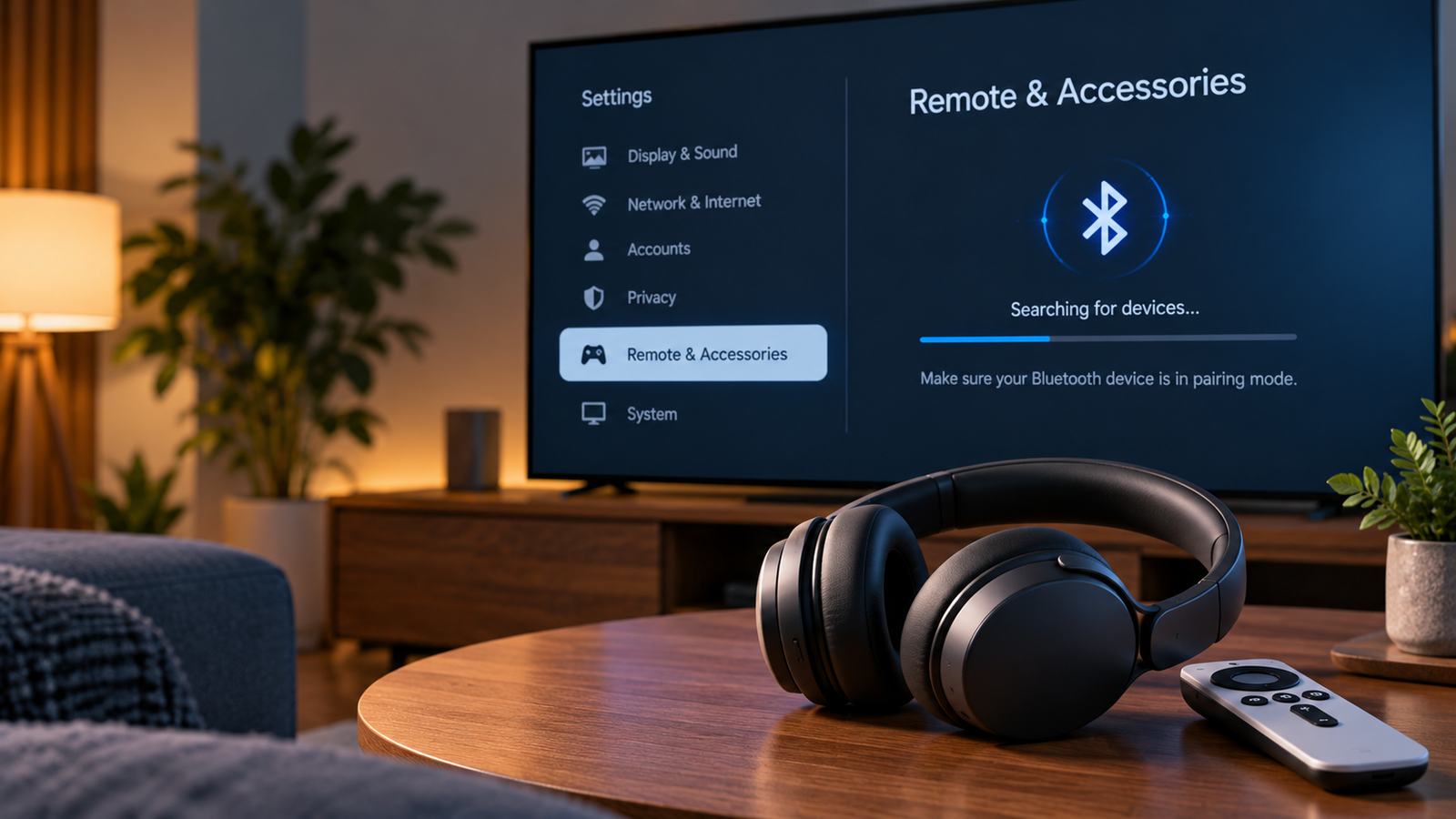
- Select Remote & Accessories.
- Choose Pair remote or accessory.
- Wait for the headphones to appear, select them, and confirm Pair.
Do not assume that switching the headphones on automatically makes them discoverable. Some models require you to press and hold a Bluetooth or power button until an indicator flashes or a voice prompt confirms pairing mode.
If the headphones still do not appear, turn Bluetooth off temporarily on nearby phones, tablets, and computers that have previously used them. Some headphones automatically reconnect to a known device and may not remain available for a new pairing attempt.
Try searching for the headphones again.
Fix 2: Disconnect the Headphones From Other Devices
Headphones that are already connected to another device may not accept a new connection in the way you expect. This depends on the headphone model and whether it supports multipoint connections.
- Turn off Bluetooth on the phone, tablet, or computer previously connected to the headphones, or disconnect the headphones from that device.
- Put the headphones back into pairing mode.
- On Google TV, open Settings → Remote & Accessories → Pair remote or accessory.
- Select the headphones when they appear.
- Confirm the pairing request on the TV if prompted.
If the headphones connect now, the previous connection was likely interfering with the new pairing attempt.
If they still do not appear or pairing fails, continue to the saved-device settings.
Fix 3: Forget the Saved Headphones and Pair Again
Use this step if the headphones appear in Google TV’s accessory list but fail to connect, or if a previous pairing no longer works.
- Open Settings → Remote & Accessories.
- Find the headphones under the saved accessories list.
- Select the headphones.
- If the option is available, choose Forget or Unpair and confirm.
- Put the headphones into pairing mode again.
- Choose Pair remote or accessory, select the headphones, and confirm pairing.
The exact labels can vary by device. Removing a saved accessory means you may need to pair it again; it does not reset the headphones to their factory settings.
If Google TV now connects successfully, test audio playback before making any other changes.
Fix 4: Disconnect Other Bluetooth Audio Devices
Google TV supports several paired Bluetooth accessories, but Google says only one Bluetooth audio device can be connected at a time.
If another pair of headphones or a Bluetooth speaker is currently connected, disconnect it before trying to use the headphones you want.
- Open Settings → Remote & Accessories.
- Select the currently connected audio accessory, if one is listed.
- Disconnect it if your device provides that option.
- Select your intended headphones and choose Connect, if they are already paired.
- If they have not been paired, use Pair remote or accessory instead.
Do not remove every saved accessory unnecessarily. Start by disconnecting the audio device you are not using. Forget an old pairing only if reconnecting it continues to fail.
Fix 5: Restart the Headphones and Google TV Device
A temporary Bluetooth problem may clear after both devices restart.
First, turn the headphones off, wait a few seconds, and turn them back on. Activate pairing mode again if you need to pair them from scratch.
Next, restart the Google TV device. Use its on-screen restart option if available. If the connection problem persists, Google recommends unplugging the TV or streaming device from power for about 10 seconds, reconnecting it, and trying again after it starts.
Important: Simply pressing the TV remote’s power button may put some TVs into standby rather than fully restarting them. Use the device’s restart option or the power-disconnection method described above.
Once Google TV has restarted, open Settings → Remote & Accessories and try connecting the headphones again.
Fix 6: Check Whether the Headphones Work With Another Device
This test helps separate a headphone problem from a Google TV problem.
- Disconnect the headphones from Google TV.
- Pair them with a phone, tablet, or computer using the manufacturer’s normal instructions.
- Play audio to confirm that they connect and produce sound.
- Disconnect them from that device.
- Put them back into pairing mode and try Google TV again.
Interpret the result carefully:
- The headphones also fail with the other device: Check the headphone’s charging level, pairing procedure, firmware, and manufacturer’s troubleshooting instructions.
- The headphones work elsewhere but fail with Google TV: The issue may be specific to the TV or streaming device, its saved Bluetooth connections, or compatibility with that headphone model.
A successful phone connection does not guarantee compatibility with every TV or streaming device, but it is a useful diagnostic clue.
Fix 7: Check for Headphone Updates Before Resetting Google TV
If the headphones connect to other devices but repeatedly fail with Google TV, check the headphone manufacturer’s official app or support instructions for available firmware updates.
Install an update only if it is intended for your specific headphone model, and follow the manufacturer’s instructions. Then try pairing again.
If multiple Bluetooth accessories fail to connect to Google TV after the preceding steps, the problem may be with the TV or streaming device rather than the headphones. Google’s troubleshooting guidance lists a factory reset as a later option when the Bluetooth accessory works with other devices but still cannot connect to Google TV.
Treat a factory reset as a last resort. It can remove device settings and require you to set up Google TV again. Before considering it:
- Confirm that more than one Bluetooth accessory has the same problem, if possible.
- Restart the Google TV device and repeat the pairing test.
- Check the manufacturer’s support guidance for your specific TV or streaming device.
- Make sure you understand what a reset will erase and how to set up the device again.
Do not factory-reset Google TV just because one pair of headphones fails to connect.
Frequently Asked Questions
Why don’t my Bluetooth headphones appear on Google TV?
The headphones may not be in pairing mode, may have reconnected to another device, or may not be compatible with your particular TV or streaming device. Put them into pairing mode, temporarily disconnect other devices, and search again under Settings → Remote & Accessories → Pair remote or accessory.
Why do my headphones pair but not connect?
A saved pairing does not always mean an active connection is established. Select the headphones under Remote & Accessories and choose Connect if that option appears. If the connection still fails, forget the saved accessory and pair it again.
Can Google TV connect to two Bluetooth headphones at once?
Google’s support guidance states that Google TV supports only one connected Bluetooth audio device at a time. If another Bluetooth audio device is connected, disconnect it before connecting your headphones.
My headphones work with my phone but not Google TV. What should I do?
Disconnect the headphones from the phone, put them into pairing mode, and try pairing again through Google TV’s Remote & Accessories settings. If the problem continues, test another Bluetooth accessory with Google TV to help determine which device is causing the issue.
Should I factory-reset Google TV if Bluetooth pairing fails?
Not as an early step. Try pairing mode, disconnecting other devices, forgetting and re-pairing the headphones, and restarting Google TV first. Consider a factory reset only if the problem persists and you have ruled out the headphones themselves.