YouTube Not Signing In on Smart TV? How to Fix It
YouTube opens on your smart TV, but you can’t sign in. Maybe the QR code won’t work, the activation code is rejected, the sign-in screen keeps reappearing, or the app connects to the wrong Google Account.
These problems can have different causes. The quickest way to narrow them down is to identify which sign-in method you’re using and where the process stops.
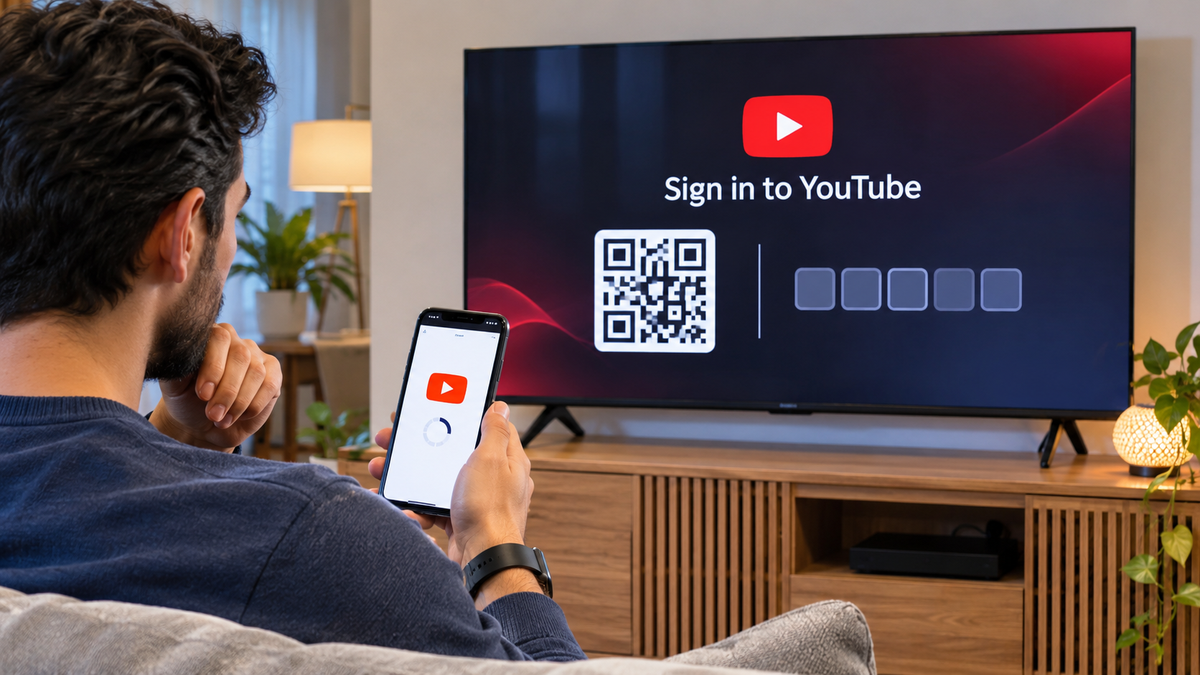
YouTube supports two main ways to sign in on a smart TV: scanning a QR code or entering the activation code on another device, and using your TV remote to enter your Google Account information. If one method fails, try the other before resetting the app.
This guide focuses specifically on YouTube account sign-in on smart TVs and supported streaming devices. If the app itself won’t open or videos won’t play, those are separate problems.
| What you’re seeing | Start with |
|---|---|
| QR code won’t scan or open the sign-in page | Go to Fix 1 |
| Activation code is rejected | Go to Fix 2 |
| Phone-based sign-in gets stuck | Go to Fix 3 |
| TV remote sign-in fails | Go to Fix 4 |
| YouTube signs in to the wrong Google Account | Go to Fix 5 |
| You can’t sign in on any device | Go to Fix 6 |
| Sign-in keeps failing after the other checks | Go to Fix 7 |
Before You Start: Check Which YouTube Sign-In You Need
Make sure you’re signing in to the regular YouTube app, not the separate YouTube TV live television service.
The two apps use different sign-in and activation processes. For the regular YouTube app, the phone-based activation page is yt.be/activate. YouTube TV uses a different activation route.
Also, don’t confuse the activation code with the TV code used to connect a phone to your television for casting. The casting code links devices for playback control; it isn’t the same as signing in to your Google Account.
Fix 1: Scan the QR Code or Open the Correct Activation Page
If the YouTube app displays a QR code, use your phone’s camera to scan it.
If scanning doesn’t open the sign-in page:
- Open a browser on your phone, tablet, or computer.
- Enter
yt.be/activatein the address bar. - Follow the sign-in instructions.
- Keep the YouTube app open on your TV so you can see the activation code.
Use the activation address displayed in YouTube’s own instructions. Avoid entering your Google password on an unfamiliar website or following links from unsolicited messages.
If the QR code is blurry, too small, or difficult to scan from your seating position, use the manual activation route instead.
Fix 2: Check the Activation Code Carefully
An activation code must match the code currently displayed by the YouTube app on your TV.
If the website rejects the code:
- Check the TV screen again.
- Enter the code exactly as displayed.
- Check for characters that may look similar.
- Make sure you haven’t accidentally entered a code from an earlier sign-in attempt.
- Return to the sign-in screen and restart the process if the displayed code is no longer accepted.
Don’t keep submitting the same rejected code. Start a fresh sign-in attempt and use the newly displayed code.
Also check that you’re using yt.be/activate for the regular YouTube app, not the activation page for YouTube TV.
Fix 3: Check the Phone and TV’s Wi-Fi Connection
If you’re signing in with your phone, check the network connection on both devices.
YouTube’s sign-in guidance recommends that the phone and smart TV be connected to the same Wi-Fi network.
Try these checks:
- Open Network or Wi-Fi settings on your TV.
- Note the name of the connected Wi-Fi network.
- Open Wi-Fi settings on your phone.
- Confirm that the phone is connected to the same network.
- If your phone is using mobile data, temporarily turn mobile data off and make sure Wi-Fi is active.
- Restart the sign-in process.
If your router broadcasts separate network names for 2.4 GHz and 5 GHz, check the actual network name connected to each device. Don’t assume they are on the same network simply because both have internet access.
If the phone and TV are already on the same Wi-Fi network and activation still fails, try signing in with the TV remote.
Fix 4: Try Signing In With Your TV Remote
Phone-based activation isn’t the only way to sign in.
On the YouTube sign-in screen, look for an option such as Sign in with your remote. The wording can vary by device.
Then:
- Select the remote sign-in option.
- Use the on-screen keyboard to enter your Google Account email address.
- Follow the prompts to enter your password.
- Complete any additional verification steps shown on the screen.
Typing with a TV remote can be slower, but it provides an alternative when QR scanning, phone connectivity, or activation-code entry isn’t working.
If remote sign-in fails but phone activation works, you can use the phone method instead. You don’t need to keep troubleshooting a sign-in method that isn’t required.
Fix 5: Select the Correct Google Account
YouTube uses your Google Account to sign in. If you have multiple Google Accounts, the wrong one may be selected during activation.
This can make it appear that sign-in has failed when the app has actually signed in successfully to a different account.
On your TV:
- Open YouTube.
- Select your profile picture in the left-hand navigation, if you’re already signed in.
- Open the Accounts section.
- Check which account is currently selected.
- Select the account you intended to use.
If the correct account isn’t listed, choose Add account and complete the sign-in process.
If the app displays a Who’s Watching? screen, select the appropriate account or choose Add account. Guest mode lets someone watch without signing in, but it won’t provide access to your personal subscriptions and Library.
Fix 6: Check Whether Your Google Account Can Sign In Elsewhere
If YouTube won’t accept your Google Account on the TV, test the same account on your phone or computer.
Open a browser and try signing in to your Google Account.
Pay attention to what happens:
- The account signs in normally: The issue may be specific to the TV’s YouTube app or its sign-in process.
- Google asks you to verify your identity: Complete the requested verification on a device you can access.
- The password is rejected: Check that you’re using the correct Google Account credentials.
- You can’t sign in on any device: Resolve the Google Account sign-in or recovery issue first. Repeatedly entering the same credentials on your TV won’t fix an account-level problem.
If Google asks for additional verification, follow its official recovery and security instructions. Don’t disable account security simply to make the TV sign-in process work.
Fix 7: Restart and Reset the YouTube App if Sign-In Still Fails
If the account works on other devices but YouTube continues rejecting sign-in on the TV, refresh the app and device.
Try these steps in order:
- Close YouTube and reopen it.
- Restart the TV or streaming device.
- Check for an available YouTube app update.
- Check for a TV or streaming-device software update.
- Try signing in again.
If the problem continues, look in the TV’s app settings for an option to reset YouTube.
The exact menu varies by manufacturer. Some devices offer a reset option; others may let you clear app data or reinstall the app.
Important: Resetting YouTube or clearing its stored data can sign you out and remove local app settings. Make sure you know which Google Account you intend to use before doing this.
After resetting the app, open YouTube and complete the sign-in process again.
When YouTube Still Won’t Sign In
If none of these steps works, compare the results before making more changes.
- If the same Google Account cannot sign in on a phone or computer, focus on Google Account recovery.
- If the account works elsewhere but the TV rejects both sign-in methods, check for app and device updates and consult the TV manufacturer’s support for your exact model.
- If only one account fails while another account can sign in on the same TV, investigate the affected Google Account rather than resetting the entire television.
Older streaming devices can also have different sign-in limitations. For example, YouTube does not support direct sign-in on older Chromecast devices. Those devices use a different phone-based casting experience.
Avoid factory-resetting your entire TV as an early troubleshooting step. It can remove accounts, app settings, network configuration, and other preferences without necessarily resolving a Google Account or activation problem.
Frequently Asked Questions
Why is the YouTube activation code not working on my TV?
The code may have been entered incorrectly or may no longer match the current sign-in screen. Return to the YouTube app, start a fresh sign-in attempt, and enter the newly displayed code at yt.be/activate.
Can I sign in to YouTube on my TV without scanning a QR code?
Yes. You can use the activation code on another device or select the remote sign-in option and enter your Google Account details using the TV’s on-screen keyboard.
Does my phone need to be on the same Wi-Fi network as my TV?
For YouTube’s phone-based TV sign-in troubleshooting, Google recommends checking that both devices are connected to the same Wi-Fi network. Also make sure your phone isn’t using mobile data instead of Wi-Fi.
Why does YouTube keep asking me to sign in?
The app may not be retaining the account session, or the sign-in process may not be completing successfully. Check the selected account, update the app, restart the TV, and reset the YouTube app only if simpler steps fail.
Is the YouTube TV activation code the same as the YouTube activation code?
No. Regular YouTube and YouTube TV are separate services with different activation processes. Make sure you use the activation instructions shown by the app you’re trying to sign in to.