
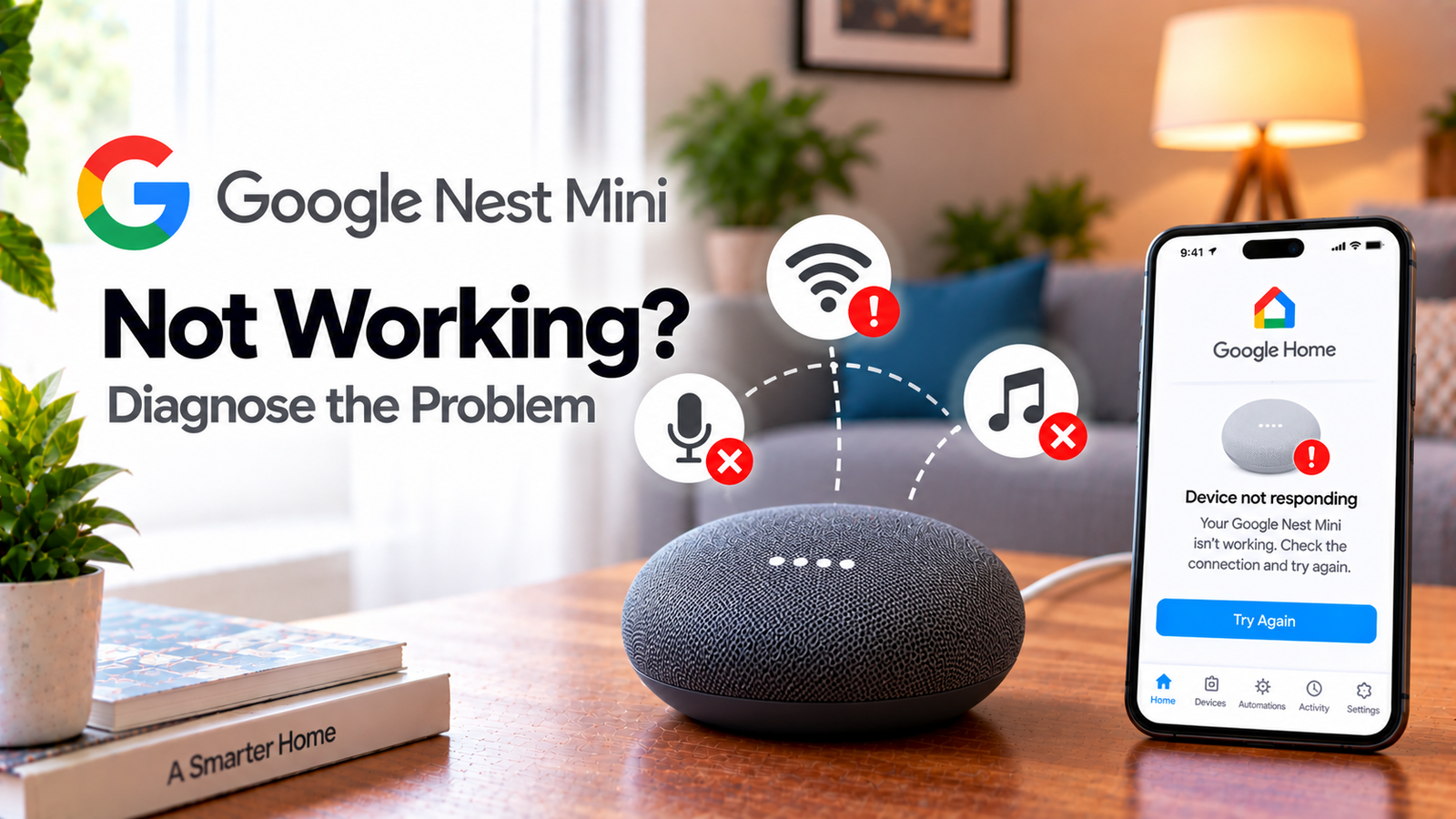
Google Nest Mini Not Working? Diagnose the Problem
If your Google Nest Mini is not working, the symptom can mean several different things. It may have no lights, fail to respond to “Hey Google,” lose its Wi-Fi connection, stop playing audio or behave strangely after an update or network change.
Because “not working” is broad, don’t start by resetting the speaker. First identify what the Nest Mini is actually doing.
Quick Diagnosis: Start Here
| What you’re seeing | Start here |
|---|---|
| No lights or signs of power | Go to Fix 1 |
| Lights are on but it doesn’t respond | Go to Fix 2 |
| Microphone appears muted | Go to Fix 3 |
| Nest Mini isn’t connected to Wi-Fi | Go to Fix 4 |
| It responds but doesn’t understand you | Go to Fix 5 |
| It stopped working after a network change | Go to Fix 6 |
| Nothing has restored normal operation | Go to Fix 7 |
Why This Happens
A Nest Mini can appear to be “not working” for several unrelated reasons.
Possible causes include:
- Power problems
- Muted microphone
- Wi-Fi disconnection
- Voice recognition problems
- Temporary software issues
- Router changes
- Incorrect setup
- Hardware problems
The fastest approach is to diagnose the symptom first.
Fix 1: Check the Power
Make sure the Nest Mini is connected properly to its power adapter and the wall outlet.
If there are no lights or signs of activity:
- Disconnect the power cable.
- Check the outlet.
- Reconnect the power.
- Wait for the device to start.
Try another compatible outlet if you suspect the original outlet is the problem.
Don’t assume a completely dark Nest Mini is a Wi-Fi problem. The device needs to power on before any network troubleshooting can help.
Fix 2: Check Whether the Nest Mini Responds
Say:
“Hey Google.”
Watch the lights.
If the speaker reacts, it is detecting the wake phrase and the issue may be related to the request, internet connection or voice recognition.
If there is no reaction, continue with the microphone and connection checks.
Fix 3: Check the Microphone
The Nest Mini has a physical microphone switch.
Make sure the microphone is enabled.
If the microphone is muted, Google Home cannot hear your commands.
After turning it back on, try:
“Hey Google, what time is it?”
If it responds, the microphone setting was the cause.
Fix 4: Check Wi-Fi
If the Nest Mini powers on but isn’t responding properly, check its network connection.
Look at the Google Home app and see whether the device appears online.
Also check another device connected to the same Wi-Fi network.
If the whole network is having problems, restart the router.
If only the Nest Mini is offline, restart the speaker and check its Wi-Fi configuration.
If you recently changed your Wi-Fi password, network name or router, the Nest Mini may need to be connected to the new network again.
Fix 5: Check Voice Recognition
If the Nest Mini reacts to “Hey Google” but repeatedly misunderstands you, test it in a quieter room.
Speak clearly and try a simple command.
Also check the speaker’s placement.
A Nest Mini hidden behind objects or positioned directly beside a loud TV may have difficulty distinguishing your voice.
If necessary, check the available “Hey Google” sensitivity setting for the device.
Fix 6: Reconnect After a Wi-Fi Change
If the Nest Mini stopped working immediately after you changed your router or Wi-Fi password, don’t assume the speaker has failed.
Google Home devices remember their network configuration.
Open the Google Home app and check the device’s Wi-Fi settings.
If you can access the network settings, forget the existing network and set the device up again.
If the app cannot communicate with the Nest Mini, you may need to reset it and complete setup again.
Fix 7: Factory Reset the Nest Mini
If the speaker has power, the microphone is enabled, the network works and normal troubleshooting hasn’t helped, a factory reset may be appropriate.
Be careful: a factory reset clears the device’s configuration.
The reset procedure depends on the Nest/Home model and generation, so use Google’s instructions for your exact device rather than relying on a generic reset method.
After the reset, open Google Home and set up the Nest Mini again.
If it still doesn’t work after a proper reset and setup, the problem may be hardware-related and may require further support.
How to Prevent Nest Mini Problems
Keep the Nest Mini connected to reliable Wi-Fi and avoid placing it directly beside loud audio sources.
If you change your Wi-Fi password or router, expect connected smart-home devices to need attention.
Also avoid performing factory resets unless simpler troubleshooting has failed.
Frequently Asked Questions
Why is my Google Nest Mini not working?
Check power, microphone status, Wi-Fi and voice recognition first. The phrase “not working” can describe several different problems.
Why does my Nest Mini have no lights?
Check the power adapter, cable and wall outlet. If the device remains completely inactive, the issue may be power-related rather than Wi-Fi.
Why does Nest Mini light up but not respond?
Check the microphone switch, Wi-Fi connection and whether the speaker recognises “Hey Google.”
Do I need to reset Nest Mini if it stops working?
Not immediately. Restart the device and check power, microphone and Wi-Fi first.
Will a factory reset erase my Nest Mini settings?
Yes. A factory reset removes the device’s configuration and requires you to set it up again.





