
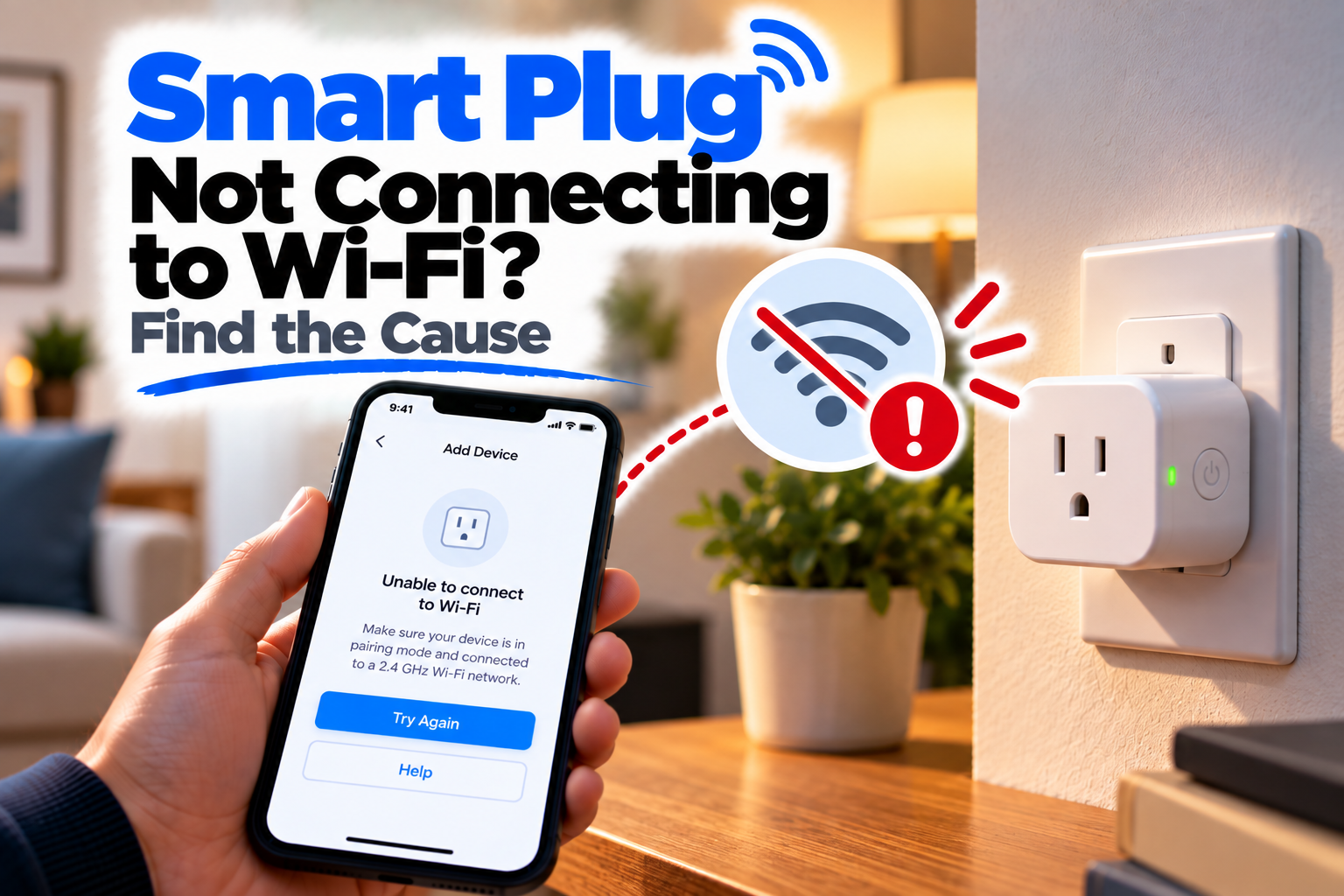
Smart Plug Not Connecting to Wi-Fi? Find the Cause
If your Smart Plug is not connecting to Wi-Fi, you may get stuck during setup, see the plug’s network but fail to complete pairing, or find that the plug connects briefly and then disappears. In some cases, the plug works normally with its physical button but refuses to join your home network.
Smart plugs are particularly sensitive to the way your Wi-Fi network is configured during setup. The good news is that most connection failures come down to a handful of things: the Wi-Fi band, password, signal, app setup, or the plug not being in pairing mode.
Quick Diagnosis: Start Here
| What you’re seeing | Start here |
|---|---|
| The app cannot find the smart plug | Go to Fix 1 |
| The plug’s Wi-Fi network doesn’t appear during setup | Go to Fix 2 |
| The plug rejects your Wi-Fi password | Go to Fix 3 |
| Setup gets stuck while connecting the plug | Go to Fix 4 |
| The plug connects and then immediately goes offline | Go to Fix 5 |
| The plug is too far from the router | Go to Fix 6 |
| You recently changed your router or Wi-Fi | Go to Fix 7 |
| Nothing works despite a working Wi-Fi network | Go to Fix 8 |
Fix 1: Put the Smart Plug Back Into Pairing Mode
Before troubleshooting your router, make sure the plug is actually ready to be configured.
A smart plug normally needs to enter a pairing or setup mode before its companion app can discover it.
Look at the indicator light on the plug. The exact light pattern varies between brands, but a flashing indicator usually means the device is ready to be configured.
If the plug isn’t showing the expected setup behaviour, reset it according to the manufacturer’s procedure and start the setup process again.
Once it is back in pairing mode, keep the plug close to the router and try adding it through the manufacturer’s app.
If the app still can’t find it, move to the next step.
Fix 2: Check Your Phone’s Wi-Fi Connection
Your phone is an important part of the setup process, so don’t overlook its connection.
Make sure your phone is connected to the same home Wi-Fi network you want the smart plug to use.
If your router broadcasts separate 2.4 GHz and 5 GHz networks, check which one you’re connected to.
Many smart plugs support 2.4 GHz Wi-Fi but not 5 GHz. If your phone is connected to a 5 GHz network during setup, the plug may not be able to complete the connection.
If your router combines both bands under one Wi-Fi name, temporarily connecting your phone to the appropriate 2.4 GHz network can make setup easier.
Fix 3: Recheck the Wi-Fi Password
A surprisingly common setup failure is simply an incorrect Wi-Fi password.
Re-enter the password carefully rather than relying on an old saved network.
Pay attention to:
- Uppercase and lowercase letters
- Numbers
- Special characters
- Spaces
- Similar-looking characters
If you’ve recently changed your Wi-Fi password, make sure you’re using the new one.
Also check that you’re selecting your actual home network rather than a nearby network with a similar name.
If the plug consistently rejects the credentials even though other devices connect using the same password, continue with the router and compatibility checks.
Fix 4: Restart the Setup Process
If the smart plug is discovered but setup gets stuck while connecting it to Wi-Fi, start the pairing process again rather than repeatedly waiting on the same screen.
Close the manufacturer’s app completely and reopen it.
Then:
- Confirm your phone is connected to the correct Wi-Fi network.
- Put the smart plug back into pairing mode.
- Open the app.
- Start the device setup again.
- Keep the phone and plug close to the router during setup.
If the app asks for permissions such as Bluetooth, Local Network or nearby-device access, allow the permissions it needs.
These permissions can vary by platform and manufacturer, but denying a required permission can prevent the app from discovering or configuring the plug correctly.
Fix 5: Check Whether the Plug Is Falling Off Wi-Fi
A plug that completes setup but immediately goes offline is a different problem from one that can’t connect in the first place.
First, check whether your other devices are staying connected to the same Wi-Fi network.
If your phone, laptop and other smart-home devices are also disconnecting, the router or internet connection may be responsible.
If only the smart plug is affected, look at the plug’s location and Wi-Fi compatibility.
Also consider whether the plug is being connected through a guest network or another restricted network. Some smart-home devices don’t behave normally on networks that isolate devices from one another.
Fix 6: Move the Plug Closer to the Router
Smart plugs are often installed behind furniture, appliances or in corners where Wi-Fi coverage isn’t as strong as it appears.
For troubleshooting, temporarily move the plug closer to your router.
Don’t make this the permanent solution. You’re testing whether signal strength is contributing to the problem.
If the plug connects normally near the router but fails in its original location, you’ve found a strong clue.
You may need to improve Wi-Fi coverage rather than replace the plug.
A mesh Wi-Fi system or better router placement can help if the original installation location has consistently weak coverage.
Fix 7: Check What Changed on Your Wi-Fi Network
Think back to when the problem started.
Did you recently:
- Replace your router?
- Change the Wi-Fi name?
- Change the password?
- Switch internet providers?
- Enable new security settings?
- Create a separate guest network?
- Change your Wi-Fi configuration?
If yes, the smart plug may simply be trying to connect using an old network configuration.
Reset the plug and configure it again using the current network details.
If your new router combines 2.4 GHz and 5 GHz under one network name, check whether the plug’s manufacturer has specific requirements for setup.
This is especially important with older smart plugs.
Fix 8: Reset the Smart Plug and Start Fresh
If you’ve confirmed that your Wi-Fi is working, the password is correct, your phone is on the appropriate network and the plug still won’t connect, reset the device.
A reset clears the plug’s previous network configuration and returns it to its setup state.
The exact reset process varies by manufacturer, so use the procedure intended for your particular plug.
After resetting:
- Put the plug into pairing mode.
- Keep it close to the router.
- Connect your phone to the appropriate Wi-Fi network.
- Open the manufacturer’s app.
- Add the plug as a new device.
- Complete the Wi-Fi setup.
If it still refuses to connect after a clean setup, the problem may be related to Wi-Fi compatibility, the router’s configuration or the plug itself.
Why This Happens
Smart plugs are simple devices, but their Wi-Fi requirements can be surprisingly specific.
The most common causes of connection problems are:
- The plug isn’t in pairing mode
- The phone is connected to the wrong Wi-Fi band
- The Wi-Fi password is incorrect
- The plug is too far from the router
- The router’s configuration has changed
- The plug doesn’t support the network’s Wi-Fi configuration
- Required app permissions aren’t enabled
- The plug’s previous network settings are still stored
A plug that worked perfectly before can also stop connecting after a router replacement or Wi-Fi password change.
How to Prevent Smart Plug Wi-Fi Problems
When setting up a new smart plug, do the first pairing close to your router. Once the connection is established, move it to its intended location and test it again.
Keep track of your Wi-Fi changes as well. If you change your network name or password, expect smart-home devices to need reconfiguration.
For older smart plugs, check their Wi-Fi requirements before changing router settings. A newer router configuration isn’t automatically compatible with every older IoT device.
And if one plug repeatedly loses connection while everything else works normally, investigate that device specifically instead of repeatedly restarting your entire network.
Frequently Asked Questions
Why won’t my smart plug connect to Wi-Fi?
Check that the plug is in pairing mode, your phone is connected to the correct Wi-Fi network, the password is correct and the plug is within good Wi-Fi range.
Do smart plugs need 2.4 GHz Wi-Fi?
Many smart plugs support 2.4 GHz Wi-Fi and may not support 5 GHz. Check your specific plug’s requirements before setup.
Why can my phone connect to Wi-Fi but my smart plug can’t?
Your phone may support Wi-Fi standards or bands that the smart plug doesn’t. Smart-home devices can also have specific network-security or setup requirements.
Why does my smart plug connect and then go offline?
Weak Wi-Fi, router configuration, network restrictions or compatibility problems can cause a smart plug to disconnect after setup.
Should I reset my smart plug if it won’t connect?
If you’ve already checked the Wi-Fi network, password, signal and pairing process, resetting the plug can clear its old network configuration and give you a clean setup.
Why can’t the smart-home app find my plug?
Make sure the plug is in pairing mode and that the app has the permissions it needs. Also check that your phone is connected to the network you’re trying to configure the plug with.
Why did my smart plug stop connecting after I changed my router?
The plug may still have your old Wi-Fi credentials stored. Resetting it and setting it up again with the new network is often necessary.





