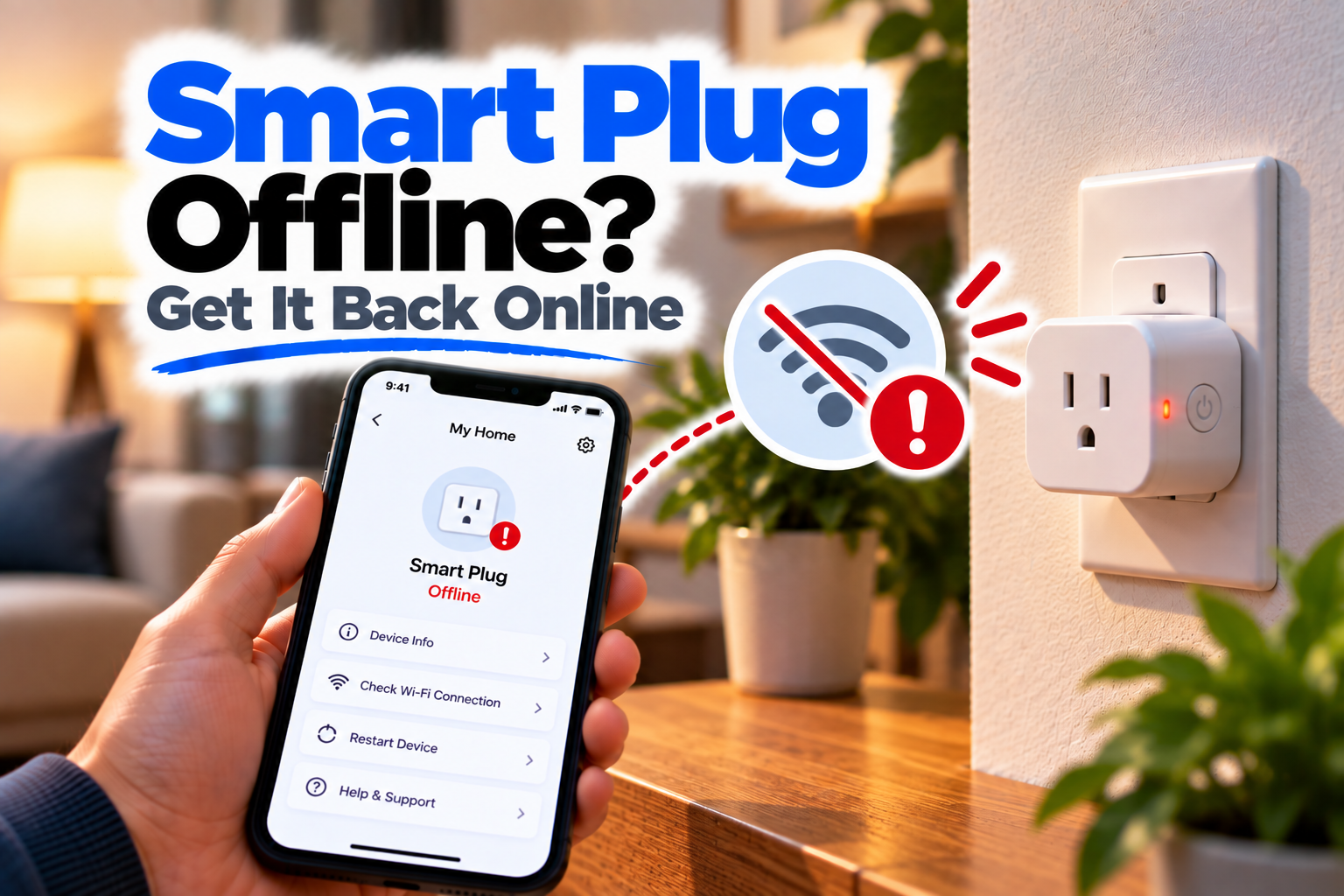
Smart Plug Offline? Get It Back Online
If your Smart Plug is offline, the device may still have power and even respond to its physical button, but the app can’t control it. Sometimes the plug goes offline after working normally for weeks; other times it happens immediately after a router restart, Wi-Fi change or power outage.
The important thing is to figure out whether the plug itself has lost power, lost its Wi-Fi connection, or is connected but no longer communicating properly with the app. Start with the simplest checks before resetting it.
Quick Diagnosis: Start Here
| What you’re seeing | Start here |
|---|---|
| The plug suddenly went offline | Go to Fix 1 |
| The plug has no light or physical response | Go to Fix 2 |
| Other devices are also offline | Go to Fix 3 |
| Only this smart plug keeps disconnecting | Go to Fix 4 |
| The plug went offline after a router or Wi-Fi change | Go to Fix 5 |
| The plug is too far from the router | Go to Fix 6 |
| The app shows the plug offline but the plug seems connected | Go to Fix 7 |
| Nothing brings the plug back online | Go to Fix 8 |
Fix 1: Check Whether the Plug Still Has Power
Before troubleshooting Wi-Fi, make sure the plug itself is actually powered.
Look at its indicator light and, if the model has a physical button, press it once.
If the connected appliance responds, that’s another useful clue that the plug has power.
If there is no indicator, no button response and the connected appliance doesn’t work, check the electrical outlet.
Try plugging another device into the same outlet.
If that device also doesn’t work, the smart plug may not be the problem at all. Check the outlet, power strip, switch or circuit supplying power to it.
If the outlet works normally but the smart plug remains completely unresponsive, continue with the next step.
Fix 2: Restart the Smart Plug
If the plug has power but appears offline in its app, give it a simple restart.
Remove the plug from the outlet, wait briefly, and plug it back in.
Allow it a little time to boot and reconnect to Wi-Fi.
Don’t immediately start resetting the device. A temporary connection problem can often clear after a power cycle.
Once the indicator shows that the plug has started normally, open its app and check its status again.
If it comes back online, try switching the connected appliance on and off to make sure control has been restored.
Fix 3: Check Your Router and Other Devices
Now look beyond the smart plug.
Are your phone, laptop and other connected devices working normally?
If several devices are having trouble, the router or internet connection may be responsible.
Restart your router and allow the network to come fully back online.
Then give the smart plug some time to reconnect.
If everything else comes back online but the smart plug doesn’t, you’ve narrowed the problem down to the plug, its Wi-Fi connection or its configuration.
This is much more useful than repeatedly resetting the plug while the router itself is having problems.
Fix 4: Check the Plug’s Wi-Fi Signal
If the smart plug repeatedly goes offline while other devices remain connected, signal strength deserves a closer look.
Think about where the plug is installed.
Is it:
- Behind a large appliance?
- Inside a cabinet?
- Several rooms away from the router?
- Near thick walls or other obstructions?
- At the far edge of your home’s Wi-Fi coverage?
Temporarily move the plug closer to the router and see whether it stays online.
If the connection becomes stable near the router, you’ve found a strong indication that coverage is the problem.
For a permanent fix, improving Wi-Fi coverage may be more effective than replacing the smart plug.
Fix 5: Reconnect the Plug After a Wi-Fi Change
If the plug went offline immediately after changing your home network, don’t treat it as a random failure.
Think about whether you recently:
- Changed your Wi-Fi password
- Changed the network name
- Replaced your router
- Switched internet providers
- Changed Wi-Fi security settings
- Created a new network
The plug may still be trying to use the old network credentials.
In that situation, you’ll generally need to put the plug back into setup mode and connect it to the current Wi-Fi network through its companion app.
If the plug was originally configured on a 2.4 GHz network, make sure your current router setup still supports the requirements of that device.
Fix 6: Move the Plug Temporarily
Sometimes the easiest way to confirm a Wi-Fi problem is to physically change the plug’s location.
Unplug it and temporarily install it somewhere closer to the router.
Give it time to reconnect.
If it remains online in the new location but repeatedly goes offline in its original position, the evidence points strongly toward poor coverage.
You can then look at improving the network rather than replacing the plug.
A mesh system, additional access point or better router placement may help, depending on your home setup.
Fix 7: Check the App and Device Status
If the plug appears to be functioning physically but the app still says Offline, check the app itself.
Start by:
- Closing the app completely.
- Reopening it.
- Checking that you’re signed into the correct account.
- Checking for an app update.
- Looking at the plug’s device status again.
If possible, test the plug from another supported phone or tablet.
If another device shows the plug as online, the problem may be with the original phone, app installation or account session.
If every device shows the plug as offline, concentrate on the plug’s network connection.
Fix 8: Reset and Set Up the Plug Again
If the smart plug has power, your Wi-Fi is working, the signal is reasonable and the app still can’t bring the device online, a reset may be necessary.
Resetting clears the plug’s existing configuration and returns it to setup mode.
Before doing this, make sure you’ve already checked the basics. Otherwise, you may simply have to repeat the same setup problem.
After resetting:
- Put the plug into pairing mode.
- Keep it reasonably close to the router.
- Connect your phone to the appropriate Wi-Fi network.
- Open the manufacturer’s app.
- Add the plug again.
- Complete the Wi-Fi setup.
- Test the plug before moving it back to its normal location.
If the plug works near the router but goes offline again in its original location, return to the Wi-Fi coverage issue rather than resetting it repeatedly.
Why This Happens
A smart plug can show as offline for several different reasons.
The most common are:
- Loss of electrical power
- Router or internet problems
- Weak Wi-Fi coverage
- Changed Wi-Fi credentials
- Router configuration changes
- App or account problems
- Temporary device glitches
- Compatibility issues with the current network
The key distinction is whether the plug itself has power.
If it doesn’t, troubleshoot the electrical side.
If it has power but can’t communicate with the app, focus on Wi-Fi and device configuration.
That simple distinction can save a lot of unnecessary resets.
How to Prevent Smart Plug Offline Problems
Try to install smart plugs where they have reasonable Wi-Fi coverage rather than at the extreme edge of your network.
If you change your router, Wi-Fi password or network name, expect some smart-home devices to need reconfiguration.
Keep the companion app updated and avoid placing the plug behind large objects that can interfere with wireless coverage.
If one particular plug repeatedly goes offline while other smart-home devices remain stable, investigate that device and its location rather than repeatedly restarting your entire network.
Frequently Asked Questions
Why is my smart plug offline even though it has power?
The plug may have lost its Wi-Fi connection, especially if the router changed, the signal is weak or the network configuration was modified.
Why did my smart plug suddenly go offline?
A temporary router problem, power interruption, weak Wi-Fi signal or network change can cause a smart plug to go offline unexpectedly.
Why does my smart plug keep going offline?
Repeated disconnections often point toward weak Wi-Fi coverage, router issues or a device-specific compatibility problem. Try moving the plug closer to the router as a test.
Will restarting my router fix an offline smart plug?
It can if the router or network is the source of the problem. Restart the router, allow it to reconnect fully and then give the smart plug time to reconnect.
Why did my smart plug go offline after changing my Wi-Fi password?
The plug may still have the previous password stored. You’ll generally need to reconnect or reset the plug and configure it with the new network credentials.
Should I reset my smart plug when it goes offline?
Not immediately. Check power, your router, Wi-Fi signal and network changes first. Resetting is more appropriate when the plug cannot reconnect after those checks.
Why does my smart plug work near the router but not in its normal location?
That strongly suggests a Wi-Fi coverage problem. The plug may simply be too far from the router or separated by obstacles that weaken the signal.