Fire TV Stick Remote App Not Connecting? How to Fix It
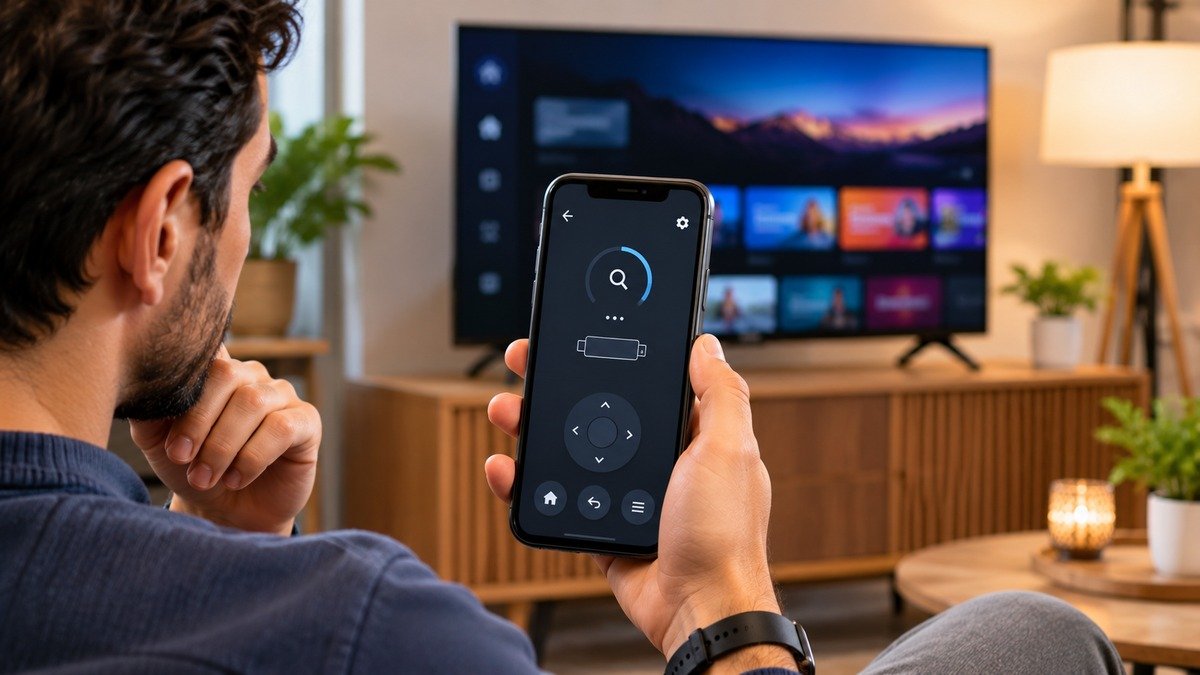
The Fire TV app can turn your phone into a remote control for your Fire TV Stick. But sometimes the app cannot find the device, gets stuck while connecting, or shows the Fire TV Stick without responding to taps.
Before reinstalling the app or changing router settings, check one important requirement: your phone and Fire TV Stick must already be connected to the same Wi-Fi network.
If the Fire TV Stick is offline, connected to a different network, or waiting for its initial setup, the mobile app may not be able to reach it. In that situation, you may need the physical remote to reconnect the Fire TV Stick first.
This guide explains how to diagnose connection, discovery, permission, and control problems with the Fire TV mobile app.
| What you’re seeing | Start with |
|---|---|
| Fire TV Stick doesn’t appear in the app | Go to Fix 1 |
| App finds the device but won’t connect | Go to Fix 2 |
| App cannot discover Fire TV on an iPhone | Go to Fix 3 |
| Fire TV appears but the controls don’t respond | Go to Fix 4 |
| App connection fails intermittently | Go to Fix 5 |
| App keeps disconnecting or freezing | Go to Fix 6 |
| Nothing works after the basic checks | Go to Fix 7 |
Fix 1: Make Sure Your Phone and Fire TV Stick Use the Same Wi-Fi Network
This is the first thing to check because the Fire TV app communicates with your Fire TV device over the local network.
Your phone and Fire TV Stick should be connected to the same Wi-Fi network.
Check both devices:
- Open Wi-Fi settings on your phone and note the connected network name.
- On your Fire TV Stick, open Settings.
- Select Network.
- Check the network name shown as connected.
- Confirm that both devices are using the same network.
If your router has separate network names for 2.4 GHz and 5 GHz, make sure the phone and Fire TV Stick are not connected to separate networks.
If you have recently changed your router, Wi-Fi password, or network name, the Fire TV Stick may still be connected to the old network.
Reconnect the Fire TV Stick to the current network using its physical remote, then reopen the mobile app.
Important: A phone connected to the same router is not necessarily on the same local network. Guest Wi-Fi or router settings that isolate connected devices can prevent local device discovery. If both devices appear to use the same network but cannot find each other, check whether your router has a guest network or client-isolation setting enabled.
Fix 2: Check Whether Fire TV Is Powered On, Set Up, and Connected
The Fire TV app cannot control a Fire TV Stick that is not reachable over the network.
Check the TV screen and confirm that:
- The Fire TV Stick is powered on.
- The Fire TV interface has loaded.
- Initial device setup has been completed.
- The device is connected to Wi-Fi.
- The Stick has not lost its network connection.
If the Fire TV Stick is still going through its initial setup, or it has lost Wi-Fi after a router change, the mobile app may not be able to connect.
This is an important limitation: the Fire TV app cannot independently connect an offline Fire TV Stick to a new Wi-Fi network. The app needs the device to be reachable first.
Use the physical remote to complete setup or reconnect the Stick to Wi-Fi. Once both devices are on the same network, try the app again.
Fix 3: Allow Local Network Access on Your iPhone
If you’re using an iPhone and the Fire TV Stick doesn’t appear in the app, check the app’s Local Network permission.
iOS asks for permission when an app wants to discover and communicate with devices on your local network. If this access was denied, the app may not be able to find your Fire TV device.
To check it:
- Open Settings on your iPhone.
- Select Privacy & Security.
- Tap Local Network.
- Find the Fire TV app in the list.
- Turn on its access if it is currently disabled.
- Reopen the Fire TV app and search for your device again.
If the Fire TV app does not appear in the Local Network list, open the app again and check whether iOS displays a permission request.
This setting is particularly worth checking when the app previously worked but stopped discovering your Fire TV Stick after a permission change or app reinstall.
Fix 4: Select the Correct Fire TV Device and Complete the Connection Prompt
If the app can discover your Fire TV Stick, select the correct device from the available list.
If more than one Fire TV device appears, check the device name on your television before selecting one.
Follow the on-screen instructions in the mobile app and on your TV. If the TV displays a connection or confirmation prompt, complete it.
Once connected, test the directional controls and select button.
If you have multiple Fire TV devices at home, avoid assuming that the first device listed is the one connected to the television you’re trying to control.
If the correct device appears but the app still cannot complete the connection, move on to the restart and network checks.
Fix 5: Restart the Fire TV Stick, Phone, and Router
A temporary connection problem can prevent the app and Fire TV Stick from communicating.
Restart the devices in this order:
Restart the Fire TV Stick
- Disconnect the Fire TV Stick from its power source.
- Wait about 10 seconds.
- Connect it to power again.
- Wait for the Fire TV home screen to load.
Restart your phone
Turn your phone off and back on. Then reopen the Fire TV app.
Restart your router if the connection still fails
- Disconnect the router from power.
- Wait about 30 seconds.
- Reconnect it.
- Wait for the Wi-Fi network to become available.
- Confirm that both devices reconnect to the same network.
Try the Fire TV app again after the devices are back online.
Fix 6: Update or Refresh the Fire TV App
If the app keeps freezing, disconnecting, or failing to respond, check whether it needs an update.
Open the Apple App Store or Google Play Store and look for an available update to the Fire TV app.
Also check whether your phone has a pending operating-system update.
If the app is already updated, try closing it completely and opening it again.
On Android, you can also try clearing the app cache:
- Open Settings.
- Go to Apps or Apps & notifications.
- Select the Fire TV app.
- Open Storage or Storage & cache.
- Select Clear cache, if available.
- Reopen the app and try connecting again.
The exact menu names vary by Android version and manufacturer. Avoid selecting Clear data unless you’re prepared to set up the app again.
Fix 7: Reinstall the Fire TV App and Set Up the Connection Again
If the Fire TV Stick is online, both devices are on the same Wi-Fi network, and the app still cannot connect, reinstalling the mobile app may help.
Before doing this, make sure you know your Amazon account sign-in details.
- Remove the Fire TV app from your phone.
- Restart your phone.
- Install the official Fire TV app again from the Apple App Store or Google Play Store.
- Connect your phone to the same Wi-Fi network as the Fire TV Stick.
- Open the app and sign in to your Amazon account.
- Select the remote option and follow the setup prompts.
If the app still cannot discover the Fire TV Stick, the issue may be related to the network or the Fire TV device rather than the app installation.
At this point, check the router’s device-isolation settings or contact Amazon support with your Fire TV model and phone details.
When You Need the Physical Fire TV Remote
There are situations in which reinstalling the mobile app will not solve the problem.
You may need the physical remote if:
- The Fire TV Stick is not connected to Wi-Fi.
- You have changed your router or Wi-Fi password.
- The Stick is waiting for initial setup.
- The Fire TV screen requires an on-device selection that you cannot make through the app.
Once the Fire TV Stick is connected to the same network as your phone, you can set up the mobile app again.
If the physical remote itself is also unresponsive, troubleshoot that separately rather than treating it as an app-discovery problem.
Frequently Asked Questions
Why is my Fire TV Stick not showing up in the Fire TV app?
The most common first check is whether your phone and Fire TV Stick are connected to the same Wi-Fi network. Also check that the Stick is powered on, has completed setup, and that the app has the required local-network permission on your iPhone.
Can I connect my Fire TV Stick to Wi-Fi using the mobile app if it is offline?
Not if the app cannot reach the Stick over the network. The Fire TV app requires the phone and Fire TV device to be on the same Wi-Fi network. You may need the physical remote to reconnect the Stick first.
Why does my Fire TV app show the device but fail to connect?
The device may be discoverable but unable to complete the connection. Restart the Fire TV Stick and phone, check the Wi-Fi connection, and complete any confirmation prompt shown on the television.
Does the Fire TV app work without the physical remote?
Yes, once the Fire TV Stick has been set up and is connected to the same Wi-Fi network as your phone. The app can then provide on-screen navigation, keyboard input, and other remote-control functions.
Why does my Fire TV app keep disconnecting?
Intermittent disconnections can be related to an unstable Wi-Fi connection, a temporary app problem, or local network communication issues. Check the network first, restart the devices, and update the app before reinstalling it.