
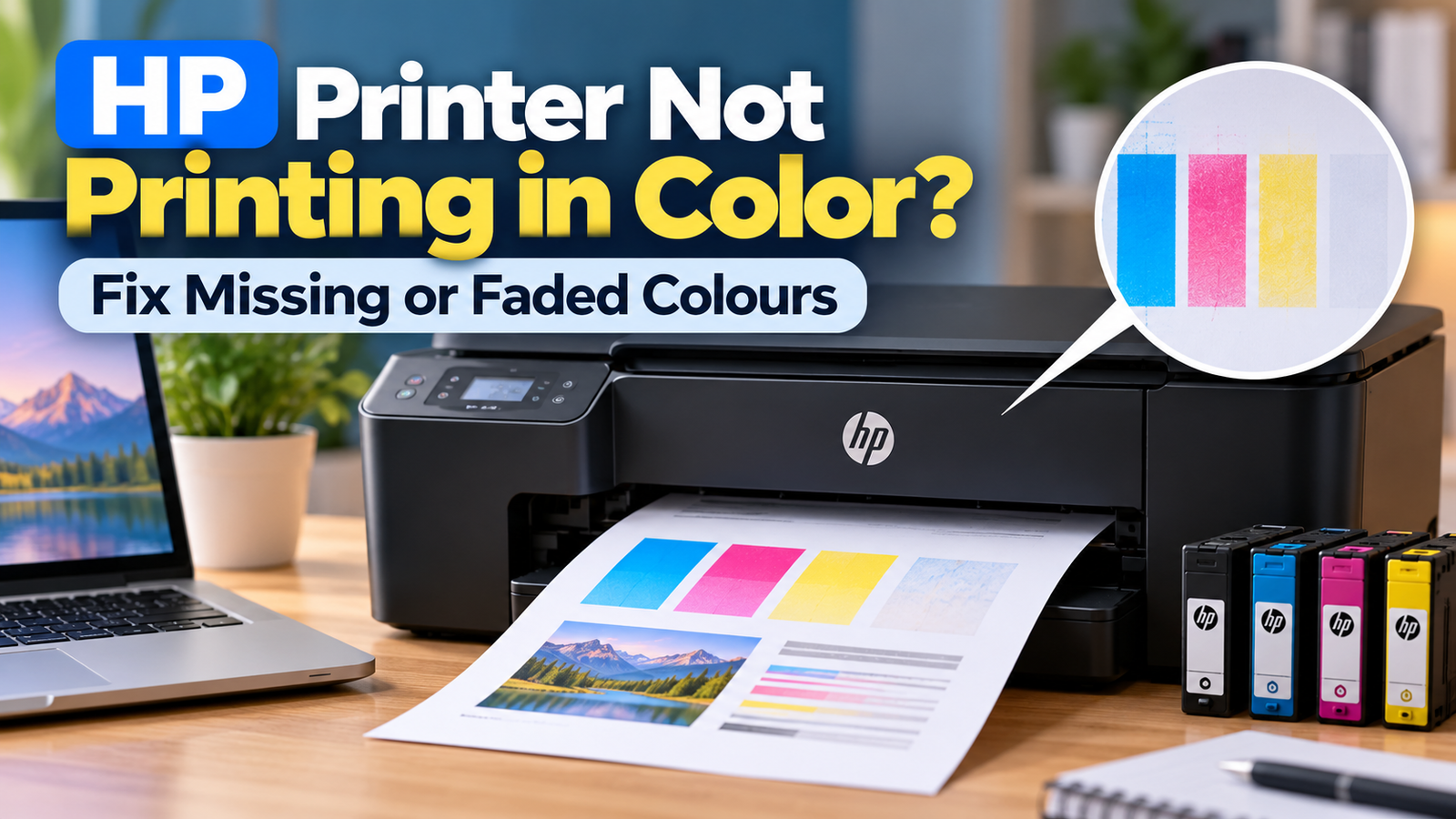
HP Printer Not Printing in Color? Fix Missing or Faded Colors
When an HP printer stops printing in color, documents may come out in black and white, one color may disappear, or photos may look faded and uneven. The printer might still print black text normally, making the problem harder to identify.
The cause can range from a grayscale setting or an application-specific print option to low ink, a blocked printhead or a cartridge problem. On color laser printers, toner supplies and model-specific maintenance may be involved instead.
Before buying new cartridges or repeatedly running cleaning cycles, identify whether the problem affects every print job or only certain documents. The checks below help narrow it down.
Quick Diagnosis: Start Here
| What you’re seeing | Start with |
|---|---|
| Every document prints in black and white | Go to Fix 1 ↗ |
| Only one document or application prints without color | Go to Fix 2 ↗ |
| A color is missing or the printer reports low ink | Go to Fix 3 ↗ |
| The printer’s test page has missing colors or streaks | Go to Fix 4 ↗ |
| The test pattern shows a printhead-related defect on an inkjet model | Go to Fix 5 ↗ |
| The test page looks normal, but photos or documents look wrong | Go to Fix 6 ↗ |
| Printer diagnostics look normal, but computer printouts do not | Go to Fix 7 ↗ |
| Color remains missing after the relevant checks | Go to Fix 8 ↗ |
Why Is My HP Printer Not Printing in Color?
The symptom provides an important clue. If every document prints in black and white, a print setting may be responsible. If a printer-generated diagnostic page also has missing colors, the issue is more likely to involve the printer, its supplies or its print system.
Common causes include:
- Grayscale or black-and-white printing being selected.
- Low or empty color ink, or a cartridge that is not recognized.
- Blocked printhead nozzles on supported inkjet models.
- Incorrect paper or print-quality settings.
- A problem limited to one application, document or image.
- A color laser printer having a toner or hardware-related issue.
Start with the least disruptive checks and move to printer maintenance only when the evidence points that way.
Fix 1: Check the Color Printing Settings
A printer can be working correctly while a computer or application instructs it to print in grayscale.
On Windows:
- Open the document you want to print.
- Select Print and choose your HP printer.
- Open Printer Properties, Preferences or the equivalent option. The wording varies by driver.
- Look for settings such as Color, Print in Grayscale or Black and White.
- If you want color output, select the appropriate color option and disable grayscale if it is enabled.
- Print one test page.
On macOS, open the print dialog and inspect the available printer-specific options. The location and names of color settings depend on the application, printer driver and macOS version.
What this tells you: If color returns after changing the setting, the printer itself may not have been faulty.
Fix 2: Check Whether the Problem Affects Every Document
Before changing ink or printer hardware, test whether the issue occurs in different applications.
- Print a simple document containing colored text or shapes.
- Try printing a color image from another application.
- Compare the results.
If only one document or application prints in black and white, check that application’s print options and the document’s own color settings.
If all documents have the same missing colr, move on to the printer’s own diagnostic test.
Fix 3: Check Ink Levels and Cartridge Status
For HP inkjet printers, low ink or a cartridge detection problem can affect color output.
- Open the HP app or the printer’s available management software.
- Select your printer and look for ink-level or supply information.
- Check whether a color cartridge is reported as low, empty or unavailable.
- If the printer has a display, check for cartridge warnings there too.
- If you recently replaced a cartridge, confirm that it is compatible with your exact printer model and installed correctly according to the manufacturer’s instructions.
Do not rely solely on an estimated ink indicator: it may not show the precise amount remaining. Also, do not replace every cartridge automatically when only one color is missing.
Important: Inkjet cartridge and printhead advice does not apply directly to color laser printers. For those models, check the toner status and follow the maintenance instructions for the specific printer.
Fix 4: Print a Printer-Generated Quality Report
This is one of the most useful diagnostic steps because it helps distinguish a printer-side problem from an issue with the computer or application.
On supported HP models, look in the printer’s control panel or the HP app for options such as Print Quality Report, Print Quality Diagnostic or Printer Reports. The exact path varies by model.
Examine the printed test pattern:
- A color block is missing: Check the relevant ink or toner supply and model-specific maintenance guidance.
- Color blocks have white lines or streaks: On supported inkjet models, a printhead or nozzle problem may be responsible.
- Colors are present but look inaccurate: Review color settings, paper type and print quality.
- The diagnostic page looks normal: Investigate the computer, application, document or driver settings rather than immediately cleaning the printhead.
Use the instructions for your exact HP model; there is no single button sequence that works for every printer.
Fix 5: Run Printhead Cleaning Only If the Test Indicates a Problem
This step is for supported HP inkjet printers, not a universal fix for all HP printers.
If the diagnostic pattern shows missing colors, gaps or streaks, open the HP app or your printer’s maintenance utility and look for a printhead or cartridge-cleaning option.
- Load plain paper as instructed by the printer.
- Open the relevant print-quality or maintenance tools.
- Run one cleaning cycle.
- Print another diagnostic page and compare the results.
If the result improves, stop when the print quality is acceptable. If it does not, follow your model’s guidance before attempting another cycle.
Repeated cleaning can consume ink. Avoid running cleaning cycles over and over when the diagnostic page is already normal or when the printer’s own instructions recommend a waiting period.
Fix 6: Check Paper Type and Print Quality
Incorrect paper settings can affect the appearance of colors, particularly when printing photographs or graphics.
- Confirm that the paper loaded matches the paper type selected in the print dialog.
- Check whether the document is being printed in draft or economy mode.
- For a color photo, choose an appropriate quality setting and compatible paper.
- Print a small test rather than repeatedly printing the entire document.
If the diagnostic page is normal but a photo still looks dull or has unexpected colors, the issue may involve the image, application’s color handling or the paper settings—not a failed cartridge.
Fix 7: Check the Printer Driver and Application
If the printer’s own quality report looks correct but computer printouts do not, investigate the software path.
- Check that the intended HP printer is selected.
- Confirm that the print dialog is not forcing black-and-white output.
- Try a different application and a simple test document.
- Check for a printer-specific driver or software update intended for your exact model and operating system.
- If the problem began after a driver change, consult HP’s model-specific guidance before removing or reinstalling printer software.
Avoid deleting the printer or reinstalling drivers as the first step. First establish whether the problem appears on the printer’s own diagnostic page.
Fix 8: Know When the Printer Needs Service
If color remains missing after the appropriate checks, the next step depends on the printer type.
For an inkjet model, persistent defects on the diagnostic page may indicate a printhead, cartridge or ink-delivery problem. For a color laser printer, investigate toner and the model’s specified maintenance or service procedures.
If the printer reports a hardware error, leaks ink or toner, or continues producing defective diagnostic pages despite the recommended maintenance, stop experimenting and contact HP support. Provide the printer model and a description of the missing colors or visible defects.
⚡ Advanced Microfluidic Troubleshooting: Breaking HP Printhead Thermal Locks
When an HP printer outputs perfect black text but leaves color pages completely blank—despite software levels showing full ink reservoirs—the device is rarely suffering from a electrical failure. Instead, the printhead assembly is experiencing a thermal vaporization lock or a stale driver color format compression conflict.
HP utilizes thermal inkjet technology, passing a rapid electrical current through tiny resistors inside the printhead to heat ink to over 572°F (300°C), vaporizing it into a bubble that forces a droplet out of the nozzle. If the printer sits idle for months, or if cheap third-party ink cartridges are introduced, micro-sediments dry inside the microscopic vaporization chambers. Standard software head cleanings only use minor pressure; they cannot break a hardened thermal lock block. You must initiate a direct physical fluid purge.
🔧 The Step-by-Step HP Thermal Purge Protocol
- Force a Level-3 Internal Ink Pump: Access your printer’s embedded web server (EWS) by typing the printer’s local IP address into a web browser. Navigate to the Tools > Utilities > Print Quality Toolbox and trigger a Deep Cleaning / Clean Printhead Stage 2. This forces a high-pressure continuous hydraulic pull through the color ports.
- Clear the Volatile Spooler Cache (Windows): If the hardware internal self-test page prints color perfectly but documents sent from your PC come out blank, the Windows spooler is rendering documents in a monochrome RAW format. Open
services.msc, stop the Print Spooler service, clear all files insideC:\Windows\System32\spool\PRINTERS, and restart the service. - Manually Hydrate the Drop-on-Demand Nozzles: If the cleaning utilities fail, physically unlatch the HP printhead mechanism. Take a lint-free microfiber cloth, saturate it with warm distilled water, and gently press the bottom gold-plated nozzle grid against the cloth for 10 seconds. Capillary action will break the dried vaporization plug, restoring regular microfluidic ink flow instantly.
If your driver configurations fail to process raw text matrices entirely rather than just dropping individual color ink channels, the issue has migrated up to the network layer. See our full architectural fix for a centralized HP printer not printing error code before attempting a hardware reset
Final Thoughts
When an HP printer is not printing in color, begin by checking grayscale settings and testing more than one document. Then inspect ink or toner status and print the printer’s own quality report.
The diagnostic page is the key decision point: if it shows missing colors or streaks, follow the appropriate model-specific maintenance steps. If it looks normal, focus on the computer, application and print settings instead. This approach can help avoid unnecessary cartridge replacements and repeated cleaning cycles.






