
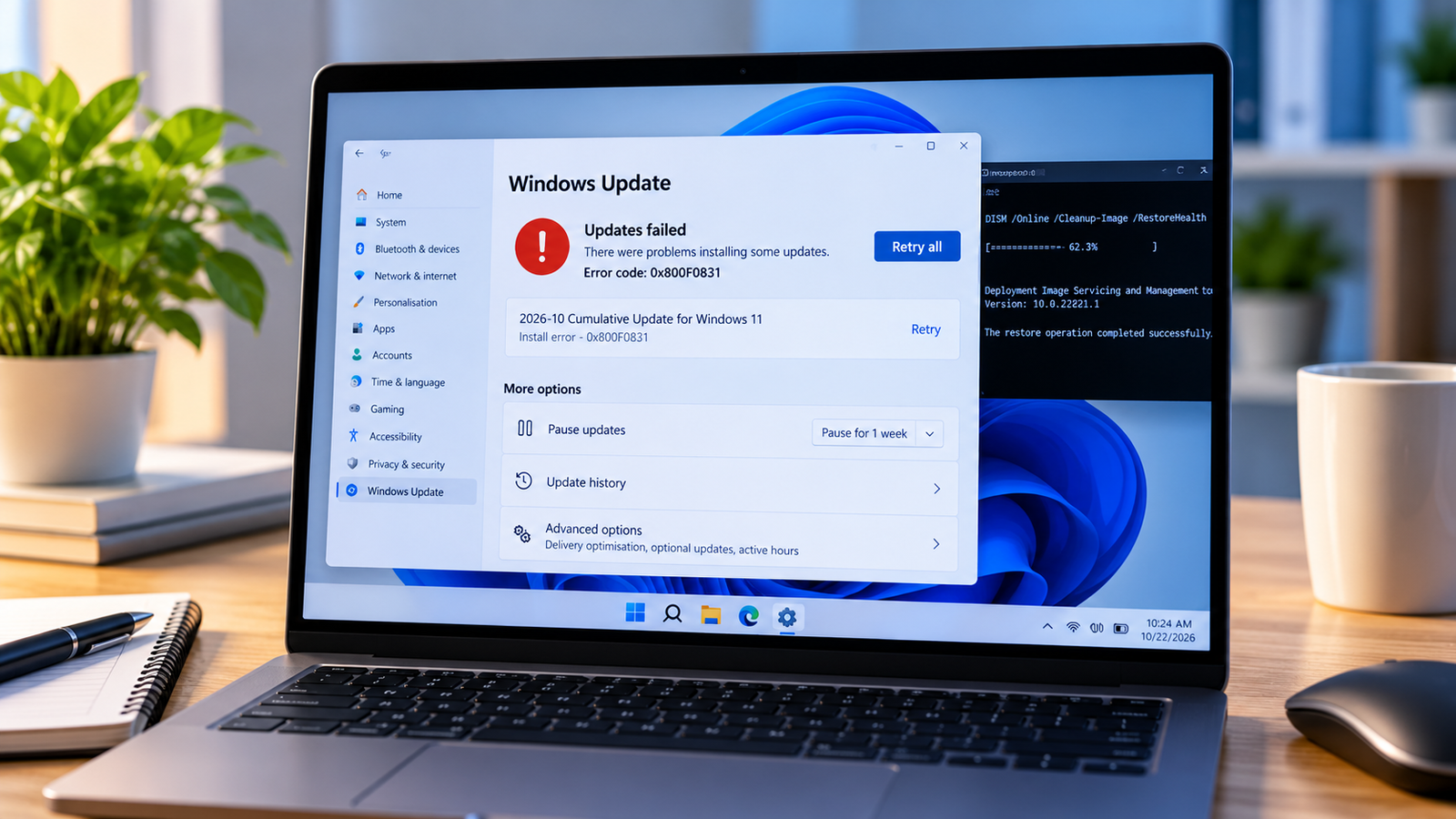
Windows Update Error 0x800F0831: How to Fix It
Windows Update error 0x800F0831 can appear when Windows fails to install a cumulative update or another system update. The installation may stop with an update-failed message, repeat the same error after restarting, or fail even when the download appears to complete.
Microsoft identifies this code as CBS_E_STORE_CORRUPTION, which means Windows has encountered a problem in its component-based servicing store. A required update package may be missing, or an earlier package may not have been applied correctly.
The most useful approach is to repair Windows’ component store first and then investigate the servicing logs if the error returns. Avoid downloading random DLL files or removing system packages without identifying the package involved.
Quick checks before you begin
Before running repair commands:
- Restart the PC if you have not already done so.
- Check that the computer has a stable internet connection and enough free disk space.
- Save your work and back up important files.
- Note the update’s KB number from Windows Update history, if one is shown.
If this is a work-managed computer, contact your IT administrator before manually installing or removing updates. Managed devices may use an internal update server or specific servicing policies.
Quick Diagnosis: Start Here
| What you’re seeing | Start with |
|---|---|
| Windows Update repeatedly fails with error 0x800F0831 | Go to Fix 1 ↗ |
| DISM completes, but system file integrity still needs checking | Go to Fix 2 ↗ |
| The error returns after DISM and SFC | Go to Fix 3 ↗ |
| CBS.log identifies a missing or unresolved update package | Go to Fix 4 ↗ |
| A specific partially installed package has been identified | Go to Fix 5 ↗ |
| The update still fails or the repair source is unavailable | Go to Fix 6 ↗ |
Fix 1: Run DISM to repair the Windows component store
Deployment Image Servicing and Management (DISM) is a Windows tool that can check and repair the component store used to service the operating system. Microsoft lists component-store repair as a mitigation for error 0x800F0831.
- Open Start and type
Command Prompt. - Select Run as administrator.
- Approve the User Account Control prompt.
- Run the following command and wait for it to finish:
This operation may take several minutes, and progress can pause temporarily. Keep the command window open until the process finishes.
If DISM reports that the restore operation completed successfully, continue to Fix 2. If it reports that source files could not be found or that the repair failed, note the exact message rather than repeatedly running the same command.
Fix 2: Run System File Checker
After DISM has completed, run System File Checker (SFC). It checks protected Windows system files and attempts to repair detected problems.
In the same elevated Command Prompt window, enter:
sfc /scannowWait for verification to reach 100%. The result matters:
- Windows Resource Protection did not find any integrity violations: SFC did not detect damaged protected system files.
- Windows Resource Protection found corrupt files and successfully repaired them: Restart the PC and try Windows Update again.
- Windows Resource Protection found corrupt files but was unable to fix some of them: Review the repair result and investigate further before attempting advanced repairs.
Restart the computer after the scans finish, then open Settings > Windows Update and try installing the affected update again.
Fix 3: Identify the failed package in the CBS log
If error 0x800F0831 persists, the Component-Based Servicing log may identify the package that Windows cannot resolve.
- Open File Explorer.
- Navigate to:
C:\Windows\Logs\CBS - Locate
CBS.log. You may need administrator permission to open or copy the file. - Open the log in Notepad.
- Search for
0x800f0831orCBS_E_STORE_CORRUPTION.
Look around the matching entries for messages mentioning a missing package manifest, a package that failed to resolve, or a package identity. Record the relevant package name and the KB number of the failed update, if available.
The log can be lengthy, and not every error entry identifies the underlying cause on its own. If you are unsure which package is involved, preserve the relevant log entries and seek help rather than editing servicing files or registry entries manually.
Fix 4: Download the correct update package
If the log identifies a missing or incomplete update package, you may need to obtain the appropriate package manually.
- Open the Microsoft Update Catalog.
- Search for the KB number or package identified during diagnosis.
- Check the Windows version, architecture and package details carefully.
- Download only a package that matches the affected system.
Do not choose an update solely because its number looks similar. A package for another Windows release or architecture may not be suitable.
Downloading the package does not automatically resolve component-store corruption. Use the specific repair procedure recommended for the identified package and Windows version. If you cannot confidently identify the missing package, skip manual repair and consult Microsoft support or your organization’s IT administrator.
Fix 5: Reinstall the affected update when the package is identified
Microsoft’s specific guidance for 0x800F0831 describes obtaining a fresh copy of the relevant update and, where necessary, removing a partially installed package before installing the correct package again.
This is an advanced step. Do not remove an update simply because it is the most recent one in the history.
Before proceeding:
- Confirm the exact package involved using the servicing logs.
- Verify that Microsoft’s instructions apply to your Windows version and situation.
- Back up important data and ensure you have a recovery plan.
- If the device is managed, obtain your administrator’s approval.
The package removal and installation commands depend on the actual package and the supported repair procedure. Do not substitute a guessed package name or copy a command intended for another update. If the correct package cannot be established, use the log details to seek targeted assistance.
Fix 6: Check for unresolved servicing or update-source problems
If DISM and SFC complete but the update continues to fail, the issue may require more targeted investigation.
Check the following:
- Windows Update history: Confirm the exact update and KB number that repeatedly fails.
- CBS.log: Look for the package identity associated with the error and any related missing-manifest messages.
- Update source: On a work-managed PC, confirm with IT whether updates are delivered through Windows Update, Windows Server Update Services (WSUS), or another management system.
- Repair source errors: If DISM reports missing source files, a suitable repair source may be needed. It must match the Windows installation; do not use an arbitrary folder or image.
Avoid manually deleting the SoftwareDistribution folder, editing the component-servicing registry, or running broad reset scripts as a first response. These actions may obscure the original failure and are not a substitute for identifying the package involved.
When to seek further help
Get targeted assistance if the error remains after DISM and SFC, if the repair tools cannot find required source files, or if CBS.log identifies a missing package that you cannot safely repair.
When requesting help, provide the Windows version, the failed update’s KB number, the exact error message, and the relevant CBS.log entries. Remove personal or organization-sensitive information before sharing logs publicly.
Final thoughts
Windows Update error 0x800F0831 is associated with component-store corruption, but the exact package or servicing problem can vary. Start with DISM, follow it with SFC, and retry the update after restarting. If the error persists, use CBS.log to identify the affected package before attempting a manual repair.
The key is to diagnose the specific update failure rather than repeatedly retrying the same installation or removing packages at random.
Official references
- Microsoft Learn: Troubleshoot Windows Update installation error 0x800F0831
- Microsoft Learn: Error 0x800F0831 when you install an update






