Windows Upgrade Error 0xC1900208: How to Fix App Compatibility Problems
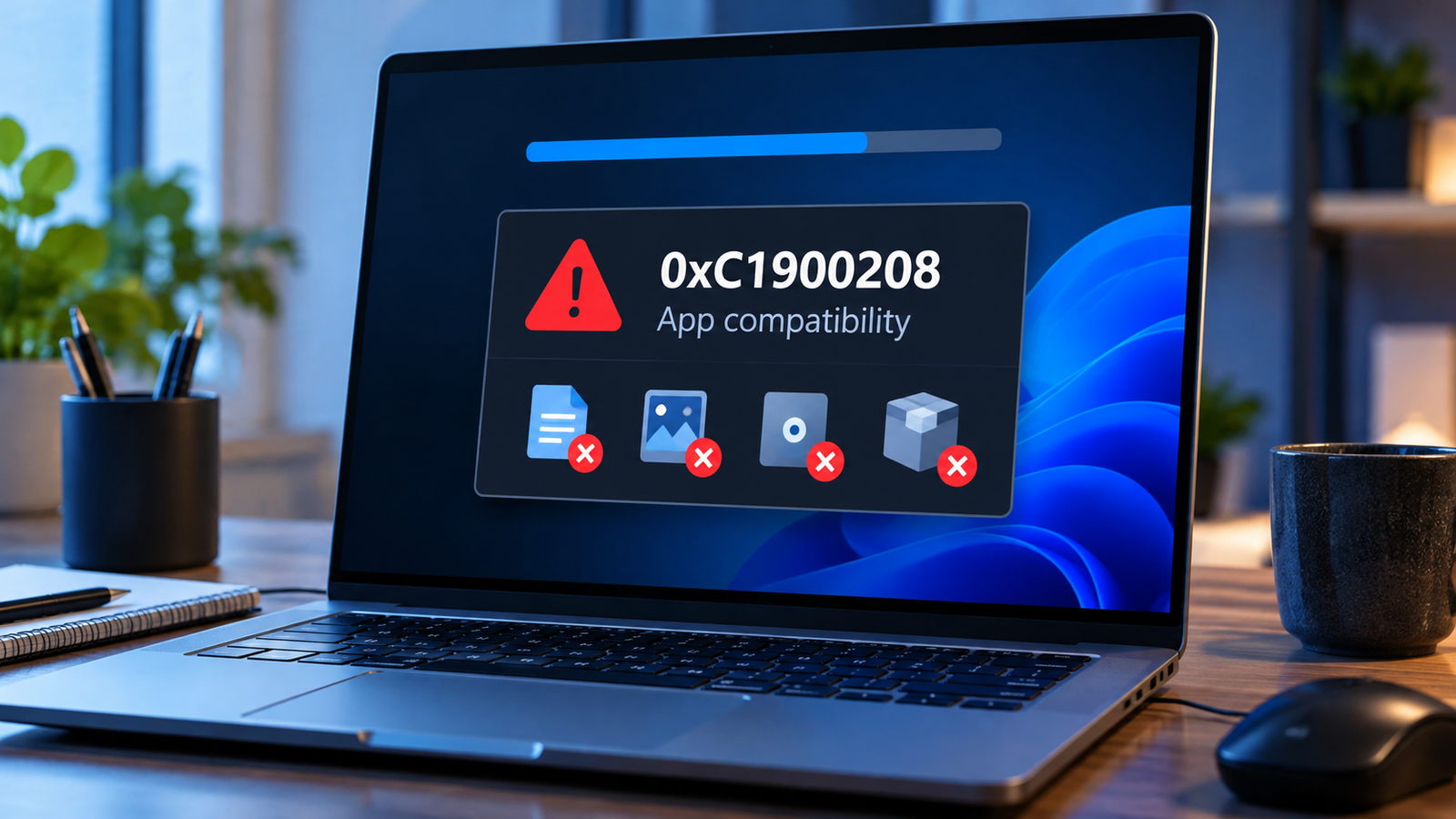
Windows upgrade error 0xC1900208 usually means Windows Setup has found a compatibility issue that is blocking an upgrade. An incompatible application, utility or driver may need to be updated or removed before installation can continue.
The important step is to identify what Windows Setup is blocking. Uninstalling random applications, resetting Windows Update or repeatedly running the installer may not resolve the actual problem.
This guide explains how to investigate the compatibility block, identify the application or driver involved, and retry the upgrade safely.
Listen to the quick guide: Windows upgrade error 0xC1900208
What Does Windows Upgrade Error 0xC1900208 Mean?
Windows Setup checks software and hardware compatibility before completing a feature update or in-place upgrade. If it detects an actionable compatibility problem, it may stop the installation and display error 0xC1900208.
The cause is not necessarily a broken Windows system. An application that works normally on your current Windows version may not be compatible with the version you are trying to install.
The problem can also persist after an application appears to have been uninstalled, because a related file or component may still be detected by Setup.
Before changing anything, note the exact error code and whether it appeared during a Windows feature update, an upgrade to Windows 11, or an in-place repair.
Quick Diagnosis: Start Here
| What you’re seeing | Start with |
|---|---|
| Windows Setup displays a compatibility warning | Go to Fix 1 ↗ |
| The incompatible application is identified | Go to Fix 2 ↗ |
| The error appears without naming the blocking item | Go to Fix 3 ↗ |
| The application was already uninstalled | Go to Fix 4 ↗ |
| The compatibility report points to a driver or device utility | Go to Fix 5 ↗ |
| You have addressed the blocker but the upgrade still fails | Go to Fix 6 ↗ |
Fix 1: Check the Compatibility Message in Windows Setup
Start with the message displayed when the upgrade fails. Windows Setup may name the application, driver or compatibility issue that needs attention.
- Return to the Windows Setup screen, if it is still available.
- Read the compatibility message carefully.
- Note any application name, publisher, driver name or file path shown.
- If Setup offers a way to review the affected application, open that information before closing the installer.
- Search for the named application in Windows Settings under Apps → Installed apps.
If the application is identified, do not uninstall unrelated software. Move to the next fix and check whether a compatible version is available.
If Setup gives only the error code without naming the cause, continue with the compatibility logs in Fix 3.
Fix 2: Update or Uninstall the Identified Application
If Windows Setup identifies an incompatible application, check whether its developer has released a version that supports the Windows version you are installing.
Follow these steps:
- Open the application’s settings or help menu and check its version.
- Visit the developer’s official website or the Microsoft Store, depending on where you obtained it.
- Look for a newer version or a compatibility notice.
- Install the compatible version if one is available.
- Restart the computer if requested, then retry the Windows upgrade.
If the developer confirms that the application is incompatible and no suitable update is available, uninstall it through Settings → Apps → Installed apps.
Before uninstalling, check whether it stores important local files, project data, licenses or custom settings. Back up anything you may need.
Avoid third-party driver-updater or PC-cleaner utilities that promise to fix every compatibility problem. They may not address the specific block reported by Windows Setup.
Fix 3: Identify the Blocking Item in Windows Setup Logs
If the installer does not clearly name the incompatible item, the compatibility logs can provide more detail. This step is more technical, but it is useful when ordinary app checks do not identify the cause.
Windows Setup stores compatibility reports in its setup logging folders. Depending on the upgrade attempt, relevant files may be found under:
C:\$WINDOWS.~BT\Sources\Panther
The folder may be hidden, and it might not exist if Setup has not created it or has already cleaned up the relevant files.
Look for files with names such as CompatData*.xml or *_APPRAISER_HumanReadable.xml. These reports can contain information about applications, drivers or files that blocked the upgrade.
If you find a report:
- Open it with a text editor.
- Search for the name of the application or driver mentioned in the compatibility message, if known.
- Look for entries that identify a blocking issue.
- Record the relevant application name, file path or compatibility details.
Do not delete files simply because they appear in the report. The purpose of this step is to identify the item that needs attention.
If the report is difficult to interpret, preserve it and seek help from a qualified technician or Microsoft support rather than guessing which system files to remove.
Fix 4: Check for Leftover Files From an Already-Uninstalled Application
Sometimes Windows Setup reports an application that no longer appears in the installed-apps list. This can happen when a compatibility scan detects a remaining file or component associated with the software.
First, confirm that you have identified the correct application.
- Check the compatibility report for the exact file path or product name.
- Review the application’s own uninstall instructions, if available.
- Check whether the developer provides a supported cleanup utility.
- Use that utility only if it is intended for the application and your Windows version.
- Restart the computer and run the compatibility check again.
Do not manually delete unfamiliar files from C:\Windows, Program Files or other system locations just because their names appear related to an application.
If the log identifies a specific leftover file but you cannot establish what it belongs to, get assistance before removing it. Deleting the wrong file can create additional problems.
Fix 5: Check Drivers and Device Utilities
Although error 0xC1900208 is commonly associated with an application compatibility block, Windows Setup can also identify other software-related compatibility problems. Device utilities and drivers deserve attention when the compatibility report points to them.
Consider recent changes involving:
- Printer, scanner or peripheral utilities.
- Older device-management software.
- Hardware monitoring or system customisation tools.
- Drivers installed from a device manufacturer’s support package.
Do not remove every driver or peripheral utility as a precaution.
If a particular driver is identified, check the computer or device manufacturer’s support information for a compatible release. If an application is responsible, update or uninstall that application instead.
For a work-managed computer, consult your IT administrator before removing drivers, endpoint-management software or organization-required applications.
Fix 6: Run the Compatibility Check Again Before Retrying the Upgrade
Once you have updated or removed the identified blocker, run Windows Setup again and check whether the compatibility problem has cleared.
- Restart the PC if the application or driver update requires it.
- Make sure the computer is connected to reliable power and that important files are backed up.
- Start the upgrade again using the same supported installation method.
- Review any new compatibility message rather than assuming the original problem is fixed.
- If the upgrade is blocked again, note the new code and identify whether Setup is reporting the same item or a different one.
If you are comfortable using Windows installation media and Command Prompt, an advanced user or IT administrator can run a compatibility-only scan with Windows Setup. This checks compatibility without proceeding with the full upgrade. It is optional and is not necessary for every home user.
If the same error returns, revisit the compatibility report. If a different error appears, investigate that code separately rather than repeating the same fix.
Why Windows Upgrade Error 0xC1900208 Happens
The error indicates that Windows Setup has found a compatibility issue that prevents it from proceeding. The specific cause depends on the software or component identified by the compatibility check.
Common possibilities include an older application that has not been updated for the target Windows version, an incompatible driver or device utility, or leftover files associated with software that has already been removed.
The error code alone does not identify the exact application. The compatibility message and Setup logs are more useful for determining what needs to change.
Frequently Asked Questions
Does error 0xC1900208 mean Windows is corrupted?
Not necessarily. This code points to a compatibility block during Windows Setup. It does not, by itself, prove that Windows system files are damaged.
Should I reset Windows to fix error 0xC1900208?
No, not as an initial response. Identify the compatibility blocker first. Resetting Windows can remove applications and settings without resolving the underlying compatibility issue in the way you expect.
What if the incompatible application is already uninstalled?
Check the compatibility report for a remaining file or component associated with that application. Use the developer’s supported cleanup method where appropriate, and avoid deleting unidentified files manually.
Can a driver cause this error?
A compatibility report may identify a driver or related device software as the blocker. Check for a compatible release from your computer or device manufacturer before removing or replacing it.
What should I do if Windows Setup does not name the application?
Review the compatibility logs if available. If you cannot interpret them confidently, preserve the reports and seek technical assistance rather than uninstalling software at random.
Final Advice
The most effective way to resolve Windows upgrade error 0xC1900208 is to identify the specific compatibility issue and address it directly. Update or remove only the software that Windows Setup identifies, verify the result, and then retry the upgrade.
If the error persists, use the compatibility report to investigate the next blocker. Avoid drastic recovery steps until you have evidence that a broader Windows problem is involved.