Windows Upgrade Error 0xC1900200: How to Check System Requirements
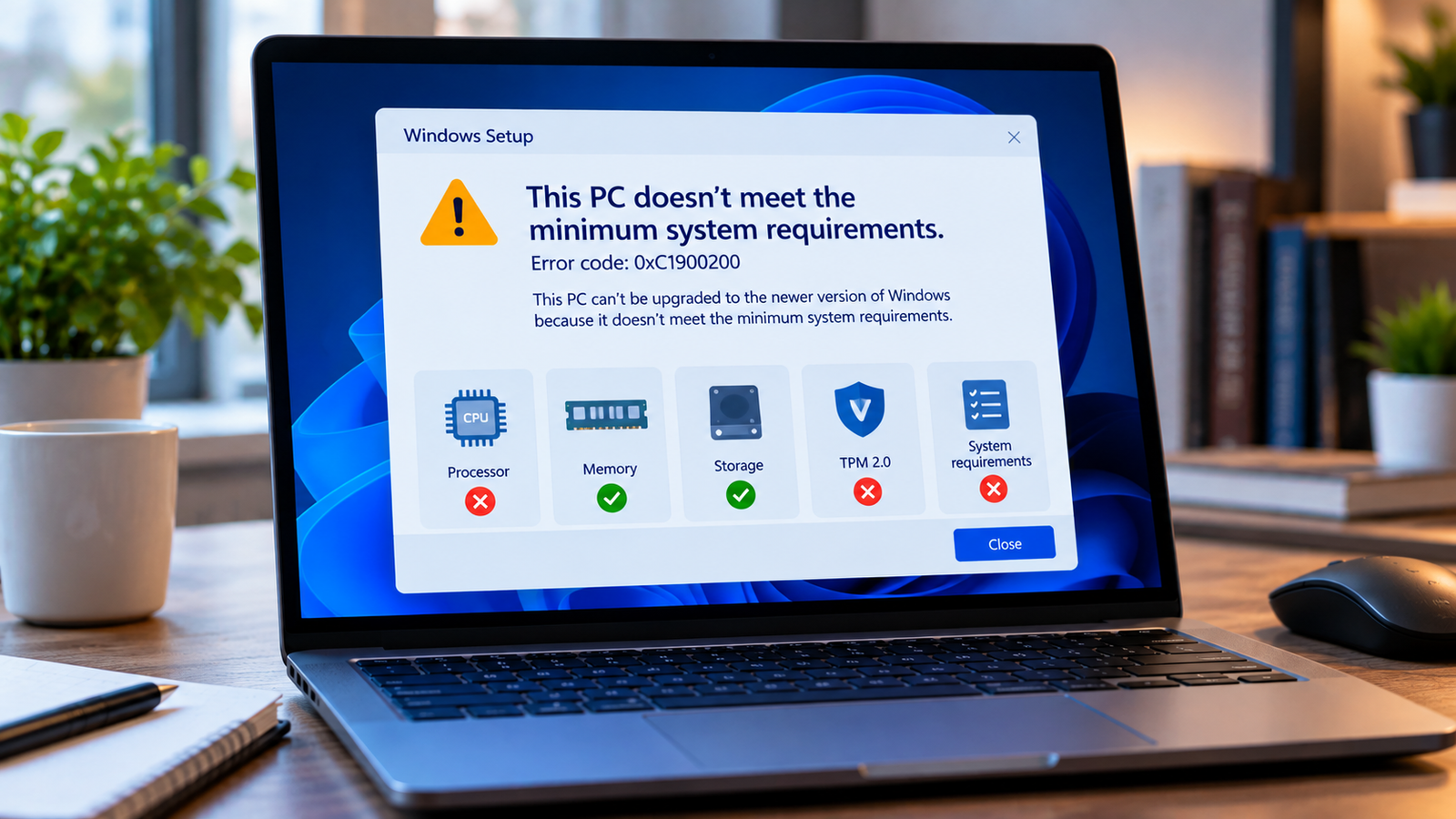
Windows upgrade error 0xC1900200 usually means your computer has not passed the system-requirements check for the Windows version you are trying to install. The upgrade may stop before installation begins, leaving you with a message that the PC is not eligible.
This error is different from an incompatible-app warning. It points to system eligibility, which may involve the processor, memory, storage, or security requirements of the target Windows version.
Before changing BIOS settings or trying an unofficial workaround, identify which requirement is failing. The steps below focus on checking eligibility safely and understanding your options.
Listen to the quick guide: Windows upgrade error 0xC1900200
Why Does Windows Upgrade Error 0xC1900200 Occur?
Windows Setup checks whether a device meets the requirements for the intended upgrade. Error 0xC1900200 is associated with a system-requirements block.
Depending on the Windows version, the issue may involve:
- A processor that is not supported.
- Insufficient memory or storage.
- TPM 2.0 or Secure Boot requirements for Windows 11.
- A system that does not qualify for the specific upgrade being attempted.
The requirements are not identical across all Windows releases. Check the requirements for your intended version rather than relying on a generic list.
Quick Diagnosis: Start Here
| What you’re seeing | Start with |
|---|---|
| You are unsure whether your PC qualifies for Windows 11 | Go to Fix 1 ↗ |
| Windows cannot detect a compatible TPM | Go to Fix 2 ↗ |
| Secure Boot or BIOS mode may be the issue | Go to Fix 3 ↗ |
| Your processor, RAM or storage may not meet requirements | Go to Fix 4 ↗ |
| You suspect outdated firmware or system software | Go to Fix 5 ↗ |
| Your PC appears eligible but the upgrade still fails | Go to Fix 6 ↗ |
Fix 1: Check Whether Your PC Is Eligible for Windows 11
If you are upgrading to Windows 11, start with Microsoft’s PC Health Check app.
- Open Microsoft’s official Windows 11 download page and find the PC Health Check app.
- Download and install the app from Microsoft.
- Open it and select the option to check your PC’s eligibility.
- Review the result and note the specific requirement that is not met, if one is reported.
This is more useful than guessing which component is causing the error. If the app identifies a processor or security requirement, move to the relevant check below.
If you are upgrading to another Windows version, use that version’s official system requirements instead. Do not assume that a Windows 11 eligibility result explains every Windows upgrade error.
Fix 2: Check TPM 2.0 Status
For Windows 11, TPM 2.0 is one of the system requirements. Some computers have a compatible TPM but leave it disabled in firmware settings.
To check whether Windows detects a TPM:
- Press Windows + R.
- Type
tpm.mscand press Enter. - Review the TPM Management window.
- Check whether the status indicates that the TPM is ready for use and whether the specification version is 2.0.
If Windows reports that a compatible TPM cannot be found, it does not automatically mean your computer lacks the hardware. The feature may be disabled, or the system may not support the required version.
If you are comfortable checking firmware settings, consult your computer manufacturer’s instructions for TPM-related options. These may be labeled Intel PTT or AMD fTPM on supported systems.
Do not change unrelated firmware settings. If you cannot identify the correct option, contact the device manufacturer before making changes.
Fix 3: Check Secure Boot and UEFI Support
Secure Boot is another Windows 11 requirement on supported hardware. Confirm the current configuration before changing it.
- Press Windows + R.
- Type
msinfo32and press Enter. - In System Information, locate BIOS Mode and Secure Boot State.
- Review the values and compare them with your PC’s eligibility result.
If Secure Boot is unsupported or unavailable, check your manufacturer’s documentation to determine whether the system supports the required configuration.
Important: Do not switch a system from Legacy BIOS/CSM to UEFI without first confirming that Windows and the system drive are configured for the change. An incorrect firmware change can prevent Windows from booting. If the system uses an older partition layout, seek device-specific guidance before proceeding.
Fix 4: Verify Processor, RAM and Storage
A PC can have enough memory and storage yet still fail because its processor is unsupported. Check each component against the requirements for the Windows version you want to install.
- Open Settings > System > About to view the processor and installed RAM.
- Open Settings > System > Storage to review available storage.
- Compare the processor model with Microsoft’s supported-processor information for the target Windows release.
- Check the target version’s official minimum memory and storage requirements.
Freeing disk space can help if storage is the problem, but it will not make an unsupported processor compatible. Likewise, adding RAM will not resolve a TPM or Secure Boot requirement.
If the PC Health Check app identifies one specific failing component, focus on that result rather than changing hardware unnecessarily.
Fix 5: Install Available Firmware and Windows Updates
Outdated firmware or system software can sometimes affect how hardware capabilities are detected. This step is worth checking after you have identified a possible firmware-related issue.
- Open Settings > Windows Update and install applicable updates for your current Windows installation.
- Visit your PC or motherboard manufacturer’s support page.
- Check whether a relevant BIOS or UEFI update is available for your exact model.
- Read the manufacturer’s instructions and warnings before installing any firmware update.
Keep the computer connected to reliable power during a firmware update. Do not interrupt the process. Avoid installing firmware intended for a different model, and do not assume that a BIOS update will make unsupported hardware eligible.
If the processor itself is not supported, a firmware update is unlikely to resolve that limitation.
Fix 6: Confirm the Exact Requirement Before Retrying
If the error continues, record the precise message and the result from the eligibility check before attempting the upgrade again.
- If the processor is unsupported, check the manufacturer’s specifications and Microsoft’s supported-processor information.
- If TPM or Secure Boot is the issue, confirm whether the feature is supported and correctly configured.
- If memory or storage is insufficient, determine whether the shortfall can be addressed safely.
- If the computer meets the published requirements but Setup still blocks the upgrade, review the Windows Setup diagnostic information or seek Microsoft support.
Avoid registry hacks or unofficial tools that bypass system requirements unless you fully understand the consequences and have checked Microsoft’s guidance. Bypassing requirements can lead to unsupported configurations, compatibility problems, or limitations in update support.
Frequently Asked Questions
Does error 0xC1900200 mean my PC is too old?
Not always. It means the device has not passed the relevant system-requirements check. The cause could be a supported feature that is disabled, a hardware limitation, or another requirement for the target upgrade.
Can I fix 0xC1900200 without buying a new computer?
Possibly. First determine which requirement is failing. A firmware setting may be configurable on supported hardware, and storage shortages may be manageable. However, an unsupported processor or missing hardware capability may not be fixable through software.
Will enabling TPM 2.0 fix the error?
Only if TPM is the relevant failing requirement and the computer supports the required TPM version. If the processor or another requirement is the problem, enabling TPM alone will not resolve it.
Should I bypass the Windows 11 requirements?
Do not make bypassing requirements your first troubleshooting step. It can leave the PC in an unsupported configuration and may affect compatibility or update support. Verify the exact blocker and check Microsoft’s current guidance before considering any unsupported installation method.
Final Advice
Windows upgrade error 0xC1900200 should be investigated as an eligibility problem, not treated as a generic Windows corruption error. Use the appropriate requirements checker, identify the failing component, and make only changes that are supported for your specific computer.
If your hardware does not meet the target version’s requirements, repeated installation attempts are unlikely to solve the underlying issue. Confirm compatibility before retrying the upgrade.