
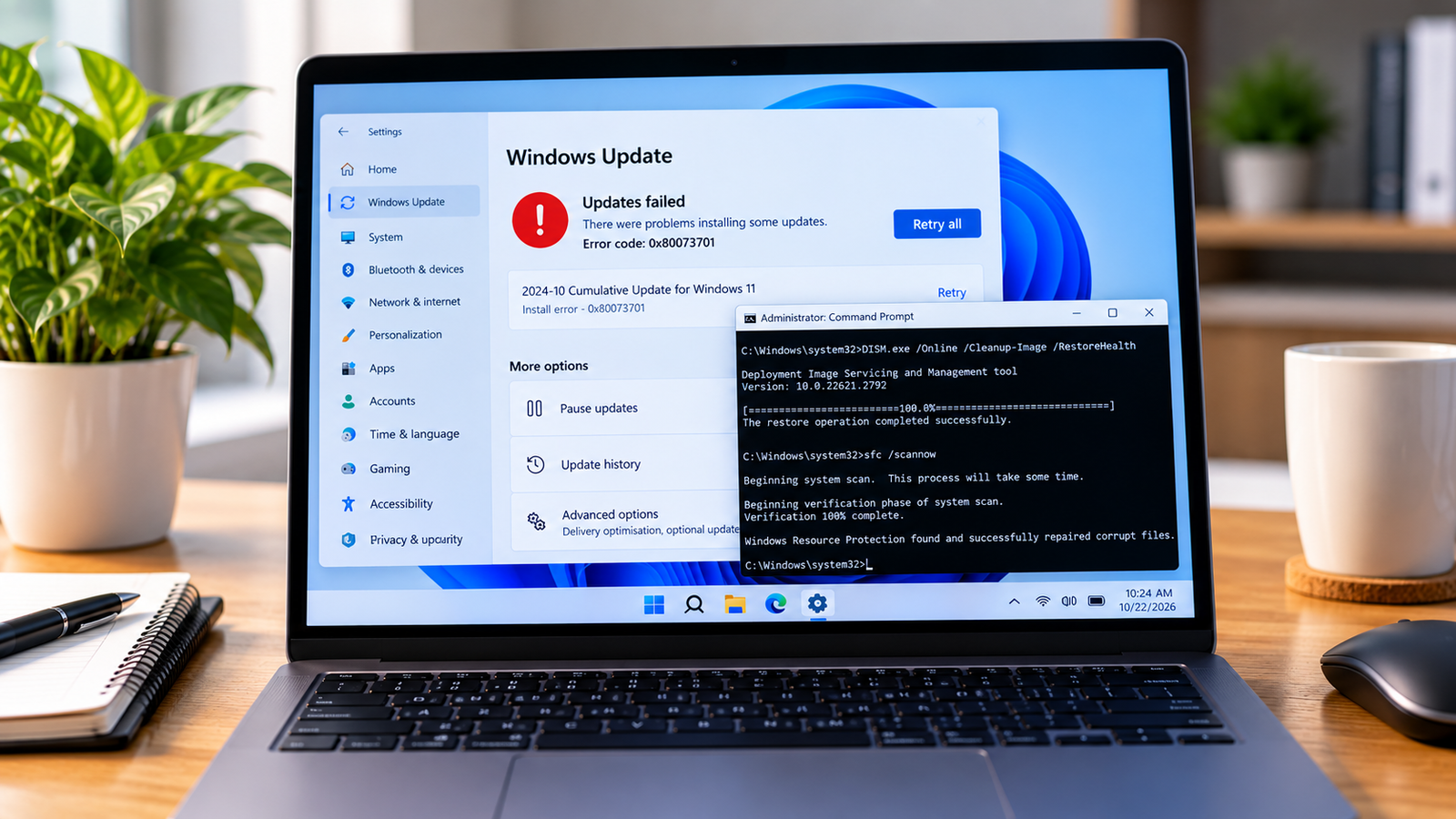
Windows Update Error 0x80073701: How to Fix It
Windows Update error 0x80073701 can appear when Windows cannot find an assembly required to complete an update. You may see an update fail repeatedly, even after restarting your PC or trying the installation again.
Microsoft identifies this error as ERROR_SXS_ASSEMBLY_MISSING. It can be associated with a partially installed component or corruption in the Windows component store. The right repair depends on what is causing the failure, so start with the simpler checks before attempting advanced repairs.
What Causes Error 0x80073701?
Common possibilities include:
- A Windows component or assembly is missing.
- An earlier update did not finish installing correctly.
- The Windows component store needs repair.
- A related servicing problem is preventing Windows from applying the update.
The error code alone does not identify the exact missing component. Avoid deleting system files or changing the registry based only on the code.
Quick Diagnosis: Start Here
| What you’re seeing | Start with |
|---|---|
| Windows Update error 0x80073701 appears after an update fails | Go to Fix 1 ↗ |
| The update still fails after restarting your PC | Go to Fix 2 ↗ |
| The Windows Update troubleshooter does not resolve the problem | Go to Fix 3 ↗ |
| DISM completes but the update error persists | Go to Fix 4 ↗ |
| The error continues after DISM and SFC | Go to Fix 5 ↗ |
| The servicing log identifies a missing assembly or failed package | Go to Fix 6 ↗ |
Fix 1: Restart Your PC and Try Windows Update Again
A restart can finish pending servicing operations and clear a temporary installation problem.
- Save your open work.
- Open Start and select Power > Restart.
- After Windows loads, open Settings > Windows Update.
- Select Check for updates and try installing the failed update again.
Menu labels can vary slightly by Windows version.
Check the result: If the update installs successfully, no further repair is needed. If error 0x80073701 returns, continue to the next step.
Fix 2: Run the Windows Update Troubleshooter
Windows includes a troubleshooter that can detect and address some update-related problems.
On Windows 11:
- Open Settings.
- Select System > Troubleshoot > Other troubleshooters.
- Find Windows Update and select Run, if available.
- Follow the instructions shown on screen.
- Restart the PC if prompted, then retry the update.
On Windows 10, open Settings > Update & Security > Troubleshoot. The available options may differ by version and support status.
Check the result: If the troubleshooter reports a problem it fixed, retry the update. If it finds nothing or the same error remains, proceed.
Fix 3: Repair the Windows Component Store With DISM
Microsoft recommends repairing the Windows component store when this error is associated with component corruption.
- Open Start and type Command Prompt.
- Right-click Command Prompt and select Run as administrator.
- Approve the User Account Control prompt if it appears.
- Run this command:
DISM.exe /Online /Cleanup-Image /RestoreHealth
- Allow the command to finish. It may take several minutes or longer. Do not close the window while the repair is running.
- Read the final message and note whether DISM reports that the operation completed successfully.
DISM uses Windows servicing resources to repair the current online Windows image. It may require access to Windows Update or a suitable repair source.
If DISM succeeds: Continue to Fix 4.
If DISM reports that source files could not be found: Record the complete message. Do not download an arbitrary system image; the repair source must be suitable for the installed Windows version.
Fix 4: Run System File Checker
After the DISM repair, use System File Checker to check protected Windows system files.
- In the elevated Command Prompt, run:
sfc /scannow
- Wait for verification to finish.
- Read the final result.
SFC may report that it found no integrity violations, repaired corrupted files, or could not repair some files. Follow the message that applies to your PC.
If SFC repairs files, restart Windows and try Windows Update again.
If it cannot repair some files, or the update still fails, continue to the diagnostic step below.
Fix 5: Check the Windows Servicing Log
If the error persists after the standard repair steps, the Component-Based Servicing log may provide more detail about the missing assembly or package.
- Open File Explorer.
- Navigate to:
C:\Windows\Logs\CBS\
- Find
CBS.log. - Open it with a text editor and search for
0x80073701orERROR_SXS_ASSEMBLY_MISSING. - Look at the surrounding entries and timestamps to identify the package or component associated with the failure.
The log can be lengthy, and not every entry indicates the root cause. If you cannot confidently identify the relevant package, preserve the log and seek qualified support rather than deleting or removing components by guesswork.
Fix 6: Follow the Repair Path for the Identified Package
If the servicing log identifies a specific failed update or missing component, use the repair procedure that matches that finding.
- Confirm the Windows version, update number and system architecture.
- Use Microsoft’s instructions for the identified error or package.
- If a standalone update package is needed, obtain the correct package from the Microsoft Update Catalog.
- Do not uninstall packages, remove components or run package-removal commands unless the documented procedure specifically applies to your identified package.
Some servicing repairs are intended for managed systems or particular Windows versions. If this is a work-managed computer, contact your IT administrator before changing update sources or removing packages.
If Error 0x80073701 Still Appears
If the error continues after DISM and SFC, retain the full error message and the relevant servicing-log entries. Check whether another error code appears alongside 0x80073701.
For a computer that is still unable to install updates, consult Microsoft’s guidance for the exact failure or contact Microsoft support. Avoid resetting Windows or performing a clean installation as an initial response to this code.
Frequently Asked Questions
What does Windows Update error 0x80073701 mean?
Microsoft identifies it as ERROR_SXS_ASSEMBLY_MISSING. It means a referenced assembly could not be found. Component-store corruption or an incompletely applied component may be involved.
Can DISM fix error 0x80073701?
DISM can repair some Windows component-store problems, and Microsoft recommends it for relevant servicing errors. It will not necessarily resolve every cause, so check its result and follow up with SFC and further diagnosis if needed.
Will these steps delete my personal files?
The standard DISM and SFC commands are intended to repair Windows components and protected system files, not erase personal documents. Still, back up important files before attempting advanced recovery or package-removal procedures.
Should I reset Windows to fix this error?
A reset should not be the first step. Try the supported repair commands and identify the failed component first. If the issue persists, use Microsoft’s guidance for the specific package or contact support.






