
Netflix Keeps Buffering on TV? Diagnose the Problem and Fix It
If Netflix keeps buffering on TV, even though your television is connected to the internet, the problem may be an unstable connection, weak Wi-Fi signal, network congestion or an issue affecting the Netflix app or streaming device.
Buffering usually occurs when a movie or show starts playing but repeatedly pauses to load more video. You may see a spinning loading circle, experience frequent interruptions or notice that playback takes unusually long to resume.
The important distinction is whether Netflix alone is buffering or whether other streaming apps are experiencing similar problems. The answer helps determine whether you should troubleshoot Netflix, your television or your home network.
This guide covers Netflix on smart TVs and streaming devices, including Roku, Fire TV, Google TV and Chromecast with Google TV.
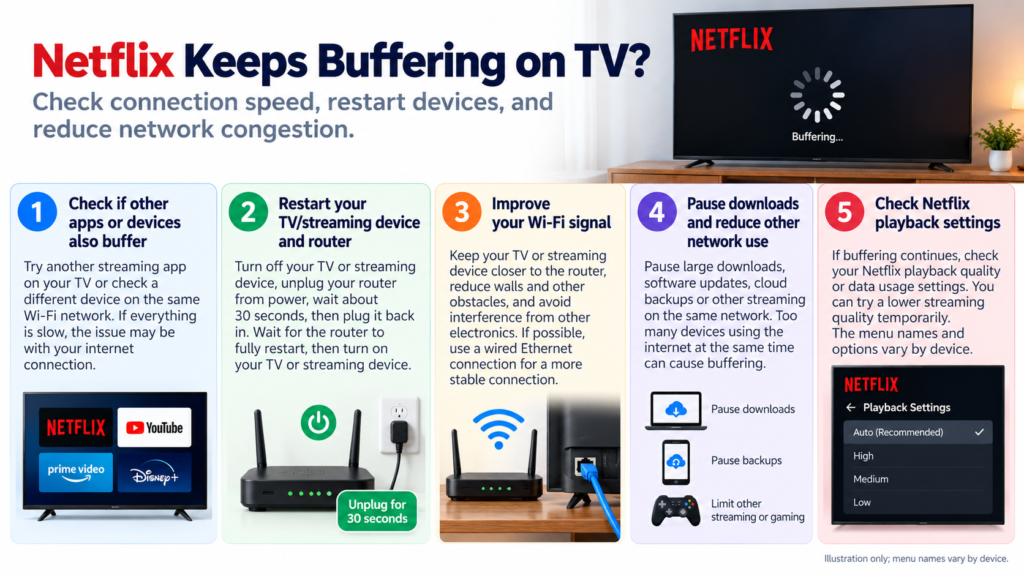
Quick Diagnosis: Start Here
| What you’re seeing | Start here |
|---|---|
| Netflix keeps buffering, but other streaming apps work normally | Go to Fix 1 |
| Netflix buffers frequently, and you want to check whether your connection is fast enough | Go to Fix 2 |
| Netflix buffers mainly when your television is connected through Wi-Fi | Go to Fix 3 |
| Netflix buffers when several people are using the internet simultaneously | Go to Fix 4 |
| Netflix buffers mainly when watching 4K or higher-quality content | Go to Fix 5 |
| Netflix started buffering unexpectedly after previously working normally | Go to Fix 6 |
| Netflix and other streaming apps buffer across multiple devices | Go to Fix 7 |
| Netflix buffers on one television but works normally on other devices | Go to Fix 8 |
| Netflix continues buffering despite a stable connection and the previous checks | Go to Fix 9 |
Why Netflix Keeps Buffering on TV
When Netflix keeps buffering on TV, the problem is often related to how consistently your television or streaming device receives video data.
Netflix needs a sufficiently fast and stable internet connection to maintain uninterrupted playback. Even when your internet plan advertises high speeds, the actual connection reaching your television may be slower or less consistent.
A weak Wi-Fi signal, network congestion or temporary connection interruptions can cause Netflix to pause while it waits for additional video data.
Higher-resolution content also requires more bandwidth. A connection that handles HD playback comfortably may struggle with 4K streaming, particularly when several devices are using the same network.
However, not every playback interruption is a network problem. If Netflix is the only affected app, or the issue occurs on just one television, device-specific troubleshooting may be more relevant.
The following fixes help identify which situation applies to you.
Fix 1: Check Whether Only Netflix Is Buffering
Before changing your internet settings, determine whether the problem affects Netflix alone.
Return to your television’s home screen and open another streaming app, such as YouTube.
Play a video for several minutes.
If possible, test another streaming service as well.
Compare the results:
Only Netflix buffers: Continue with Netflix’s built-in connection test in Fix 2. If the connection is stable, investigate the Netflix app and device using Fix 8.
Several streaming apps buffer: Your television’s network connection or home internet may be involved. Continue with Fixes 2–4.
Netflix buffers on every device in your home: Check your home network using Fix 7.
Only one Netflix movie or episode has trouble: Try another title. If other titles play normally, the issue may be specific to that content rather than your entire connection.
This comparison helps you avoid restarting your router unnecessarily when the problem is limited to one app or device.
Fix 2: Run Netflix’s Built-In Connection Test
Netflix provides a connection test within its TV app. This is a useful starting point because it checks whether your device can connect to Netflix and measures the connection speed.
To run the test:
- Open Netflix on your television.
- Return to the Netflix home screen.
- Press the Back button to open the Netflix menu.
- Select Get Help.
- Choose Check your Network.
- Wait for the test to finish.
Depending on your Netflix interface, Get Help may appear beneath your profile icon or near the bottom of the side menu.
If you cannot find Get Help, look for Settings within Netflix.
The test checks your connection to Netflix and reports its speed.
Compare the result with Netflix’s recommended speeds:
| Video quality | Netflix’s recommended connection speed |
|---|---|
| HD (720p) | 3 Mbps or higher |
| Full HD (1080p) | 5 Mbps or higher |
| Ultra HD (4K) | 15 Mbps or higher |
These are Netflix’s recommendations for a stable connection, not guarantees that playback will never buffer.
A connection can meet the recommended speed during a short test but still experience interruptions if its performance fluctuates.
If the test reports a low speed or connection problem, continue with the Wi-Fi and network troubleshooting steps.
Official reference: Netflix’s recommended internet speeds
Fix 3: Improve Your Television’s Wi-Fi Connection
If Netflix buffers frequently over Wi-Fi, the signal reaching your television may be weak or inconsistent.
A television can show that it is connected to Wi-Fi even when the connection is not strong enough for reliable streaming.
Start by checking your router’s location.
If possible, position the router closer to your television and away from large obstructions.
Avoid placing it inside a closed cabinet or directly beside equipment that may interfere with wireless signals.
If your router supports both 2.4 GHz and 5 GHz Wi-Fi, you can test the other band where your television supports it.
A 5 GHz connection may provide better performance at shorter distances, while 2.4 GHz can sometimes maintain a stronger connection through walls.
The better option depends on your home layout and network conditions.
If your television supports Ethernet:
Try connecting it directly to your router using a compatible Ethernet cable.
For external streaming devices, check whether your particular model supports Ethernet directly or through an officially supported adapter.
Test Netflix again after switching connections.
If buffering disappears over Ethernet, your Wi-Fi connection is a likely contributor.
If buffering continues on both Wi-Fi and Ethernet, investigate the wider network using Fix 7.
Fix 4: Check Whether Network Congestion Is Causing Buffering
If Netflix buffers mainly in the evening or when several people are using the internet, your connection may be struggling with simultaneous activity.
Other devices in your home may be downloading large files, installing updates, backing up photos or streaming high-resolution video.
These activities can consume bandwidth and affect Netflix playback.
To test this:
- Pause large downloads and uploads on other devices.
- Temporarily stop unnecessary streaming sessions.
- Close bandwidth-intensive applications where practical.
- Play the same Netflix title again.
If playback improves when other network activity stops, congestion is likely contributing to the problem.
You can also compare Netflix’s connection-test results during periods of heavy and light network usage.
If your router provides traffic-management or Quality of Service settings, consult its documentation before changing them.
Avoid assuming that you need a faster internet plan based on one buffering episode. First establish whether the issue is persistent and whether your existing connection is being heavily used.
Fix 5: Check Whether Buffering Happens Mainly With 4K Content
If Netflix plays HD content normally but buffers when you watch 4K titles, the connection may not be consistently fast enough for higher-resolution streaming.
Netflix recommends a stable connection of at least 15 Mbps for Ultra HD (4K).
However, other devices sharing the connection, Wi-Fi instability and changes in available bandwidth can still affect playback.
Start by running Netflix’s connection test using Fix 2.
Next, compare playback using different titles and video-quality levels where available.
If your Netflix account provides playback-quality controls, you can temporarily select a lower data-usage setting to see whether buffering improves.
These controls are generally managed through your Netflix account’s playback settings rather than through a universal quality selector inside every TV app.
Be aware that reducing playback quality may affect the picture quality of other titles watched through the same profile.
If lower-quality playback works reliably but 4K repeatedly buffers, investigate the connection’s consistency and available bandwidth before changing your television’s display settings.
Do not confuse buffering with HDR or HDMI compatibility problems. If the screen goes black when a video starts but no loading indicator appears, the issue may involve video output rather than internet speed.
Fix 6: Restart Your Television or Streaming Device
If Netflix previously worked normally and has started buffering unexpectedly, restart the device running the app.
A restart can clear temporary software or connection problems without deleting your Netflix account or settings.
For a smart TV:
- Turn off the television.
- Disconnect it from power.
- Leave it disconnected for at least 15 seconds.
- Reconnect the power cable.
- Turn on the television and open Netflix.
If your television manufacturer recommends a different restart procedure, follow its instructions.
For Roku, Fire TV, Chromecast with Google TV or another external streaming device, restart the streaming device itself.
Use its system restart option where available.
Alternatively, disconnect its power cable, wait at least 15 seconds and reconnect it.
For Chromecast with Google TV, disconnecting the device from HDMI alone does not restart it. You must disconnect its power source.
After the device restarts, test the same Netflix title again.
If buffering continues, move to the relevant network or app troubleshooting steps.
Fix 7: Restart Your Home Network
If Netflix and other streaming services buffer across several devices, restarting your home network may help resolve a temporary connection problem.
Follow these steps:
- Turn off your television or streaming device.
- Disconnect your modem and router from power.
- Wait approximately 30 seconds.
- Reconnect the modem and allow it to establish its connection.
- If your router is separate, reconnect it after the modem has started.
- Wait until your network is fully operational.
- Turn on your television and test Netflix again.
Some modems and routers may take several minutes to reconnect.
If you use a combined modem-router, you only need to restart that device.
Once the network is working again, run Netflix’s connection test.
You can also visit Fast.com on another device connected to your home network to compare the available connection speed.
If Netflix continues buffering across several devices despite a stable local connection, contact your internet service provider.
Explain whether the issue affects multiple devices, whether you’re using Wi-Fi or Ethernet, and whether the problem occurs at particular times of day.
Your provider may be able to identify a connection fault or other network issue.
Fix 8: Troubleshoot Netflix on the Affected Television
If Netflix works normally on your phone, computer or another television but continues buffering on one particular TV, concentrate on that device.
Start by checking whether its software is up to date.
On many Google TV devices, system updates are available under:
Settings → System → About → System update
On Roku, Fire TV and other smart TV platforms, use the manufacturer’s update controls.
Next, check whether an update is available for Netflix.
If the problem continues and your device provides app-management controls, you may be able to clear Netflix’s temporary cache files.
For example, on many Google TV devices:
- Open Settings → Apps.
- Select Netflix.
- Open its storage or cache settings.
- Select Clear cache, if available.
- Reopen Netflix and test playback.
The available options vary between devices.
Avoid clearing the app’s data as an early troubleshooting step because it may remove saved information and require you to sign in again.
If your television has limited available storage or several apps are malfunctioning, consult the manufacturer’s guidance for managing storage and maintaining device performance.
If the device itself freezes, restarts or becomes unusually slow, troubleshoot that broader problem rather than treating it as Netflix buffering alone.
Fix 9: Check for a Netflix-Specific Problem Before Resetting Anything
If Netflix continues buffering despite a stable connection, working network equipment and updated device software, perform one final comparison.
Test Netflix on another device connected to the same home network.
Then test another streaming app on the affected television.
If other services play normally and Netflix alone continues buffering, check Netflix’s official troubleshooting guidance for your exact symptom.
Official reference: Netflix: TV show or movie loads slowly or keeps buffering
If Netflix displays an error code, record the complete code and look it up in Netflix’s Help Center.
You can also contact Netflix Support and provide the following information:
- Your television or streaming-device model.
- Whether Netflix buffers on one device or several.
- Whether other streaming services work normally.
- Your Netflix connection-test result.
- Any error code displayed.
If several streaming services buffer on multiple devices, contact your internet service provider instead.
A factory reset of your television is not a sensible first response to buffering. It erases saved settings and may not resolve an unstable internet connection or a problem affecting Netflix itself.
How to Prevent Netflix Buffering on TV
Once playback is working normally, keep your television or streaming device and Netflix app updated.
Position your router where it can provide a reliable connection to your television. Where practical, use Ethernet for a device that repeatedly experiences weak Wi-Fi.
Avoid unnecessary large downloads and uploads while streaming if your internet connection has limited available bandwidth.
If you regularly watch 4K content, check that the connection reaching your television consistently meets Netflix’s recommended speed rather than relying only on your internet plan’s advertised maximum.
When buffering returns, compare Netflix with another streaming app before changing settings. That simple check can help you identify whether the problem is specific to Netflix or affects your wider network.
Frequently Asked Questions
Why does Netflix keep buffering on TV when my internet is fast?
A fast internet plan doesn’t guarantee that your television receives a stable connection.
Weak Wi-Fi, network congestion, temporary connection interruptions or a problem affecting the Netflix app can still cause buffering.
Run Netflix’s built-in connection test and compare playback with other streaming services.
What internet speed do I need to stop Netflix buffering?
Netflix recommends a stable connection of at least 3 Mbps for HD (720p), 5 Mbps for Full HD (1080p) and 15 Mbps for Ultra HD (4K).
These are recommended speeds, not guarantees against buffering. Connection stability and other network activity also matter.
Why does Netflix buffer only on my smart TV?
If Netflix works normally on other devices, your television’s Wi-Fi connection, software or Netflix app may be involved.
Compare the connection-test results, check for updates and test Ethernet if your television supports it.
Why does Netflix buffer more in the evening?
Evening buffering may coincide with increased internet usage in your household or changes in the performance of your internet connection.
Pause unnecessary downloads and compare Netflix’s connection speed at different times.
If the issue persists across several devices, contact your internet service provider.
Will restarting my router stop Netflix buffering?
Restarting your router may help if a temporary network problem is affecting Netflix.
However, it won’t necessarily resolve weak Wi-Fi coverage, persistent congestion or a problem limited to one app.
Check whether other streaming services are affected before restarting your network.
Why does Netflix buffer mainly when I watch 4K movies?
4K streaming requires more bandwidth than HD playback.
If your connection is unstable or other devices are using substantial bandwidth, Netflix may struggle to maintain uninterrupted 4K playback.
Check your connection speed and test whether lower-quality playback is more stable.
Should I reinstall Netflix if it keeps buffering?
Not initially.
Check your connection, Wi-Fi signal, network activity, device software and Netflix app updates first.
Reinstalling Netflix is unlikely to fix an unstable home internet connection and may require you to sign in again.






