
Chromecast Not Connecting to Wi-Fi? Diagnose the Problem and Fix It
Chromecast not connecting to Wi-Fi? Before resetting the device or changing router settings, work out where the connection is failing.
The right fix depends on what you’re seeing. Your Chromecast may be unable to find your Wi-Fi network, Google Home may be unable to find the Chromecast, setup may fail after you select your network, or a previously working Chromecast may suddenly appear offline.
If Chromecast connects successfully but disconnects repeatedly during use, see our guide to Chromecast connection dropouts.
These are different problems—and treating them as the same one can lead to unnecessary resets.
Before You Start: Check These Three Things
First, check whether other devices in your home can access the internet through the same Wi-Fi network.
If your phone and other devices have also lost internet access, the problem is more likely to be with your router, modem or internet service than with Chromecast.
Next, make sure the Chromecast is powered on and your phone or tablet has a strong Wi-Fi connection.
During setup, proximity also matters. Google recommends keeping the streaming device close to both the setup device and router; its current guidance generally puts the streaming device within about 20 feet (6 metres) of the router.
Then identify your exact symptom.
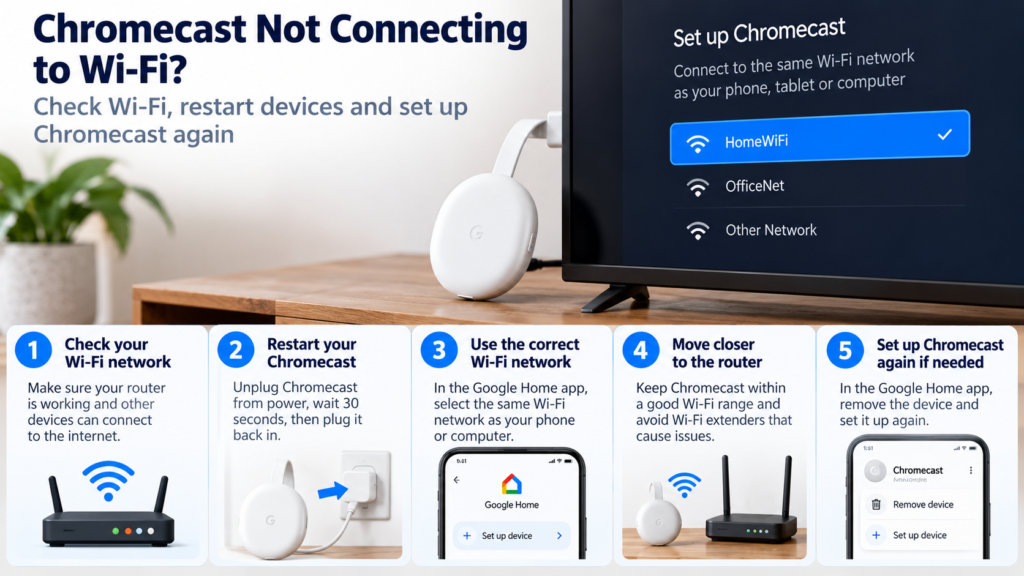
Quick Diagnosis: Start Here
| What you’re seeing | Start with |
|---|---|
| Your Wi-Fi network doesn’t appear during setup | Go to Fix 1 ↗ |
| The network appears, but Chromecast won’t connect | Go to Fix 2 ↗ |
| Google Home can’t find your Chromecast | Go to Fix 3 ↗ |
| Chromecast stopped connecting after a Wi-Fi or router change | Go to Fix 4 ↗ |
| The connection is weak, unstable or keeps dropping | Go to Fix 5 ↗ |
GlitchWise Tip: Don’t factory-reset Chromecast just because it won’t connect. First determine whether Chromecast can’t see the network, your phone can’t see Chromecast, or the internet connection itself isn’t working.
Fix 1: Chromecast Can’t Find Your Wi-Fi Network
If your Wi-Fi network doesn’t appear during setup, first check whether its network name—also called the SSID—is visible to other devices.
Open the Wi-Fi settings on another phone or laptop that isn’t already connected to the network.
If the network appears there
Your router is broadcasting its network name.
Move the Chromecast, setup device and router closer together and refresh the available networks.
You can also restart the router and Chromecast before trying setup again.
If the network doesn’t appear
Your Wi-Fi network may be hidden.
Google Home allows you to enter a hidden network manually. From the Wi-Fi setup screen, select the option for another network and enter the network name, security type and password yourself.
Double-check the spelling and capitalization of both the network name and password.
Check the Wi-Fi band too
Google recommends using 5 GHz where your router and streaming device support it. If you’re setting up on a 5 GHz network, the mobile device being used for setup also needs to support 5 GHz.
Don’t start changing advanced router settings yet. First establish whether the network is actually visible.
Fix 2: Chromecast Sees Wi-Fi but Won’t Connect
This is a different problem.
If the network appears but Chromecast fails after you select it, you already know that network visibility isn’t the issue.
Start by checking the Wi-Fi password carefully.
Then retry the connection after restarting the Chromecast.
For a proper power restart, disconnect its power cable, wait briefly and reconnect it. Simply removing Chromecast from the television’s HDMI port isn’t the same as rebooting its power. Google specifically instructs users to disconnect the power cable when restarting its streaming devices.
If that doesn’t work, restart your router.
Then try connecting Chromecast again before changing anything else.
Why test after each change?
Because otherwise you won’t know what actually fixed the problem.
If restarting Chromecast solves it, there was no reason to change the router configuration. If restarting the router solves it, resetting Chromecast would have been unnecessary.
That’s why GlitchWise troubleshooting changes one meaningful variable at a time.
Fix 3: Google Home Can’t Find Your Chromecast
If Google Home can’t find Chromecast, don’t immediately treat this as a Wi-Fi password problem.
Your phone first needs to discover the streaming device.
Google recommends checking that the setup device has a strong Wi-Fi connection and is reasonably close to the Chromecast.
Then check the phone itself.
On iPhone or iPad
Make sure Bluetooth is enabled.
Also check that Google Home has Local Network access. Google’s current troubleshooting specifically calls for Bluetooth and Local Network permissions on iOS/iPadOS when discovery isn’t working.
On Android
Make sure Wi-Fi and Bluetooth are enabled and check the permissions requested by Google Home. Depending on the Android version and setup flow, location access may also be required.
Then:
- Turn Wi-Fi off and back on on the phone.
- Completely close Google Home.
- Open it again.
- Retry setup.
If necessary, try setup from another compatible phone or tablet.
Google also documents manually connecting the phone to the Chromecast’s temporary SSID as a troubleshooting option when normal discovery fails.
Important distinction
Google Home can’t find Chromecast and Chromecast can’t connect to Wi-Fi aren’t necessarily the same fault.
The first can be a discovery or phone-permission problem before Chromecast even gets far enough to join your home network.
Fix 4: Chromecast Was Working but Is Now Offline
This branch becomes especially important if something changed in your home network.
Ask yourself:
Did you recently change your router, internet provider, Wi-Fi network name or Wi-Fi password?
If yes, that’s the first place to look.
Google states that if you’ve changed your Wi-Fi name, password or service provider, you may need to set Chromecast up again through the Google Home app.
Open Google Home and begin device setup again.
This is much more targeted than assuming the Chromecast has suddenly failed.
If nothing changed
Check which network Chromecast is using.
For Chromecast with Google TV, you can check from the television interface under:
Settings → Network & Internet
For other Chromecast models, Google provides the connected Wi-Fi information through the device settings in the Google Home app.
Also confirm that the phone you’re using is connected to the appropriate Wi-Fi network.
If everything matches but Chromecast still appears offline, move to signal and connection stability.
Fix 5: Chromecast Keeps Losing Wi-Fi or Has a Weak Connection
A Chromecast that connects successfully but repeatedly drops offline needs different troubleshooting from one that has never connected.
Start with distance.
Google recommends keeping the router within roughly 20 feet (6 metres) of the streaming device where practical.
Then consider interference.
Google specifically recommends moving the streaming device farther away from the television and avoiding contact with other devices, wires and cables where interference may be contributing.
Also check whether the network is overloaded with connected devices.
If your router supports both 2.4 GHz and 5 GHz, Google recommends using 5 GHz with its streaming devices where supported.
Restart both Chromecast and your router, then test again.
Try Ethernet as a diagnostic
Supported Chromecast models can use an Ethernet adapter even though Chromecast itself doesn’t have a standard Ethernet port.
A wired connection can be particularly useful diagnostically.
If Chromecast becomes stable over Ethernet but repeatedly fails over Wi-Fi, you’ve learned something important: the problem is much more likely to be somewhere in the wireless connection than in your internet service or Chromecast’s ability to get online. Google itself recommends Ethernet as an option for alleviating home Wi-Fi issues.
Chromecast Connects to Wi-Fi but Still Doesn’t Work
Don’t confuse Wi-Fi connection with internet access.
A device can connect successfully to your router while the router itself has lost access to the internet.
Test another device on the same network.
If other devices also can’t reach the internet, troubleshoot the router/modem or check for an ISP outage before changing Chromecast settings.
If other devices work normally, restart Chromecast and check its network connection again.
For Chromecast with Google TV, you can verify the connected network from Settings → Network & Internet.
Should You Change Advanced Router Settings?
Not initially.
Advice online often jumps quickly to channels, DNS servers, router security settings, AP isolation and other configuration changes.
Some router settings genuinely can prevent Chromecast discovery or communication—Google’s own troubleshooting mentions AP isolation, for example.
But that doesn’t mean AP isolation is the likely cause every time Chromecast goes offline.
Only investigate advanced router configuration after you’ve ruled out:
- network availability,
- wrong Wi-Fi details,
- setup-device discovery,
- phone permissions,
- changed Wi-Fi credentials,
- poor signal,
- router/Chromecast restart.
That keeps a straightforward connection problem from becoming a router-configuration problem too.
When Should You Factory Reset Chromecast?
Last—not first.
Google includes factory reset toward the end of its connection troubleshooting after simpler network and restart steps.
A factory reset removes the existing configuration and means you’ll need to set up the device again.
Before resetting, you should have already established that:
- your Wi-Fi works on other devices,
- you’re using the correct network and password,
- the router and Chromecast have been restarted,
- setup-device discovery has been checked,
- phone permissions aren’t blocking Google Home,
- signal strength isn’t the obvious problem,
- changed Wi-Fi credentials aren’t responsible.
Reset procedures also vary by Chromecast generation, so use Google’s instructions for your particular model rather than copying a generic button sequence.
Frequently Asked Questions
Why won’t my Chromecast connect to Wi-Fi?
The cause depends on where the connection fails. Your Wi-Fi network may not be visible, Chromecast may fail while joining it, Google Home may be unable to discover the device, or Chromecast may still have details from an old network. Diagnose which stage is failing before resetting anything.
Why can’t Google Home find my Chromecast?
Check that the phone is close enough, has a strong Wi-Fi connection and has the necessary permissions. On iPhone and iPad, Google specifically recommends checking Bluetooth and Local Network access for Google Home.
Do my phone and Chromecast need to be on the same Wi-Fi?
For normal discovery and casting, the devices generally need to be on the same Wi-Fi network. Google’s connection troubleshooting specifically tells users to verify that the mobile device and Google streaming device are using the same network.
Why did Chromecast stop working after I changed my Wi-Fi password?
Chromecast may still have the previous network credentials. Google says that after changing the Wi-Fi name, password or service provider, you may need to set the Chromecast up again.
Should I factory reset Chromecast if Wi-Fi isn’t working?
Not initially. Check network availability, credentials, discovery, signal strength and restarts first. Google itself places factory reset after other connection troubleshooting steps.
Still Not Connecting?
At this point, you should know considerably more than “Chromecast Wi-Fi isn’t working.”
If your network isn’t visible, focus on network visibility.
If Google Home can’t see Chromecast, focus on discovery and phone permissions.
If Chromecast stopped connecting immediately after a new router or password change, focus on setting up the new network.
If the connection works but repeatedly drops, focus on signal, interference and the wireless network.
And if Chromecast works reliably over Ethernet but not Wi-Fi, that’s valuable diagnostic evidence before you reset or replace anything.
Find the failing connection first. Then fix that connection.






