Fire TV Stick Storage Full? How to Free Up Space
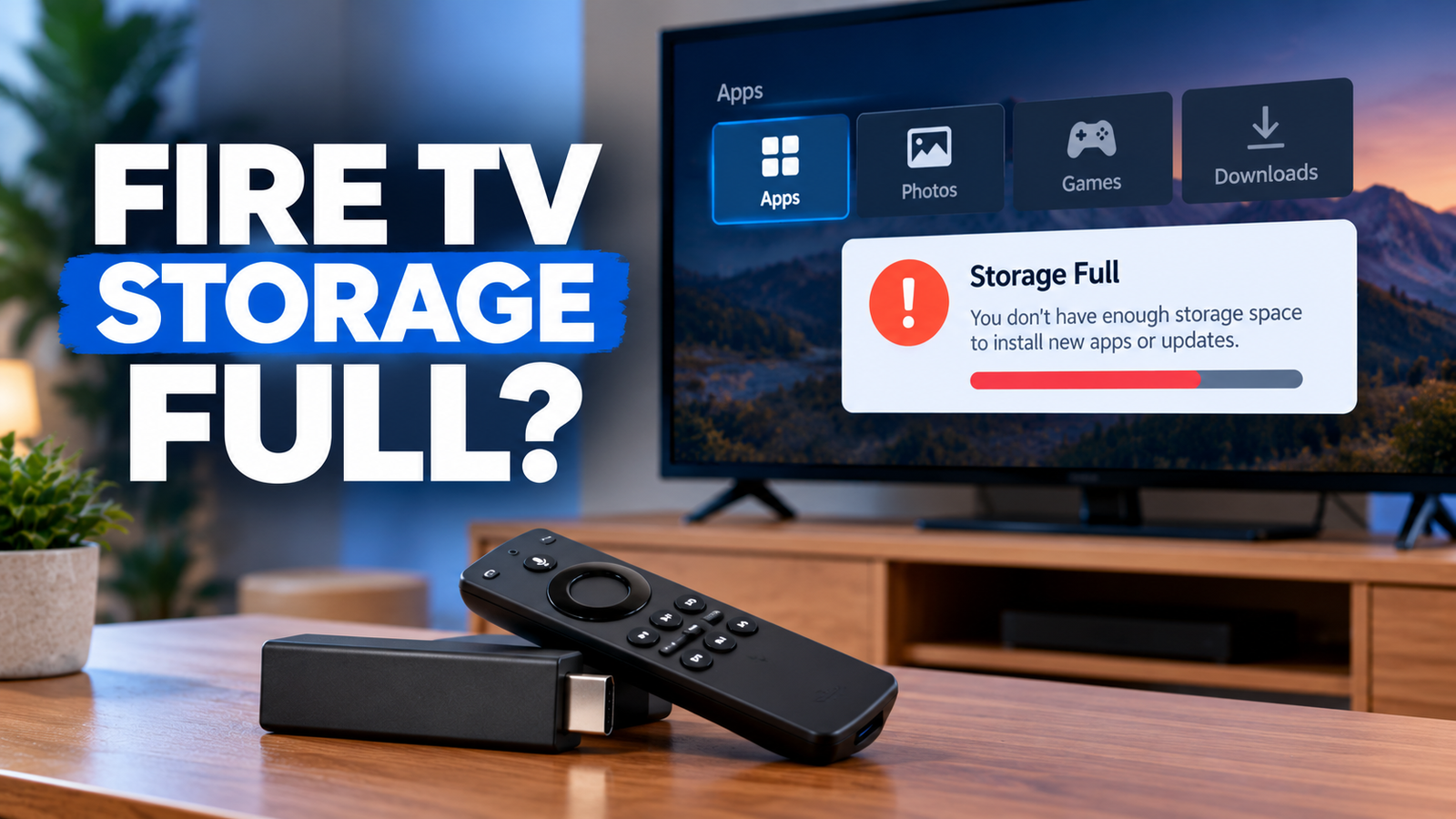
If your Fire TV Stick says storage is full, refuses to install an app, or keeps warning that there isn’t enough space for an update, you may not need to replace the device. Installed apps, their saved data, and temporary cache files can all consume internal storage, leaving less room for new downloads and updates.
The best approach is to check your available space, identify which apps are using it, and remove unnecessary data in a safe order. Start by clearing temporary cache files, then review apps you no longer use. Avoid clearing app data or uninstalling apps until you understand what those actions remove.
The menu names can vary by Fire TV model and software version. If your screen looks different, look for Applications, Manage Installed Applications, and My Fire TV or Device & Software.
Quick Diagnosis: Start Here
| What you’re seeing | Start with |
|---|---|
| A Fire TV Stick Storage Full appears when installing an app | Go to Fix 1 |
| One or more apps are using a lot of space | Go to Fix 2 |
| Storage is nearly full, but you want to keep your apps | Go to Fix 3 |
| A particular app is taking up too much space | Go to Fix 4 |
| You have apps you rarely use | Go to Fix 5 |
| Apps show a cloud icon or appear to be offloaded | Go to Fix 6 |
| You freed space, but the warning remains | Go to Fix 7 |
Fix 1: Check How Much Storage Is Available
Before deleting anything, check how much space your Fire TV Stick has left. This helps you determine whether storage is genuinely low and whether the next steps have made a difference.
- Open Settings from the Fire TV home screen.
- Select My Fire TV or Device & Software, depending on your model.
- Open About and look for the storage information available on your device.
On some models, storage details may be shown in a different location. If you cannot find a storage summary, continue to Settings → Applications → Manage Installed Applications to inspect individual apps.
Make a note of the available space, if shown. Check it again after completing the fixes below.
Fix 2: Find Which Apps Are Using the Most Space
A few apps can account for a large share of your available storage, especially when they accumulate local data or temporary files.
- Open Settings.
- Select Applications.
- Choose Manage Installed Applications.
- Select an app to view the available management options and any storage details shown.
Review the apps you use most often alongside those you rarely open. Some Fire TV versions display app size, data, and cache separately; others may show a different set of details.
If an app is using a lot of space and is also failing to open, follow our guide to Fire TV apps not loading or opening to troubleshoot the app itself before taking more disruptive steps.
Do not assume that an app is safe to remove simply because it uses more space. First consider whether you need its downloads, saved information, or settings.
Fix 3: Clear App Cache Before Removing Apps
Cache files are temporary data that apps store to help certain content load more efficiently. Clearing a cache is a sensible early step when storage is tight because it generally has less impact than clearing an app’s data or uninstalling it.
To clear the cache for one app:
- Go to Settings → Applications → Manage Installed Applications.
- Select an app.
- Choose Clear Cache, if that option is available.
- Repeat for other apps that have accumulated cache files.
Some Fire TV versions also offer Clear All Application Caches in the Applications settings. If you see this option, you can use it instead of opening every app individually.
Clearing the cache may not free a large amount of space if the app has very little cached data. Check storage again rather than assuming every app will release the same amount.
Fix 4: Clear App Data Only When You Understand the Consequences
If an app’s locally stored data is taking up substantial space, you may see a Clear Data option in its settings. This is different from clearing the cache.
Clearing data can reset the app and remove locally stored settings or information. Depending on the app, you may need to sign in again, restore preferences, or set it up again.
Before using this option:
- Select the app under Settings → Applications → Manage Installed Applications.
- Review whether Clear Data is available.
- Use it only if you are prepared for the app to reset.
- Reopen the app afterward and complete any required setup.
If you are unsure what the app stores locally, skip this step and try clearing caches or uninstalling an app you no longer need.
Fix 5: Uninstall Apps You No Longer Use
Removing an unused app can free the space occupied by the app itself and its local data.
- Open Settings → Applications → Manage Installed Applications.
- Select an app you no longer use.
- Choose Uninstall, if available.
- Confirm the action and repeat only for apps you are comfortable removing.
Some built-in apps cannot be uninstalled, and the available options vary by device. If there is no uninstall option, do not try to force-remove the app using unofficial tools.
You can reinstall compatible apps from the Amazon Appstore later, but you may need to sign in or configure them again.
Fix 6: Check Whether Auto Offload Is Available
Some Fire TV devices include Auto Offload, a storage-management feature that can automatically offload apps you have not used for a while when the device is running low on space. Offloaded apps may display a cloud icon and can be downloaded again when needed.
To check the feature:
- Open Settings.
- Select Applications.
- Look for Auto Offload, if your device supports it.
- Review the setting and decide whether it suits your usage.
Availability and behavior depend on the Fire TV model and software experience. Auto Offload is not available on every device, so do not treat the absence of this option as a fault.
If an app has been offloaded, you may need an internet connection to download it again. Keep this in mind if you plan to use the app while offline.
Fix 7: Restart Fire TV and Check Storage Again
After clearing caches or removing apps, restart your Fire TV Stick and check whether the storage warning has cleared.
- Open Settings.
- Select My Fire TV or Device & Software.
- Choose Restart, if shown.
- Once the device starts again, return to the storage information or installed-app list.
If you cannot access the restart option, you can disconnect the Fire TV Stick from power, wait briefly, and reconnect it. Avoid repeatedly unplugging the device while an update or installation is in progress.
A restart will not create substantial free space by itself, but it can help the device refresh after you have made storage changes.
If your device also keeps rebooting unexpectedly, see our guide to a Fire TV Stick that keeps restarting to check for power, overheating, and device-level issues.
When Should You Stop Troubleshooting?
If the storage warning remains after clearing caches and removing apps you do not need, check the storage details again and confirm that the changes actually freed space. Some built-in apps cannot be removed, and not every Fire TV model offers the same storage-management options.
Do not factory-reset the device as an early storage fix. A reset removes account and device settings and requires you to set up the Fire TV Stick again. Consider it only after less disruptive options have failed and you have reviewed the official instructions for your model.
If the device reports a storage problem that does not match the space shown in its settings, consult Amazon’s official Fire TV support resources before taking more drastic action.
How to Prevent Fire TV Storage Problems
- Remove apps you no longer use.
- Clear app caches when storage becomes tight.
- Check available space before installing several new apps.
- Use Auto Offload if your device supports it and its behavior suits your needs.
- Avoid clearing app data unless you understand what may be reset.
- Recheck storage after making changes instead of relying on the warning alone.
Frequently Asked Questions
Why does my Fire TV Stick say storage is full when I don’t have many apps?
Apps can use space for their own installation files, local data, and temporary cache. The number of apps alone does not show how much storage they consume. Check the installed-app details and clear caches before removing apps you still need.
Can I clear the cache on every Fire TV app at once?
Some Fire TV versions offer Clear All Application Caches under Applications settings. If you do not see that option, open Manage Installed Applications and clear the cache for individual apps where available.
Does clearing app data delete my account?
Clearing data can reset an app and may remove local settings or sign-in information. Whether you must sign in again depends on the app, so use this option only when you are prepared to set it up again.
Why can’t I uninstall some Fire TV apps?
Some apps are built in and do not offer an uninstall option. If Uninstall is missing, use the available storage-management options instead of attempting an unsupported removal.
Will adding a USB drive increase storage on my Fire TV Stick?
Do not assume an external USB drive can expand storage on your Fire TV Stick. External-storage support depends on the specific Fire TV device; check Amazon’s official documentation for your model before buying accessories.
Should I factory-reset my Fire TV Stick to free up space?
A factory reset is a last resort, not the first storage fix. It removes device settings and requires setup again. Try checking storage, clearing caches, and removing apps you no longer need first.
Final Takeaway
When your Fire TV Stick runs low on storage, start by checking available space and reviewing installed apps. Clearing caches and removing unused apps are usually the least disruptive steps; clear app data only when you understand the consequences, and reserve a factory reset for broader problems that remain unresolved.