Netflix Subtitles Not Working on TV? How to Fix It
Netflix subtitles can fail in several different ways. They may not appear when you turn them on, a preferred language may be missing, captions may keep returning after you switch them off, or changes to text size and style may not show up on your TV.
These problems do not always have the same cause. Sometimes the selected movie or episode does not offer the subtitle track you expect. In other cases, the Netflix app has not refreshed a saved appearance setting, or the TV does not support that particular customization.
Start by checking the subtitle options during playback. Then follow the fix that matches what you see.
Quick Diagnosis: Start Here
| What you’re seeing | Start with |
|---|---|
| Subtitles do not appear when you turn them on | Go to Fix 1 |
| Your preferred language or SDH option is missing | Go to Fix 2 |
| Subtitle preferences keep reverting | Go to Fix 3 |
| Subtitles appear, but their size or style is wrong | Go to Fix 4 |
| You need to change subtitle appearance through your Netflix account | Go to Fix 5 |
| Saved appearance changes do not show on your TV | Go to Fix 6 |
| Subtitles remain on after you select Off | Go to Fix 7 |
Fix 1: Select Subtitles From the Netflix Playback Controls
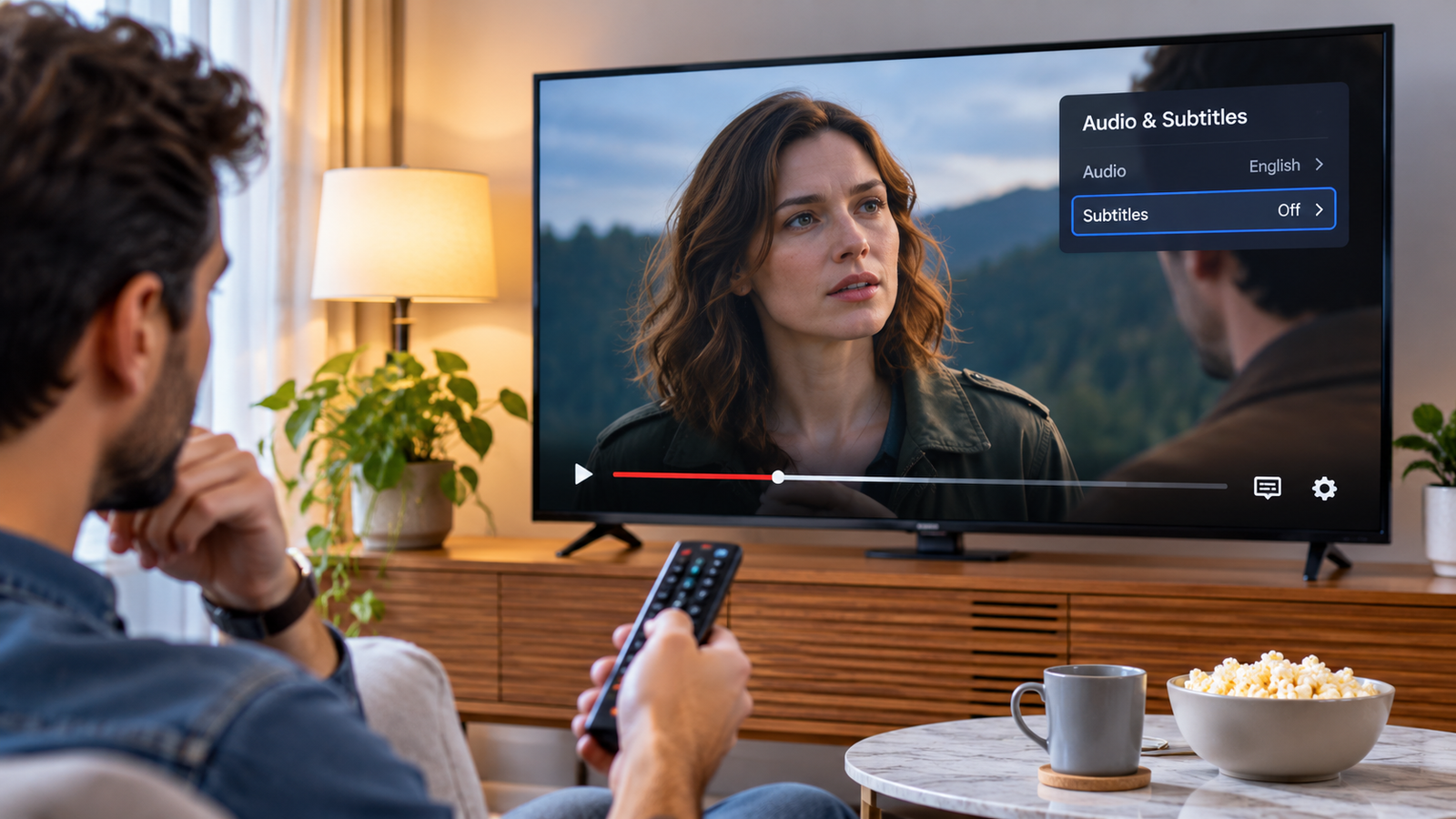
Netflix subtitle settings are selected while a show or movie is playing. Changing a profile or TV setting alone may not turn subtitles on for the title currently on screen.
On most smart TVs and streaming devices:
- Open Netflix and start playing the affected show or movie.
- Press the Up or Down arrow on your TV remote to display the playback controls.
- Select Audio & Subtitles. Depending on the TV interface, language options may appear along the bottom of the screen without a separate icon.
- Find the Subtitles section.
- Select the language or caption track you want.
- Resume playback and check whether the text appears.
If you want subtitles for dialogue and additional sound information, look for a track marked CC or SDH, when available. These tracks can include details such as music and sound effects, not just spoken dialogue.
If the subtitle menu does not show the language you expect, do not assume the app is malfunctioning. Check the title and episode availability in Fix 2.
Fix 2: Check Whether the Show or Episode Offers That Subtitle Language
Netflix does not provide every subtitle language for every title. Availability can vary by the movie or show, season, individual episode, device, and region.
A language may be available for one episode but missing from another. Subtitles for the Deaf and Hard of Hearing (SDH) may also be available for some episodes but not every episode in a series.
To check:
- Start the specific episode or movie that has the problem.
- Open Audio & Subtitles.
- Review the languages listed for that title.
- If you see Other, open it to check the additional language options.
- If the desired language or SDH track is not listed, test another episode or title.
If the same language is missing across several titles, check whether your Netflix profile or regional availability is affecting the options. If it is missing from only one episode, the limitation may be specific to that content.
Do not reinstall Netflix or reset your TV just because one title does not offer a particular subtitle track.
Fix 3: Check Your Netflix Profile and Subtitle Preferences
If subtitles keep reverting to a different language or appear inconsistently across titles, check which Netflix profile is being used.
Netflix notes that subtitle and audio preferences are not saved when most Kids titles are watched from an adult profile. Preferences are saved when those titles are watched from a Kids profile.
Try this:
- Return to the Netflix home screen.
- Check the profile currently selected.
- Switch to the profile you normally use for viewing.
- Start a title rated for teens or older and select your preferred subtitle language.
- Resume playback and check the selection.
- Return to the title or episode where the setting was not being retained.
If the problem occurs only with Kids content, the profile behavior may explain why the preference is not being retained. It does not necessarily indicate a fault with your TV.
Fix 4: Change Subtitle Size and Style on Your TV
If subtitles appear but are too small, too large, difficult to read, or use an unwanted style, check the appearance controls.
On supported TVs and streaming devices:
- Start playing a Netflix title.
- Pause playback.
- Open the player controls.
- Select Settings, if it appears.
- Adjust the available Size and Style options.
- Resume playback to check the result.
The available controls depend on the TV, streaming device, and selected language. Some devices do not offer subtitle appearance settings for certain languages. Connected TVs also provide fewer appearance options than Netflix’s browser-based profile settings.
If you do not see a Settings option in the player, your device may not support changing the appearance for that language. This is a device limitation, not necessarily a Netflix fault.
Fix 5: Update Subtitle Appearance From Your Netflix Account
If you want to change the font, size, shadow, or background color and your TV does not offer enough controls, use a web browser.
- Open Netflix in a browser and sign in.
- Go to your Account page.
- Open Profiles.
- Select the profile you use on your TV.
- Choose Subtitle appearance.
- Adjust the available font, size, shadow, and background color options.
- Select Save.
- Open Netflix on your TV and test the same profile.
Not every appearance option is available in every country or on every device. Some older TVs may not display all the settings you select.
If the changes save successfully but do not appear on your TV, continue to Fix 6.
Fix 6: Reload the Netflix App on Your Smart TV
Netflix specifically recommends reloading the app on a smart TV when subtitle appearance changes do not take effect.
To reload it:
- Return to the Netflix home screen.
- Press the Back button on your remote to open the Netflix menu.
- If the menu appears across the top, move left to your profile icon.
- Select Get Help.
- Choose Reload Netflix.
- If your menu appears on the left instead, scroll to the bottom and select Get Help, then Reload Netflix.
- Once Netflix reloads, play the same title and check the subtitle appearance again.
The menu layout can vary between Netflix versions. Look for the Get Help option rather than assuming every TV has the same screen layout.
This reload is particularly relevant after changing subtitle appearance through a browser. It is not a reason to sign out or reinstall the app immediately.
Fix 7: Check Why Subtitles Will Not Turn Off
If you select Off but subtitles continue appearing, first check whether they are part of the title itself.
Netflix explains that some shows and movies produced in another region may display subtitles in the region’s primary language by default. These subtitles may not be removable through the normal subtitle menu.
Also check whether the issue occurs only with Kids titles. Netflix documents a preference-saving limitation for most Kids titles watched from an adult profile.
For a quick comparison:
- Open a different movie or show.
- Start playback.
- Open Audio & Subtitles.
- Select Off, if available.
- Resume playback and compare the result.
If subtitles disappear on other titles but remain on one particular show or movie, the behavior may be related to that title rather than a TV-wide setting.
Netflix also documents a specific limitation affecting some 2011 and 2012 Samsung Smart TVs running older Netflix app versions. If you have one of these models and subtitles will not turn off after selecting None, Netflix recommends using another device to stream.
If Netflix Subtitles Still Do Not Work
If the subtitle track is available, the correct profile is selected, and the TV app has been reloaded but the problem continues, test the same title on another supported device.
This comparison helps narrow down the issue:
- Subtitles work on another device: The problem may be specific to the TV, streaming device, or its Netflix app.
- Subtitles are missing on multiple devices for one title: Check the language and subtitle availability for that title or episode.
- Appearance changes work elsewhere but not on the TV: The TV may not support the selected appearance option, or its Netflix app may need to be reloaded.
- The problem affects several titles and devices: Contact Netflix Support with the affected titles, profile, language, and device details.
Avoid factory-resetting your TV as an early troubleshooting step. It can remove settings and require you to configure the device again, without resolving a missing subtitle track or an unsupported appearance option.
FAQs
Why are subtitles available on one Netflix episode but not another?
Subtitle and SDH availability can vary by season and episode. Open Audio & Subtitles while playing the specific episode to see the tracks available for it.
Why do Netflix subtitles appear even when I turn them off?
Some titles produced in another region may show subtitles in your region’s primary language by default. Compare with another title to determine whether the behavior is specific to the content.
Why did my Netflix subtitle font or size change?
The appearance may have been changed through your Netflix profile settings or the TV’s playback controls. Check both places, since connected TVs may support fewer appearance options than a web browser.
Can I change Netflix subtitle appearance on my TV?
Some TVs and streaming devices provide Size and Style controls in the playback settings. If those controls are unavailable, use Netflix’s browser-based Account > Profiles > Subtitle appearance settings where supported.
Why are Netflix subtitles too large?
Check the appearance settings in Netflix and the accessibility settings on your device. More than one setting can affect subtitle size, so adjust one at a time to identify which is responsible.