
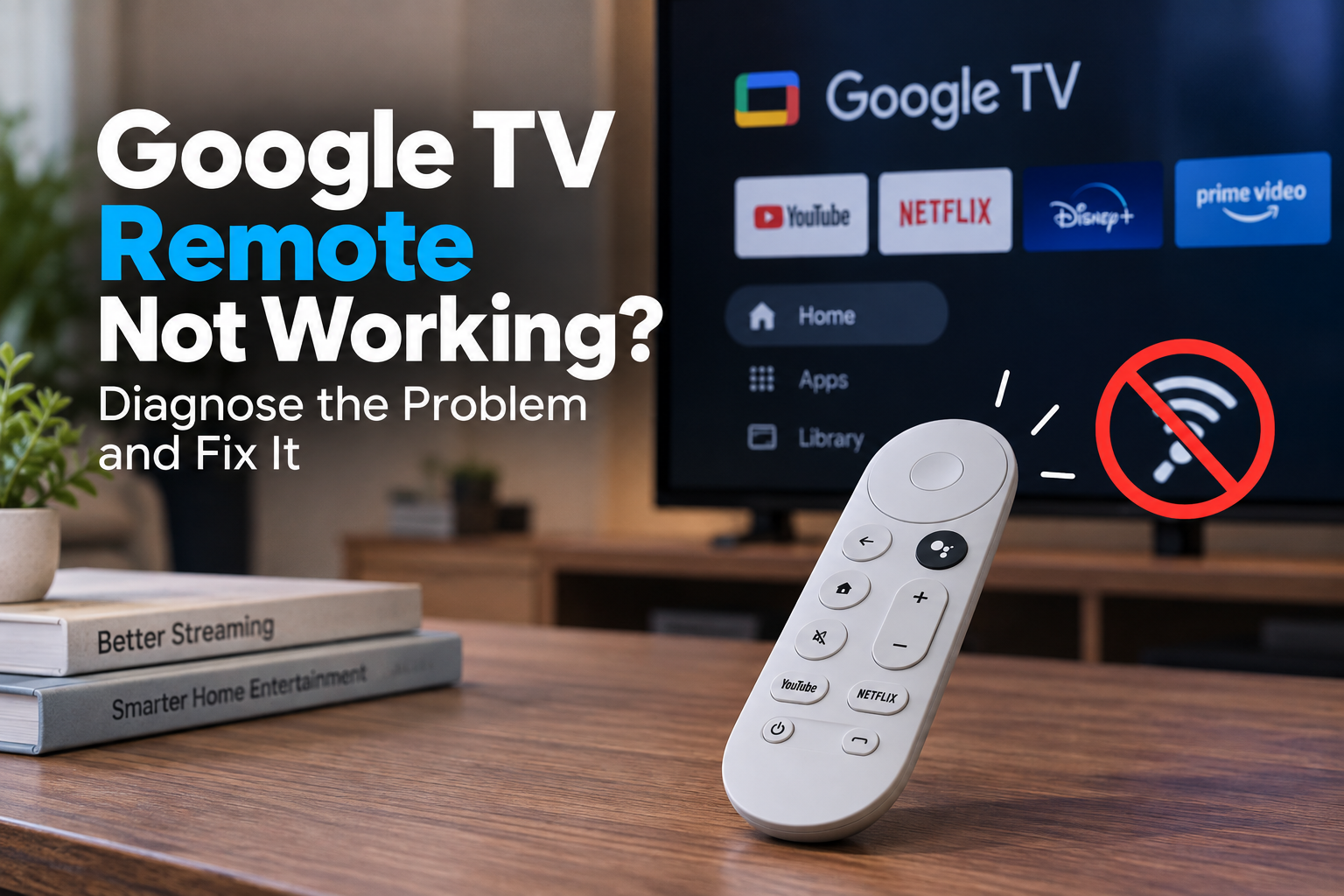
Google TV Remote Not Working? Diagnose the Problem and Fix It
If your Google TV remote isn’t working, don’t assume the remote itself has failed.
The symptoms matter. A remote with no response or LED activity points to a different problem from one that can navigate Google TV but can’t control your TV’s volume or power. You may also find that the remote works for a while and then suddenly stops responding.
Start by identifying what still works. That will tell you which fix to try first.
Quick Diagnosis: Start Here
| What you’re seeing | Start here |
|---|---|
| Remote doesn’t respond at all | Go to Fix 1 |
| Remote LED works but Google TV doesn’t respond | Go to Fix 2 |
| Remote has disconnected or won’t pair | Go to Fix 3 |
| Remote keeps losing its connection | Go to Fix 4 |
| Remote works, but volume, power or input buttons don’t | Go to Fix 5 |
| Remote responds slowly or has noticeable delay | Go to Fix 6 |
| You can’t navigate Google TV because the remote is unusable | Go to Fix 7 |
| Nothing else has restored the remote | Go to Fix 8 |
Why This Happens
A Google TV remote can stop working for several different reasons.
Common causes include:
- Weak or poorly seated batteries
- A temporary problem with the Google streaming device
- Lost Bluetooth pairing between the remote and device
- A Bluetooth connection that keeps dropping
- Incorrect TV-control configuration
- Infrared communication problems with your TV
- Interference or distance affecting remote response
- A remote that needs to be reset and paired again
Before resetting anything, determine whether the entire remote has stopped working or only certain buttons have stopped controlling the TV.
That distinction can save a lot of unnecessary troubleshooting.
Fix 1: Check the Remote Batteries and LED
Start with the simplest possibility.
Remove both batteries from the remote and then reinsert them while watching the remote’s LED.
On a Chromecast Voice Remote, the LED is on the front of the remote. It may not be obvious until it lights up.
If the LED doesn’t flash:
- Remove both batteries.
- Reinsert them and check the LED again.
- If there’s still no response, try two fresh 1.5-volt AAA batteries.
- Make sure both batteries are inserted in the correct direction.
- Check again for LED activity.
If you still get no LED response, remove both batteries, wait about five minutes, and reinsert them.
If the LED works but the remote still doesn’t control Google TV, move to the next fix.
Fix 2: Restart Your Google Streaming Device
Sometimes the remote is fine, but the Google streaming device has stopped responding to it.
For Chromecast with Google TV:
- Disconnect the USB-C power cable from the Chromecast.
- Leave it disconnected for about one minute.
- Reconnect the power.
- Wait for Google TV to start completely.
- Test the remote again.
Disconnecting only the HDMI connection isn’t enough. The device needs to be disconnected from its power source to reboot properly.
If the remote starts working normally afterward, the problem was likely temporary.
Fix 3: Pair the Remote Again
If the remote has lost its connection, pairing it again may restore control.
For a Chromecast Voice Remote, press and hold the:
Back + Home buttons
for about three seconds.
Watch for the remote’s light to begin pulsing.
In many cases, the remote pairs automatically. If Google TV displays a pairing screen, follow the instructions shown on the TV.
If you can’t navigate the screen because the remote isn’t working, use your phone as a temporary remote first. We’ll cover that in Fix 7.
Fix 4: Fix a Remote That Keeps Losing Its Bluetooth Connection
Sometimes the remote works initially but repeatedly stops controlling the Google TV interface.
If the remote LED still lights up when this happens:
- Remove both batteries.
- Reinsert them.
- Check whether the LED flashes.
- Disconnect the Google streaming device from power.
- Leave it unplugged for about one minute.
- Reconnect it and wait for it to restart.
- Test the remote again.
If the Bluetooth connection continues dropping, the remote may need to be reset and paired again.
Don’t factory reset the entire Google TV device yet. Resetting the remote is the less disruptive step.
Fix 5: Fix Volume, Power or Input Buttons That Don’t Work
This is a different problem from a completely unresponsive remote.
If you can navigate Google TV normally but can’t:
- Change the TV volume
- Turn the TV on or off
- Change the TV input
the remote may need its TV controls configured again.
On Google TV, go to:
Settings → Remotes & Accessories → Set up remote buttons
Select the device you want the remote to control and configure the relevant buttons again.
For example, you can reconfigure:
- Volume
- Power
- Input
Some of these controls use infrared, so point the remote directly toward the TV, soundbar or receiver you’re trying to control.
Also keep in mind that certain TV models may not support every remote-control function.
If navigation works but volume or power doesn’t, don’t immediately reset the entire remote. Start with the TV-control configuration.
Fix 6: Troubleshoot a Slow Google TV Remote
A remote doesn’t have to stop working completely to have a problem.
Sometimes button presses take noticeably longer than normal to appear on the TV.
First, move closer to the TV and test the remote again.
If that helps, distance or interference may be affecting the connection.
You can also try:
- Moving your Wi-Fi access point farther away from the Google streaming device.
- Repositioning the streaming device.
- Moving the device away from other HDMI cables where practical.
- Testing the remote again from your normal seating position.
If the remote remains consistently slow even at close range, continue with the restart and remote-reset steps.
Fix 7: Use Your Phone as a Temporary Google TV Remote
A non-working physical remote doesn’t necessarily leave you stuck.
You can use a compatible phone as a virtual remote to navigate Google TV while troubleshooting the physical remote.
Once connected, use the virtual remote to open:
Settings → Remotes & Accessories
From there, you can check the existing remote, forget it if necessary, and start the pairing process again.
This is particularly useful when the physical remote has completely stopped responding and you need access to the Google TV settings.
Don’t treat the phone remote as the fix, though. Use it as a way to regain control while diagnosing the physical remote.
Fix 8: Factory Reset the Voice Remote
If the remote still doesn’t work after checking the batteries, restarting the streaming device and trying to pair it again, reset the remote itself.
For a Chromecast Voice Remote:
- Remove both batteries.
- Wait about five minutes.
- Press and hold the Home button.
- While continuing to hold Home, reinsert the batteries.
- Keep holding Home while the LED stays solid.
- When the LED begins pulsing, release the button.
The remote may pair automatically.
If it doesn’t, press and hold:
Back + Home
for about three seconds to start pairing.
A remote reset is different from factory resetting your Chromecast with Google TV. Reset the remote first because it is far less disruptive.
What About the Google TV Streamer Voice Remote?
The newer Google TV Streamer uses a different Voice Remote and its reset procedure is different.
For that remote:
- Press and hold Mute + Center (Select) together.
- Keep holding while the LED flashes white.
- Continue holding through the countdown sound.
- Release when the LED turns solid white.
Don’t use the Chromecast Voice Remote reset procedure on a Google TV Streamer Voice Remote.
Fix 9: Consider Resetting the Google TV Device Only as a Last Resort
If you’ve confirmed the batteries are good, restarted the device, re-paired the remote and reset the remote itself, Google’s troubleshooting guidance includes resetting the streaming device as a later step.
This should not be your first response to a remote problem.
A factory reset removes the device’s settings and requires you to set it up again.
Before considering it, make sure you’ve tried:
- Fresh batteries
- Restarting the Google streaming device
- Pairing the remote again
- Using the phone remote to check settings
- Reconfiguring TV-control buttons where relevant
- Factory resetting the remote itself
If those steps fail, follow Google’s factory-reset instructions specifically for your Google streaming device.
How to Prevent Google TV Remote Problems
A few simple habits can reduce recurring remote problems.
Replace weak batteries rather than repeatedly removing and reinserting them. Keep the streaming device positioned where unnecessary interference is minimized, and avoid placing networking equipment directly beside it where possible.
If only volume, power or input stops working, check the remote-button configuration before resetting anything.
Most importantly, remember that navigation controls and TV controls don’t always fail for the same reason. Identifying which functions have stopped working makes troubleshooting much faster.
Frequently Asked Questions
Why is my Google TV remote not responding at all?
Start with the batteries. Remove and reinsert them while checking for LED activity, and try fresh 1.5-volt AAA batteries if necessary. If the LED works but Google TV doesn’t respond, restart the streaming device and check the remote pairing.
How do I pair my Chromecast Voice Remote again?
Press and hold the Back and Home buttons for about three seconds. The remote’s light should begin pulsing as it enters pairing mode.
Why does my Google TV remote work except for volume?
If navigation works but volume doesn’t, the problem may be with the remote’s TV-control configuration rather than Bluetooth pairing. Go to Settings → Remotes & Accessories → Set up remote buttons and configure the volume control again.
Why does my Google TV remote keep disconnecting?
A dropped Bluetooth connection can cause the remote to work intermittently. Remove and reinsert the batteries, reboot the streaming device and test again. If the problem continues, reset and re-pair the remote.
Can I control Google TV without the physical remote?
Yes. A compatible phone can be used as a virtual remote. This is particularly useful when you need to access Remotes & Accessories to troubleshoot or re-pair the physical remote.
Should I factory reset my Google TV if the remote isn’t working?
Not initially. Check the batteries, restart the streaming device, re-pair the remote and reset the remote itself first. Resetting the entire streaming device is a later troubleshooting step because it removes your settings.
Are the Chromecast Voice Remote and Google TV Streamer Voice Remote reset the same way?
No. They have different factory-reset procedures. Make sure you identify which remote you have before following a reset sequence.







One Comment
Comments are closed.