
Netflix Not Loading on TV? Diagnose the Problem and Fix It
If Netflix is not loading on TV, the problem may be with the Netflix app, your internet connection, or the television or streaming device itself. Sometimes Netflix gets stuck on its logo, displays a loading circle indefinitely, or returns to the TV’s home screen before you can select anything to watch.
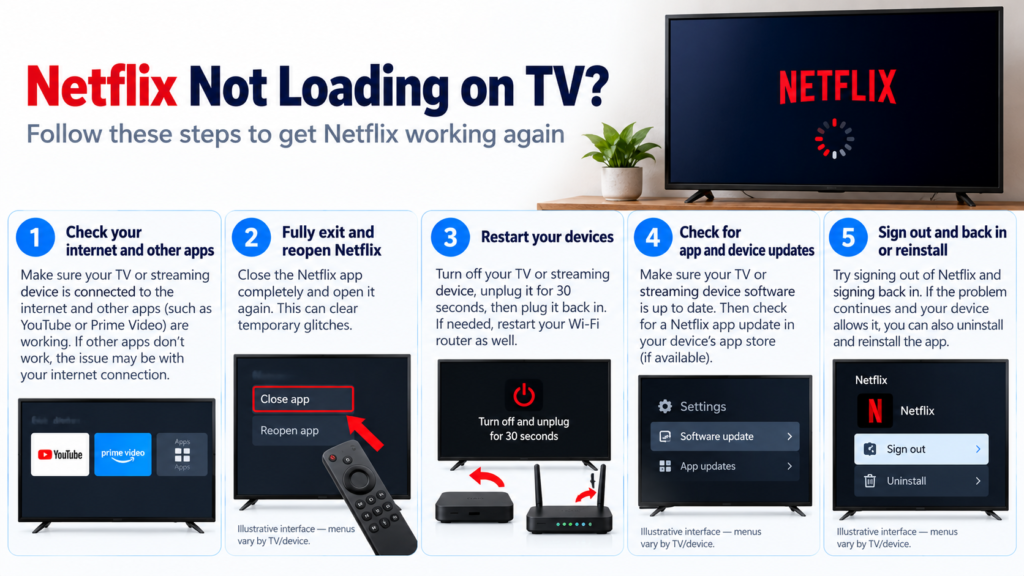
The first thing to establish is whether Netflix is the only app affected. If YouTube and other streaming services work normally, the problem may be limited to Netflix. If several apps cannot load, your device or internet connection deserves attention.
This guide covers Netflix on smart TVs and TV-connected streaming devices, including Roku, Fire TV and Google TV. The exact menu options vary between devices, so follow the instructions that apply to your setup.
Quick Diagnosis: Start Here
| What you’re seeing | Start here |
|---|---|
| Netflix is stuck on its logo or loading screen, but the TV responds normally | Go to Fix 1 |
| Netflix stopped loading unexpectedly after previously working | Go to Fix 2 |
| Netflix and several other streaming apps cannot load | Go to Fix 3 |
| Netflix opens but repeatedly returns to the TV’s home screen | Go to Fix 4 |
| Netflix loads on other devices but not on this particular TV | Go to Fix 5 |
| Netflix opens but shows an error message or cannot access your account | Go to Fix 6 |
| Netflix remains stuck after restarting the app and device | Go to Fix 7 |
| Netflix stopped working after an app or TV software change | Go to Fix 8 |
| Netflix still will not load after the relevant troubleshooting steps | Go to Fix 9 |
Why Netflix Is Not Loading on TV
When Netflix is not loading on TV, the cause is not necessarily a slow internet connection.
Netflix stores temporary information on your television or streaming device. If that information becomes outdated or encounters a problem, the app may freeze, close unexpectedly or fail to finish loading.
An unstable network connection can also prevent Netflix from loading its interface or communicating with its servers.
In other cases, the issue may involve the device’s software, an outdated Netflix app, an account-related error or a temporary problem affecting the Netflix service.
The most useful starting point is to identify whether Netflix itself is failing or whether your entire television or streaming device is having trouble.
Fix 1: Check Whether Only Netflix Is Affected
Before restarting your router or changing your TV settings, check whether the problem is limited to Netflix.
Return to your television’s home screen.
Open another streaming app, such as YouTube, and check whether it loads normally.
If possible, test a second app as well.
If other apps load normally: Your television is functioning, and its internet connection is at least working for those services. Continue with the Netflix-specific fixes.
If several apps cannot load: Move to Fix 3 and investigate the network connection.
If the entire television becomes unresponsive: Follow Fix 2 to restart the device.
This test helps avoid unnecessary changes to your home network when the actual problem is confined to Netflix.
Fix 2: Restart Your TV or Streaming Device
A proper restart can clear temporary problems affecting Netflix.
Simply switching the television off with its remote may leave it in standby mode rather than fully restarting it.
For a smart TV:
- Turn off the television.
- Disconnect its power cable from the wall socket.
- Leave it disconnected for at least 15 seconds.
- Reconnect the power cable.
- Turn on the television and open Netflix.
If your television manufacturer recommends a different restart procedure, follow those instructions.
For an external streaming device, such as Roku, Fire TV or Chromecast with Google TV, restart the streaming device itself.
Where applicable, disconnect its power cable, wait at least 15 seconds and reconnect it.
Make sure the device is fully powered off rather than simply placed in sleep mode.
Once it has restarted, open Netflix again.
If Netflix still will not load, continue with the fix that matches your symptoms.
Fix 3: Check Your Internet Connection
If Netflix and several other streaming apps cannot load, investigate your internet connection.
First, check whether another device connected to the same network can access the internet.
For example, open a website on your phone while it is connected to your home Wi-Fi.
If the connection is working on your phone but not on your television, check the TV’s network settings.
Make sure it is connected to the correct Wi-Fi network.
If the television has a built-in network test, run it and check the result.
Restart your home network if necessary:
- Turn off your television or streaming device.
- Disconnect your modem and router from power.
- Wait approximately 30 seconds.
- Reconnect the modem and router.
- Allow the network to reconnect fully.
- Turn on your television and try Netflix again.
Some network equipment may take longer to reconnect.
If Netflix continues to have trouble while other devices and services work normally, proceed with the app-specific troubleshooting steps.
If your television cannot connect to the internet at all, troubleshoot its network connection before making further changes to Netflix.
Fix 4: Check Whether Netflix Is Stuck or Failing to Open
Watch what happens when you launch Netflix. Does the app remain on its logo or loading screen, or does it open briefly and then close?
- Netflix stays on the logo or loading screen: Continue with the Netflix-specific checks in this guide.
- Netflix opens and then returns to your TV’s home screen: This points to an app crash rather than a loading failure. Follow our guide to Netflix Keeps Crashing on TV for troubleshooting steps specific to unexpected app closures.
- The entire TV freezes or restarts: Investigate the television or streaming device rather than treating this as a Netflix-only problem.
Identifying which behavior occurs helps you choose the right troubleshooting path without repeating the same restart, update and app-reinstallation steps in two guides.
Fix 5: Check Whether Netflix Works on Another Device
If Netflix loads normally on your phone or computer but not on your television, the problem may be specific to the TV or its Netflix app.
Open Netflix on another device using the same account.
If possible, connect that device to the same home network as your television.
Then compare the results.
Netflix works on another device: Continue troubleshooting the television, streaming device or Netflix app.
Netflix fails on several devices: Check whether your internet connection is working and whether Netflix is reporting a service problem.
Netflix works on mobile data but not on your home Wi-Fi: Your home network may be involved.
This comparison doesn’t identify the exact cause on its own, but it helps narrow the investigation.
Fix 6: Check Netflix Error Messages and Account Access
If Netflix displays an error code or message, don’t ignore it.
An error code can provide more specific troubleshooting information than a generic loading problem.
Write down the complete error code, including any letters or numbers in parentheses.
Then search for that exact code in Netflix’s Help Center.
Some errors relate to information stored on the device, while others may involve network connectivity, account access or device compatibility.
If Netflix reaches its home screen but you cannot access your account, try signing out and signing back in.
On many TV versions of Netflix, you can find the sign-out option under:
Get Help → Sign out
The location of this option varies with the Netflix interface.
If Netflix is displaying an error screen, look for More Details, which may provide additional troubleshooting or sign-out options.
Make sure you have your Netflix sign-in information before signing out.
If Netflix displays a specific error code, follow the instructions for that code rather than applying unrelated fixes.
Fix 7: Refresh Netflix’s Stored App Information
If Netflix remains stuck on its loading screen after restarting the device, refreshing the app’s stored information may help.
The available options depend on your television or streaming platform.
On Google TV or Android TV:
Open the device’s app settings and select Netflix.
If clearing the cache hasn’t helped, you may be able to clear the app’s data.
Be aware that this can remove saved app settings and require you to sign in again.
On Fire TV:
Look for Netflix under the device’s installed-app management settings.
Depending on the Fire TV software version, options may include clearing the app’s cache or data.
On Roku and other smart TVs:
The available controls differ. Some devices allow you to sign out of Netflix, while others provide an app reset or reinstall option.
Follow the instructions for your particular device.
After refreshing the app, reopen Netflix and sign in if prompted.
Avoid resetting the entire television simply to refresh Netflix’s app information.
Fix 8: Check for Netflix and Device Software Updates
If Netflix stopped loading after a software change, or if the problem continues despite restarting and refreshing the app, check for available updates.
Start with the Netflix app.
Open your device’s app store or app-management settings and check whether a newer version is available.
Next, check for a television or streaming-device system update.
For example, on many Google TV devices:
Settings → System → About → System update
On Roku, Fire TV and other smart TV platforms, the update option may be located elsewhere.
Install available updates and allow the device to restart if required.
Then open Netflix again.
If the problem began immediately after an update, check the device manufacturer’s support information for known issues or additional troubleshooting instructions.
Do not interrupt an active software update by repeatedly disconnecting the device from power.
Fix 9: Reinstall Netflix or Contact the Appropriate Support Team
If Netflix still won’t load, consider reinstalling the app if your device allows it.
Before proceeding, make sure you know your Netflix account credentials.
Removing Netflix may delete its saved information and require you to sign in again.
On devices where Netflix can be uninstalled:
- Remove the Netflix app using the device’s app-management controls.
- Restart the device.
- Open its official app store.
- Reinstall Netflix.
- Sign in and test the app.
Some smart TVs include Netflix as a preinstalled app that cannot be removed normally. If yours does, do not attempt unofficial methods to remove it.
If Netflix continues to fail, contact Netflix Support and provide the device model, software version, exact symptom and any error code displayed.
If the television itself freezes, restarts or cannot run several apps, contact the television or streaming-device manufacturer instead.
A factory reset of your television should not be the default response to Netflix failing to load. It removes saved settings and may not resolve an app-specific or service-related problem.
How to Prevent Netflix Loading Problems on TV
Keep your television or streaming device and the Netflix app updated.
Use a stable internet connection and avoid disconnecting your device from power while a software update is installing.
If Netflix begins behaving unexpectedly, check whether the issue affects other apps before changing your network or system settings.
Restart your device when necessary, but avoid repeatedly clearing app data or reinstalling Netflix without identifying the likely cause.
When Netflix displays an error code, record it. An exact error message can help you find the relevant troubleshooting procedure much faster.
Frequently Asked Questions
Why is Netflix stuck on the loading screen on my TV?
Netflix may become stuck because of temporary app data, a device software problem or a network issue.
Start by checking whether other streaming apps work, then restart your television or streaming device. If Netflix is the only affected app, continue with the app-specific fixes.
Why does Netflix work on my phone but not on my TV?
The Netflix app, software version and network connection on your television may differ from those on your phone.
Test Netflix on both devices using the same home network. If it works on your phone but not on your TV, focus on the television’s Netflix app, software and connectivity.
Why does Netflix open and then close on my smart TV?
Netflix may be crashing because of a temporary app or device problem.
Restart the television, check for Netflix updates and investigate the app’s cache or stored data if your device provides those controls.
Should I restart my router if Netflix isn’t loading?
Restarting your router may help if your television has an unstable internet connection or several streaming apps cannot load.
If other apps work normally and Netflix is the only affected service, begin with Netflix-specific troubleshooting instead.
Will clearing Netflix’s cache delete my account?
Clearing temporary cache files generally doesn’t delete your Netflix account.
However, clearing the app’s data or resetting the app may remove saved information and require you to sign in again.
The available controls and their effects vary by device.
Why is Netflix not loading after an update?
The app or device may have encountered a temporary problem during or after the update.
Restart the device, check whether additional updates are available and follow the manufacturer’s troubleshooting guidance if the issue continues.
Should I factory reset my TV because Netflix won’t load?
Not initially.
Check the app, internet connection, device restart and available software updates first.
A factory reset removes your television’s saved settings and may not fix a problem limited to Netflix.






