Alexa Alarm Not Going Off? Fix Alarm and Volume Problems
Alexa Alarm Not Going Off? Or it sounds too quietly to wake you? Start by checking the alarm itself rather than resetting your Echo. The alarm may be disabled, set for the wrong time, configured for the wrong days or playing at a volume that is difficult to hear.
First, open the Alexa app and check whether the alarm is still listed. If it is present, review its settings before creating a replacement. If the alarm is missing entirely, create a new test alarm and verify that it appears on the intended Echo device.
Quick checks before troubleshooting
- The alarm does not sound at all: Confirm it is saved and enabled.
- The alarm sounds too quietly: Check the alarm volume, not just the volume you use for music.
- The alarm goes off on the wrong day or time: Review the time and repeat settings.
- The alarm plays on a different Echo: Check which device the alarm is associated with.
- The problem started recently: Restart the Echo and check for software updates.
Quick Diagnosis: Start Here
| What you’re seeing | Start with |
|---|---|
| The alarm is missing or disabled in the Alexa app | Go to Fix 1 ↗ |
| The alarm is set for the wrong time or day | Go to Fix 2 ↗ |
| The alarm sounds but is too quiet to hear | Go to Fix 3 ↗ |
| The alarm sound or playback device seems wrong | Go to Fix 4 ↗ |
| The alarm stopped working recently | Go to Fix 5 ↗ |
| You need to find out whether the original alarm or Echo is the problem | Go to Fix 6 ↗ |
Fix 1: Confirm the alarm is saved and enabled
An alarm may be disabled or may not have been saved as expected.
- Open the Alexa app.
- Go to More → Settings → Reminders & Alarms, or open the alarms section available in your app version.
- Find the alarm you expect to hear.
- Check its enabled status and scheduled time.
- If it is disabled, enable it and save the change.
You can also ask Alexa to list your upcoming alarms and check the response against the app.
If the alarm does not appear in the app or on the intended Echo, create a short test alarm. Confirm that it is saved before relying on it.
Fix 2: Verify the time and repeat days
An alarm can appear to be missing when it is actually scheduled for a different time or day.
Open the alarm settings and confirm:
- The correct hour is selected.
- AM or PM is set correctly.
- The intended repeat days are selected.
- The alarm is not set for a date or schedule you did not intend.
- The alarm is associated with the Echo you expect to use.
For example, a weekday alarm will not necessarily sound on Saturday or Sunday. A one-time alarm may also differ from a recurring alarm.
After correcting the settings, save the alarm and check that the updated time and repeat pattern appear in the app.
Fix 3: Increase the alarm volume
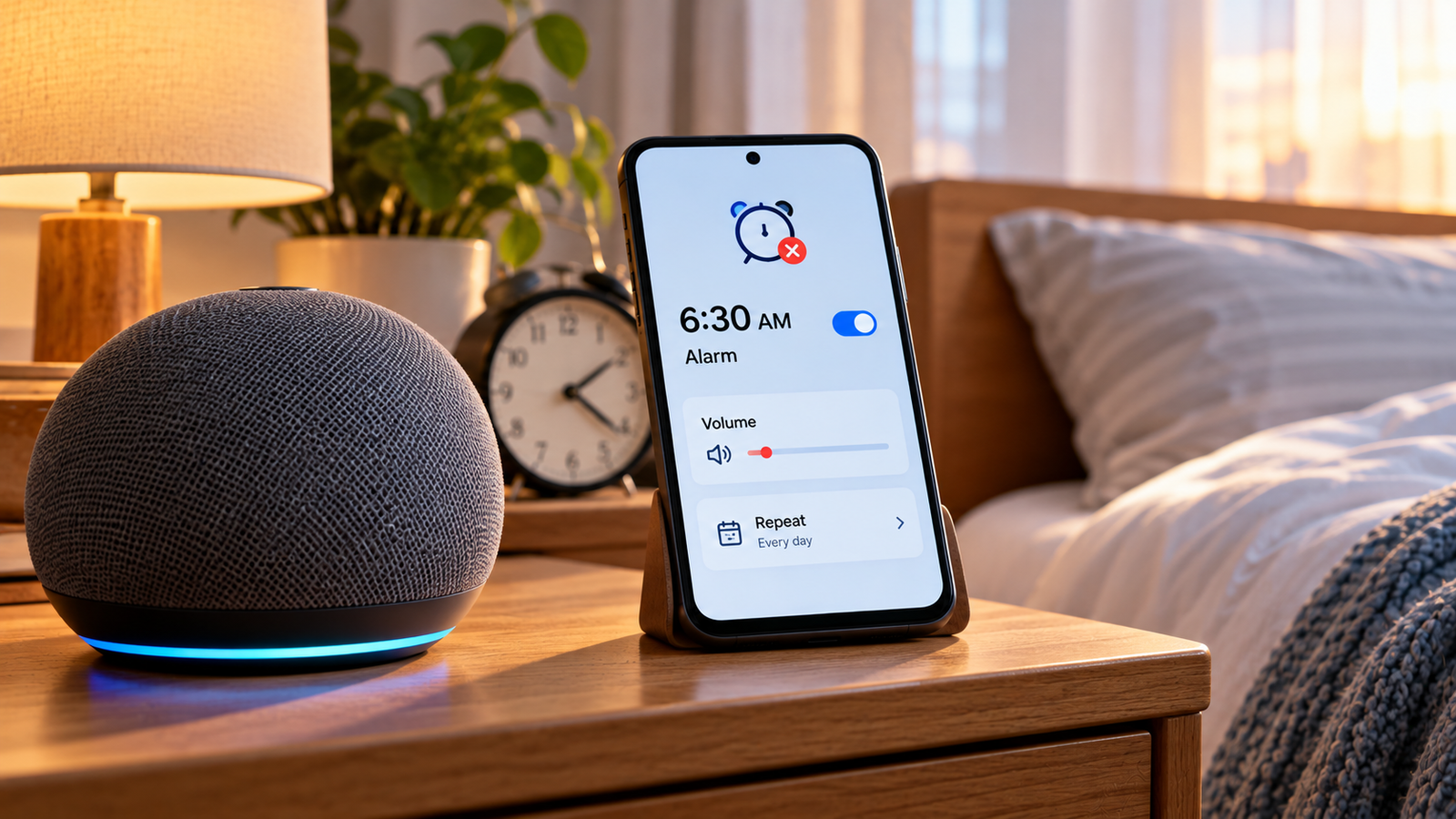
A low alarm volume is easy to overlook because music and alarm sounds may use separate volume controls.
Open the Alexa app and look for the alarm volume setting for your Echo. On supported devices, you can adjust alarm volume through the app’s device settings. The available controls vary by model and app version.
Raise the alarm volume to a level you can hear from your normal sleeping position. If your device supports a gradual volume increase, check that option too.
You can also test the Echo’s ordinary audio volume, but do not assume that changing music volume has changed the alarm volume. Verify the alarm setting specifically.
After making the adjustment, set a short test alarm a few minutes ahead and confirm that the sound is audible.
Fix 4: Check the alarm sound and the selected Echo
An alarm may be sounding, but not in the way or on the device you expect.
Review the alarm’s sound or tone setting if your model offers one. Select a familiar sound for testing, then check which Echo device is configured to play the alarm.
If you have several Echo devices, verify the alarm on the intended device rather than assuming all devices share the same alarm settings.
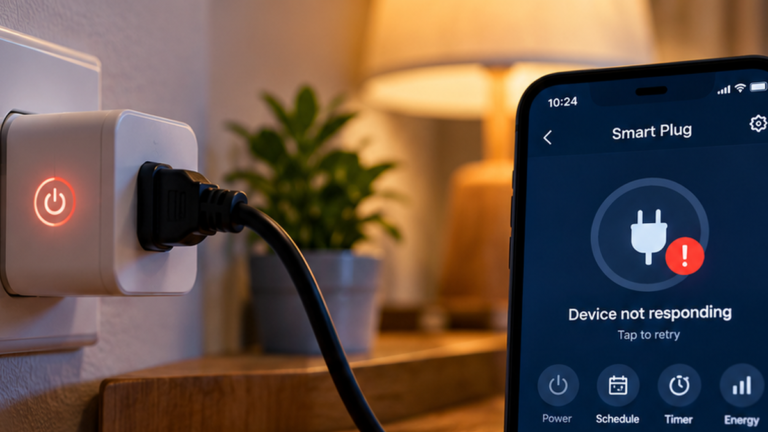
Also make sure the Echo is powered and working normally. If it does not respond to basic commands, troubleshoot the device’s power and connectivity before focusing on the alarm.
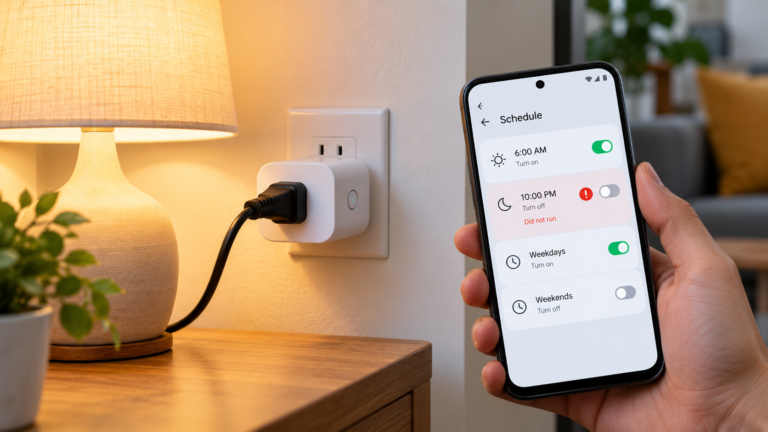
For alarms that turn on smart lights as a wake-up action, check the light and its smart-home integration separately. A light failing to turn on does not necessarily mean the audible alarm itself has failed.
Fix 5: Restart the Echo and check for updates
If the alarm is enabled and correctly configured but still does not sound, a temporary software problem may be involved.
- Unplug the Echo from its power source.
- Wait about 30 seconds.
- Reconnect the power adapter.
- Wait for the device to start fully.
- Check for available Echo software and Alexa app updates.
You can ask Alexa to check for software updates, or follow the update instructions for your specific Echo model. Update the Alexa app through your phone’s app store if an update is available.
After the restart, confirm that the original alarm remains saved and enabled. Then run a short test before relying on the next scheduled alarm.
Fix 6: Test with a new alarm before relying on the original
A short test can help distinguish a problem with one alarm’s settings from a broader device issue.
Ask Alexa to set an alarm a few minutes ahead, or create one in the Alexa app. Check that it appears in the alarm list and is associated with the intended device.
When it is due, verify whether it sounds and whether the volume is sufficient.
- The test alarm works: Review the original alarm’s time, repeat days, sound and device selection.
- The test alarm does not sound: Recheck the alarm volume and device status, then review software updates and restart the Echo if you have not already done so.
- The alarm sounds on the wrong device: Check the device selection and any settings specific to that Echo.
Do not depend on a single successful test as proof that a recurring alarm will always work. If the alarm is important, verify the next scheduled occurrence and consider keeping a separate backup alarm.
When to contact Amazon support
Contact Amazon support if new test alarms also fail after you have checked their settings, volume and device status, restarted the Echo and installed available updates.
Before contacting support, note your Echo model, software version, the time of the failed alarm and whether the alarm appeared in the Alexa app. Mention whether ordinary voice responses and other sounds work normally.
Avoid factory-resetting your Echo as the first troubleshooting step. A reset can remove device settings and connections without addressing a simple alarm configuration issue.
Frequently asked questions
Why does my Alexa alarm not go off even though it is enabled?
Check the scheduled time, repeat days, selected Echo and alarm volume. If the alarm is configured correctly, restart the Echo and test with a new alarm to narrow down the problem.
Does Alexa alarm volume differ from music volume?
Alarm volume can have its own control on supported Echo devices. Check the alarm volume setting specifically rather than relying only on the volume used for music.
Why does my Alexa alarm sound on the wrong Echo?
Review the device associated with the alarm and check its settings in the Alexa app. With multiple Echo devices, confirm the alarm on the device you intend to use.
Should I reset my Echo if the alarm does not work?
Not initially. Check the alarm settings, volume, selected device and software first. Consider more disruptive troubleshooting only if a new test alarm also fails and Amazon’s guidance supports it.
Final takeaway
When an Alexa alarm is not going off, check that it is saved and enabled, verify the time and repeat days, and confirm the alarm volume and selected Echo. Restart the device and test a new alarm before making bigger changes. If you rely on an alarm to wake you for something important, keep a separate backup until the issue is resolved.