Smart Plug Schedule Not Working? Fix Timer Problems
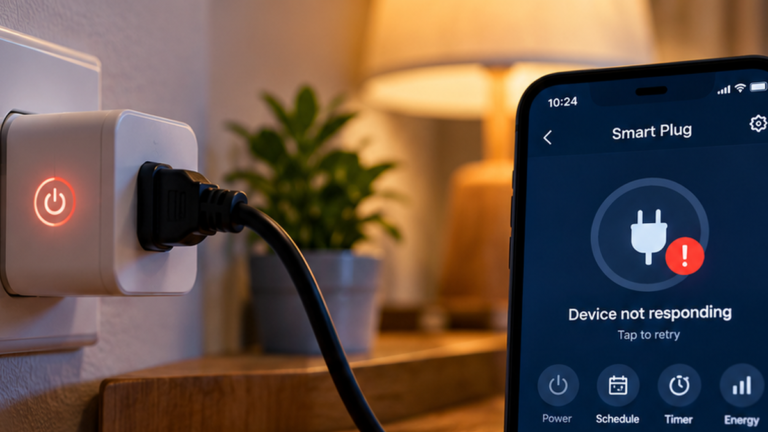
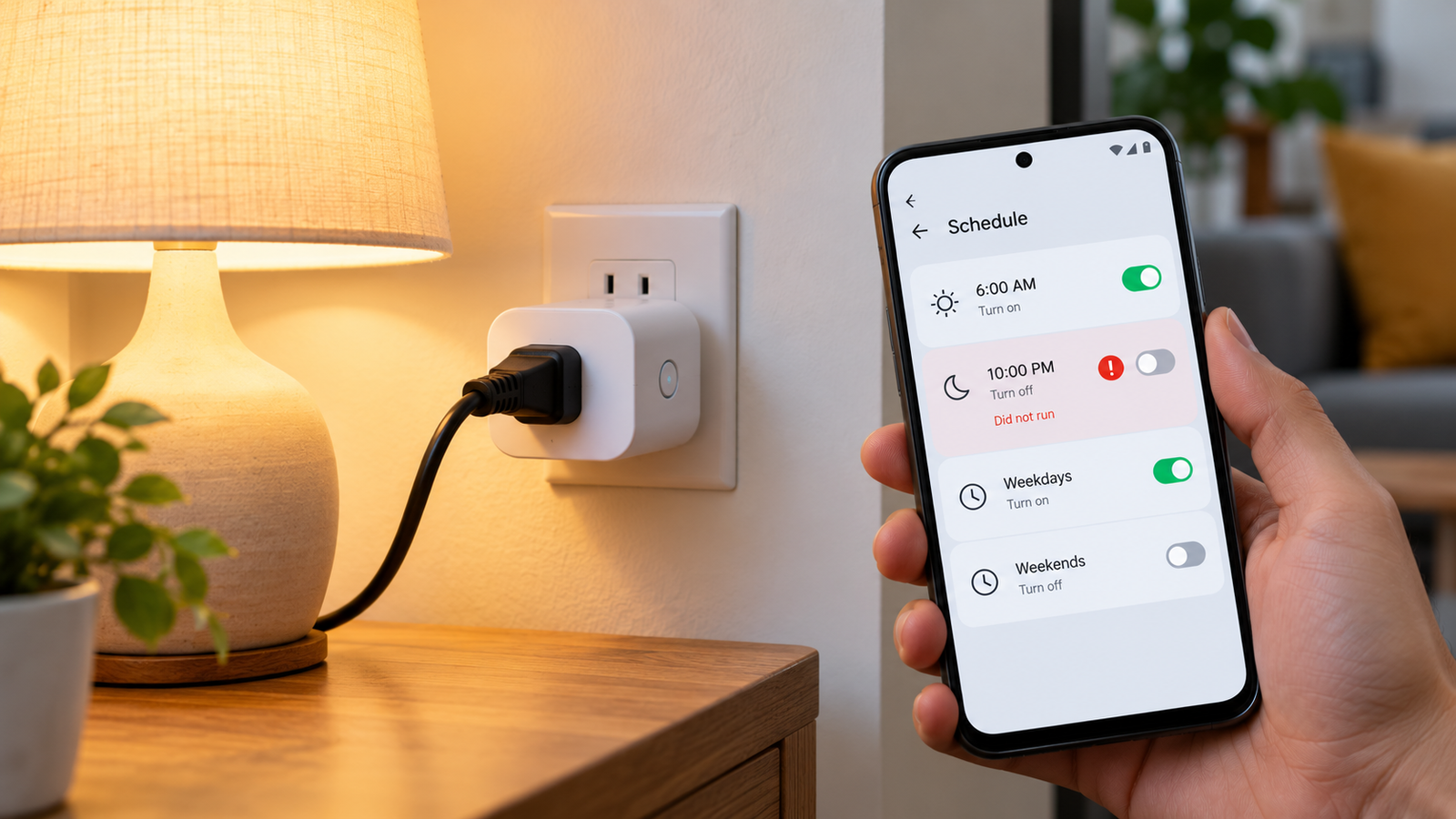
When a smart plug schedule is not working, the plug may still respond to manual commands in its app but fail to switch on or off at the scheduled time. In other cases, a timer starts but never triggers, or a routine runs at an unexpected hour.
The cause can be as simple as a disabled schedule or incorrect repeat days. It can also involve time-zone settings, conflicting automations, device power or a connection problem.
If the plug also fails to respond to manual commands, troubleshoot a smart plug that is not responding before investigating its schedule.
Before resetting the plug, check whether manual control works. Open the device’s app and try switching the plug on and off. If manual control works but the schedule fails, focus on the schedule and automation settings first.
Listen to the quick guide: Smart Plug Schedule Not Working
Quick checks before changing settings
- Manual control works, schedule fails: Start with the schedule, time and automation settings.
- Manual control also fails: Check the plug’s power, Wi-Fi connection and app status.
- The schedule runs at the wrong time: Check the device’s time zone and location settings.
- The connected appliance does not respond: Test the appliance separately to determine whether the problem is the plug or the appliance.
Quick Diagnosis: Start Here
| What you’re seeing | Start with |
|---|---|
| The schedule is saved but does not run | Go to Fix 1 ↗ |
| The plug switches at the wrong time | Go to Fix 2 ↗ |
| The schedule runs on the wrong days or performs the wrong action | Go to Fix 3 ↗ |
| The app changes the plug state but the appliance does not respond | Go to Fix 4 ↗ |
| Another routine may be overriding the schedule | Go to Fix 5 ↗ |
| The schedule stopped working after an app or device update | Go to Fix 6 ↗ |
| The schedule is correct but still fails to run | Go to Fix 7 ↗ |
Fix 1: Make sure the schedule is enabled
A schedule can remain saved in an app even when it has been switched off. This can happen after editing a routine or changing how a device is controlled.
- Open the smart plug’s companion app.
- Select the affected plug.
- Open its Schedule, Timer or automation section.
- Check that the intended rule is enabled.
- Confirm the action is correct: turn on or turn off.
- Save any changes and check the next scheduled run.
Some apps separate device schedules from broader automation rules. If you created a rule under a Smart Actions, Routines or Automations menu, inspect that rule too.
Avoid creating several duplicate schedules as a workaround. First confirm whether the original rule is active and configured correctly.
Fix 2: Check the time, date and time zone
Incorrect time settings can cause a smart plug to switch at the wrong hour or miss an expected event.
Check the phone’s date, time and time zone. Then open the smart-home app and look for its location or time settings.
For TP-Link Kasa devices, the app provides a Location and Time setting that can be used to check or synchronise the device’s time. Other brands may manage time settings differently.
If the schedule uses sunrise or sunset, verify that the app has the correct location. A location mismatch can make these schedules run earlier or later than expected.
After correcting the settings, save the schedule and test it using a future time a few minutes ahead. Do not change your phone’s time zone simply to force a schedule to run.
Fix 3: Confirm the repeat days and scheduled action
A schedule can appear correct while being configured for the wrong days or action.
Open the rule and verify:
- The correct weekdays are selected.
- The time is AM or PM as intended.
- The action is set to switch the plug on or off.
- The schedule has been saved successfully.
- Any start and end dates or conditions are correct, if the app offers them.
For example, a rule set to run only on weekdays will not necessarily run on Saturday or Sunday.
If the schedule uses a sunrise or sunset trigger, check its location and offset settings. These triggers behave differently from a fixed clock time.
Save the rule after correcting it, then wait for the next scheduled event or create a short test schedule if the app supports one.
Fix 4: Check power to the plug and connected appliance
A smart plug cannot control an appliance if it has lost power or the appliance itself is not working.
Check that the plug is firmly seated in the outlet and that its indicator light behaves as described in the manufacturer’s manual. If safe to do so, test the wall outlet with another suitable device.
Next, check the appliance connected to the smart plug. Some appliances do not automatically resume operation when power is restored. A lamp with a physical switch, for example, may need its own switch left in the on position for the smart plug to control it.
If the plug switches state in the app but the appliance does not respond, test the appliance directly and consult its manual. Do not open the smart plug or attempt electrical repairs.
Fix 5: Check for conflicting routines or automations
A device may have more than one rule controlling it. One schedule can turn the plug on while another routine turns it off shortly afterward.
Review the app for:
- Other schedules assigned to the same plug.
- Smart-home routines that control the plug.
- Timers or auto-off rules.
- Away modes or location-based automations.
- Rules created through another smart-home platform.
Temporarily disable overlapping rules one at a time, where the app allows it, and test the intended schedule again. Restore any rules you need once you have identified the conflict.
Also distinguish between a device schedule and a cloud-based automation. Depending on the brand and feature, an automation may require an internet connection even if a basic device schedule behaves differently.
Fix 6: Update the companion app and device firmware
An outdated app or device firmware can cause scheduling features to behave unexpectedly.
- Open the app store on your phone.
- Check for an update to the smart plug’s companion app.
- Open the device settings in the app.
- Look for a firmware update option.
- Install available updates according to the manufacturer’s instructions.
- Restart or reconnect the device if the app recommends it.
Do not unplug the device or interrupt a firmware update while it is in progress.
After updating, open the schedule again and confirm that it is still enabled and saved. Then test the next scheduled action.
Fix 7: Resynchronise the device and refresh the connection
If the schedule is correct but still does not run, refresh the device’s connection and time synchronisation.
Start by closing and reopening the companion app. Check whether the smart plug appears online, then follow the manufacturer’s instructions to resynchronise its time if that option is available.
If the plug remains online but scheduled actions fail, restart the router using its normal procedure. Allow it to reconnect fully before testing the plug again.
For TP-Link Tapo and Kasa devices, the manufacturer’s troubleshooting guidance also recommends checking the app and firmware, verifying time settings and refreshing the router connection. Specific steps differ between product families, so follow the instructions for your model.
Do not factory-reset the plug as the first response. A reset may remove its configuration and require you to set it up again. Consider it only after the simpler checks fail and the manufacturer’s instructions recommend it.
When to contact the manufacturer
Contact the device manufacturer if manual control works but scheduled actions continue to fail after you have checked the time settings, repeat days, overlapping automations and firmware.
Before contacting support, note the plug’s model, firmware version, app version, exact scheduled time and whether the plug works manually. A screenshot of the schedule and any error message can also help.
If the plug repeatedly loses power, becomes unusually hot, smells burnt or shows signs of damage, stop using it and disconnect it safely if you can do so without risk. Do not continue troubleshooting a potentially unsafe electrical device.
Frequently asked questions
Why does my smart plug work manually but not on a schedule?
Manual control and scheduled actions may use different settings or automation paths. Check whether the schedule is enabled, whether the correct days and action are selected, and whether the device’s time settings are correct.
Why does my smart plug schedule run at the wrong time?
Check the time zone, location and device-time synchronisation. If you use sunrise or sunset triggers, confirm the location and offset settings as well.
Does a smart plug schedule need the internet?
It depends on the brand and feature. Some device schedules may continue locally, while cloud-based automations can require an internet connection. Consult the documentation for your specific model.
Should I reset my smart plug if the timer does not work?
Not immediately. First check the timer, schedule, time settings, power, overlapping automations and app or firmware updates. A factory reset can erase the device configuration and should be a later troubleshooting step.
Final takeaway
When a smart plug schedule fails, begin with the rule itself, the device’s time settings and the repeat days. Then check power, conflicting automations and software updates. If manual control works, use that clue to focus on scheduling rather than resetting the entire device.