Google Home Routine Not Working? Troubleshoot Automations
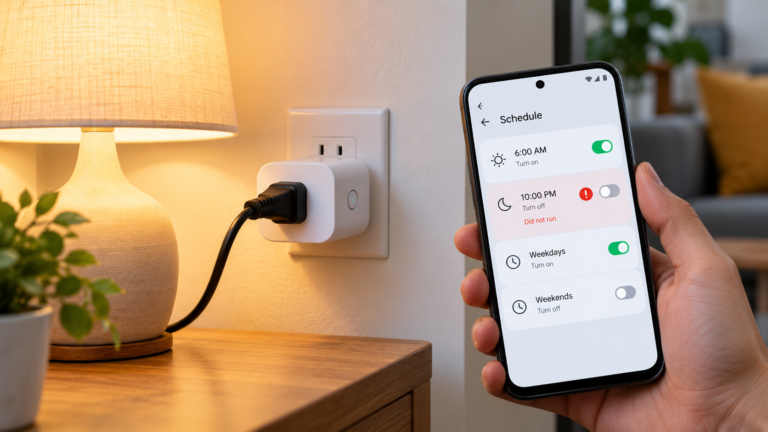
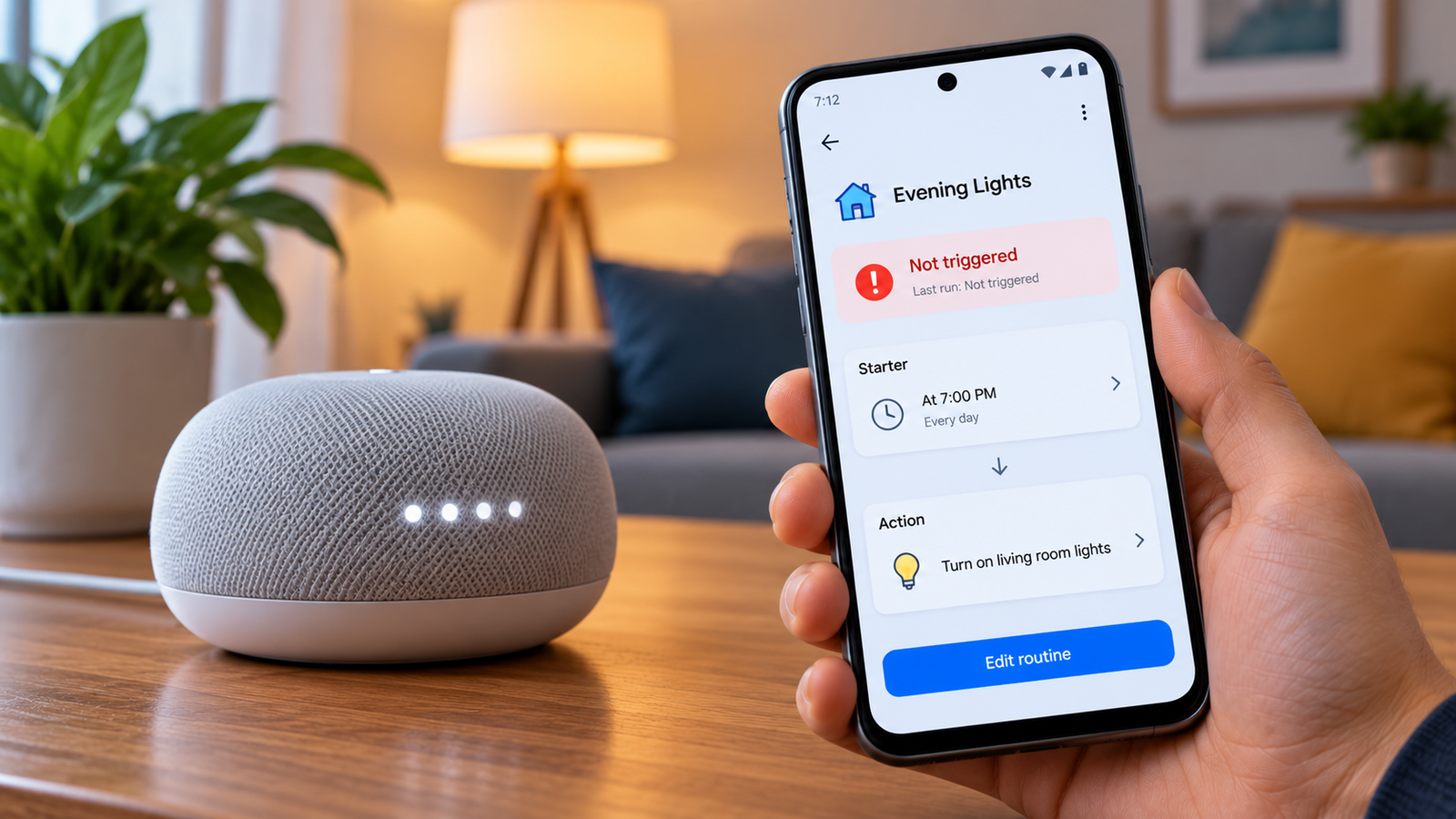
A Google Home routine can fail in several ways. It may not start at the expected time, run without completing every action, or trigger when it should not. Sometimes, the routine is saved in the Google Home app but is switched off.
The quickest way to narrow down the cause is to check the routine’s activity history before changing its settings. This can help you determine whether the routine failed to start or whether an individual action failed during execution.
Work through the checks below in order. You usually do not need to delete and recreate the entire routine.
Listen to the quick guide: Google Home routine not working
Quick checks before troubleshooting
- Nothing happens: Check whether the routine is activated and whether its starter or trigger is correct.
- Only some actions work: Test the failing action separately.
- The routine runs unexpectedly: Review the Activity feed and look for overlapping automations.
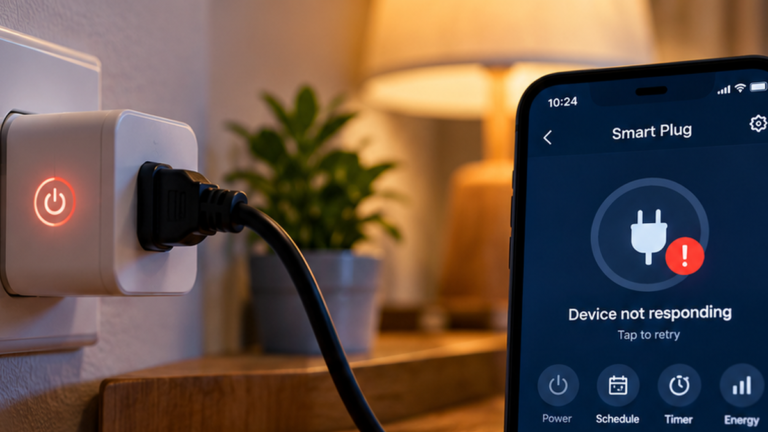
- A device is missing from the routine: Check whether it is online, assigned to the correct Home and supported for that action.
- Home or Away routines behave incorrectly: Review presence sensing and location settings.
Quick Diagnosis: Start Here
| What you’re seeing | Start with |
|---|---|
| The routine is saved but does not start | Go to Fix 1 ↗ |
| You cannot tell whether the routine attempted to run | Go to Fix 2 ↗ |
| The routine does not trigger at the expected time or condition | Go to Fix 3 ↗ |
| The routine starts but one action fails | Go to Fix 4 ↗ |
| A device is missing from the routine’s available actions | Go to Fix 5 ↗ |
| The routine behaves unpredictably or runs at the wrong time | Go to Fix 6 ↗ |
Fix 1: Make sure the routine is activated
A routine can remain saved in Google Home even when it is not active. If the activation setting is off, the routine will not start as expected.
- Open the Google Home app.
- Tap Automations.
- Find the affected routine under Personal Routines or Household Routines.
- Open it and check its activation setting.
- Turn it on if it is disabled, then save any changes.
The exact controls can vary with the app version and routine type.
If the routine is already active, do not keep toggling it unnecessarily. Move on to the activity history and trigger settings.
Fix 2: Check the Activity feed to see what happened
Before editing a routine, establish whether Google Home recorded an attempt to run it.
- Open the Google Home app.
- Go to Activity.
- Look around the time when the routine should have started.
- Find any relevant routine-started event and open its details, if available.
- Note the reported trigger and whether the routine or an action behaved unexpectedly.
Use the result to choose the next step:
- No relevant start event: Check the starter, conditions and activation setting.
- The routine started but an action failed: Troubleshoot that action.
- The routine ran at an unexpected time: Look for another routine or device event that could have triggered it.
Activity history may not explain every failure, but it can provide a more useful starting point than rebuilding the routine without knowing what went wrong.
⚡ Advanced Automation Architecture: Resolving Cloud Graph Schema Locks & mDNS Command Delays
When a Google Home routine fails to initiate or drops specific actions partway through execution—despite individual smart devices responding to manual tile controls—the root bottleneck is rarely a local speaker fault. Instead, your automation schema is experiencing a Home Graph state validation lock or an unlogged third-party partner cloud execution timeout.
Google Home processes automations by compiling your triggers and actions into an isolated cloud asset called a Home Graph. When a routine starter occurs (such as a time-block threshold or presence sensor change), Google’s automation server triggers an intent sequence to communicate with third-party manufacturer servers (like Tuya, Smart Life, or Hue). If your router drops local Multicast DNS (mDNS) discovery packets, or if a partner platform takes longer than 2,500 milliseconds to validate its cloud authorization lease, the Google Home engine throws a silent timeout loop, dropping the remaining routine execution steps completely.
🔧 The Step-by-Step Home Graph Execution Reset
- Force a Server-Side Database Schema Rewrite: You can break stuck cloud processing cycles without rebuilding your actions. Inside your Google Home app dashboard, open the broken routine, toggle the master activation switch to OFF, click save, wait 60 seconds for Google’s edge cache servers to drop the active session profile, and then toggle it back to ON to re-register the automation blocks.
- Purge Persistent Third-Party Webhook Leases: If your routine continuously skips a specific branded plug or light, its integration handshake has corrupted. Go to Settings > Works with Google, select the device manufacturer, tap Unlink Account, and wait a full 5 minutes for the cloud cache grids to fully wipe your historical metadata. Re-link the integration to generate fresh API communication tokens.
- Configure Router IGMP Snooping Limits: Local device discovery requires clean data routing paths. Log into your home network router’s gateway administration page (typically
192.168.1.1), enter your advanced LAN configuration panel, and ensure that IGMP Snooping is enabled. This ensures your router distributes multicast automation packets efficiently, preventing smart peripherals from dropping offline during multi-device routines.
Fix 3: Review the starters, conditions and schedule
A routine starts only when its configured trigger and conditions are satisfied. A small mismatch can prevent it from running.
Open the routine editor and check the following:
- Time: Confirm the scheduled time is correct.
- Days: Make sure the intended days are selected.
- Starter: Check whether the routine begins at a particular time, through a voice command or when a device changes state.
- Conditions: Review requirements such as location, presence or device state, if used.
- Saved changes: Confirm your edits were saved.
For example, a routine that requires a particular device state may not run if that state never occurs. A location-based routine may also fail to behave as expected if the phone’s location settings or presence sensing are not configured correctly.
Change one setting at a time and test again. This makes it easier to identify the setting responsible for the problem.
Fix 4: Test each action separately
A routine can start correctly but fail partway through. For instance, a morning routine might announce the weather but fail to switch on a light.
Open the routine and review its actions. Then test the failing operation independently where possible.
Examples:
- If a light should turn on, open its device tile in Google Home and try switching it on manually.
- If the routine should adjust a device setting, try making the same adjustment in the app.
- If it should play music or an announcement, check the selected playback device, volume and Do Not Disturb setting.
- If it contains a custom Assistant command, test that command directly on a compatible Assistant-enabled device.
If the action fails independently, troubleshoot the device or command before changing the entire routine.
If it works independently but fails inside the routine, review the action configuration and any conditions that control when it runs. Not every custom command is supported in every routine.
Fix 5: Check that the devices belong to the correct Home
A device may be online but unavailable as a starter or action in a particular routine because it is assigned to a different Home or does not support that automation.
In the Google Home app:
- Open your profile menu.
- Select the Home you intend to use.
- Open the device list and locate the device.
- Check its Home assignment and whether it appears in the expected room or device list.
- Open the routine editor and check whether the device is available as a starter or action.
If the device is offline, restore its connection first. If it is assigned to another Home, correct the assignment only if that is where it is meant to belong.
Some device types and features cannot be used in every routine. If the device remains unavailable after setup is checked, confirm that the particular action is supported by Google Home and the device manufacturer.
Fix 6: Review overlapping automations, app updates and location settings
If the routine still behaves unpredictably, check for other settings that may affect it.
Look for conflicting routines
Two routines can control the same device in opposite ways. One may turn a light on while another turns it off at almost the same time.
Open Automations and review routines that affect the same devices. Also check whether a device-state change or another routine could be triggering the behavior. Disable overlapping rules temporarily only when safe and practical, then test the intended routine.
Update the Google Home app
Check your phone’s app store for an update to Google Home. Install an available update and reopen the app.
If the problem continues, restart your phone and check the routine again. Avoid clearing app data or removing your Home as an early troubleshooting step because these actions can disrupt setup.
Review location and presence sensing
For Home and Away routines, check the Google Home app’s presence-sensing and location settings. Make sure the intended phones and devices are included and that location access is configured as required.
If you have multiple devices signed in to the same account, check whether another device or household member is affecting the Home or Away state. The Activity feed may help identify unexpected changes.
When to contact Google or the device manufacturer
Seek further support if the routine is activated, its starters and conditions are correct, its actions work independently, and it still fails repeatedly.
Before contacting support, note the routine type, expected trigger, approximate failure time, affected devices and any error messages. If only one third-party device fails, the device manufacturer may be better placed to investigate its integration.
Avoid deleting your entire Home or factory-resetting devices just to troubleshoot a single routine. These steps can remove working configurations without resolving the underlying issue.
Frequently asked questions
Why is my Google Home routine not starting?
Check that the routine is activated, then review the Activity feed. If no start event appears, inspect the starter, schedule and conditions. If it started but failed partway through, test the action that did not complete.
Why does my Google Home routine run only sometimes?
Intermittent failures may relate to conditions that are not always met, presence sensing, device availability or overlapping routines. Review the Activity feed around a failed run and compare it with a successful one.
Why does my Google Home routine start but not turn on my lights?
Open the light’s device tile and try switching it on manually. If that fails, troubleshoot the light or its connection. If manual control works, inspect the routine’s action and check whether another automation is changing the light’s state.
Should I delete and recreate a Google Home routine?
Not as the first step. Check activation, activity history, starters, conditions and individual actions first. Rebuilding may be worth considering only after you have identified a configuration problem or simpler troubleshooting has failed.
Final takeaway
When a Google Home routine is not working, start with its activation setting and Activity feed. Then check the trigger, conditions and individual actions before investigating device assignments, conflicting automations or app settings. Identifying where the routine fails is usually more useful than rebuilding it from scratch.