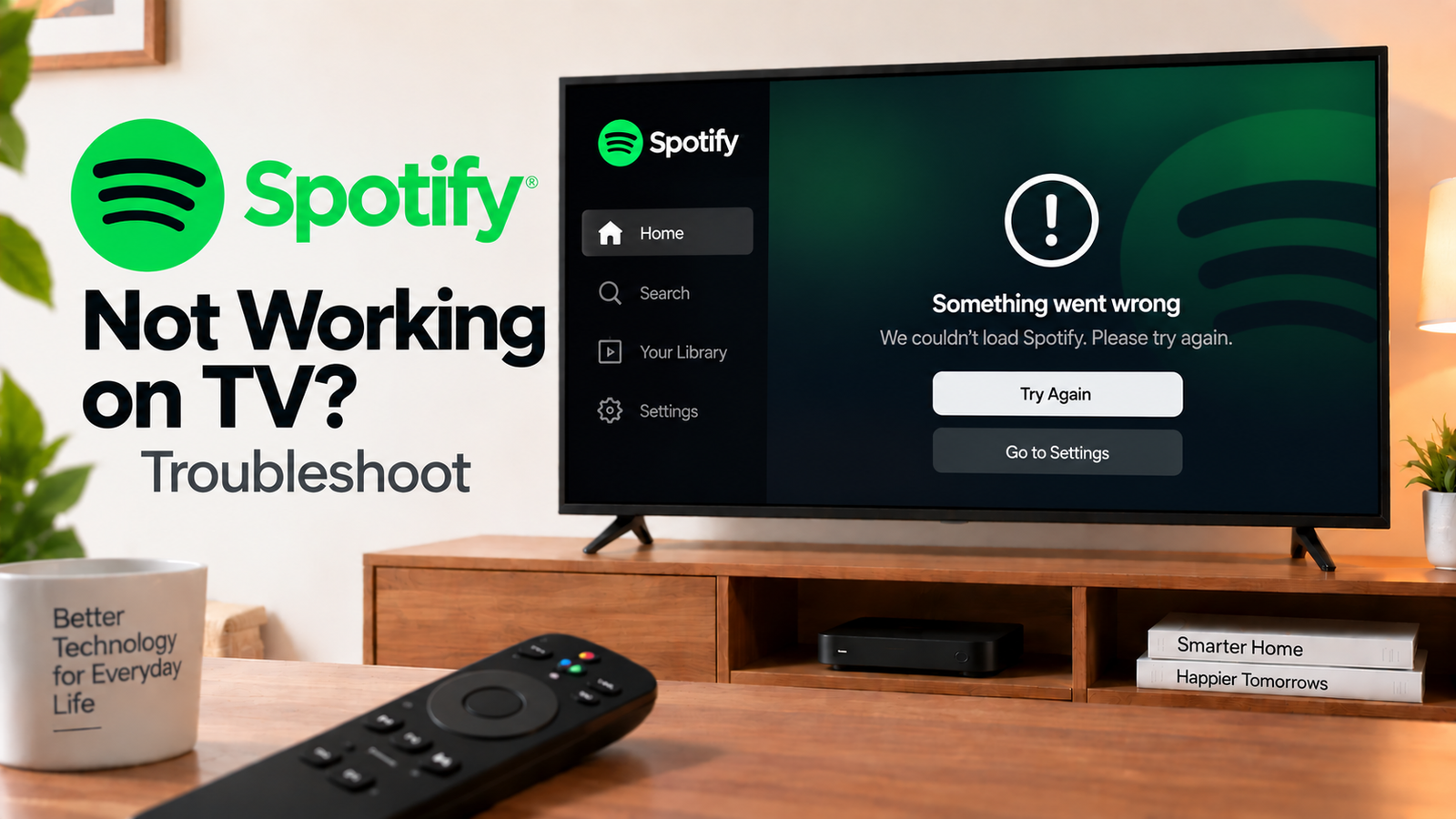
Spotify Not Working on TV? Troubleshoot Playback and Connection Issues
If Spotify is not working on TV, the problem can involve the TV app, internet connection, Spotify account, Spotify Connect or the TV’s software.
Start by checking whether Spotify opens at all. If it opens but music won’t play, the troubleshooting path is different from an app that crashes immediately.
Quick Diagnosis: Start Here
| What you’re seeing | Start here |
|---|---|
| Spotify won’t open | Go to Fix 1 |
| Spotify opens but music won’t play | Go to Fix 2 |
| Spotify keeps disconnecting | Go to Fix 3 |
| Spotify Connect can’t find the TV | Go to Fix 4 |
| Spotify works on your phone but not TV | Go to Fix 5 |
| Spotify suddenly stopped working | Go to Fix 6 |
| Spotify keeps crashing | Go to Fix 7 |
| Nothing restores Spotify | Go to Fix 8 |
Why This Happens
Spotify TV problems can be related to:
- Internet connectivity
- An outdated Spotify app
- Outdated TV software
- A temporary app problem
- Spotify Connect settings
- Account or login problems
- TV compatibility
- Problems with the home network
Spotify’s official TV troubleshooting guidance recommends checking the internet connection, updating the app and TV software, restarting Spotify and the TV, restarting Wi-Fi, reinstalling the app and trying another Wi-Fi connection.
Fix 1: Restart Spotify
Close Spotify and open it again.
If the app is frozen, restart the TV.
Then try playing a different song.
If Spotify opens normally after the restart, test playback for several minutes before making other changes.
Fix 2: Check Your TV’s Internet Connection
Make sure the TV is connected to the internet.
Open another streaming app to test the connection.
If other apps also fail, restart the router.
If only Spotify is affected, focus on the Spotify app.
You can also try Spotify on your phone using the same Wi-Fi network.
Fix 3: Check Whether Spotify Keeps Disconnecting
If Spotify starts playing and then stops, check whether your TV is losing its network connection.
Restart your router and TV.
Then test Spotify again.
If the problem happens only when controlling the TV from your phone, continue with the Spotify Connect checks below.
Fix 4: Check Spotify Connect
Spotify Connect allows you to control compatible devices from the Spotify app on your phone or tablet.
If your TV doesn’t appear as an available device:
- Make sure the TV is connected to the internet.
- Make sure your phone is connected to the same Wi-Fi network.
- Open Spotify on both devices.
- Check the device list again.
- Restart Spotify if the TV still doesn’t appear.
On supported Android TV setups, Spotify also notes that Connect may require permission to display over other apps.
Fix 5: Compare Spotify on Your Phone and TV
Play Spotify directly on your phone.
If Spotify works on your phone but not your TV, the problem is probably specific to the TV app, TV software, network connection or TV compatibility.
If Spotify fails on both devices using the same network, investigate the network or account.
This is a much more useful diagnostic test than immediately reinstalling the TV app.
Fix 6: Update Spotify and TV Software
Check the TV’s app store for a Spotify update.
Then check the TV for a software update.
Install available updates and restart the TV.
Spotify specifically recommends checking both the Spotify app and TV software for updates when its TV app isn’t working.
Fix 7: Reinstall Spotify
If Spotify continues to crash or refuse to play, uninstall and reinstall the app if your TV permits it.
Then sign in again and test playback.
Make sure you download Spotify from the TV’s official app store.
If the app cannot be installed or isn’t available for the TV, check whether your TV model is supported.
Fix 8: Try Another Wi-Fi Connection
If possible, test the TV on another Wi-Fi network.
A temporary mobile hotspot can be useful as a diagnostic test, provided your data plan allows it.
If Spotify works through the alternate network, the problem points more strongly toward your usual Wi-Fi or router configuration.
If Spotify still fails, focus on the TV app, software or compatibility.
How to Prevent Spotify Problems on TV
- Keep Spotify updated.
- Keep TV software current.
- Restart your router when multiple connected apps begin having problems.
- Keep your phone and TV on the same network when using Spotify Connect.
- Reinstall Spotify if the app repeatedly crashes.
- Check TV compatibility before troubleshooting a device that no longer supports the app.
Frequently Asked Questions
Why does Spotify work on my phone but not my TV?
The TV app, TV software or TV’s network connection may be the cause. Compare both devices on the same Wi-Fi network and check for updates.
Why can’t Spotify Connect find my TV?
Make sure the TV and phone are connected to the same Wi-Fi network and that the TV’s Spotify app is running. Restart both apps if necessary.
Why does Spotify keep disconnecting from my TV?
An unstable network connection or Spotify Connect issue can cause repeated disconnections. Restart the TV and router and check the connection.
Should I reinstall Spotify on my TV?
If restarting and updating don’t help, reinstalling Spotify is a reasonable next step if your TV supports app removal.