
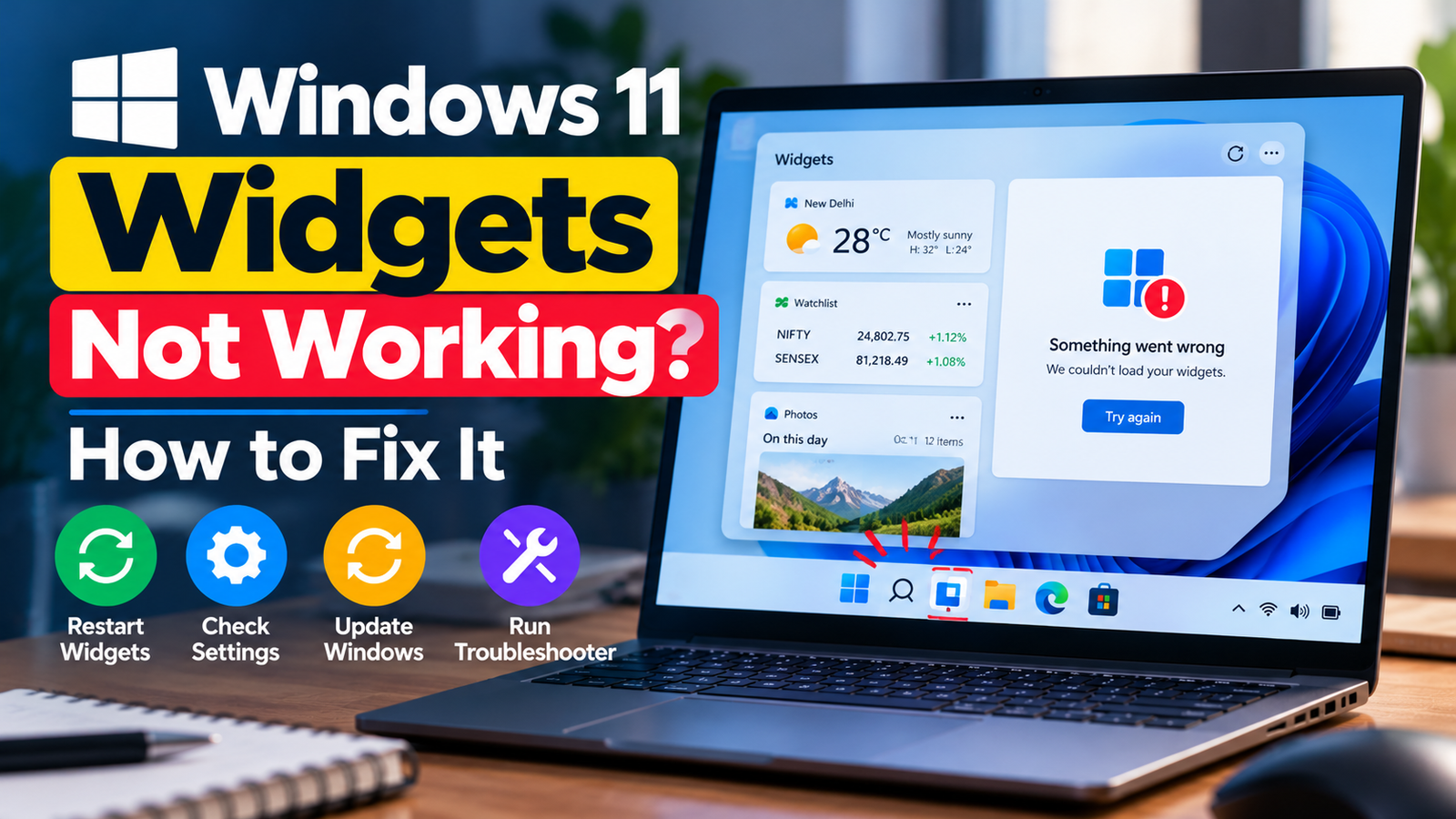
Windows 11 Widgets Not Working? How to Fix It
Windows 11 widgets not working can show up in several ways. The Widgets panel may open but remain blank, display a loading message indefinitely, fail to refresh information, or refuse to open when you click its taskbar icon.
The cause may be related to an internet connection, account sign-in, a background process, Windows updates, or the Widgets experience itself. A blank panel does not automatically mean Windows needs to be reset.
This guide walks you through practical checks to identify the cause and restore the Widgets panel without making unnecessary system changes.
Quick Diagnosis: Start Here
| What you’re seeing | Start with |
|---|---|
| The Widgets panel opens but stays blank or keeps loading. | Go to Fix 1 ↗ |
| Widgets opens, but online information does not appear or refresh. | Go to Fix 2 ↗ |
| Widgets displays a sign-in prompt or account-related problem. | Go to Fix 3 ↗ |
| The problem began after an update or Windows has pending updates. | Go to Fix 4 ↗ |
| Widgets remains broken and other Windows components are also behaving unexpectedly. | Go to Fix 5 ↗ |
Why Are Windows 11 Widgets Not Working?
The Widgets panel relies on several parts of Windows working together. The panel may fail to load or refresh when a background process stops responding, connectivity is interrupted, or the relevant Windows components encounter a problem.
Common possibilities include:
- A temporary failure in the Widgets process.
- An unstable internet connection or a network restriction.
- An account sign-in or authentication issue.
- An outdated Windows installation.
- Corrupted system components or a recurring Windows interface problem.
The symptom can help narrow down the likely cause. For example, a panel that opens but displays no information calls for different initial checks than a Widgets button that does nothing at all.
Fix 1: Restart the Widgets Process
If the Widgets panel is blank, stuck loading, or suddenly stops responding, begin by restarting its process.
- Press Ctrl + Shift + Esc to open Task Manager.
- Select the Processes tab.
- Look for a process named Widgets or a related Windows Widgets process. The exact name can vary by Windows version.
- If you can identify the relevant process, select it and choose End task.
- Open Widgets again from the taskbar and check whether the panel loads.
Windows may start the process again automatically when you reopen Widgets. If the process is not listed, do not end unrelated Windows processes in an attempt to find it.
If the panel starts working, the issue may have been temporary. If it remains blank or refuses to open, continue with the connection checks.
Fix 2: Check Your Internet Connection
Widgets that display weather, news, or other online information need access to their relevant services. A network problem can prevent content from loading even when the panel itself opens normally.
Try these checks:
- Open a web browser and visit a few familiar websites.
- If websites fail to load, troubleshoot your internet connection first.
- If you use a VPN or proxy, check whether the problem persists when using your normal network configuration.
- If you are on a work or school network, access to certain online services may be restricted by network policies.
- Reopen Widgets after confirming that your connection is working.
Avoid disabling firewall or security protections just to test the panel. If your network blocks a required service, contact the network administrator rather than bypassing those controls.
If websites work normally but Widgets remains blank, continue to the next step.
Fix 3: Check Your Account Sign-In
Some Widgets features rely on account sign-in to personalize content or retrieve account-specific information. A sign-in problem may affect some content without necessarily preventing the entire panel from opening.
- Open the Widgets panel from the taskbar.
- Look for an account or profile icon, if available.
- Check whether Windows or Widgets is asking you to sign in again.
- If prompted, sign in using the appropriate account and follow the on-screen instructions.
- Close and reopen the panel to check whether the content appears.
The available account options may vary depending on your Windows configuration and Widgets version. If there is no sign-in prompt, do not assume that an account problem is responsible.
If the panel is still not working, check Windows for updates.
Fix 4: Install Available Windows Updates
If Widgets stopped working after a Windows update or has been malfunctioning for some time, installing available updates may help resolve a software issue.
- Press Windows + I to open Settings.
- Select Windows Update.
- Click Check for updates.
- Review and install relevant available updates.
- Restart your computer if prompted, then test Widgets again.
If the problem began immediately after a particular update, make a note of the update and when the issue started. Do not uninstall updates indiscriminately; investigate the specific change if the problem persists.
Also check whether your computer is managed by an organization. Some settings and features may be controlled by its administrator.
Fix 5: Repair Windows System Components
If Widgets remains broken and other parts of Windows are also behaving unexpectedly, check whether system-file corruption may be contributing to the problem.
This step is more relevant when the issue persists after the simpler checks above.
- Open Task Manager with Ctrl + Shift + Esc.
- Select Run new task from its menu.
- Enter
cmd. - Select the option to create the task with administrative privileges.
- Run the following command and wait for it to finish:
DISM /Online /Cleanup-Image /RestoreHealth- Then run:
sfc /scannow- Wait for the scan to complete and restart Windows.
DISM checks and attempts to repair the Windows component store. System File Checker checks protected system files and attempts to repair problems it finds.
These commands cannot guarantee that every Widgets issue will be fixed. If the scans report errors, record the messages rather than repeatedly running commands without investigating the result.
What If Widgets Still Does Not Work?
If the panel remains blank or refuses to open after these checks, consider whether the problem is limited to Widgets or affects the wider Windows interface.
Try opening the Widgets panel after a normal restart and note the exact behavior. If other Windows components are also failing, broader system troubleshooting may be necessary.
You can also check whether your Windows installation is managed by a work or school organization. Administrators can control access to certain features, and changing those settings yourself may not be appropriate.
Avoid downloading unofficial Widgets repair tools or running registry scripts from unverified websites. These can introduce additional problems without addressing the underlying cause.
If the issue persists, use Microsoft’s official support resources or contact your device administrator if the computer is managed.
Frequently Asked Questions
Why does the Windows 11 Widgets panel open but show nothing?
A blank panel may be caused by a temporary Widgets process problem, a connectivity issue, an account-related problem, or a Windows software issue. Start by restarting the Widgets process and confirming that your internet connection works.
Why does clicking Widgets do nothing?
The relevant process or Windows interface may not be responding correctly. Try opening Task Manager, checking for a Widgets process, and restarting it if you can identify it. If the issue continues, check for Windows updates.
Do Windows 11 Widgets need an internet connection?
Many Widgets features rely on online services to retrieve and refresh content. If the connection is unavailable or a network policy blocks a required service, some content may not load.
Will reinstalling Windows fix Widgets?
Reinstalling Windows is not a sensible first step for a problem limited to Widgets. Try the targeted checks first. A reinstall is a more disruptive option and may not be necessary.
Why did Widgets stop working after a Windows update?
An update may coincide with a software issue or change in behavior, but the timing alone does not establish the cause. Check for subsequent updates, restart Windows, and investigate any specific error messages before considering rollback options.
Final Thoughts
When Windows 11 Widgets stop working, begin with the simplest checks: restart the Widgets process, confirm your internet connection, and review any account sign-in prompts. Then check for Windows updates and investigate system files if the problem persists.
The most useful clue is whether the panel fails to open at all or opens but cannot display content. Identifying that difference can help you choose the right troubleshooting step without resetting Windows unnecessarily.






