
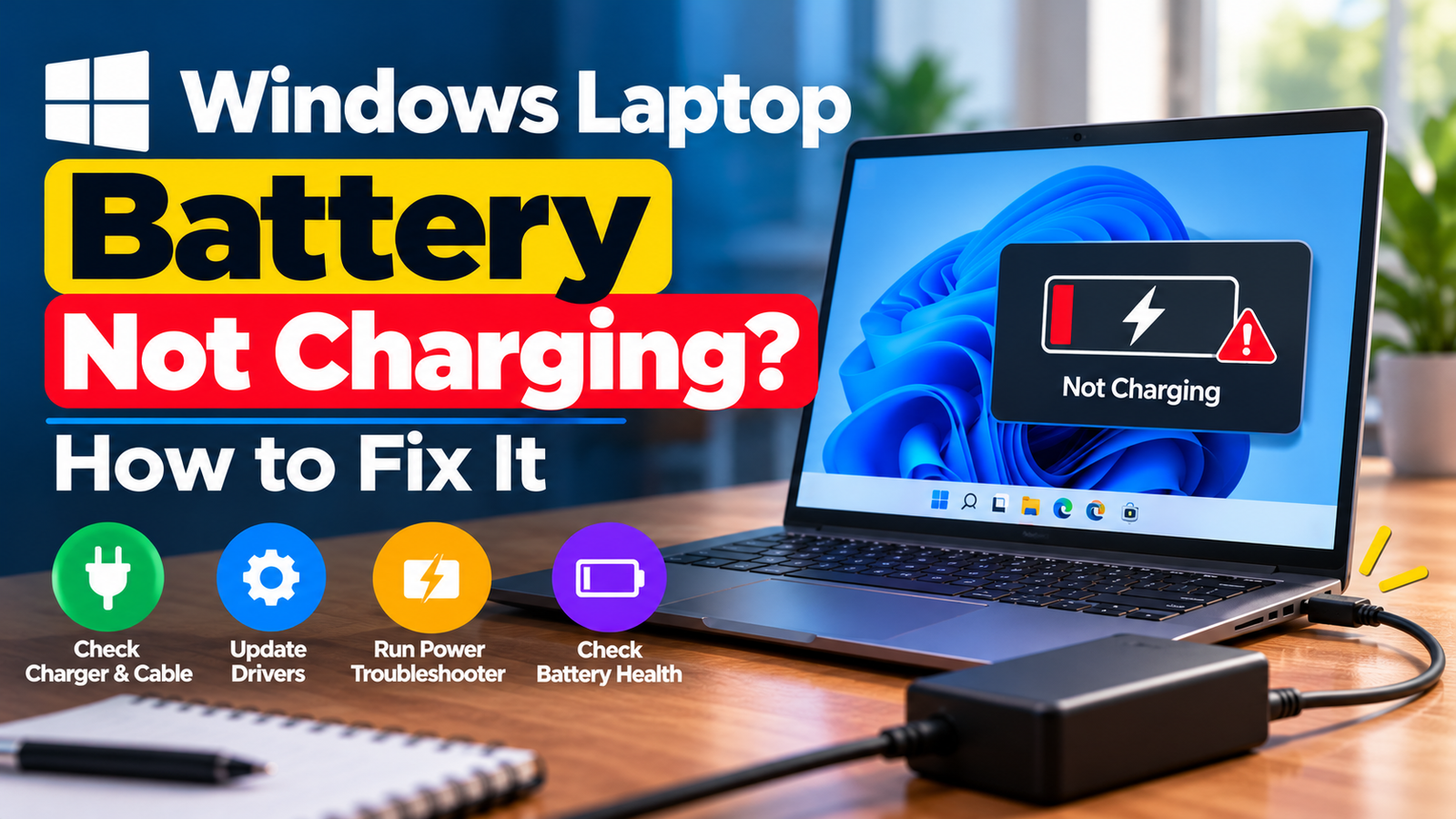
Windows Laptop Battery Not Charging: What to Check First
Before changing settings or buying a replacement battery, look at the charging indicator in Windows and check what happens when you connect the charger.
- Plugged in, not charging: Windows detects the power adapter, but the battery percentage does not increase.
- Battery stuck at 80% or another limit: Your laptop may have a battery conservation or smart charging feature enabled.
- Charger connected, but battery keeps draining: The adapter may not supply enough power, or the laptop may be using more power than it receives.
- No charging indicator: The adapter, cable, charging port, power outlet, or battery may need attention.
These symptoms can have different causes, so start with the checks that best match what you see.
Quick Diagnosis: Windows laptop battery not charging?
| What you’re seeing | Start with |
|---|---|
| Windows says the laptop is plugged in, but the battery percentage does not increase. | Go to Fix 1 ↗ |
| The laptop does not recognize the charger or show a charging indicator. | Go to Fix 2 ↗ |
| The battery stops charging at 80% or another percentage. | Go to Fix 3 ↗ |
| The laptop charges intermittently or loses battery power while plugged in. | Go to Fix 4 ↗ |
| The charging problem began after a Windows or driver change. | Go to Fix 5 ↗ |
| The battery still will not charge after checking the adapter and settings. | Go to Fix 6 ↗ |
Fix 1: Check the Charging Status and Let the Battery Cool
Start by checking whether Windows recognizes that the laptop is connected to power.
- Connect the charger and wait a few minutes.
- Click the battery icon in the taskbar.
- Read the charging message, if one appears.
- Note the current battery percentage.
- If the laptop is unusually hot, close demanding applications and let it cool in a well-ventilated area.
Some laptops temporarily pause charging when the battery becomes too hot or too cold. Charging may resume once the battery returns to an appropriate temperature.
If the battery percentage is unchanged after a reasonable wait, continue with the charger and connection checks.
Safety note: If the battery appears swollen, the laptop casing is lifting, or you notice a burning smell, stop using and charging the laptop. Do not press on or attempt to remove a swollen battery yourself. Contact the manufacturer or a qualified repair professional.
Fix 2: Inspect the Charger, Cable, Power Outlet and Charging Port
A laptop may fail to charge because power is not reaching it correctly. The problem could be outside Windows entirely.
Try these checks:
- Connect the charger directly to a known-working wall outlet.
- Inspect the adapter and cable for visible damage, fraying, or bent connectors.
- If your charger has a separate detachable power cable, check that both ends are securely connected.
- Disconnect and reconnect the charging connector gently.
- If your laptop charges through USB-C, use a compatible charger and port that support the required charging power.
Not every USB-C port supports charging, and not every USB-C charger supplies enough power for every laptop. Check the laptop manufacturer’s specifications for the required adapter wattage and supported charging ports.
If you have access to a compatible, manufacturer-approved charger, test it with your laptop. Do not force a connector into a port or continue using a damaged adapter.
If the charging indicator appears but the battery percentage stays fixed, check whether the laptop has a charging limit enabled.
Fix 3: Check Whether Battery Conservation Is Limiting Charging
If your Windows laptop consistently stops charging at 80%, 85%, or another percentage, it may be behaving as designed.
Many manufacturers provide battery conservation, battery health, or smart charging features. These can limit the maximum charge to reduce long-term battery wear, especially when a laptop remains plugged in for extended periods.
To investigate:
- Open the laptop manufacturer’s support or control application, if one is installed.
- Look for settings related to Battery Health, Battery Conservation, Charge Limit, or Smart Charging.
- Review the selected charging limit.
- If you need a full charge and the manufacturer allows it, adjust the setting according to the instructions for your model.
The setting may be managed through a manufacturer’s utility or firmware rather than Windows itself. Its name and location vary by laptop brand.
Do not disable a battery protection feature automatically. If the laptop is primarily used at a desk, keeping a charge limit enabled may be beneficial. The important question is whether the stopping point matches the configured limit.
If charging stops at a low percentage or the laptop reports a charging fault, continue troubleshooting.
Fix 4: Check Whether the Charger Supplies Enough Power
A laptop can recognize that it is connected to power while still receiving insufficient power to charge the battery under load.
This may happen when using an underpowered USB-C adapter, an incompatible charger, a docking station with limited power delivery, or a damaged cable.
To check:
- Close games, video-editing software, and other demanding applications.
- Leave the laptop connected to its charger for several minutes.
- Check whether the battery percentage increases while the laptop is idle.
- Compare your adapter’s specifications with the power requirements listed by the laptop manufacturer.
- If you use a dock or hub, test a compatible charger connected directly to the laptop, if supported.
If the battery charges while the laptop is idle but drains during demanding tasks, the adapter may not be providing enough power for the workload.
If the problem continues with the correct charger, check Windows and manufacturer-provided driver or firmware updates.
Fix 5: Check for Battery and Power-Management Driver Issues
If the charging problem began after a Windows update or driver change, the software controlling battery status or power management may be worth checking.
You can inspect the relevant entries in Device Manager.
- Right-click Start and open Device Manager.
- Expand Batteries.
- Review the listed battery-related devices.
- If the problem began after a specific driver update, open the relevant device’s properties and check whether Roll Back Driver is available.
- Restart the laptop after making an appropriate change.
Some laptops use Microsoft ACPI-Compliant Control Method Battery and other power-related devices. The exact entries depend on the hardware and Windows configuration.
Do not uninstall every battery-related device or download drivers from unofficial websites. If the manufacturer provides a recommended power-management or chipset driver for your model, use its official support page.
If the charging issue remains, a battery health report may help distinguish a worn battery from a power-delivery problem.
Fix 6: Generate a Windows Battery Report
A battery report can show the laptop’s reported battery capacity and usage history. It cannot test every hardware fault, but it can help you assess whether the battery has lost significant capacity.
- Right-click Start and open Terminal (Admin) or Command Prompt (Admin).
- Enter this command:
powercfg /batteryreport- Press Enter.
- Read the path shown in the command output.
- Open the generated HTML report in your browser.
Look for the Design Capacity and Full Charge Capacity entries.
Design Capacity represents the battery’s original rated capacity, while Full Charge Capacity is the capacity Windows currently reports as available when fully charged. If the full-charge capacity is substantially lower than the design capacity, the battery may have aged.
The report is an indicator, not a definitive hardware diagnosis. A battery can have reasonable reported capacity and still experience a charging fault.
If the report suggests significant battery wear, or Windows displays a battery service warning, consult the laptop manufacturer’s diagnostic tools or support team.
When Should You Get the Laptop Checked?
Seek professional assistance if:
- The laptop does not charge with a compatible, known-working adapter.
- The charging connector is loose or the port appears damaged.
- The battery report or manufacturer diagnostics indicate a battery fault.
- The laptop repeatedly switches between charging and not charging.
- The battery is swollen, unusually hot, or showing signs of physical damage.
If the battery is removable and the manufacturer’s instructions permit user replacement, follow those instructions carefully. For sealed laptops, avoid opening the casing unless you are qualified to do so.
Before arranging a repair, note your laptop model, charger specifications, charging message, and battery percentage when the problem occurs. This information can help narrow down the fault.
Frequently Asked Questions
Why does my laptop say plugged in but not charging?
Windows may recognize the adapter even though the battery is not accepting charge. Possible reasons include a charge limit, temperature conditions, insufficient adapter power, battery wear, or a hardware fault. Check the charging settings and adapter specifications first.
Why does my laptop stop charging at 80%?
Some manufacturers enable battery conservation features that deliberately limit charging. Check your laptop’s battery-health application or documentation before assuming the battery is faulty.
Can a Windows update cause a laptop charging problem?
A software or driver change may coincide with a charging issue, but it does not prove that Windows is responsible. Check the adapter, charging settings, and relevant drivers before attempting to roll back an update.
Will reinstalling Windows fix a battery that is not charging?
Not necessarily. If the issue is caused by a damaged port, incompatible adapter, or worn battery, reinstalling Windows will not solve it. Hardware and charging checks should come first.
Should I replace my laptop battery immediately?
No. First check the charger, cable, charging limit, power requirements, and battery report. Replace the battery only when the evidence or a professional diagnosis indicates that it is needed.
Final Thoughts
When a Windows laptop battery will not charge, start by identifying whether Windows detects the charger and whether the battery is stuck at a configured charge limit. Then check the power adapter, cable, charging port, and required wattage.
If the basic checks do not help, inspect power-management drivers and generate a battery report. These steps can help you distinguish a settings issue from battery wear or a hardware fault, without spending money on a replacement unnecessarily.






