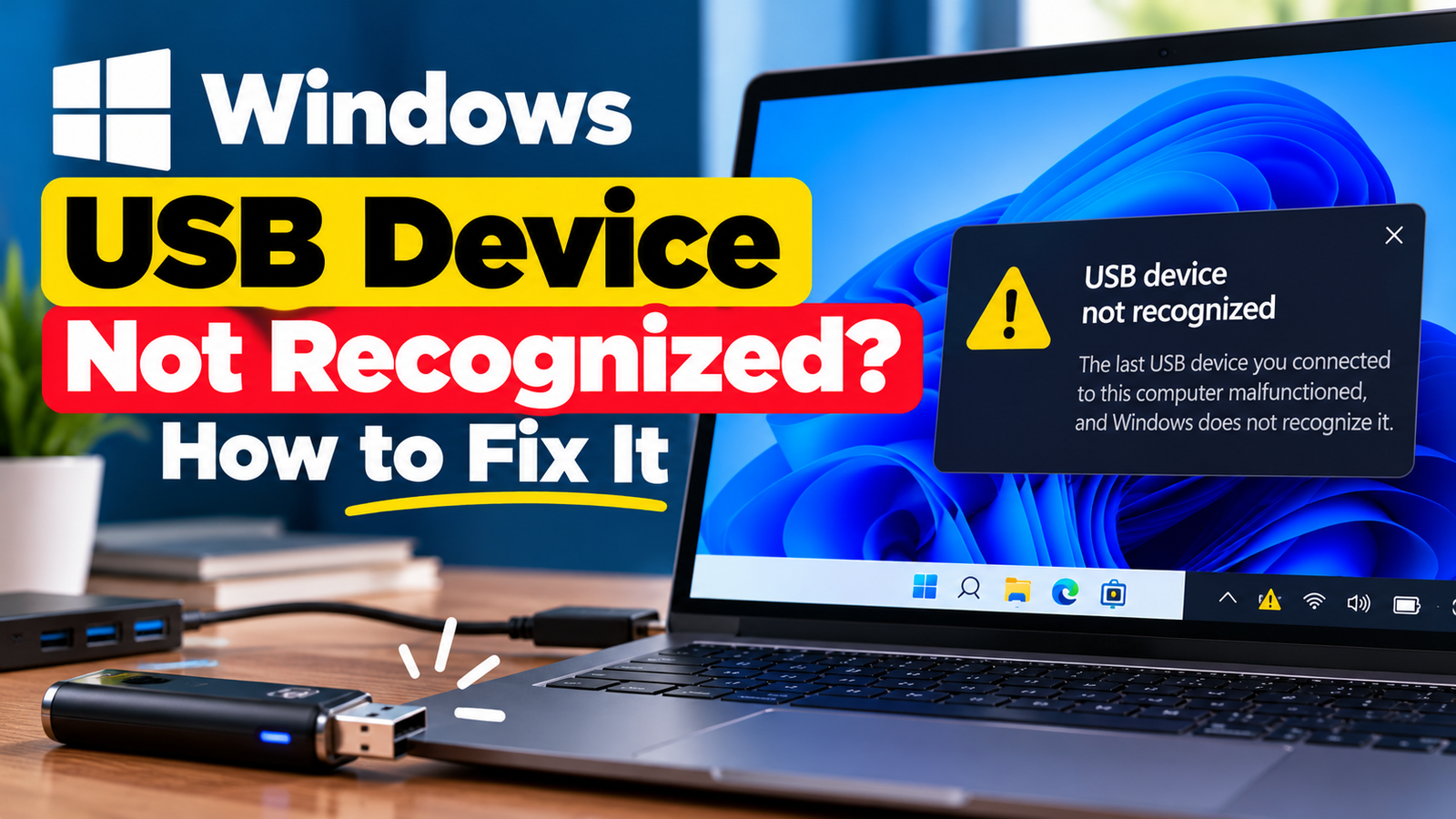
Windows USB Device Not Recognized? How to Fix It
Windows USB device not recognized is a common problem when you connect a flash drive, external hard drive, printer, phone or another USB accessory to your computer and nothing happens. You might see an error saying the USB device malfunctioned, find that the device is missing from File Explorer, or discover that it works in one USB port but not another.
The cause could be a loose connection, a faulty cable, insufficient power, a driver issue or a problem with the USB port. Before changing Windows settings, identify whether the issue affects one device or several.
Quick Diagnosis: Start Here
| What you’re seeing | Start with |
|---|---|
| The USB device does not respond when connected | Go to Fix 1 ↗ |
| The device works in one port but not another | Go to Fix 2 ↗ |
| The USB device stopped working unexpectedly | Go to Fix 3 ↗ |
| Device Manager shows an unknown USB device or warning icon | Go to Fix 4 ↗ |
| The device is detected but Windows reports a driver problem | Go to Fix 5 ↗ |
| A USB flash drive or external drive is missing from File Explorer | Go to Fix 6 ↗ |
| The device disconnects repeatedly or may not get enough power | Go to Fix 7 ↗ |
Fix 1: Disconnect and Reconnect the USB Device
Start with the simplest check. A temporary connection problem can prevent Windows from detecting a device correctly.
- Disconnect the USB device from your computer.
- Wait a few seconds.
- Reconnect it firmly.
- Check whether Windows plays the device connection sound or displays a notification.
- Open File Explorer if you are connecting a storage device.
If you are using a USB hub or docking station, disconnect the device from the hub and connect it directly to the computer, if possible.
What to look for: If the device works when connected directly but not through the hub, the hub, its cable or its power supply may be involved.
For an external hard drive, avoid repeatedly disconnecting it while files are being transferred.
Fix 2: Try Another USB Port or Cable
A USB device can fail to appear because the port or cable is damaged or unable to provide a reliable connection.
Try these checks:
- Connect the device to another USB port on your computer.
- If the device uses a detachable cable, try a compatible replacement.
- Avoid using a hub during testing.
- If possible, connect the device to another computer.
If the device works through another port, the original port may be the source of the problem. If it fails on multiple computers, the device or its cable may be faulty.
Be careful when testing external storage devices. If you hear unusual clicking sounds from a hard drive, disconnect it and avoid repeated attempts to access it, especially if the files are important.
Fix 3: Restart Your Computer
Windows may occasionally fail to initialise a connected USB device correctly. A restart can clear a temporary system or driver problem.
- Save your work and close open applications.
- Disconnect non-essential USB accessories.
- Select Start > Power > Restart.
- Once Windows has loaded, reconnect the affected device.
- Check whether it is detected.
Choose Restart, rather than relying only on shutting down and turning the computer back on. Restarting provides a fresh Windows session and can help resolve temporary detection issues.
If the problem returns every time you connect the same device, continue with the driver checks.
Fix 4: Check Device Manager for USB Errors
Device Manager can help identify whether Windows detects a device but cannot initialise it correctly.
- Right-click Start and select Device Manager.
- Expand Universal Serial Bus controllers.
- Look for a device marked with a yellow warning icon or an entry labeled Unknown USB Device.
- If an entry appears when you connect the affected device, right-click it and open Properties.
- Check the Device status message for an error code or explanation.
The exact message can help narrow down the cause. For example, Windows may report that the device descriptor request failed, indicating a problem during USB device identification.
If the error appeared immediately after a driver change, check whether a suitable driver update or rollback is available.
Do not uninstall every USB controller simply because the device is not working. First identify the entry associated with the problem, where possible.
Fix 5: Update the Relevant USB or Device Driver
An incompatible or malfunctioning driver may prevent Windows from communicating properly with a USB accessory.
- Open Device Manager.
- Locate the affected device or the relevant USB controller.
- Right-click the entry and select Update driver.
- Choose Search automatically for drivers.
- Follow any instructions and restart the computer if necessary.
For specialised devices such as printers, phones or external storage accessories, Windows may need a driver or supporting software from the manufacturer.
If Windows says the best driver is already installed, check the official support page for your exact device or computer model.
If the problem began after a driver update, open the device’s Properties > Driver tab and check whether Roll Back Driver is available.
Avoid downloading drivers from unfamiliar websites or installing drivers intended for a different device model.
Fix 6: Check Whether the USB Device Appears in Disk Management
Use this step only if the unrecognized device is a USB flash drive, external hard drive or another storage device.
Sometimes Windows detects a storage device but does not assign it a drive letter. As a result, it may not appear in File Explorer.
- Right-click Start and select Disk Management.
- Wait for the disk list to load.
- Look for the external drive and check its status.
- If the correct volume is healthy but has no drive letter, right-click that volume.
- If Change Drive Letter and Paths is available, consider assigning an unused drive letter.
Important: Do not format the drive, initialise it or delete its partitions just to make it appear. These actions can make existing data inaccessible or cause data loss.
If Disk Management reports the drive as Unknown, Not Initialised or Unallocated, and the drive contains files you need, stop before making changes. The issue may require data-recovery guidance rather than routine USB troubleshooting.
If the device does not appear in Disk Management at all, return to the physical connection and Device Manager checks.
Fix 7: Check USB Power and Power Management
Some USB devices need more power than a port or unpowered hub can provide. External hard drives, docking stations and multiple connected accessories may be particularly affected.
Try these steps:
- Connect the device directly to the computer.
- If it has a manufacturer-supplied power adapter, make sure it is connected correctly.
- Disconnect other non-essential USB devices and test again.
- If the device repeatedly disconnects and reconnects, check for relevant chipset, USB or firmware updates from your computer manufacturer.
On some systems, USB power-management settings can also contribute to connection problems. However, the available settings vary by device and Windows version.
If you have evidence that power management is involved, review the relevant device properties and manufacturer guidance before changing settings. Avoid disabling power management across every USB controller as a first step.
When to Suspect a Faulty USB Device or Port
If the device remains unrecognized after the checks above, compare the results:
- Only one device fails: The device, its cable or its compatibility may be responsible.
- Several devices fail in one port: The port may be damaged or affected by a connection problem.
- The device works on another computer: Investigate the original computer’s USB drivers, ports and power delivery.
- A storage device appears in Disk Management but not File Explorer: Check its volume status and drive-letter assignment without formatting it.
- The device repeatedly disconnects: Check the cable, power supply, hub and relevant drivers.
If multiple USB ports stop working, or the computer shows signs of physical port damage, seek help from the computer manufacturer or a qualified technician.
Final Thoughts
When Windows does not recognize a USB device, start by testing the connection, port and cable. Then check Device Manager for errors before moving on to driver updates and power-related issues.
If the device is a storage drive, Disk Management can help explain why it is missing from File Explorer. Be especially careful not to initialise or format a drive containing important files.
Following these steps in order can help you isolate the problem without making unnecessary changes to Windows or risking data loss.