
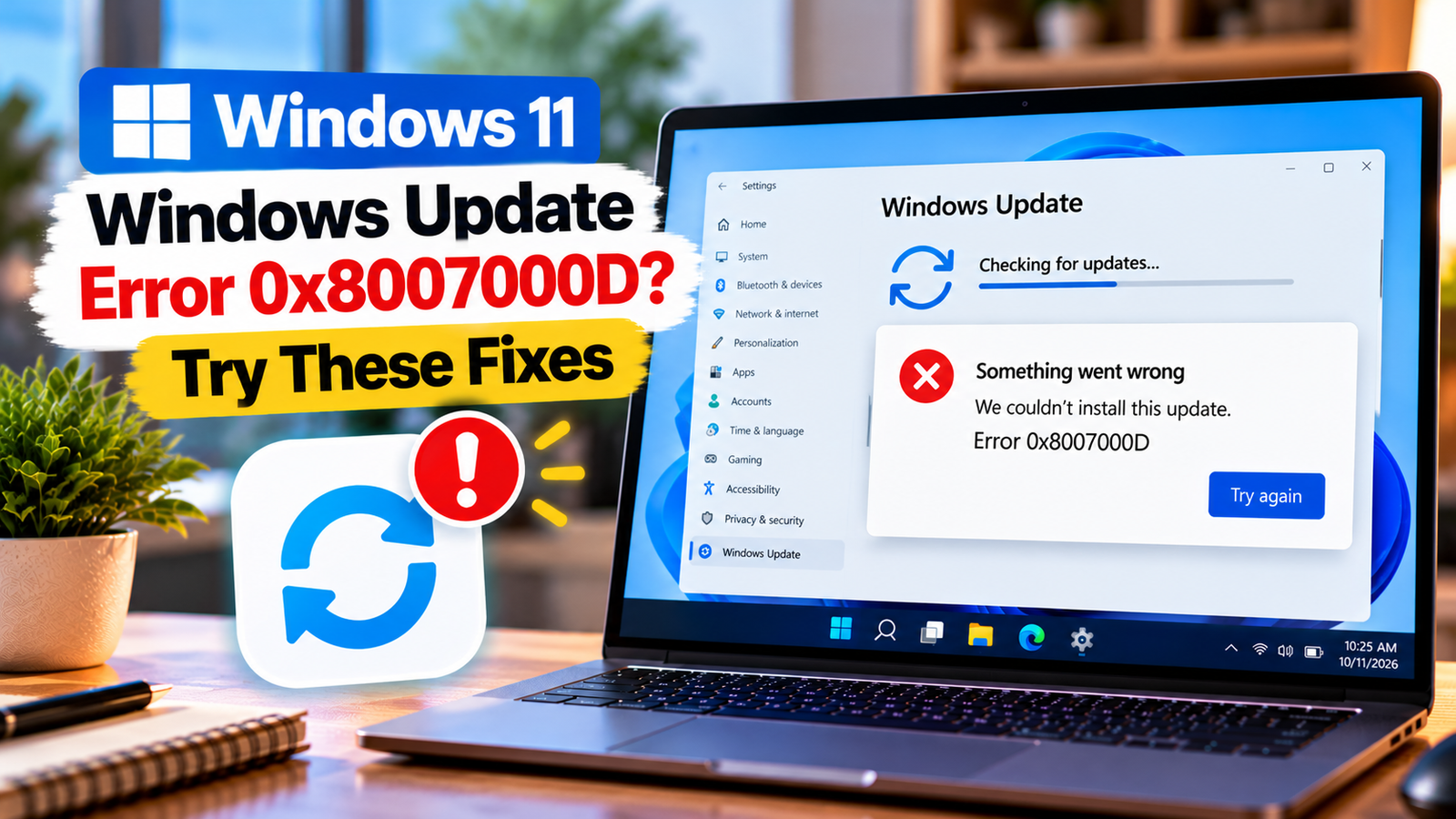
Windows Update Error 0x8007000D: How to Fix Invalid Data
Windows Update error 0x8007000D usually indicates that Windows has encountered invalid or corrupted data during an update operation. You may see the code while downloading an update, installing it, or restarting your computer after installation. In some cases, Windows attempts the update again but fails with the same message.
The cause can involve an incomplete download, corrupted update data or damaged Windows servicing files. The exact cause depends on when the error appears, so start with basic checks before attempting repairs.
Listen to the quick guide: Windows Update error 0x8007000D
Quick Diagnosis: Start Here
| What you’re seeing | Start with |
|---|---|
| Windows Update fails with 0x8007000D after a restart | Go to Fix 1 ↗ |
| The update download may be incomplete or the Windows drive is low on space | Go to Fix 2 ↗ |
| Windows Update keeps failing with no clear explanation | Go to Fix 3 ↗ |
| The same update fails repeatedly during download or preparation | Go to Fix 4 ↗ |
| The error persists and Windows system files may be corrupted | Go to Fix 5 ↗ |
| The error continues after the basic repair steps | Go to Fix 6 ↗ |
Fix 1: Restart Windows and Retry the Update
A temporary update failure may disappear after a restart, particularly if Windows has pending operations that need to finish.
- Save your open work.
- Open Start > Power > Restart.
- Wait for Windows to load completely.
- Open Settings > Windows Update.
- Select Check for updates.
- Try installing the update again.
If the update installs successfully, you can stop here.
If Windows reports error 0x8007000D again, note the name or KB number of the failed update. This will help you determine whether one update is failing repeatedly or whether several updates are affected.
Fix 2: Check Your Internet Connection and Available Storage
An interrupted download or insufficient free space can contribute to update failures. Check both before trying more advanced repairs.
- Confirm that websites load normally in your browser.
- If you use a VPN or proxy, check whether it is required for your connection. On a personal network, you can temporarily disconnect an optional VPN and retry the update.
- Open Settings > System > Storage.
- Check how much free space is available on the Windows drive.
- If storage is low, use Windows’ recommended cleanup options to remove files you no longer need.
- Retry Windows Update.
Do not delete unfamiliar folders from the Windows directory to free space. If this is a managed work or school computer, check with your IT administrator before changing network settings.
If the connection and storage are fine but the error persists, continue below.
Fix 3: Run the Windows Update Troubleshooter
Windows includes a troubleshooter that can detect some common update-related problems.
- Open Settings.
- Select System > Troubleshoot > Other troubleshooters.
- Find Windows Update.
- Select Run.
- Follow any instructions provided by the troubleshooter.
- Restart the computer if requested, then try the update again.
The exact wording and availability of this tool may differ across Windows versions.
The troubleshooter may resolve a detected issue, but it cannot repair every cause of error 0x8007000D. If it reports that no problem was found, continue with the next fix.
Fix 4: Clear the Downloaded Windows Update Cache
If Windows repeatedly fails while downloading or preparing an update, temporary update files may be involved. You can test this by stopping the update service and allowing Windows to create a fresh download cache.
Before proceeding: Save your work and follow the steps carefully. Do not delete unrelated Windows folders.
- Open the Start menu and search for Command Prompt.
- Select Run as administrator.
- Run the following command:
net stop wuauserv - Wait for the service to stop. If Windows reports that it cannot be stopped, do not force the operation; restart Windows and try the simpler fixes again.
- Open File Explorer and navigate to:
C:\Windows\SoftwareDistribution\Download - Delete the contents of the Download folder, not the
SoftwareDistributionfolder itself. - Return to the elevated Command Prompt and run:
net start wuauserv - Open Settings > Windows Update and try the update again.
Windows can download the required update files again. This process may take time, depending on your connection and the size of the update.
If you are uncomfortable deleting temporary update downloads, skip this step and seek help rather than modifying other system folders.
Fix 5: Repair Windows System Files
If the error continues, corrupted Windows system files may be contributing to the update failure. Windows provides two built-in tools that can check and repair certain types of corruption.
Step 1: Run DISM
- Search for Command Prompt.
- Select Run as administrator.
- Enter this command:
DISM.exe /Online /Cleanup-Image /RestoreHealth - Press Enter and wait for the operation to finish.
DISM may use Windows Update to obtain repair files, so it can require an internet connection. The process may take several minutes or longer.
Step 2: Run System File Checker
After DISM finishes, enter:
sfc /scannow
Wait until the scan completes, then read the final message.
If Windows reports that it repaired files, restart the computer and try Windows Update again. If either tool reports that it could not complete the repair, record the message rather than repeatedly running the same commands without understanding the result.
These tools can address some system corruption, but they do not guarantee a fix for every occurrence of 0x8007000D.
Fix 6: Identify the Failed Update and Check Its Error Details
If the previous fixes have not worked, identify exactly which update is failing. This can help distinguish a general Windows Update problem from an issue involving one particular package.
- Open Settings > Windows Update > Update history.
- Look for the failed installation and note its KB number, if shown.
- Check whether the failure occurs during downloading, installation or restart.
- If Windows provides a more detailed error message, record it.
- Use the KB number to check the update’s official Microsoft information and any known installation issues.
If the error occurs during a restart and Windows rolls back the installation, the underlying cause may involve damaged update metadata, system files or a driver-related problem. Avoid editing the registry or manually deleting servicing files without a specific diagnosis.
If the update continues to fail after these checks, consider contacting Microsoft Support or a qualified technician with the error code, KB number and troubleshooting results.
What If Error 0x8007000D Still Appears?
The timing of the failure can help guide your next step:
- The error appears during download: Check the connection, storage and downloaded update cache.
- The error appears during installation: Run the Windows Update troubleshooter and check for system-file corruption.
- The computer rolls back an update during restart: Record the update number and detailed error message before attempting further repairs.
- Several updates fail with the same code: Investigate the Windows Update components and system files rather than treating each update as a separate problem.
- The issue occurs on a work or school device: Ask your administrator to check update policies and managed update sources.
Do not repeatedly reset Windows or delete system folders simply because the error has persisted. The next step should be based on the failure details and the results of the checks you have already completed.
Final Thoughts
Windows Update error 0x8007000D indicates that Windows has encountered invalid data, but the code alone does not identify the exact file or component responsible.
Start with a restart, check your connection and storage, and run the Windows Update troubleshooter. If the error persists, refresh the downloaded update cache and use DISM and System File Checker to investigate possible system-file corruption.
If the installation still fails, record the affected update’s KB number and the stage at which it fails. Those details are more useful for advanced troubleshooting than making repeated, unverified system changes.






