
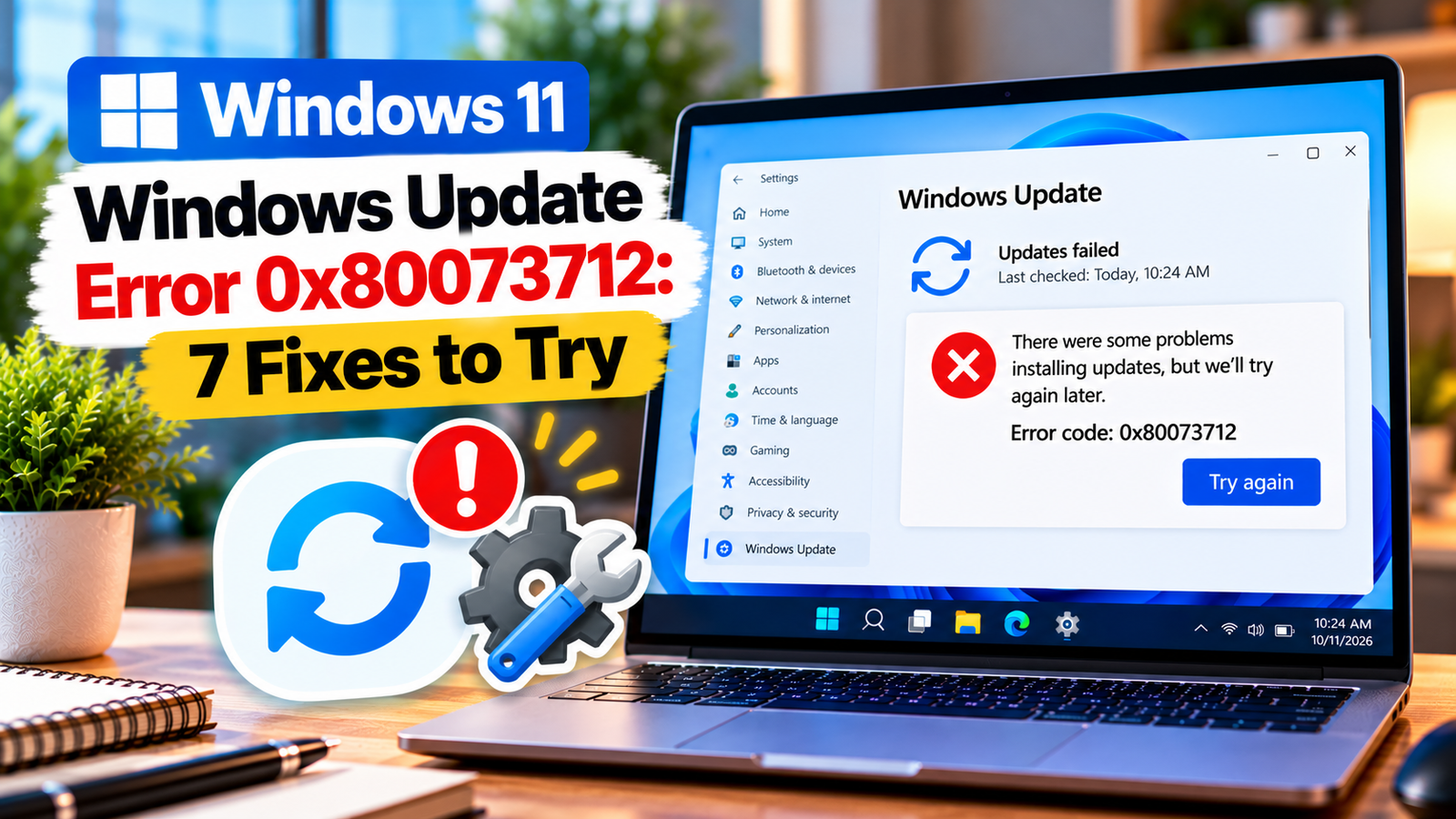
Windows Update Error 0x80073712: How to Fix Component Store Corruption
Windows Update error 0x80073712 can appear when Windows cannot install an update because a required system component is damaged, missing, or in an inconsistent state. You may see an update fail repeatedly, an installation roll back, or the same error return after restarting your PC.
The code points towards a possible problem with Windows component servicing, rather than automatically indicating a faulty internet connection or a lack of storage. The most useful approach is to repair Windows components first, check the system files, and investigate further if the error persists.
This guide walks you through the checks in a practical order, starting with the simplest steps.
Listen to the quick guide tool: Windows Update error 0x80073712
Quick Diagnosis: Start Here
| What you’re seeing | Start with |
|---|---|
| The update failed once or after a restart | Go to Fix 1 ↗ |
| Windows Update keeps failing and reports a troubleshooter option | Go to Fix 2 ↗ |
| Error 0x80073712 returns during installation | Go to Fix 3 ↗ |
| DISM completed successfully, but system files still need checking | Go to Fix 4 ↗ |
| The same KB update fails repeatedly | Go to Fix 5 ↗ |
| DISM or SFC did not resolve the problem | Go to Fix 6 ↗ |
| System corruption continues after standard repairs | Go to Fix 7 ↗ |
Why does Windows Update error 0x80073712 occur?
Windows maintains a component store that holds files and information needed to service the operating system, including installing updates and optional Windows features. If required components are damaged or missing, an update may not complete successfully.
Possible causes include:
- Corruption in the Windows component store.
- Missing or damaged files needed to install an update.
- An earlier update that did not finish correctly.
- A repair operation that cannot access suitable source files.
- Persistent system corruption that requires a more extensive Windows repair.
The error code alone does not identify the exact damaged file. Start with the standard repair tools before attempting advanced recovery.
Fix 1: Restart Windows and retry the failed update
A pending restart can leave an update operation incomplete. Restarting is a sensible first check before running repair commands.
- Save your work and close open applications.
- Open Start > Power > Restart.
- After Windows starts, open Settings > Windows Update.
- Select Check for updates and try installing the failed update again.
If the update installs successfully, no further repair may be necessary. If error 0x80073712 returns, move to the next step.
Fix 2: Run the Windows Update troubleshooter
Windows includes a troubleshooter that checks for common update-related problems. It may identify an issue with the update process, although it cannot repair every form of component-store corruption.
On Windows 11:
- Open Settings.
- Select System > Troubleshoot > Other troubleshooters.
- Find Windows Update.
- Select Run and follow the instructions.
- Restart the PC if prompted, then retry the update.
On Windows 10, open Settings > Update & Security > Troubleshoot > Additional troubleshooters, then select Windows Update if the option is available.
If the troubleshooter reports that it could not identify or resolve the problem, continue with the system repair steps.
Fix 3: Repair the Windows component store with DISM
Deployment Image Servicing and Management (DISM) is the key repair tool to try when Windows Update reports component corruption. It checks the Windows image and can repair it using suitable files from a repair source.
- Open Start and type
Command Prompt. - Select Run as administrator.
- Approve the User Account Control prompt.
- Enter this command and press Enter:
DISM.exe /Online /Cleanup-Image /RestoreHealth- Wait for the operation to finish. It may take several minutes, and progress can appear to pause temporarily.
- Read the final message before closing the window.
If the restore operation completes successfully, proceed to Fix 4.
If DISM reports that source files could not be found or that the operation failed, note the complete error message. Repeating the same command without addressing the reported problem may not help.
Fix 4: Run System File Checker after DISM
Once DISM has completed successfully, use System File Checker (SFC) to check and repair protected Windows system files.
In the same elevated Command Prompt window, enter:
sfc /scannowWait until verification reaches 100%. The scan may report that it found no integrity violations, repaired corrupted files, or could not repair some files.
- No integrity violations: SFC did not find corruption in the protected files it checked. The update problem may still involve other components.
- Corrupted files repaired: Restart the PC and try Windows Update again.
- Some files could not be repaired: Continue to Fix 6 to examine the repair logs or consider a supported Windows repair.
Restart the PC after the scan, especially if SFC reports that repairs were made.
Fix 5: Check whether one particular update is failing
If the same update repeatedly triggers 0x80073712, identify it before attempting more extensive repairs.
- Open Settings > Windows Update.
- Look at the update history or the failed installation entry.
- Note the update’s KB number, if shown.
- Check whether other updates install successfully or whether every update fails.
If only one update fails, record its KB number and the date of the failure. This information can help distinguish a problem affecting one update from broader Windows component corruption.
Avoid downloading update packages from unfamiliar websites. If you need to install a package manually, use Microsoft’s official update resources and confirm that the package matches your Windows version and system architecture.
Fix 6: Review the Windows servicing log
If DISM and SFC do not resolve the issue, the servicing log may contain more specific details about the failure.
- Open File Explorer.
- Navigate to:
C:\Windows\Logs\CBS- Locate
CBS.log. - Open the file with Notepad or another text editor.
- Search for the error code or entries containing
errornear the time the update failed.
The log can be large and may contain unrelated entries. Focus on messages close to the failed update’s timestamp rather than assuming every error in the file caused the problem.
If you are not comfortable interpreting servicing logs, save the relevant error details for a support technician. Avoid changing permissions or deleting files from the Windows component store based on an isolated log entry.
Fix 7: Consider a Windows repair installation if corruption persists
If DISM cannot repair the component store, SFC cannot repair system files, and Windows Update continues to return 0x80073712, a repair installation may be the next option.
Windows 11 includes a recovery option called Fix problems using Windows Update on supported systems. It reinstalls the current Windows version while attempting to preserve apps, files, and settings. Availability can vary by device and configuration.
To check for it:
- Open Settings > System > Recovery.
- Look for Fix problems using Windows Update or a similarly named recovery option.
- If available, review the on-screen information carefully before starting.
If this option is unavailable or does not resolve the problem, a supported in-place repair using Windows installation media may be appropriate. Use installation media that matches your Windows edition, language, and architecture, and follow Microsoft’s current instructions. Back up important files first and ensure you understand the available keep-files-and-apps options before proceeding.
Do not perform a clean installation as the first response to this error. A clean installation can remove applications, settings, and personal files.
Frequently asked questions
What does Windows Update error 0x80073712 mean?
It generally indicates that a file required by Windows Update is damaged or missing. Microsoft associates the code with problems that may require Windows system-file repair.
Can DISM fix error 0x80073712?
DISM can repair certain forms of Windows component-store corruption. Run DISM.exe /Online /Cleanup-Image /RestoreHealth from an elevated Command Prompt, then run sfc /scannow if DISM completes successfully. Results depend on the underlying problem and availability of suitable repair files.
What if DISM says the source files could not be found?
Record the full error message. DISM may need a suitable repair source, and the issue may require additional investigation. Do not assume that a random Windows ISO or an unrelated installation image will work. Use a source that matches the installed Windows version and follow Microsoft’s repair guidance.
Will fixing error 0x80073712 delete my files?
The standard troubleshooter, DISM, and SFC commands are intended to diagnose or repair Windows, not erase personal files. Nevertheless, back up important data before advanced recovery or repair installation steps.
Should I reset Windows to fix this error?
Not as a first step. Try the troubleshooter, DISM, and SFC in order. If the component store remains damaged, investigate a supported repair installation before considering a reset or clean installation.
Final thoughts
Windows Update error 0x80073712 can be frustrating because the same update may fail even after a restart. Begin with the Windows Update troubleshooter, then run DISM followed by SFC. If the code persists, identify the failed update and inspect the servicing log before moving to a repair installation.
The aim is to repair the affected Windows components without making unnecessary changes to your system.






