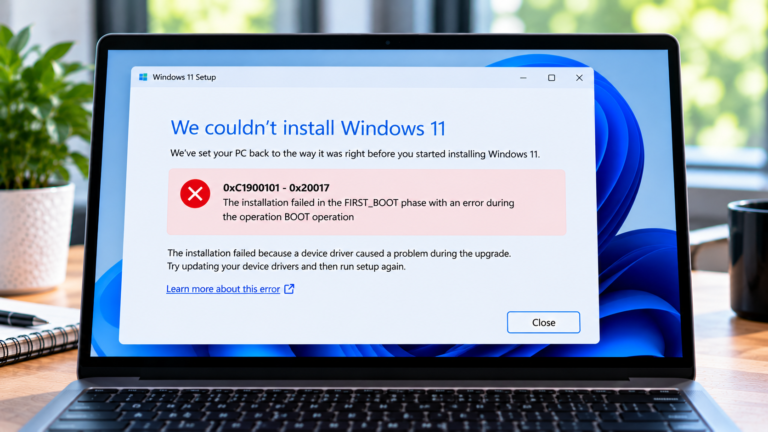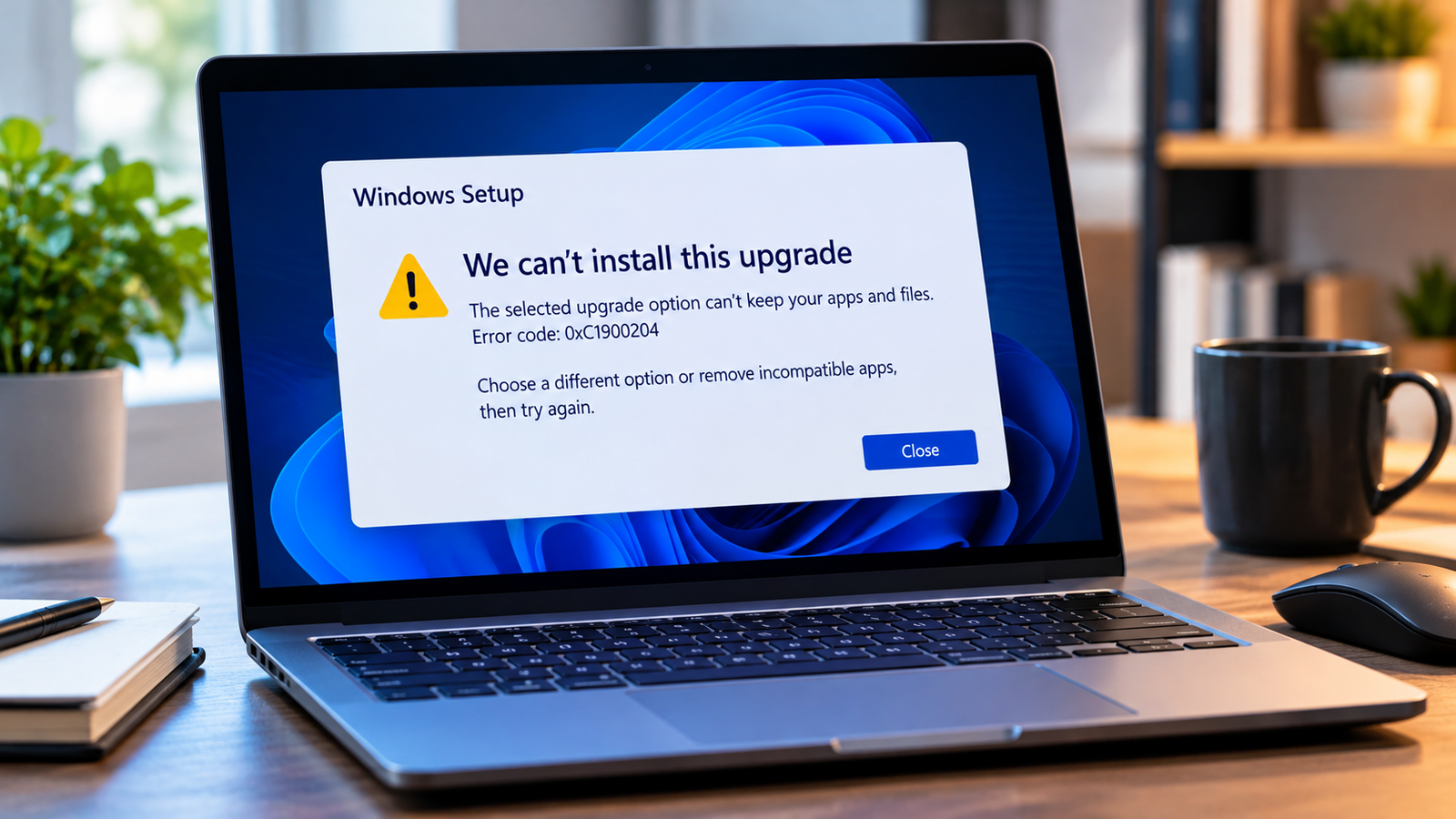
Windows Upgrade Error 0xC1900204: How to Fix an Unsupported Upgrade Path
Windows upgrade error 0xC1900204 can appear when Windows Setup cannot proceed with the selected upgrade and migration options. You may find that the option to keep your personal files and apps is unavailable, leaving you unsure how to continue without losing data.
The code is associated with MOSETUP_E_COMPAT_MIGCHOICE_BLOCK. In simple terms, the upgrade path you selected is not supported in its current configuration. The issue may involve the Windows edition, installation language, or the type of installation media being used.
Before attempting another upgrade, check the compatibility of your current Windows installation and the version you are trying to install. Avoid selecting a clean-install option simply to get past the error.
Listen to the quick guide:Windows upgrade error 0xC1900204
Why Does Error 0xC1900204 Occur?
Windows Setup checks whether the current installation can be upgraded to the target version while preserving the selected files, apps, and settings. If that migration path is not supported, Setup may block the operation.
Common reasons include:
- The target Windows edition does not support the intended upgrade path.
- The installation media does not match the current Windows installation.
- The installation language or other setup characteristics differ.
- Windows Setup cannot offer the requested option to retain apps and files.
The exact cause depends on the source installation and the target upgrade. Work through the checks below before trying again.
Quick Diagnosis: Start Here
| What you’re seeing | Start with |
|---|---|
| You are unsure which Windows edition is installed | Go to Fix 1 ↗ |
| You are using a USB drive or ISO to upgrade Windows | Go to Fix 2 ↗ |
| The installation language may not match | Go to Fix 3 ↗ |
| The option to keep personal files and apps is unavailable | Go to Fix 4 ↗ |
| You may be starting Setup using the wrong method | Go to Fix 5 ↗ |
| The error persists after checking the upgrade settings | Go to Fix 6 ↗ |
Fix 1: Check Your Current Windows Edition
Start by confirming which edition of Windows is installed on your computer.
- Press Windows + R to open the Run dialog.
- Type
winverand press Enter to view your Windows version. - Open Settings > System > About.
- Under Windows specifications, note the edition, such as Home or Pro.
Compare this with the edition you intend to install. Some edition transitions are not supported as an in-place upgrade that preserves your existing apps and settings.
What to do next: If the source and target editions are incompatible, obtain installation media for a supported upgrade path. Do not proceed with an edition change that would remove your apps or files unless that is your intention.
Fix 2: Verify the Installation Media
If you are using a USB drive, ISO file, or other Windows installation media, confirm that it is intended for the Windows version and edition you need.
- Identify the Windows version and edition currently installed.
- Check the version and edition associated with your installation media.
- If you downloaded an ISO or created a bootable USB earlier, verify that it is the intended release and source.
- If the media is incorrect or outdated for your intended upgrade, obtain fresh media from Microsoft’s official Windows download page.
Do not assume that any Windows installation USB can upgrade every existing installation while keeping apps and settings. The available migration options depend on the source and target combination.
Fix 3: Check the Installation Language
A language mismatch can affect the upgrade options available in Windows Setup.
- Open Settings > Time & language > Language & region.
- Check the Windows display language.
- Confirm the language associated with the installation media you are using.
- If they differ, obtain installation media that matches the existing Windows installation language where required for the intended upgrade.
Changing the display language alone does not necessarily change the underlying installation language. If you are unsure which language the installed system uses, do not keep experimenting with different media. Confirm the installation details before retrying.
Fix 4: Review the “What to Keep” Options
When you start Windows Setup from within your existing Windows installation, review the options shown on the Ready to install or equivalent setup screen.
Depending on the source and target configuration, Setup may offer options such as:
- Keep personal files and apps
- Keep personal files only
- Nothing
If the option to keep personal files and apps is unavailable, do not assume that your files must be erased. Return to the compatibility checks in Fixes 1–3 and verify that the intended upgrade path is supported.
Important: Selecting Nothing can result in the removal of personal files, apps, and settings. Do not choose it merely to bypass error 0xC1900204. If preserving your existing installation is important, cancel Setup until the correct migration option is available.
Fix 5: Check Whether the Upgrade Method Matches Your Goal
The way you launch Setup matters.
If your goal is to upgrade Windows while retaining installed applications and personal data, start the supported upgrade process from within the running Windows installation, using appropriate installation media.
- Sign in to the Windows installation you intend to upgrade.
- Open the installation media from within Windows rather than booting directly from the USB drive.
- Start Setup and review the options it offers.
- Confirm that the intended option for retaining apps and files is available before continuing.
Booting from installation media can lead to a different installation workflow. If you need to preserve the existing installation, do not continue through a clean-install process expecting it to behave like an in-place upgrade.
If Setup still blocks the migration choice, return to the edition, language, and media checks rather than repeatedly running the same installation.
Fix 6: Review Setup Diagnostics Before Retrying
If the error persists, use Windows Setup’s diagnostic information to understand why the migration choice is blocked.
For advanced troubleshooting, Microsoft’s Setup compatibility logs and SetupDiag can help identify upgrade blockers.
- Search Microsoft’s support documentation for the Windows Setup compatibility scan logs.
- Review the relevant Setup logs, especially the compatibility reports in the Panther logging folder.
- If you are comfortable with diagnostic tools, use Microsoft’s SetupDiag guidance to analyse the failed upgrade.
- Note the source Windows edition, target edition, installation language, and the exact message displayed by Setup.
Avoid changing registry values or system installation paths based on a generic online fix. Such changes can create additional problems and should not be attempted without confirming the cause and understanding the consequences.
If the logs do not make the cause clear, seek help using the exact error code and diagnostic details.
Frequently Asked Questions
Does error 0xC1900204 mean Windows is corrupted?
Not necessarily. This code is associated with an unsupported migration choice during Windows Setup. It does not, by itself, prove that Windows system files are corrupted.
Can I fix 0xC1900204 without losing my files?
Often, the first step is to identify a supported upgrade path and restore the appropriate option to keep files and apps. Do not choose Nothing unless you deliberately want a clean installation and have backed up your data.
Should I reinstall Windows to fix this error?
A clean installation should not be the first response to this error. Check the edition, language, and installation media first. Reinstalling can remove apps, settings, and personal files.
Is error 0xC1900204 the same as 0xC1900208?
No. Microsoft associates 0xC1900204 with a blocked migration choice, whereas 0xC1900208 indicates an actionable compatibility issue, such as an incompatible application. The troubleshooting approach should match the exact code.
Final Advice
Windows upgrade error 0xC1900204 usually calls for checking the upgrade path rather than trying random repair commands. Verify the installed Windows edition, confirm the installation media and language, and make sure the option to keep your apps and files is supported.
If Setup continues to block the upgrade, review its diagnostic information before making further changes. Most importantly, do not choose an option that removes your data simply to get the installation moving.