Alexa Routine Not Working? How to Fix Automation Problems
An Alexa routine can stop working even when Alexa still responds to ordinary voice commands. You might find that a scheduled routine no longer runs, a voice-triggered routine is ignored, or only some of its actions are completed.
The important distinction is whether the routine itself fails to start or whether an action fails after it starts. Checking this first can save you from unnecessarily deleting a routine or resetting your Echo device.
Listen to the quick guide: Alexa Routine Not Working
Start with these quick checks
- The routine never starts: Check whether it is enabled and whether its trigger is configured correctly.
- The routine runs but skips an action: Test the affected device, skill or command separately.
- The routine works intermittently: Check Wi-Fi, device availability and linked services.
- A voice command works but the routine does not: Review the routine’s trigger and action settings rather than assuming the Echo is faulty.
Quick Diagnosis: Start Here
| What you’re seeing | Start with |
|---|---|
| The routine is saved but does not run | Go to Fix 1 ↗ |
| The routine does not trigger at the expected time or event | Go to Fix 2 ↗ |
| The Echo or a connected smart-home device is offline | Go to Fix 3 ↗ |
| The routine starts but skips one or more actions | Go to Fix 4 ↗ |
| A third-party skill or linked service is not responding | Go to Fix 5 ↗ |
| The routine still fails after checking its settings | Go to Fix 6 ↗ |
Fix 1: Check whether the routine is enabled
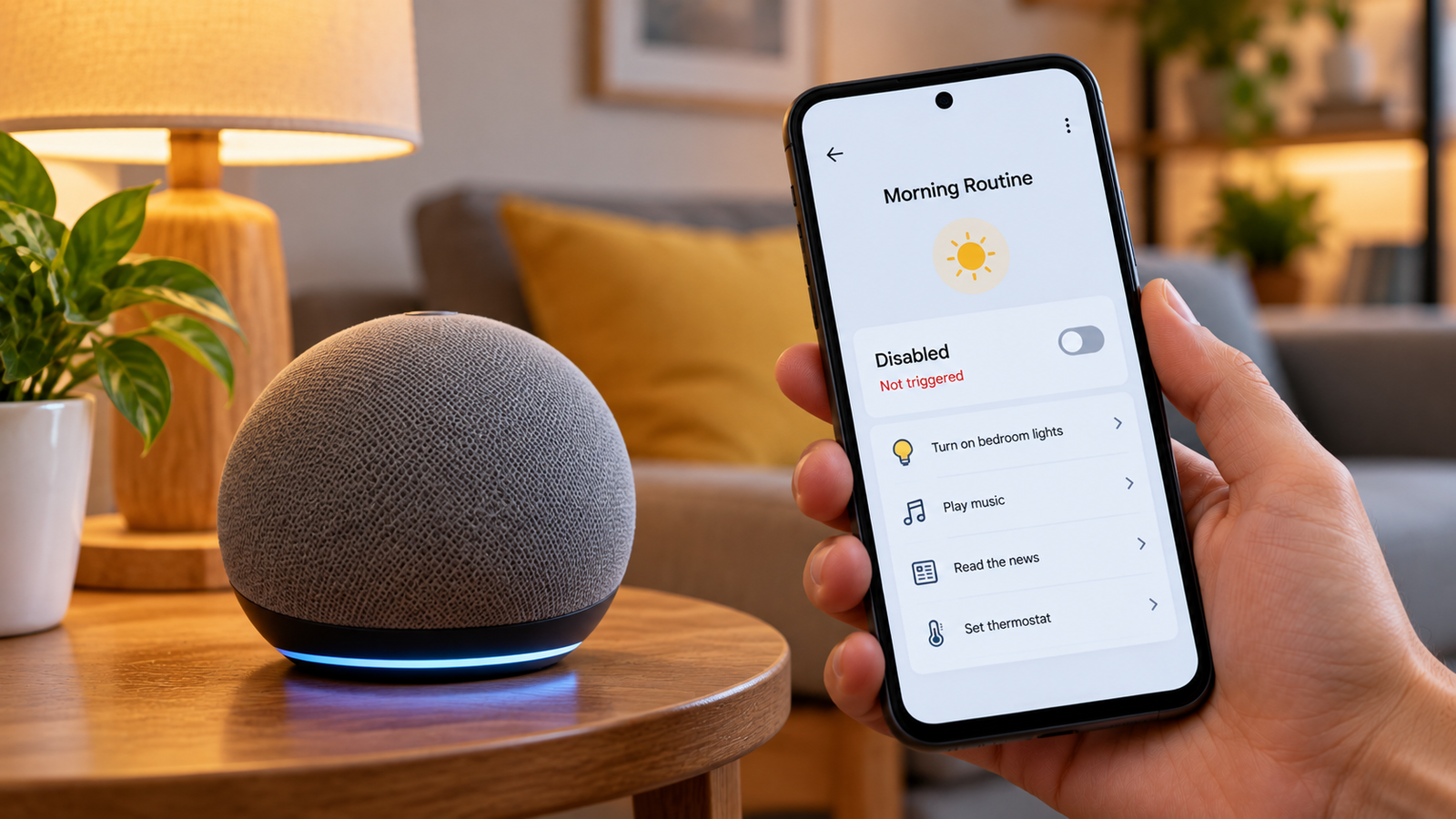
A routine can remain in the Alexa app while being disabled.
- Open the Alexa app.
- Tap More, then select Routines.
- Find the affected routine under Your Routines.
- Open it and check its status.
- If it is disabled, switch it to enabled.
If the routine already appears enabled but does not run, Amazon recommends switching it off and then back on. This is a simple first step before changing its configuration.
Test the routine again after re-enabling it. If it still fails, continue to the trigger settings.
Fix 2: Verify the trigger, schedule and selected Echo
Every routine needs a trigger, such as a voice phrase, a scheduled time or a supported device event. If the trigger does not occur as configured, the routine may never start.
Open the routine and review the When this happens section. Check that:
- The intended voice phrase or event is selected.
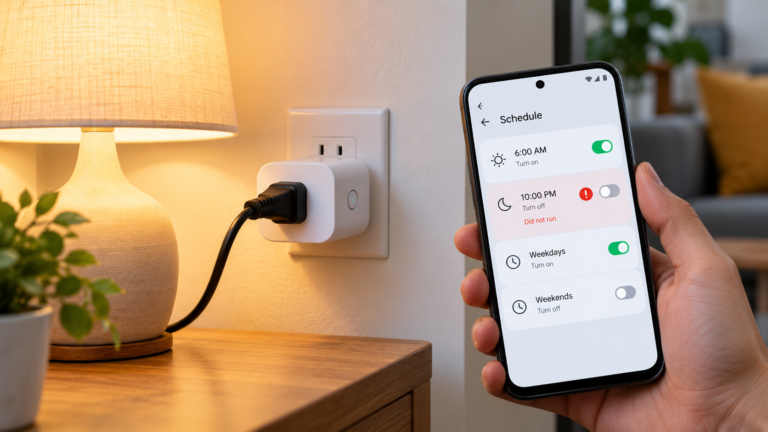
- The scheduled time and days are correct, if it is time-based.
- Any required conditions are satisfied.
- The correct Echo or other supported device is selected where the routine asks you to choose one.
- Your latest changes have been saved.
For example, a routine scheduled for weekdays will not run on a weekend unless its configuration includes those days.
If you use an occupancy or presence-based routine, check its specific detection requirements. These routines may behave differently from a simple time-based routine.
⚡ Advanced Automation Diagnostics: Resolving AWS Lambda Runtime Blocks & OAuth Session Expirations
When an Alexa routine fails to run—yet your Echo device processes individual voice commands flawlessly—the problem is rarely a faulty smart speaker. Instead, your automation profile is experiencing an AWS Smart Home Skill API execution timeout or an expired OAuth2 backend authentication token lease.
Alexa routines operate as conditional serverless functions inside Amazon Web Services (AWS) cloud architecture. When a trigger condition occurs (like a time block or geofence boundary), Amazon’s cloud queries a central registry to check the status of your connected smart plugs, switches, or lights. If a partner brand’s cloud database drops its active websocket session loop, or if the device’s security token has quietly expired, the AWS system logic throws an unlogged communication error. The routine stops processing the remaining steps to protect network cycles, failing completely without giving you a notification error dashboard layout.
🔧 The Step-by-Step AWS Cloud Schema Reset Protocol
- Force a Global Profile Schema Pull: You can completely clear out stuck cloud execution parameters without deleting your routine settings. Inside the Alexa App, open your routine dashboard, toggle the master Enable switch to OFF, wait 60 seconds for the system database schema to drop the active cache memory grid, and then flip it back to ON to rewrite the data mapping layer cleanly.
- Purge the Cryptographic Account Token: If a third-party smart device skips an automation sequence step, its underlying skill lease has desynced. Open the app, go to More > Skills & Games > Your Skills, select the device manufacturer (e.g., Smart Life, SmartThings, or Philips Hue), and tap Disable Skill. Wait 3 minutes for Amazon’s edge servers to flush the session profiles before clicking Enable to Use to negotiate a fresh OAuth authentication token.
- Clear out Congested Local Network UPnP States: Many automation failures stem from local routers dropping discovery packets. Log into your home router’s admin gateway interface (typically
192.168.1.1), navigate directly to the Advanced Routing dashboard settings block, and verify that UPnP (Universal Plug and Play) is toggled to ON. This allows your Echo devices to send localized discovery commands to your smart home hardware seamlessly.
Fix 3: Make sure the Echo and connected devices are online
Alexa routines can depend on several devices working together. If an Echo loses its connection or a smart-home device becomes unavailable, the routine may not complete as expected.
Open the Alexa app and check the status of the Echo and each device used by the routine.
If a smart light, plug or other connected device is offline, try controlling it through its manufacturer’s app, if applicable. This helps determine whether the problem is with the device’s own connection or its integration with Alexa.
If the Echo is offline, check your internet connection and Wi-Fi settings. Restart the router if necessary, then allow the Echo to reconnect.
For a temporary connection issue, unplug the Echo’s power adapter, wait about 30 seconds and reconnect it. Wait for the device to start fully before testing the routine again.
Fix 4: Test the actions one by one
A routine may start correctly but stop behaving as expected when one of its actions fails.
Suppose your evening routine should turn on a light, play music and read the news. Test each action independently:
- Use Alexa or the Alexa app to control the light.
- Ask Alexa to play the intended music or service.
- Test the news briefing or other command separately.
- Check whether each connected device or service responds correctly.
If a device does not respond, troubleshoot that device before rebuilding the routine.
If a third-party smart-home device works in its manufacturer’s app but not through Alexa, check its linked skill or account connection. If the routine uses a skill, verify that the skill is enabled and any required account linking or permissions are in place.
Once the individual actions work, review their configuration in the routine and test the complete sequence again.
Fix 5: Review linked skills and permissions
Some routines rely on services outside the Alexa app. A routine may fail if a linked skill is disabled, its account connection has expired, or a required permission is missing.
In the Alexa app, open More, then Skills & Games, and find the skill used by the routine.
Check whether the skill is enabled and whether it requires account linking or additional permissions. Follow the service’s instructions to restore access if necessary.
Before disabling or re-linking a skill, make sure you have the login details required to reconnect it. Also check the service’s own app for any account or device errors.
If the routine does not use a third-party skill, you can skip this step and move to the app and device software checks.
Fix 6: Update the Alexa app and restart the Echo
An outdated app or temporary software issue can interfere with routine management or device communication.
- Open your phone’s app store and check for an Alexa app update.
- Install any available update.
- Check that the Echo’s software is current, using the device’s supported update method.
- Restart the Echo by disconnecting power for about 30 seconds and reconnecting it.
- Wait for it to come online, then test the routine again.
If the routine still fails, try creating a simple test routine with one trigger and one action. Choose an action that does not depend on a third-party skill if possible.
If the test routine works, the issue may be specific to the original routine’s configuration or one of its actions. If it also fails, investigate the Echo, connection or Alexa service further.
Recreate the original routine only after simpler checks have failed. You do not need to factory-reset the Echo just because one routine is not running.
When to seek further help
If the routine remains unreliable after these checks, note the trigger type, approximate failure time, affected devices and any error messages. Check the routine’s settings and the status of the services it depends on before contacting Amazon or the relevant device manufacturer.
For occupancy routines, check the requirements for your specific Echo model. Motion or presence detection can have different setup and reset behavior from time-based routines.
Avoid factory-resetting your Echo as an early troubleshooting step. A reset can require you to set the device up again and may not resolve a problem caused by a disabled routine or unavailable third-party service.
Frequently asked questions
Why does Alexa respond to voice commands but not run my routine?
A normal voice command and a routine may use different triggers and actions. Check that the routine is enabled, its trigger is correct and any required devices or services are available.
Why does my Alexa routine work sometimes but not always?
Intermittent failures can be related to Wi-Fi, device availability, conditions that are not always met, or a linked skill. Check the routine’s configuration and test its actions separately.
Should I delete and recreate an Alexa routine?
Not immediately. First enable the routine, verify its trigger, check device connectivity and test individual actions. Rebuilding is a later option if the existing configuration appears to be the problem.
Do Alexa routines need Wi-Fi?
Many routines depend on an internet connection, cloud services or connected smart-home devices. The exact requirements depend on the trigger and actions used, so check the documentation for the devices and services involved.
Final takeaway
When an Alexa routine stops working, first confirm that it is enabled and that its trigger is correct. Then check the Echo’s connection, verify the devices and services involved, and test the actions separately. These steps help isolate the cause before you rebuild the routine or reset a device.