
Roku Black Screen? Diagnose Why There’s No Picture and Fix It
A Roku black screen doesn’t always mean the Roku itself has failed. The problem could be as simple as the TV being on the wrong HDMI input, or it could involve the HDMI connection, power supply, display settings or the TV itself.
The exact symptom gives you an important clue. A TV showing No Signal is different from a screen that is completely black while you can still hear Roku sounds. And if the Roku logo keeps appearing and disappearing, you’re probably dealing with a restart loop instead.
Use the symptoms below to start with the most relevant fix rather than changing settings at random.
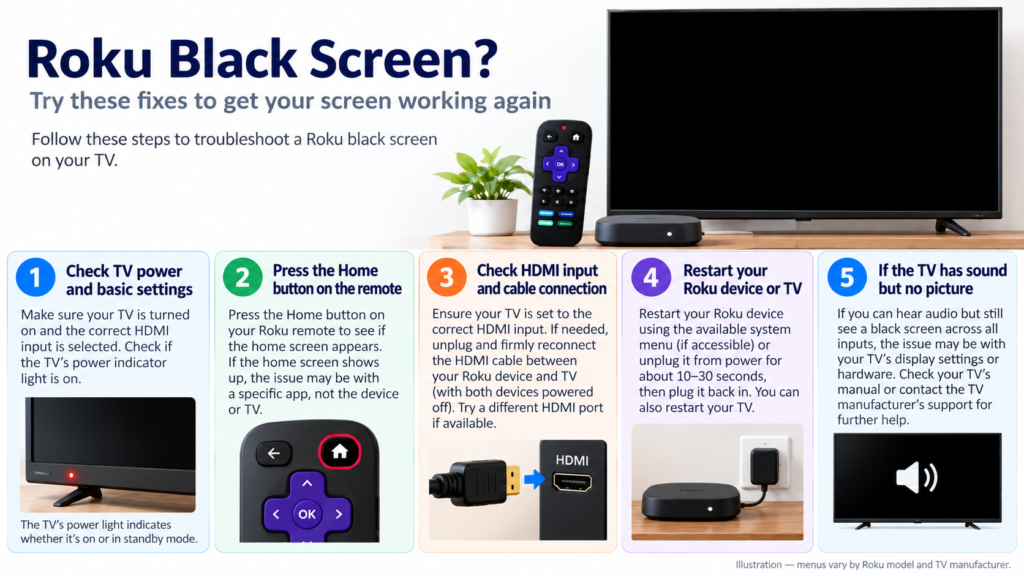
Quick Diagnosis: Start Here
| What you’re seeing | Start here |
|---|---|
| TV says No Signal | Go to Fix 1 |
| Roku is powered on but there’s no picture | Go to Fix 2 |
| Picture appears when you switch HDMI ports | Go to Fix 3 |
| Roku shows a flashing red light or low-power warning | Go to Fix 4 |
| Black screen started after changing display settings | Go to Fix 5 |
| Roku TV has sound but no picture | Go to Fix 6 |
| Roku logo appears and disappears repeatedly | Read the Roku Keeps Restarting guide |
Why This Happens
A Roku black screen can come from several different parts of the setup.
Common causes include:
- The TV is set to the wrong HDMI input
- The Roku isn’t securely connected to the HDMI port
- An HDMI cable or port isn’t working correctly
- A soundbar or AV receiver is interfering with the video connection
- The Roku isn’t receiving enough power
- An incompatible display setting was selected
- The Roku TV has power but isn’t producing a picture
- The Roku is actually restarting rather than simply displaying a black screen
That’s why the first goal isn’t to reset the Roku. It’s to determine whether the picture is being lost at the TV input, HDMI connection, Roku player or TV itself.
Fix 1: Make Sure the TV Is on the Correct Input
Start here if your television displays No Signal, No Input, or a similar message.
A TV can have several inputs, such as HDMI 1, HDMI 2 and HDMI 3. The TV must be set to the same HDMI port where your Roku is connected.
- Look at the HDMI port where your Roku player or Streaming Stick is connected.
- Note the HDMI number if it’s labeled.
- Pick up your TV remote, not the Roku remote.
- Press Input, Source or the equivalent button.
- Select the matching HDMI input.
If you’re unsure which input the Roku uses, move through the available HDMI inputs one at a time.
Give each input several seconds before moving to the next one. Roku recommends waiting around 10 seconds so the TV has time to detect the video signal.
If the Roku home screen appears, nothing else needs to be changed.
Fix 2: Check the Roku and HDMI Connections
If you’re on the correct input but still have a Roku black screen, inspect the physical connection.
For a Roku Streaming Stick:
- Make sure the Stick is fully inserted into the TV’s HDMI port.
- Remove it and reconnect it firmly.
- Check that its power cable is also properly connected.
For Roku players that use an HDMI cable:
- Disconnect the HDMI cable from both the Roku and TV.
- Reconnect both ends securely.
- Turn the TV and Roku back on.
- Check for a picture.
If your Roku runs through a soundbar or AV receiver, temporarily remove that device from the chain.
Connect the Roku directly to the TV.
If the picture returns when Roku is connected directly, the Roku itself may not be the source of the problem. The receiver, soundbar or connection between the devices needs further investigation.
Fix 3: Try Another HDMI Port or Cable
A faulty HDMI port or cable can leave you with a black screen even when the Roku is working normally.
Move the Roku to another HDMI port on the same television.
Then switch the TV to that new input.
For example, if Roku was connected to HDMI 1, move it to HDMI 2 and select HDMI 2 using the TV remote.
If your Roku uses a separate HDMI cable, you can also test another compatible cable.
For 4K/HDR setups, cable capability matters. Roku recommends suitable high-speed HDMI cables for these higher-bandwidth video formats.
If possible, you can also connect the Roku player to another television. This is a useful diagnostic test:
- Roku works on another TV → investigate the original TV, HDMI port or configuration.
- Roku still has no picture → investigate the Roku’s connection or power.
Fix 4: Check Whether the Roku Is Getting Enough Power
Don’t assume that a lit Roku automatically means it’s receiving adequate power.
Roku notes that some players can power on but still receive insufficient power. A flashing red light or an on-screen low-power warning is a particularly useful clue.
If your Roku is powered through a USB port on the television:
- Disconnect its USB power cable from the TV.
- Connect the Roku using the appropriate power adapter.
- Plug it into a wall outlet.
- Allow Roku to start again.
- Check whether the picture returns.
If you’re already using a wall outlet, make sure the power cable and adapter are securely connected.
Power problems can sometimes look like video problems because the Roku may appear partially powered without operating correctly.
Fix 5: Check If the Problem Started After Changing Display Settings
This fix is particularly relevant if the Roku black screen appeared immediately after you changed the Display type.
Roku players can automatically detect compatible display formats, but manually selecting an unsupported resolution or frame rate can temporarily leave you without a picture.
When changing the display type, Roku normally asks you to confirm that you can see the picture. If you can’t, the player should revert to the previous setting after about 20 seconds.
If you can access the Roku menus again, go to:
Settings → Display type
Choose Automatic or another display type you know your television supports.
For 4K or HDR setups, also check that:
- Your TV supports the selected format
- You’re using an appropriate HDMI port
- HDR is enabled for that HDMI input where required
- Your HDMI cable supports the video format you’re trying to use
If ordinary Roku menus display normally and you only get a black screen when playing certain 4K or HDR content, that points more toward a display-format or HDMI compatibility issue than a completely failed Roku.
Fix 6: Troubleshoot a Roku TV With Sound but No Picture
This section is specifically for a Roku TV, rather than a Roku streaming player connected to another television.
If you can hear audio but the Roku TV screen remains black, start with a complete power reset.
- Turn the Roku TV off.
- Unplug it from its power source.
- If it’s connected through a power strip or extension cord, remove that from the test.
- Connect the TV directly to a working wall outlet.
- Turn the TV back on.
If the TV still has sound but no picture, try the power troubleshooting steps recommended by your TV manufacturer. If the problem persists, the television may need professional service.
If the TV continues producing sound with no picture after basic power troubleshooting, don’t immediately assume it’s a Roku software issue.
The television itself may require service.
For Roku-branded TVs, Roku provides support. For Roku TVs made by manufacturers such as TCL, Hisense, Sharp or others, support may come from the TV manufacturer depending on the model.
Fix 7: Reconnect Everything and Start Fresh
If you’ve confirmed the correct input, checked power and tested the HDMI connection but still have a Roku black screen, disconnect the setup and reconnect it.
- Unplug the Roku from power.
- Disconnect it from the TV.
- Disconnect the HDMI cable if your model uses one.
- Wait briefly.
- Reconnect the Roku directly to the TV.
- Reconnect power.
- Select the correct HDMI input.
- Allow the Roku time to start.
This effectively resets the physical connection between the Roku and television.
If you still get no picture, testing the Roku on another television is one of the most useful next diagnostic steps.
I would not jump straight to a factory reset for a Roku black screen. If the TV can’t see the Roku’s video output because of an input, HDMI, power or hardware problem, erasing the Roku won’t fix the underlying issue.
How to Prevent Roku Black Screen Problems
Not every black-screen problem can be prevented, but a few setup choices can reduce connection-related issues:
- Make sure HDMI cables are firmly connected.
- Use appropriate HDMI cables for 4K and HDR video.
- Avoid loose or strained HDMI connections.
- Use a reliable power source for the Roku player.
- If the TV’s USB port causes low-power warnings, use a wall adapter instead.
- Be careful when manually changing Roku display settings.
- If using a soundbar or receiver, make sure the entire HDMI chain supports the video format you’re using.
If the Roku black screen happens again, note exactly when it occurs. A black screen from startup is a different diagnostic clue from one that appears only when a particular app or 4K movie begins playing.
Frequently Asked Questions
Why is my Roku on but the screen is black?
The Roku may be connected to the wrong TV input, have an HDMI connection problem, be receiving insufficient power or be using a display configuration the TV cannot show. Start by checking the TV input and HDMI connection before changing Roku settings.
Why does my TV say No Signal when Roku is connected?
The TV may be on the wrong HDMI input, or it may not be receiving video through the selected port. Confirm which HDMI port contains the Roku, select that input with the TV remote and then check the HDMI connection.
Can a bad HDMI cable cause a Roku black screen?
Yes. If your Roku player uses a separate HDMI cable, a faulty or unsuitable cable can prevent the video signal from reaching the television. Try another HDMI port and, where applicable, another compatible HDMI cable.
Why can I hear Roku but not see anything?
If you’re using a Roku TV and you have sound but no picture, Roku recommends power troubleshooting including connecting the television directly to another wall outlet. If the problem persists, the TV may need further support or service.
If you’re using a separate Roku player, hearing sound with no picture can instead point toward the HDMI/video path or display configuration.
Why does my Roku screen go black when playing 4K or HDR?
If normal Roku menus work but the screen goes black when certain high-resolution content begins, check the Roku display type, HDMI cable, HDMI port capabilities and the TV’s 4K/HDR settings. Video-format compatibility becomes more likely than a general Roku failure.
Should I factory reset Roku if the screen is black?
Not as a first step. A black screen is commonly related to the TV input, HDMI connection or power. Diagnose those first. Factory resetting a Roku won’t repair a faulty HDMI connection or television display problem.
Is a Roku black screen the same as Roku restarting?
No. If the Roku or TV logo repeatedly appears and disappears, or the device continually starts over, you’re more likely dealing with a restart loop rather than a simple no-picture problem.






