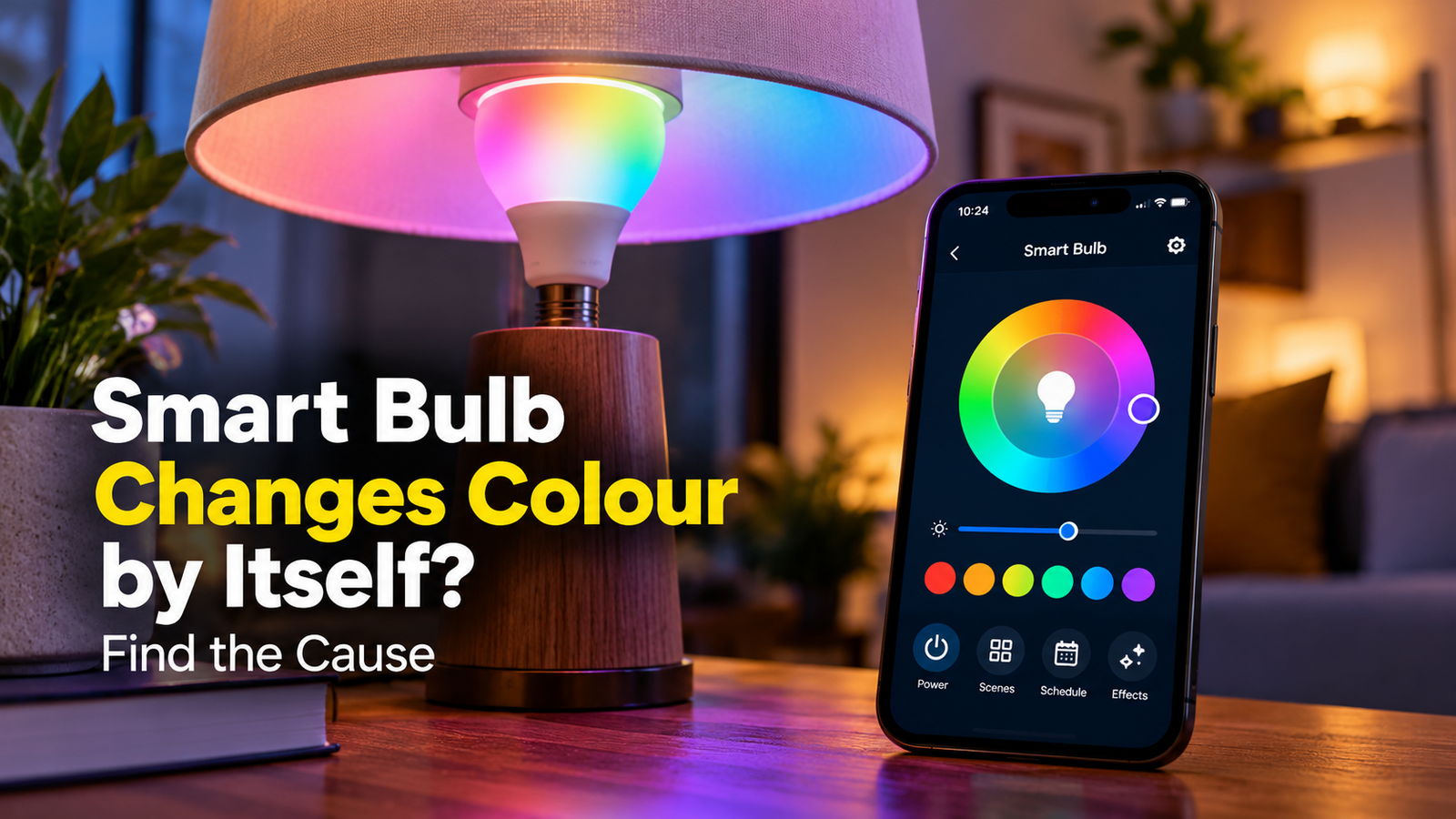
Smart Bulb Changes Color by Itself? Find the Cause
Does your smart bulb changes color by itself and suddenly change from warm white to blue, switch colors in the middle of the evening, or start cycling through different shades without you touching the controls? Unexpected color changes can make a smart light frustrating to use, particularly when you want consistent lighting.
The cause is not always a faulty bulb. A lighting scene, scheduled routine, dynamic effect, voice-assistant command or another linked control may be changing its settings. Some bulbs can also behave unexpectedly after a power interruption or an app update.
The quickest way to narrow down the cause is to observe when the color changes, then temporarily isolate the settings or controls that could be responsible.
Quick Diagnosis: Start Here
| What you’re seeing | Start with |
|---|---|
| The bulb keeps cycling through different colors | Go to Fix 1 ↗ |
| The color changes at a particular time | Go to Fix 2 ↗ |
| The bulb changes color after a voice command or routine | Go to Fix 3 ↗ |
| The color changes after switching the power off and on | Go to Fix 4 ↗ |
| Another person, remote or device may be controlling the bulb | Go to Fix 5 ↗ |
| The problem started after an app or firmware update | Go to Fix 6 ↗ |
| The bulb changes color despite checking its settings | Go to Fix 7 ↗ |
Fix 1: Check Whether a Scene or Dynamic Lighting Effect Is Active
Many color-changing smart bulbs support preset scenes and animated effects. Depending on the model, these can cycle through colors, gradually change shades or respond to music.
If the bulb changes color repeatedly rather than settling on one shade, start here.
- Open the manufacturer’s smart-light app.
- Select the affected bulb.
- Check whether a scene, color cycle, music mode or dynamic lighting effect is active.
- Switch to a steady color setting, such as a fixed warm white or a single selected color.
- Observe the bulb to see whether the unexpected changes stop.
Some apps retain the last-used scene, while others may restore an effect when the bulb is switched back on.
If the bulb remains stable after you select a fixed color, the effect or scene is a likely explanation. You do not need to reset the bulb simply because an animated setting was enabled.
Check the result: Leave the bulb on a fixed color for a while. If it starts changing again, continue with the schedule and automation checks.
Fix 2: Review Schedules, Timers and Automations
A smart bulb may change color at a particular time because a schedule or automation is applying a preset.
For example, an evening routine might change the bulb to a warm shade, while a bedtime scene could dim it or select another color. A routine may also run repeatedly if its trigger conditions are met more than once.
Open the app and review any relevant:
- Color or scene schedules.
- Sunrise and sunset routines.
- Timers that trigger lighting changes.
- Room-based or whole-home automations.
- Routines that run when another device changes state.
Look for rules that match the time when the color change occurs.
Temporarily disable one suspected rule, then observe the bulb. If the problem stops, recheck that rule’s actions and timing before changing anything else.
Avoid deleting all your routines at once. Testing one rule at a time makes it easier to identify the cause without disrupting the rest of your smart home.
Check the result: If the bulb stays on the selected color after a relevant routine is disabled, adjust that routine rather than resetting the bulb.
Fix 3: Check Alexa, Google Home and Other Linked Controls
A bulb can receive commands from more than one place. Its manufacturer’s app may not be the only service controlling its color.
If you use a voice assistant or a connected smart-home platform, check for routines that include the affected light.
Review:
- Voice-assistant routines that run at set times.
- Commands triggered by another smart device.
- Room or group controls that include the bulb.
- Automations that apply a scene to multiple lights.
- Linked lighting effects controlled through another app.
If possible, compare the bulb’s behavior in its own app with what happens when the linked service is active.
For a useful test, temporarily disable the relevant routine or disconnect the suspected automation through its normal settings. Do not remove every smart-home integration unnecessarily.
If Alexa routines are involved in the unexpected color changes, our guide to troubleshooting Alexa routines can help you check their triggers, actions and connected devices.
Check the result: If the bulb behaves normally when a linked automation is inactive, the control rule is a stronger suspect than the bulb hardware.
Fix 4: Check Whether the Bulb Changes Color After a Power Interruption
Some smart bulbs offer a power-on behavior setting that determines what happens when electricity is restored. Depending on the model, the bulb may return to its previous state, use a default setting or apply a configured color.
This can explain why a bulb appears to change color after a brief power cut or when someone operates the wall switch.
Check the following:
- Open the bulb’s settings in the manufacturer’s app.
- Look for a setting named Power-On behavior, Power Recovery, Default State or something similar.
- Review the selected color or state, if the model provides those options.
- Check whether the color changes occur after the wall switch is operated or after a power interruption.
- Adjust the setting only if the app offers a suitable option for your bulb.
The available settings vary between manufacturers. Some bulbs do not allow you to specify a particular color after power is restored.
Also remember that smart bulbs generally need continuous power to maintain their smart functions. Repeatedly switching them off at the wall may interrupt their operation, but it does not necessarily mean the bulb is defective.
Check the result: If unexpected color changes occur only after power is restored, the bulb’s power-on behavior or a routine triggered by reconnection may be responsible.
Fix 5: Check for Accidental Commands and Shared Controls
Sometimes the color changes because another person or device is controlling the light.
This is worth checking if you share the home with other people, use multiple phones or control several bulbs as a group.
Review whether:
- Another household member has access to the lighting app.
- The bulb belongs to a group that receives color commands.
- A physical remote or compatible switch can change the color.
- A voice assistant is responding to a command intended for a different light.
- A scene changes several bulbs together.
If the app shows recent activity or device-control history, review it around the time the color changed. Not every platform records this information, so the absence of a history entry does not rule out another command.
You can also give the bulb a distinctive name if it is frequently confused with another light in the same room.
Check the result: If the unexpected changes stop after you isolate the relevant group or control, review how that device or user is allowed to operate the bulb.
Fix 6: Check the Bulb’s App, Firmware and Connection State
If scenes, schedules and linked controls do not explain the behavior, check whether the bulb’s app or software needs attention.
Start by closing and reopening the manufacturer’s app. Check whether the bulb shows the expected color and state, then select a fixed color again.
If the manufacturer provides a firmware update for your exact model, review its release information and follow the official update procedure. Keep the bulb powered as instructed during the update.
If the problem began immediately after an app or firmware update, note that timing. It may help the manufacturer diagnose a device-specific issue.
Avoid repeatedly resetting the bulb or removing it from your account as a first response. A factory reset can erase settings and require the bulb to be configured again, and it may not address a control rule or software fault.
Check the result: If the bulb remains stable after the app or firmware issue is resolved, monitor it under normal use. If the problem continues, gather the model number and details of when the color changes occur.
Fix 7: Determine Whether the Bulb or Its Hardware Is Faulty
If the bulb changes color even when you select a fixed setting, disable relevant scenes and automations, and rule out linked controls, the bulb itself may have a fault.
Before replacing it, consider whether the problem follows a particular bulb or occurs with several lights.
If you have another compatible bulb, compare its behavior in a suitable fixture, provided it can be changed safely. Follow the manufacturer’s instructions and switch off the light before handling a removable bulb.
Use the results carefully:
- If only one bulb changes color unexpectedly, a device-specific fault becomes more plausible.
- If several bulbs behave the same way at the same time, a shared automation, control service or configuration may be responsible.
- If the bulb also flickers, overheats or shows visible damage, stop using it and follow the manufacturer’s safety guidance.
Do not open the bulb or attempt to repair its internal electronics. Contact the manufacturer if the bulb is under warranty or replace it if a fault is confirmed.
Check the result: If the problem follows one bulb across suitable conditions, seek manufacturer support. If several bulbs change together, investigate the shared controls before replacing them.
When Should You Reset a Smart Bulb?
A factory reset is best treated as a later troubleshooting step, not the first thing to try.
Consider it only after checking scenes, schedules, linked controls and power-on settings. Follow the exact reset procedure for your bulb model, because the sequence can vary.
Before resetting, make sure you have the information needed to set the bulb up again. A reset may erase its network configuration, room assignment, scenes or other settings.
If the bulb changes color even after a correctly completed reset and a clean setup, contact the manufacturer or consider replacing a confirmed faulty bulb.
Final Check
A smart bulb that changes color by itself is not necessarily broken. The most useful clue is the pattern: repeated color cycling suggests an effect, changes at specific times suggest a schedule, and changes after a power interruption point toward power-on behavior or a reconnection routine.
Test one possible cause at a time. That approach helps you identify the responsible setting or device without unnecessarily resetting your smart-home setup.