
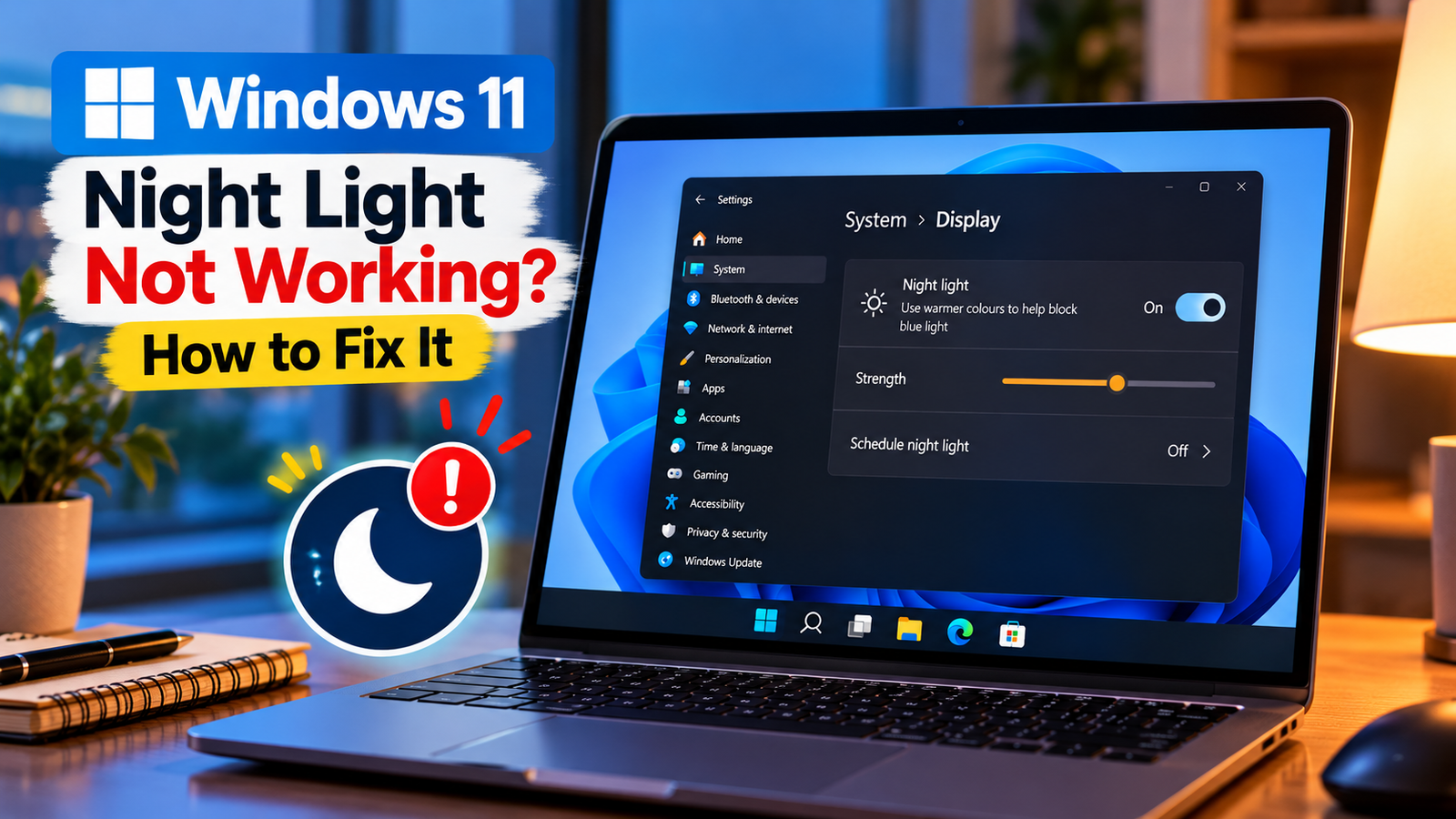
Windows 11 Night Light Not Working? How to Fix It
Windows 11 Night Light not working can be frustrating when your screen stays bright and cool-toned at night, even after you enable the feature. You might find that Night Light is greyed out, the color does not change, or the scheduled settings fail to turn it on automatically.
Night Light changes your display’s color temperature to give it a warmer appearance. The problem may involve display settings, scheduling, graphics drivers or the way your monitor is connected. Work through these checks to identify what is preventing it from working.
Listen to the quick guide: Windows 11 Night Light not working
Quick Diagnosis: Start Here
| What you’re seeing | Start with |
|---|---|
| Night Light is enabled, but the screen does not look warmer | Go to Fix 1 ↗ |
| Night Light does not turn on at the scheduled time | Go to Fix 2 ↗ |
| The Night Light effect is too subtle to notice | Go to Fix 3 ↗ |
| Night Light behaves differently on an external monitor | Go to Fix 4 ↗ |
| The problem started after a graphics driver change | Go to Fix 5 ↗ |
| Night Light still fails after the basic settings checks | Go to Fix 6 ↗ |
Fix 1: Turn Night Light Off and On Again
Start by checking whether Night Light responds to a manual change. This can help distinguish a temporary display glitch from a scheduling problem.
- Press
Windows + Ito open Settings. - Select System > Display.
- Find the Night light setting.
- Turn Night Light off if it is enabled.
- Wait a few seconds and turn it on again.
- Adjust the strength slider, if available, to see whether the display becomes warmer.
You can also open Quick Settings with Windows + A and check whether the Night Light tile is available.
If the screen changes color when you adjust the setting, the feature is responding. If nothing changes, continue to the next fix.
Fix 2: Check the Night Light Schedule
Night Light can be configured to turn on automatically at sunset or during specified hours. Incorrect scheduling can make it seem as though the feature is not working.
- Open Settings > System > Display > Night light.
- Expand the Night Light settings if necessary.
- Check whether scheduling is enabled.
- If you want to test it immediately, temporarily disable scheduling.
- Turn Night Light on manually.
- If manual activation works, review the scheduled hours and your device’s date, time and time zone settings.
If you use a sunset-to-sunrise schedule, Windows may rely on your location settings to determine the appropriate times. The available scheduling options can vary by Windows version.
If manual activation works but the schedule does not, focus on the schedule and time settings rather than reinstalling graphics drivers.
Fix 3: Adjust the Night Light Strength
Sometimes Night Light is enabled, but the effect is so subtle that it appears to have no impact.
- Open Settings > System > Display.
- Select Night light.
- Locate the strength slider.
- Move it towards a stronger setting temporarily.
- Compare the display before and after the adjustment.
A stronger setting should produce a more noticeable warm tint on a compatible display.
If the color changes at higher strength, Night Light is functioning. You can then choose a comfortable setting for everyday use.
If the slider is unavailable or changing it makes no visible difference, move on to the display and driver checks.
Fix 4: Check Whether Your Display Supports the Feature Properly
Night Light is intended to change the color temperature of a compatible display, but the effect may differ depending on the hardware and connection.
If you use an external monitor:
- Open Night Light settings on your Windows computer.
- Turn Night Light on and adjust its strength.
- Check whether the effect appears on the laptop’s built-in display, if available.
- If only the external monitor is affected, or only the built-in display changes, investigate the monitor connection and graphics configuration.
Some display arrangements, drivers or graphics configurations may prevent Night Light from behaving as expected.
If your external monitor has its own color-temperature, blue-light or reading mode, check whether that setting is affecting the appearance of the screen. Avoid changing several monitor settings at once, so you can identify which adjustment makes a difference.
Fix 5: Update or Roll Back the Graphics Driver
A graphics driver problem can affect display features, including color adjustments. This is worth checking if Night Light stopped working after a driver update or Windows update.
- Right-click Start and open Device Manager.
- Expand Display adapters.
- Right-click your graphics adapter.
- Select Update driver.
- Choose Search automatically for drivers and follow any instructions.
- Restart the computer and test Night Light again.
If the problem started immediately after a driver update, open the graphics adapter’s Properties > Driver tab. If Roll Back Driver is available, consider using it.
Windows may not always find the newest driver through automatic search. If the problem persists, check the official support page for your exact laptop or graphics hardware.
Do not install drivers from unfamiliar third-party websites.
Fix 6: Install Relevant Windows Updates
If Night Light remains unreliable, check whether applicable Windows updates are available. An update may address a system or display issue, although updates are not guaranteed to fix every Night Light problem.
- Open Settings > Windows Update.
- Select Check for updates.
- Install applicable updates.
- Restart if prompted.
- Return to Night Light settings and test the feature again.
If the issue began after a particular update, note its name and installation date. This can help with further troubleshooting if the problem continues.
Avoid uninstalling updates without a clear reason. If the display issue affects other features too, such as brightness controls or screen rendering, investigate the broader graphics problem rather than treating Night Light as an isolated issue.
What If Night Light Is Greyed Out or Still Has No Effect?
Use the symptoms to narrow down the next step:
- Night Light is enabled but the screen looks unchanged: Increase the strength and test the effect on a compatible display.
- Manual activation works but automatic activation fails: Review the schedule, date, time and time zone.
- Night Light stopped working after a driver update: Check the graphics driver and consider a rollback if available.
- Only an external monitor is affected: Check the display connection, monitor settings and graphics configuration.
- Night Light is unavailable or greyed out: Check for driver or display-configuration issues and relevant Windows updates.
If other display features are also failing, the underlying issue may be broader than Night Light itself. Seek support from the computer or monitor manufacturer if the problem persists after the basic checks.
Final Thoughts
When Windows 11 Night Light stops working, begin with the manual toggle, strength slider and schedule. These checks help determine whether the problem is related to the feature’s settings or to the display itself.
If those steps do not help, check the graphics driver and relevant Windows updates. Changing one setting at a time makes it easier to identify the cause without introducing unnecessary system changes.






