
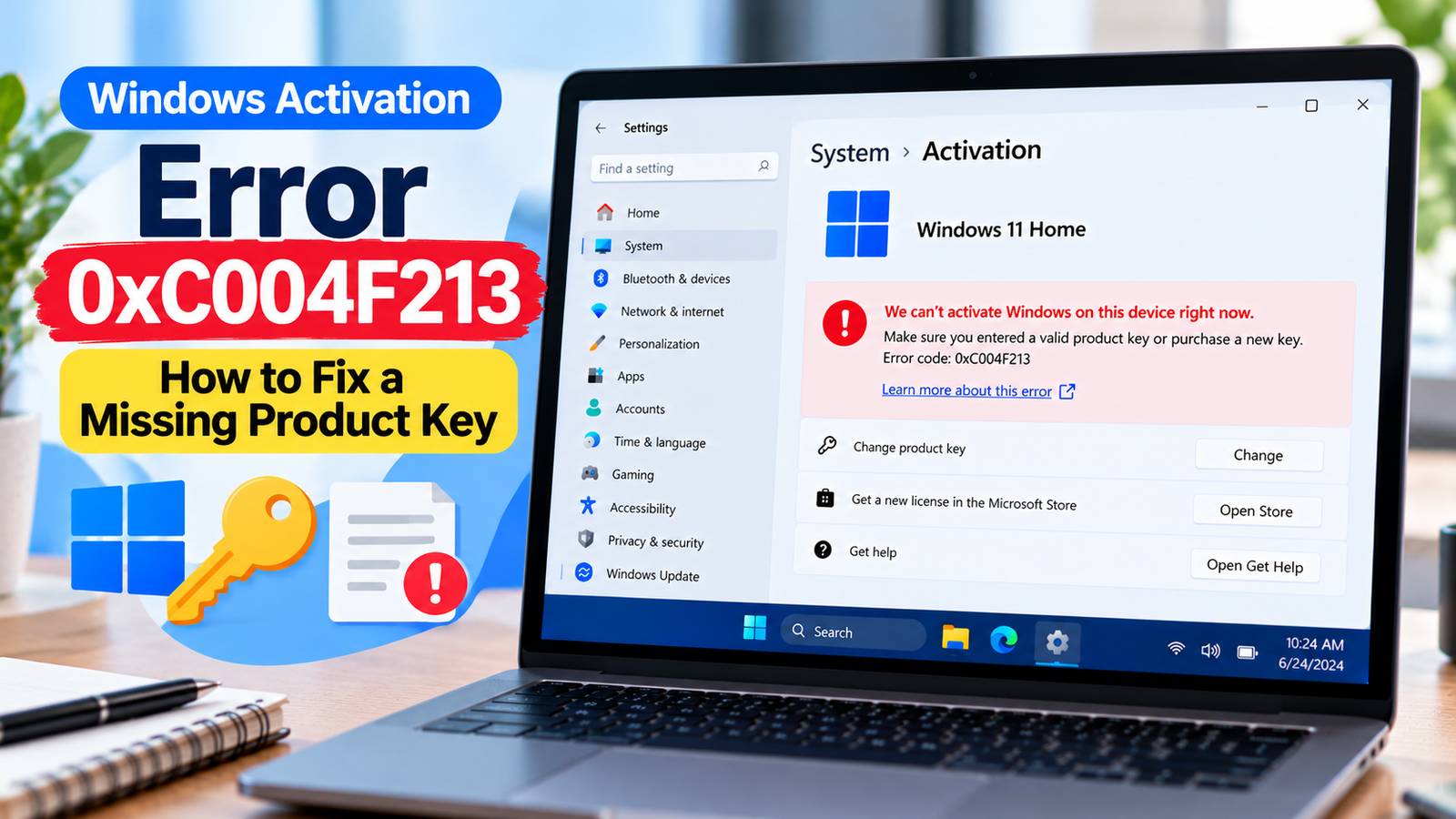
Windows Activation Error 0xC004F213: How to Fix a Missing Product Key
Seeing error code 0xC004F213 in Windows Activation settings can be confusing, especially if Windows was already activated on your computer. The message generally means Windows cannot find a product key for the installed system.
This does not automatically mean you need to buy a new license. Your PC may have a digital license linked to your hardware or Microsoft account, an embedded OEM key, or a product key that needs to be entered again. The right fix depends on how Windows was originally licensed and whether you recently changed any hardware.
This guide walks you through the checks in a sensible order, starting with the simplest ones.
Listen to the quick guide: Windows Activation Error 0xC004F213
Quick Diagnosis: Start Here
| What you’re experiencing | Start here |
|---|---|
| Windows shows an activation error, but you’re unsure why. | Go to Fix 1 ↗ |
| You believe your PC has a valid digital license. | Go to Fix 2 ↗ |
| You installed Windows Home or Pro and are unsure which edition your license covers. | Go to Fix 3 ↗ |
| Your computer originally came with Windows preinstalled. | Go to Fix 4 ↗ |
| You previously activated Windows using a Microsoft account. | Go to Fix 5 ↗ |
| The error appeared after replacing the motherboard or changing hardware. | Go to Fix 6 ↗ |
| You already own a product key for the installed edition. | Go to Fix 7 ↗ |
What Does Windows Activation Error 0xC004F213 Mean?
Error 0xC004F213 usually appears when Windows cannot locate a product key for the installed edition. You may see a message indicating that no product key was found on the device.
Common reasons include:
- You reinstalled Windows or performed a clean installation.
- You replaced the motherboard or made another significant hardware change.
- Windows was installed with an edition that does not match your license.
- Your PC originally came with Windows, but the embedded license key was not detected.
- You are using a digital license that needs to be restored or reactivated.
Before changing anything, check the activation status and the Windows edition currently installed. These details can help identify whether the problem is a missing key, an edition mismatch, or a license that needs reactivation.
Fix 1: Check Your Windows Activation Status
Start by checking what Windows reports about your current license.
- Press Windows + I to open Settings.
- Select System.
- Open Activation.
- Review the activation status and any message displayed beneath it.
On Windows 10, open Settings → Update & Security → Activation.
Note whether Windows says it is not activated, whether it mentions a digital license, or whether it displays a different error code.
If Windows shows a different code, troubleshoot that specific error rather than assuming 0xC004F213 is the only problem. If the missing product key message remains, continue to the next fix.
Fix 2: Run the Windows Activation Troubleshooter
Windows includes an activation troubleshooter that can help when a device has a valid digital license but is not activating correctly.
- Open Settings → System → Activation.
- Look for Troubleshoot. It may appear only when Windows is not activated.
- Select it and allow Windows to check for activation problems.
- If prompted, sign in with the Microsoft account associated with your digital license.
- Follow the instructions shown on screen.
If the troubleshooter offers an option indicating that you recently changed hardware, use it only if that description applies to your situation.
The troubleshooter cannot create a license that you do not own. If it cannot find an eligible digital license, move on to the next checks.
Fix 3: Confirm That Your Windows Edition Matches Your license
A valid license for one Windows edition does not necessarily activate another. For example, a Windows Home license generally will not activate Windows Pro.
To check your installed edition:
- Open Settings → System → About.
- Find the Windows specifications section.
- Note the edition, such as Windows 11 Home or Windows 11 Pro.
Now consider which edition your computer originally came with or which edition your license covers.
If you installed Pro but your existing license is for Home, the edition mismatch may explain the activation problem. You may need to install the edition covered by your license or obtain an appropriate license for the edition you want to use.
Do not reinstall Windows immediately. First confirm the license information and make sure your personal files are backed up before considering any installation changes.
Fix 4: Check Whether Your PC Has an Embedded Windows Key
Some computers ship with a Windows product key embedded in the device firmware. Windows can normally detect this key during installation, but it may not always be applied as expected.
If your computer originally came with Windows, check the manufacturer’s documentation, purchase records, or support information to confirm whether it included an OEM Windows license.
You can also ask the PC manufacturer to help verify the original license if the device came with Windows preinstalled.
If you are comfortable using Windows Terminal or PowerShell, some systems allow you to query the firmware for an embedded key. However, this is not supported on every device, and the absence of a displayed key does not prove that you have no valid license.
Important: Do not share a full product key in screenshots, public forums, or support conversations. If a key is found, keep it private.
Fix 5: Check Your Microsoft Account for a Digital license
A digital license can activate Windows without requiring you to enter a product key manually. If your license is associated with your Microsoft account, signing in with that account may help Windows identify the entitlement.
- Open Settings → Accounts → Your info.
- Check whether you are signed in with the Microsoft account you normally use.
- Return to Settings → System → Activation.
- Review the activation message and run the troubleshooter again if it is available.
This step is particularly relevant if you previously activated Windows using a digital license or linked the license to your Microsoft account.
Signing in alone does not guarantee activation. The account must be associated with an eligible license, and some licenses have restrictions on transferring them to another device.
Fix 6: Reactivate Windows After a Hardware Change
If the error appeared after replacing your motherboard or making another major hardware change, Windows may no longer recognize the device associated with the original activation.
Try the following:
- Open Settings → System → Activation.
- Select Troubleshoot, if available.
- Look for the option indicating that you recently changed hardware.
- Sign in with the Microsoft account associated with the previous digital license.
- Select your device from the available list, if Windows presents one, and follow the instructions.
Whether reactivation is possible depends on the license type and the hardware change. Some OEM licenses are tied to the original device, while certain transferable licenses may be eligible for reactivation.
If the device does not appear or activation is still rejected, contact Microsoft Support or the organization that supplied the license before buying another key.
Fix 7: Enter a Product Key You Already Own
If you have a valid product key for the edition installed on your computer, you can try entering it again.
- Open Settings → System → Activation.
- Expand the product key options, if shown.
- Select Change product key.
- Enter your 25-character key.
- Follow the on-screen instructions.
Make sure the key belongs to the installed Windows edition and comes from a legitimate source. A key for another edition, a mistyped character, or a license that is not eligible for this device may fail to activate.
If Windows rejects a key you know is valid, record the exact error message and seek assistance from the seller or Microsoft Support. Avoid repeatedly entering unverified keys.
When Should You Contact Microsoft Support?
Contact Microsoft Support or your PC manufacturer’s support team if:
- Your computer came with Windows, but the original license cannot be detected.
- The activation troubleshooter cannot find your digital license.
- The error appeared after a motherboard replacement.
- You have a legitimate product key that Windows continues to reject.
- You are unsure whether your license can be transferred to another device.
Keep your purchase receipt, license confirmation, device model, Windows edition, and exact error message available. These details can help support staff establish which license you have and what options are available.
Frequently Asked Questions
Does error 0xC004F213 mean my Windows license is invalid?
Not necessarily. The error generally indicates that Windows cannot find a product key for the installed system. You may still have a valid digital license or an OEM license that needs to be identified.
Can I fix 0xC004F213 without buying a new product key?
Possibly. Check your activation status, run the troubleshooter, confirm the Windows edition, and investigate any existing digital or OEM license first. Purchase a new license only if you establish that you do not have an eligible license for the installed edition.
Why did this error appear after reinstalling Windows?
A clean installation may have installed a different edition or failed to recognize the license automatically. Check the installed edition and the original license details before attempting another installation.
Will resetting my PC fix error 0xC004F213?
A reset is not a reliable first-line solution because it does not create a product key or change the terms of your license. Try the activation checks and troubleshooter before considering a reset.
Is error 0xC004F213 the same as error 0xC004F074?
No. Error 0xC004F213 is generally associated with Windows being unable to find a product key. Error 0xC004F074 is associated with a failure to contact a Key Management Service activation server. The appropriate troubleshooting steps can therefore differ.
Final Thoughts
Windows Activation Error 0xC004F213 does not automatically mean you must pay for Windows again. Start by checking the installed edition and activation status, then investigate your existing digital license, embedded OEM key, or product key.
If you recently changed hardware, use the activation troubleshooter before assuming the license has been lost. When the available checks do not resolve the issue, Microsoft or your PC manufacturer can help determine whether your existing license is eligible for activation.






