
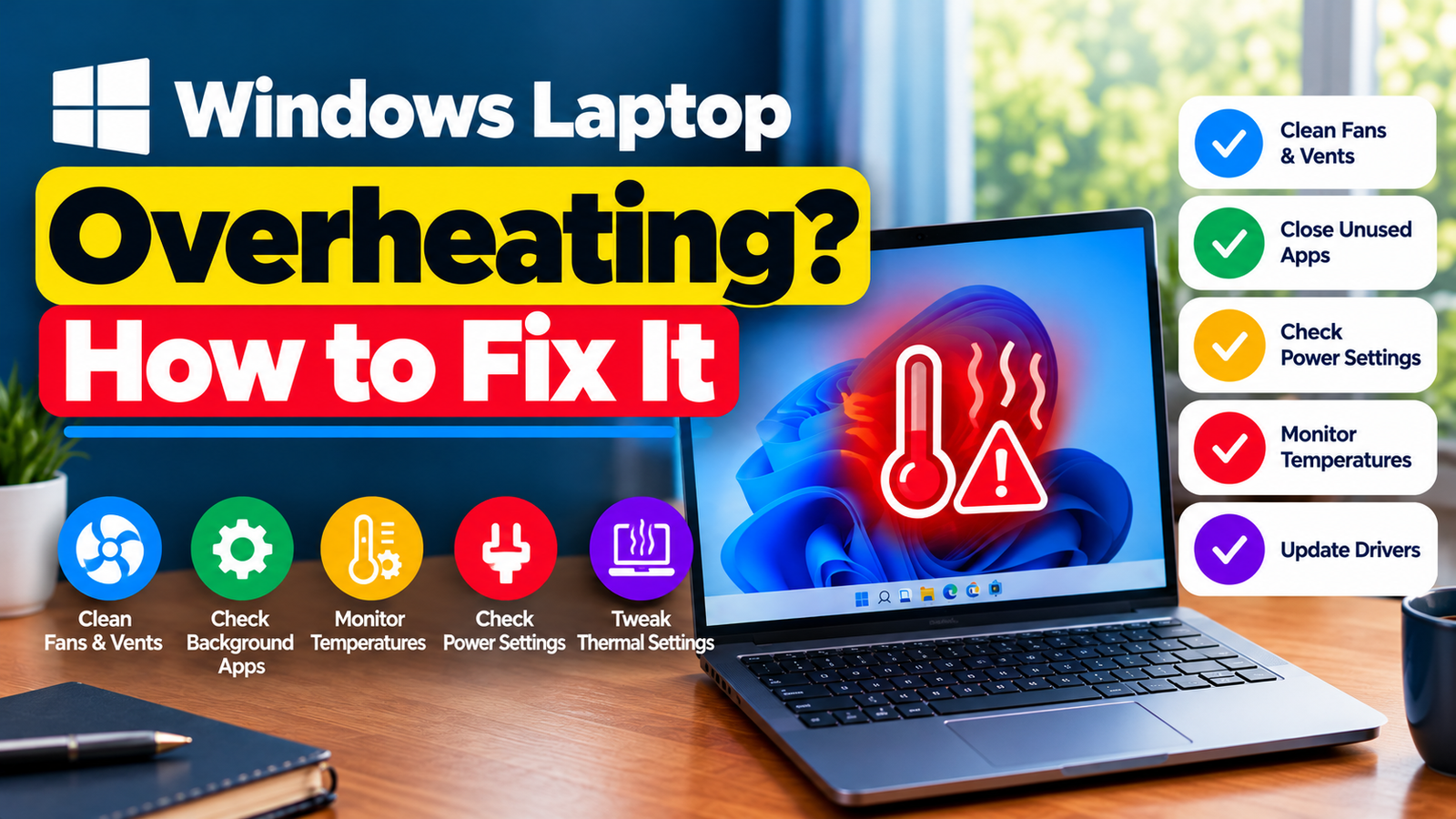
Windows Laptop Overheating? How to Fix It
Windows laptop overheating can cause loud fan noise, uncomfortable heat around the keyboard, sudden performance drops, or unexpected shutdowns. A laptop may become warm during gaming, video editing, or other demanding work, but persistent heat during light tasks deserves attention.
The cause could be a resource-intensive application, blocked ventilation, background activity, a cooling-system problem, or a power setting that keeps the processor working harder than necessary. The goal is to identify what is generating the heat before changing settings or arranging a repair.
Important: If the laptop becomes extremely hot, emits a burning smell, shows signs of a swollen battery, or shuts down repeatedly from heat, stop using it and disconnect the charger if safe. Do not continue running tests on a potentially damaged device.
Listen to the quick guide: Windows laptop overheating fixes
Quick Diagnosis: Start Here
| What you’re seeing | Start with |
|---|---|
| The fan runs loudly and the laptop slows down during everyday tasks. | Go to Fix 1 ↗ |
| The laptop gets hot on a bed, cushion, or surface that may block its vents. | Go to Fix 2 ↗ |
| The laptop gets hot while idle or Windows appears busy in the background. | Go to Fix 3 ↗ |
| The laptop runs hot in a performance-focused power mode. | Go to Fix 4 ↗ |
| Overheating began after a Windows, driver, or system change. | Go to Fix 5 ↗ |
| The fan makes unusual noises or seems unable to move air. | Go to Fix 6 ↗ |
| The laptop gets especially hot while charging or running demanding software. | Go to Fix 7 ↗ |
What Does Laptop Overheating Look Like?
Heat-related problems can appear in different ways:
- The fan runs loudly even when only a few applications are open.
- The laptop becomes hot while browsing or performing simple tasks.
- Applications slow down when the device gets warm.
- The laptop shuts down or restarts unexpectedly under load.
- The underside or area near the exhaust vents becomes unusually hot.
A warm laptop does not automatically indicate a fault. Thin laptops can become noticeably warm during normal use. Persistent heat, worsening performance, or thermal shutdowns are more useful warning signs than warmth alone.
Fix 1: Check Which Applications Are Using the Most Resources
A busy processor can generate substantial heat. Sometimes the cause is obvious, such as a game or video-editing application. At other times, a background process continues using system resources after you have finished working.
- Press Ctrl + Shift + Esc to open Task Manager.
- Select Processes.
- Review the CPU column to see which applications or processes are using the most processing power.
- Check whether a particular application continues consuming significant CPU resources when you are not actively using it.
- If an application you recognize is stuck or no longer needed, save your work and close it normally.
Do not end unfamiliar system processes simply because they use CPU resources. Windows may need them for updates, security checks, or other essential tasks.
If one application consistently drives high CPU usage, check for an available application update and review its background activity. If usage drops after you close it and the laptop cools down, you have a useful lead.
Fix 2: Give the Laptop Room to Release Heat
Laptop cooling depends on air moving through the device. Soft surfaces can block air intakes, while dust can accumulate in vents and restrict airflow.
Try these checks:
- Place the laptop on a firm, flat surface such as a desk.
- Make sure the ventilation openings are not covered by fabric, papers, or other objects.
- Check whether the exhaust vents are visibly obstructed.
- Avoid using the laptop on a bed, cushion, or blanket when performing demanding tasks.
- If the laptop has been running hot, save your work and let it cool down before resuming intensive use.
You can gently remove surface dust using a method recommended by the laptop manufacturer. Do not insert objects into the vents, use liquids, or open the laptop unless you have the appropriate repair experience.
If the fan is unusually loud but little or no air seems to leave the exhaust vents, internal dust or a cooling-system problem may require professional attention.
Fix 3: Check Whether Windows Is Busy With Background Tasks
Windows can temporarily use more resources while installing updates, scanning files, synchronising data, or completing other maintenance tasks. These activities can increase fan noise and temperature even when you are not doing much.
Open Task Manager and check CPU and disk activity. If a recognisable Windows process is busy, give the task time to finish and see whether usage falls.
You can also open Settings > Windows Update and check whether updates are downloading, installing, or waiting for a restart.
Avoid repeatedly interrupting updates or disabling Windows security services to reduce heat. If the laptop remains hot for hours after background work should have finished, investigate which process is still active instead of assuming the behavior is normal.
Fix 4: Review the Power Mode
Windows power settings can affect how aggressively a laptop uses its processor. A performance-focused mode may increase power consumption and heat under load.
On Windows 11:
- Open Settings > System > Power & battery.
- Find the Power mode setting, if your device provides it.
- If the laptop is set to Best performance, try Balanced or a more efficient available option.
- Use the laptop normally and observe whether fan noise and heat improve.
On Windows 10, the available power options depend on the device and its configuration. You may find relevant settings under Settings > System > Power & sleep or in Control Panel > Power Options.
The names and choices can vary by manufacturer. Some laptops also have their own thermal or performance profiles. Use the manufacturer’s utility only if it is intended for your model.
A lower-power setting may reduce performance during demanding work, so treat this as a diagnostic adjustment rather than a universal fix.
Fix 5: Check for Driver or Firmware Updates
An outdated or malfunctioning driver can sometimes affect power management, processor behavior, or fan control. Firmware can also influence how a laptop manages temperature.
If the overheating began after an update or system change, note the timing before installing anything else.
- Open Settings > Windows Update and review available updates.
- Check your laptop manufacturer’s official support page using the exact model number.
- Look for applicable chipset, graphics, power-management, or firmware updates.
- Read the installation instructions and confirm that each update is intended for your device.
Do not install random driver packages or third-party driver-updater tools to solve overheating. Driver and firmware updates are not guaranteed to fix a cooling problem.
If a firmware update is recommended, follow the manufacturer’s power and battery precautions carefully. Do not interrupt the update once it begins.
Fix 6: Check Fan behavior and Manufacturer Diagnostics
The cooling fan should respond to the laptop’s temperature and workload. A fan that runs constantly at high speed, makes grinding noises, or fails to move air properly may indicate a cooling problem.
Check whether your laptop manufacturer provides a built-in hardware diagnostic or a support utility that can test the fan and thermal system.
Run only diagnostics intended for your model and follow their instructions. If a test reports a fan or cooling-system error, record the result and contact the manufacturer’s support service.
Avoid downloading unofficial fan-control utilities or forcing fan speeds without understanding the device’s cooling design. Some laptops manage fan behavior through firmware, and manual changes can make thermal problems harder to diagnose.
If the laptop is hot but the fan never starts when you would expect it to, professional inspection is advisable.
Fix 7: Investigate Overheating During Charging or Heavy Use
Heat often rises when the processor and graphics hardware are under sustained load. Charging can add further heat, especially while gaming or performing other demanding tasks.
Try comparing the laptop’s behavior in different situations:
- Close demanding applications and allow the laptop to cool.
- Use it for a few minutes with only light tasks open.
- Notice whether the temperature rises sharply when you launch a particular application.
- If the manufacturer provides a supported performance or thermal mode, use the recommended setting for your workload.
- Check that the charger is the correct type and specification for your laptop.
Do not disconnect the battery or use an unsuitable charger as a troubleshooting experiment. If the laptop becomes excessively hot during ordinary use or while charging, stop the test and seek support.
If overheating occurs mainly during games or other intensive work, the device may be reaching its thermal limits under that workload. Reducing graphics settings or limiting demanding background tasks may help, but repeated thermal shutdowns should not be ignored.
Why This Happens
A laptop has limited space for its processor, graphics hardware, battery, and cooling system. Heat must move away from these components through internal cooling hardware and ventilation openings.
When an application keeps the processor busy, more heat is produced. When airflow is restricted or the cooling fan cannot work properly, that heat becomes harder to remove. Windows may then reduce performance to control temperatures. In severe cases, the laptop may shut down to protect itself.
Power settings and firmware influence how the system balances performance, fan noise, and temperature. This is why closing a demanding application may help one laptop, while another may need its ventilation inspected or its cooling system serviced.
How to Prevent Windows Laptop Overheating
A few everyday habits can help keep temperatures under control:
- Use the laptop on a firm surface with clear ventilation openings.
- Avoid leaving demanding applications running unnecessarily.
- Keep vents free from visible dust and obstruction.
- Use a power mode appropriate for your workload.
- Install relevant updates from Windows and your laptop manufacturer.
- Do not ignore persistent fan noise, performance drops, or unexpected thermal shutdowns.
If the laptop regularly overheats despite light use and clear vents, arrange a professional check rather than relying on a cooling pad to mask the underlying problem.
Frequently Asked Questions
Is it normal for a laptop to get warm?
Yes. Warmth is common during charging, gaming, video editing, and other demanding activities. Persistent excessive heat, unusual fan behavior, performance loss, or thermal shutdowns deserve further investigation.
Why does my laptop overheat even when I am not doing anything?
A background process, update, synchronisation task, or malfunctioning application may be using resources. Check Task Manager to identify sustained CPU activity and investigate the process before ending it.
Can overheating damage a laptop?
Repeated excessive temperatures can contribute to component wear and performance problems. Modern laptops generally use thermal controls to reduce risk, but frequent thermal shutdowns or signs of battery damage should not be ignored.
Will a cooling pad fix an overheating laptop?
A cooling pad may improve airflow in some situations, but it will not repair a failed fan, internal dust blockage, or other cooling-system fault. Identify the cause first.
Should I open my laptop and clean the fan?
Only if you have the appropriate repair experience and the manufacturer permits the procedure. Opening a laptop can damage delicate components and may affect warranty coverage. Professional cleaning is a safer option if internal maintenance is needed.
Final Thoughts
A Windows laptop overheating problem can come from heavy processing, background activity, restricted airflow, power settings, or a failing cooling component. Start by checking resource usage and ventilation, then review power settings and relevant manufacturer updates.
If the fan behaves abnormally, the laptop overheats during light use, or thermal shutdowns continue, professional diagnosis is the sensible next step. The aim is to identify the source of the heat, not simply to make the fan quieter.






