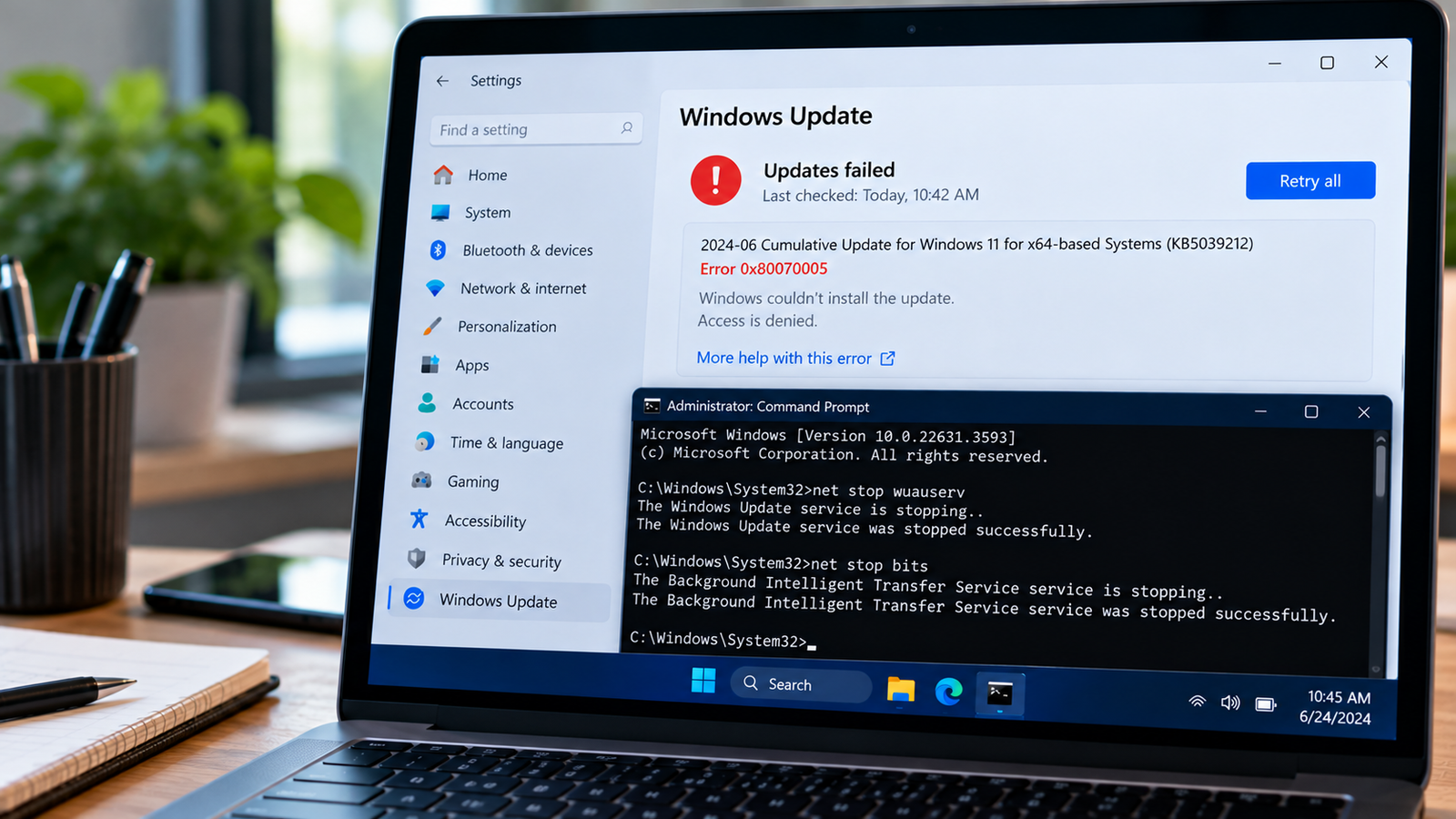
Windows Update Error 0x80070005: How to Fix Access Denied
Windows Update error 0x80070005 can prevent your computer from downloading or installing an update. The error is also known as E_ACCESSDENIED, which means Windows was denied access to a file, folder, registry entry, or another resource needed to complete an operation.
If an update repeatedly fails with this code, the problem may involve Windows permissions, update-related files, security software, or restrictions applied to your device.
The right fix depends on what is blocking the update. Start with the basic checks below before attempting advanced permission repairs. Avoid changing Windows system-folder permissions manually unless you understand the risks.
Listen to the quick guide: Windows Update error 0x80070005
Quick Diagnosis: Start Here
| Problem or symptom | Start here |
|---|---|
| Windows Update fails with error 0x80070005 | Go to Fix 1 ↗ |
| Your account may not have administrator access | Go to Fix 2 ↗ |
| A security application may be blocking the update | Go to Fix 3 ↗ |
| Windows Update files may be damaged | Go to Fix 4 ↗ |
| The update still fails after basic troubleshooting | Go to Fix 5 ↗ |
| Windows system files may be corrupted | Go to Fix 6 ↗ |
| The error persists after the other fixes | Go to Fix 7 ↗ |
Fix 1: Run the Windows Update Troubleshooter
Windows includes troubleshooting tools that can identify common problems affecting the update process. Start here because it is safer than changing system permissions or resetting Windows components manually.
On Windows 11
- Press
Windows + Ito open Settings. - Select System > Troubleshoot > Other troubleshooters.
- Find Windows Update and select Run, if available.
- Follow the on-screen instructions.
- Restart your computer if prompted.
Some Windows 11 versions direct users to the Get Help app for Windows Update diagnostics. Follow the troubleshooting option available on your device.
On Windows 10
- Open Settings.
- Select Update & Security > Troubleshoot > Additional troubleshooters.
- Select Windows Update.
- Run the troubleshooter and follow the instructions.
After the process finishes, return to Windows Update and try installing the failed update again.
If error 0x80070005 appears again, continue to the next fix.
Fix 2: Check Your Account Permissions
Error 0x80070005 can occur when Windows does not have the permissions required to complete an operation. Some updates also require administrator access.
First, check whether your Windows account is an administrator.
- Open Settings.
- Go to Accounts > Your info.
- Check whether your account is identified as an Administrator.
The wording and available options may differ between Windows versions.
If your account is a standard user, sign in with an authorised administrator account or ask the device administrator to install the update.
If you are already an administrator, do not assume that every system folder should be accessible to your account. Windows protects important directories using dedicated system permissions and service accounts.
Important: Avoid taking ownership of the Windows folder or changing permissions across system directories to force an update through. Incorrect changes can create additional servicing and security problems.
If you use a work-managed computer, contact your IT administrator before changing account or system settings.
Fix 3: Check Whether Security Software Is Blocking the Update
Antivirus software, endpoint protection tools, and other security applications can sometimes interfere with update-related files or processes.
Try the following checks:
- Open your security application and check whether it has reported a blocked file, process, or update operation.
- Install any pending updates for the security application itself.
- If you use third-party antivirus software, consult its documentation for update-related conflicts.
- If a security application appears to be blocking the update, use its supported troubleshooting options.
Do not leave antivirus or firewall protection disabled as a routine fix. If a temporary test is necessary, use only the security provider’s recommended procedure, keep the test brief, and restore protection immediately afterwards.
For work-managed devices, do not disable endpoint protection or unload security drivers yourself. Ask your IT administrator to investigate the block.
Restart the computer and retry Windows Update after addressing any confirmed conflict.
If no security conflict is found, continue to the next step.
Fix 4: Reset the Windows Update Download Cache
Damaged or incomplete update downloads can sometimes prevent Windows Update from completing an installation. Resetting the update cache may help, although it will not repair every permissions-related cause of error 0x80070005.
Step 1: Open Command Prompt as administrator
- Open Start.
- Type
Command Prompt. - Right-click the result and select Run as administrator.
- Approve the permission prompt.
Step 2: Stop the update services
Run these commands one at a time:
net stop wuauserv
net stop bits
net stop cryptSvc
If a service is not running, note the message and continue where appropriate.
Step 3: Rename the update-cache folders
Enter:
ren %windir%\SoftwareDistribution SoftwareDistribution.old
Then enter:
ren %windir%\System32\catroot2 catroot2.old
These folders store Windows Update download and catalogue data. Renaming them allows Windows to recreate the folders as needed.
If a command fails because a folder is in use, access is denied, or the backup name already exists, do not force the operation. Restart the computer and seek further guidance if necessary.
Step 4: Restart the services
Run:
net start cryptSvc
net start bits
net start wuauserv
Restart your computer and check for updates again.
Windows may need to download update files again after the cache is reset. If the error remains, move on to the next fix.
Fix 5: Check Windows Update Services and Device Restrictions
Windows Update relies on several services and system policies. If a required service is disabled or your device is restricted by an organisation, the update may fail even when the internet connection is working.
Step 1: Check the Windows Update service
- Press
Windows + R. - Type
services.msc. - Press Enter.
- Find Windows Update in the list.
- Check its status.
Do not change every service’s startup type to Automatic. Windows manages services according to their intended configuration, and changing them unnecessarily can create new problems.
If the Windows Update service is stopped, use the available Start option where appropriate. If it is disabled or you cannot change its state, investigate why before making changes.
Step 2: Check for organisation-managed settings
If the computer belongs to your employer or school, Windows Update may be controlled through Group Policy, device management, or endpoint management software.
In that situation, contact your IT administrator rather than attempting to bypass the restrictions.
Step 3: Retry the update
Restart the computer and return to Windows Update.
If the service is functioning and there are no management restrictions, but the same error persists, repair the Windows system components.
Fix 6: Repair Windows Components with DISM and SFC
If Windows Update continues to fail, damaged system files or component-store problems may be contributing to the issue.
DISM and System File Checker can help repair Windows components and protected system files. However, they do not automatically correct every permissions-related cause of error 0x80070005.
Step 1: Run DISM
Open Command Prompt as an administrator and enter:
DISM.exe /Online /Cleanup-Image /RestoreHealth
Press Enter and allow the command to finish. It may take several minutes or longer.
Step 2: Run System File Checker
After DISM completes, enter:
sfc /scannow
Press Enter and wait for the scan to reach completion.
Step 3: Restart and test Windows Update
Restart the computer and try installing the failed update again.
If DISM returns its own error, note the exact code and message. Do not assume that the original Windows Update error and the repair-command error have the same cause.
If both tools complete successfully but error 0x80070005 remains, continue to the final fix.
Fix 7: Investigate System Permissions or Use a Supported Repair Option
If none of the previous methods resolves the problem, the issue may involve permissions on the Windows component store, the SoftwareDistribution folder, or other protected resources.
Microsoft identifies incorrect permissions and ownership, security software interference, and device-management restrictions among the possible causes of this error.
Step 1: Review the Windows Update logs
A technician can inspect the Windows Update and Component-Based Servicing logs for access-denied messages.
The Component-Based Servicing log is normally located at:
C:\Windows\Logs\CBS\CBS.log
The Windows Update log may also provide useful information. To generate a readable Windows Update log from PowerShell, run:
Get-WindowsUpdateLog
Search the resulting log for 0x80070005 and nearby messages. Look for references to failed file access, package installation, or permissions.
Step 2: Avoid broad permission resets
Some advanced troubleshooting procedures reset permissions on Windows component folders or restore ownership to the TrustedInstaller service account. These operations can affect large numbers of system files.
Do not run recursive permission-reset commands or change ownership of protected Windows folders simply because the error says “Access denied.” Incorrect permission changes can make Windows harder to repair.
If the logs point to a component-store permissions problem, use the appropriate Microsoft-documented procedure for your Windows version or seek help from a qualified technician.
Step 3: Consider Windows recovery options
If the permissions problem cannot be resolved safely, consider a supported Windows repair option.
On compatible Windows 11 devices, the Fix problems using Windows Update option may be available under Settings > System > Recovery. It reinstalls the current Windows version while aiming to preserve applications, files, and settings.
If that option is unavailable or unsuccessful, an in-place repair installation may be appropriate. Back up important files first and confirm that the repair method matches your Windows version and device configuration.
For a managed computer, consult your IT administrator before proceeding.
Why Does Windows Update Error 0x80070005 Occur?
Error 0x80070005 is commonly known as an access-denied error. It indicates that Windows could not access a resource required for the operation.
Possible causes include:
- Incorrect system permissions: Windows Update or a servicing component cannot access a required file or folder.
- Component-store permission problems: The permissions or ownership of a protected Windows component directory may be incorrect.
- Security software interference: An antivirus or endpoint protection tool may block access to an update-related resource.
- Management restrictions: Group Policy or device-management software may restrict changes to system directories.
- Damaged update data: Incomplete or problematic update files may contribute to a failed installation.
The code alone does not identify the exact cause. The accompanying message and the Windows logs can help narrow it down.
How to Prevent Windows Update Access-Denied Errors
You cannot prevent every update error, but these practices can reduce avoidable problems:
- Install updates using Windows Settings or other approved update methods.
- Keep Windows and your security software updated.
- Avoid modifying permissions on protected Windows folders.
- Do not disable security protection permanently to install an update.
- Keep enough free storage space available.
- Restart your computer when Windows requests it.
- Back up important files before advanced repairs.
- Contact your IT administrator if your computer is managed by an organisation.
Frequently Asked Questions
1. What does Windows Update error 0x80070005 mean?
It means Windows was denied access to a resource required to complete an operation. During an update, this can involve files, folders, registry entries, or permissions used by Windows servicing components.
2. Is error 0x80070005 the same as an administrator-permission problem?
Not always. Lack of administrator access can cause some update failures, but this error can also involve permissions assigned to Windows system services, protected directories, security software, or organisation-managed policies.
3. Can antivirus software cause error 0x80070005?
It can be one possible cause if security software blocks access to update-related resources. Check the security application’s logs and use its recommended troubleshooting process rather than leaving protection disabled.
4. Will resetting the Windows Update cache fix error 0x80070005?
It may help if damaged update data is contributing to the failure. However, it will not necessarily correct a permissions problem affecting the Windows component store or another protected system resource.
5. Should I change permissions on the Windows folder?
Not as a first step. Windows uses protected permissions and dedicated service accounts. Broad changes can create further servicing problems. Investigate the logs and follow a documented repair procedure before changing system permissions.
6. What should I do if the error continues after all the fixes?
Review the Windows Update and Component-Based Servicing logs, check whether security software or device-management policies are involved, and consider a supported Windows repair option. Seek qualified assistance before attempting advanced permission repairs.
Final Thoughts
Windows Update error 0x80070005 indicates that Windows was denied access to a resource needed to complete an operation. The cause may involve account permissions, protected system folders, security software, or device-management restrictions.
Start with the Windows Update troubleshooter and account checks. Then investigate security conflicts, reset the update cache if appropriate, and repair Windows components if needed.
Avoid broad permission changes or permanently disabling security software. If the error continues, use the Windows logs to identify the failing operation and follow a supported repair procedure.