
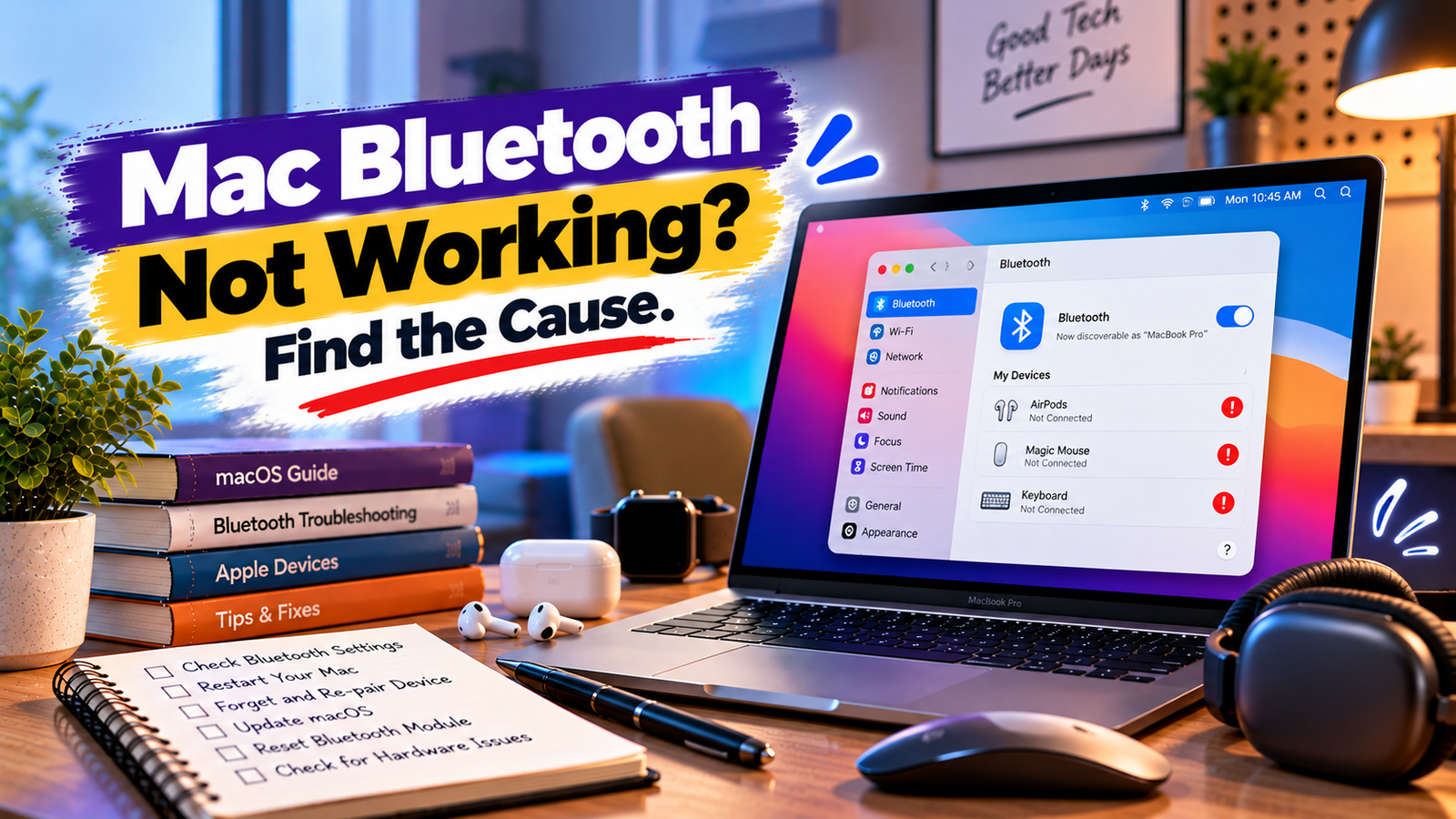
Mac Bluetooth Not Working? Find the Cause
A Bluetooth accessory that worked perfectly yesterday can suddenly refuse to connect to your Mac, disappear from the device list, or disconnect in the middle of a task. When Mac Bluetooth is not working, the important question is whether the problem affects one accessory or the Mac’s entire Bluetooth connection.
A keyboard or mouse that won’t pair may have a different problem from headphones that connect but produce no sound. Similarly, if Bluetooth cannot be switched on at all, repeatedly removing and re-pairing accessories is unlikely to help.
This guide covers the main causes of Bluetooth problems on a Mac, with troubleshooting steps that help distinguish accessory issues from connection, software and hardware problems.
Quick Diagnosis: Start Here
| What you’re seeing | Start here |
|---|---|
| Bluetooth is switched off or unavailable | Fix 1 |
| Your Mac cannot find a nearby Bluetooth device | Fix 2 |
| A Bluetooth device appears but won’t pair or connect | Fix 3 |
| A previously paired device won’t reconnect | Fix 4 |
| Bluetooth headphones connect but have no sound | Fix 5 |
| Bluetooth devices keep disconnecting | Fix 6 |
| Bluetooth stopped working after a software or settings change | Fix 7 |
| Bluetooth remains unavailable or no accessories can connect | Fix 8 |
Fix 1: Check Whether Bluetooth Is Available and Turned On
Start by checking the Bluetooth service itself. If it is switched off, your Mac won’t connect to wireless accessories until it is enabled.
- Open the Apple menu and select System Settings.
- Select Bluetooth in the sidebar.
- Check whether Bluetooth is turned on.
- If it is off, switch it on and wait for nearby devices to appear.
You can also open Control Centre from the menu bar and check the Bluetooth controls there.
If Bluetooth is already enabled, look at the device list. Previously paired devices usually appear under My Devices, while discoverable accessories that are available for pairing may appear under Nearby Devices.
If the Bluetooth option is missing or cannot be enabled, don’t immediately assume that the wireless hardware has failed. Restart your Mac and check again. If the setting remains unavailable, you may need to investigate macOS, device configuration or a possible hardware problem.
There is also an important distinction between Bluetooth being switched off and an accessory simply being disconnected. A disconnected accessory does not necessarily indicate a fault with your Mac.
What this tells you: If Bluetooth switches on and nearby devices appear, continue with the accessory-specific checks. If Bluetooth itself remains unavailable, focus on the Mac rather than repeatedly trying to pair individual devices.
Fix 2: Check Whether Your Mac Can Find the Bluetooth Device
A Bluetooth accessory must be discoverable before your Mac can pair with it. Turning the accessory on does not always make it immediately visible to other devices.
Try the following:
- Make sure the accessory has sufficient battery power or is connected to its power source.
- Turn the accessory off and back on.
- Follow the manufacturer’s instructions to activate pairing or discovery mode.
- Place the accessory close to your Mac.
- Open Apple menu > System Settings > Bluetooth and check Nearby Devices.
Some accessories enter pairing mode only after you hold a dedicated button for a few seconds. Others use a switch or a combination of controls. Follow the instructions for your specific model rather than assuming every device works the same way.
Also check whether the accessory is already connected to another computer, phone or tablet. Some Bluetooth devices support multiple saved connections, while others connect to only one device at a time. If necessary, disconnect the accessory from the other device before trying again.
If your Mac cannot see the accessory, test whether another compatible device can discover it. If no device can find it, the accessory may not be in pairing mode, may have insufficient power or may have a fault.
If another device can discover it but your Mac cannot, investigate the Mac’s Bluetooth settings and software.
What this tells you: An accessory that becomes visible after entering pairing mode was probably not discoverable earlier. If it remains invisible to every nearby device, investigate the accessory before changing your Mac’s configuration.
Fix 3: Resolve Pairing or Connection Failures
Sometimes your Mac can see a Bluetooth device but fails to establish a connection. This can happen because the accessory is not ready to pair, an existing connection is interfering, or the pairing process requires additional confirmation.
First, select the device under Nearby Devices in System Settings > Bluetooth and click Connect. If macOS asks you to accept a request or enter a code, follow the instructions displayed on the screen.
If the connection still fails, try this sequence:
- Switch the accessory off and back on.
- Make sure it is in pairing mode.
- Disconnect it from another device if it is already connected elsewhere.
- Move it closer to the Mac.
- Attempt to connect again.
For an Apple Magic Keyboard, Magic Mouse or Magic Trackpad that supports wired pairing, connecting it to the Mac with its appropriate cable may help establish the pairing. Follow the instructions for your particular accessory and connector.
If the device repeatedly appears but fails to connect, check the accessory manufacturer’s documentation for compatibility requirements and any device-specific pairing procedure.
Avoid repeatedly resetting unrelated Mac settings when the failure appears limited to one accessory.
What this tells you: If the device connects after being placed in pairing mode or disconnected from another host, the problem was likely related to the pairing process or an existing connection. If it continues to fail, check compatibility and saved pairing information.
Fix 4: Forget the Device and Pair It Again
A Bluetooth device that previously worked may stop reconnecting because its saved pairing information or connection state is no longer functioning correctly.
Removing the saved device and pairing it again can help, particularly when the accessory appears in your Mac’s device list but repeatedly fails to connect.
- Open Apple menu > System Settings > Bluetooth.
- Find the accessory under My Devices.
- Click the information button next to the device, or open the relevant device options.
- Select Forget This Device, if available, and confirm.
- Put the accessory into pairing mode again.
- Find it under Nearby Devices and reconnect.
The exact controls can vary by macOS version and accessory type.
Before forgetting the device, make sure you have another way to control your Mac if the accessory is your only keyboard or pointing device. For example, forgetting your only Bluetooth mouse on a desktop Mac can make navigation difficult.
If the device connects successfully after pairing again, test it for a while to see whether the problem returns.
If it still cannot connect, check whether it pairs with another compatible device. That comparison can help distinguish a Mac-specific problem from an accessory issue.
What this tells you: Successful reconnection after forgetting and re-pairing suggests the saved connection was involved. If pairing fails again, investigate the accessory, compatibility or Mac’s Bluetooth service.
Fix 5: Check the Audio Output When Bluetooth Headphones Have No Sound
Bluetooth headphones or speakers can show as connected to your Mac while audio continues to play through the built-in speakers or another output device.
If your Bluetooth headphones connect but produce no sound, check the audio output rather than immediately repairing the device.
- Open Apple menu > System Settings.
- Select Sound in the sidebar.
- Open the Output section.
- Select your Bluetooth headphones or speaker if it appears in the list.
- Play audio and check the volume on both the Mac and the accessory.
If you are using a headset with a microphone, check the Input section as well. Your Mac may be using a different microphone from the one you expect.
If the Bluetooth accessory does not appear under Sound, return to Bluetooth settings and check whether it is actually connected. A device that is merely saved in My Devices may not currently be connected.
You should also test audio in more than one app. If sound works in one application but not another, investigate that application’s audio output selection and volume settings.
For headphones, check their battery level and make sure they are not actively connected to another device that is taking over playback.
What this tells you: If selecting the Bluetooth device under Sound restores playback, the issue was related to audio routing rather than Bluetooth pairing itself. If the device is connected but absent from the expected audio list, further investigation is needed.
Fix 6: Investigate Repeated Bluetooth Disconnections
A Bluetooth device that connects successfully but keeps disconnecting presents a different problem from one that never pairs.
Frequent disconnections can result from weak signal conditions, low accessory battery, wireless interference or an issue with the accessory or Mac.
Work through these checks:
- Charge the accessory or replace its batteries if applicable.
- Move it closer to the Mac and test the connection.
- Temporarily disconnect other nearby wireless accessories if practical.
- Check whether the problem occurs in the same location or only when you move away from the Mac.
- Test the accessory with another compatible device, if possible.
Wireless interference can affect Bluetooth communication. The surrounding environment, other wireless equipment and physical obstacles can influence connection stability.
If the accessory disconnects only when you move into another room, range or interference may be contributing. If it disconnects even when it is close to the Mac, look more closely at the accessory, its power level and the Mac’s software.
You can also restart your Mac and the accessory to clear temporary connection problems. Save your work before restarting.
What this tells you: A connection that becomes stable after charging the accessory or moving closer points towards power or signal conditions. If the problem persists at close range, investigate software, compatibility and accessory-specific faults.
Fix 7: Check for Software and Configuration Changes
Bluetooth problems that begin after a macOS update, a new application installation or a change to system settings may have a software or configuration component.
Consider what changed shortly before the issue appeared.
- Did you install or update an application that manages a keyboard, mouse, headset or other accessory?
- Did the problem begin immediately after a macOS update?
- Is the Mac managed by a workplace or educational institution?
- Does the same accessory work correctly on another device?
Restart your Mac if you have not already done so. This can resolve some temporary problems with system services.
Next, check for available macOS updates under Apple menu > System Settings > General > Software Update. Install appropriate updates after reviewing compatibility and backing up important data, particularly before a major operating system upgrade.
If you use third-party utilities to manage Bluetooth accessories, check their settings and documentation. Do not uninstall security software, remove management profiles or change advanced system configuration without a clear reason.
On a managed Mac, an administrator may have imposed configuration restrictions that affect how accessories connect.
If the problem began after a specific software change, investigate that change before making broader system modifications.
What this tells you: If Bluetooth starts working after a restart or relevant update, a temporary or software-related issue may have contributed. If the same failure persists, compare the Mac’s behaviour with other accessories and networks of evidence before deciding what to investigate next.
Fix 8: Investigate Bluetooth That Remains Unavailable
If Bluetooth cannot be switched on, repeatedly disappears from System Settings, or fails with every compatible accessory, the problem may extend beyond an individual device.
Start with the simplest checks:
- Restart your Mac.
- Open System Settings > Bluetooth and check whether the service is available.
- Test more than one known-working Bluetooth accessory, if possible.
- Check for an appropriate macOS update.
- If you can, test the original accessory with another compatible device.
These comparisons matter because a single failed accessory does not establish that the Mac’s Bluetooth hardware is faulty. Likewise, several failed connections do not automatically prove a hardware failure if the Mac’s software or configuration has not been investigated.
If Bluetooth remains unavailable after restarting and checking for software issues, contact Apple Support or an authorised service provider for further assessment.
For a Mac that cannot be controlled because its Bluetooth keyboard and mouse have both stopped working, use a compatible wired input device where possible. This can restore access while you investigate the problem.
Avoid deleting system files, running unverified terminal commands or attempting undocumented Bluetooth module resets. These steps can create additional problems without establishing the original cause.
What this tells you: If Bluetooth remains unavailable across multiple accessories after basic software checks, a deeper macOS, configuration or hardware issue becomes more plausible. Professional assessment can help identify the cause without unnecessary resets or repairs.
Why This Happens
Bluetooth connections involve more than simply switching on a wireless accessory. Your Mac must make its Bluetooth service available, discover the accessory, complete pairing, maintain the connection and, where relevant, route data such as audio to the correct application or system component.
A failure at any stage can produce a different symptom.
When an accessory is missing from the device list, it may not be discoverable, may be out of range or may have insufficient power. When it appears but refuses to pair, the problem may involve saved connection information, pairing mode, compatibility or an existing connection to another device.
Repeated disconnections can point towards interference, range limitations, low battery power or a problem with the accessory or Mac. Bluetooth headphones that connect without producing sound may simply have the wrong audio output selected.
Problems affecting every Bluetooth accessory, particularly when Bluetooth itself cannot be enabled, require a broader investigation of macOS, system configuration and potentially the wireless hardware.
This is why identifying exactly where the connection fails is more useful than repeatedly switching Bluetooth off and on or resetting settings without a clear diagnosis.
How to Prevent Mac Bluetooth Problems
A few practical habits can reduce avoidable Bluetooth connection issues.
- Keep accessories charged. Low batteries can cause unreliable connections or prevent pairing altogether.
- Use the correct pairing procedure. Follow the manufacturer’s instructions rather than assuming that switching on an accessory always makes it discoverable.
- Keep devices within a suitable range. Physical obstacles and wireless interference can reduce connection stability.
- Avoid unnecessary re-pairing. Forget and reconnect a device when there is a reason to suspect a saved pairing problem, not as the first response to every disconnection.
- Keep macOS updated appropriately. Review relevant updates when connection problems appear, especially after a software change.
- Check audio routing separately. For Bluetooth headphones and speakers, confirm that macOS is sending sound to the intended output.
- Investigate recurring failures early. Note whether the issue affects one accessory, multiple devices or Bluetooth itself. This information helps narrow down the cause.
If a Bluetooth accessory works reliably with another computer but not with your Mac, record that distinction before seeking support. It provides a useful starting point for further diagnosis.
Frequently Asked Questions
Why is Bluetooth greyed out on my Mac?
Bluetooth may be unavailable because of a temporary system problem, a configuration issue or a possible hardware fault. Restart your Mac and check Bluetooth settings again. If the option remains unavailable, seek further diagnosis rather than repeatedly trying to pair accessories.
Why does my Mac not detect Bluetooth devices?
The accessory may not be in pairing mode, may have insufficient power or may be too far away. Make sure it is discoverable and nearby, then check the Nearby Devices list in System Settings. If other devices can detect it but your Mac cannot, investigate the Mac’s Bluetooth service and software.
Why does my Mac keep disconnecting from Bluetooth headphones?
Low battery power, wireless interference, range limitations or an accessory-specific problem can interrupt the connection. Charge the headphones, move closer to the Mac and test them with another compatible device if possible.
Why are my Bluetooth headphones connected but not playing sound?
Your Mac may be using its built-in speakers or another audio output. Open System Settings, select Sound, and choose the Bluetooth headphones under Output. If the headphones do not appear, check their connection status in Bluetooth settings.
Should I reset my Mac’s Bluetooth settings?
Not as an initial step. Start with the accessory’s power and pairing mode, then check Bluetooth settings, saved connections and software. More extensive changes should be considered only when there is a clear reason and the simpler diagnostic steps have not resolved the issue.
How can I tell whether my Mac’s Bluetooth hardware is faulty?
A hardware problem becomes more plausible when Bluetooth remains unavailable or fails with multiple known-working accessories after appropriate software and configuration checks. These symptoms are not conclusive, so professional assessment is preferable to assuming that hardware replacement is necessary.






