Windows Update Error 0x800f081f: How to Fix Missing Source Files
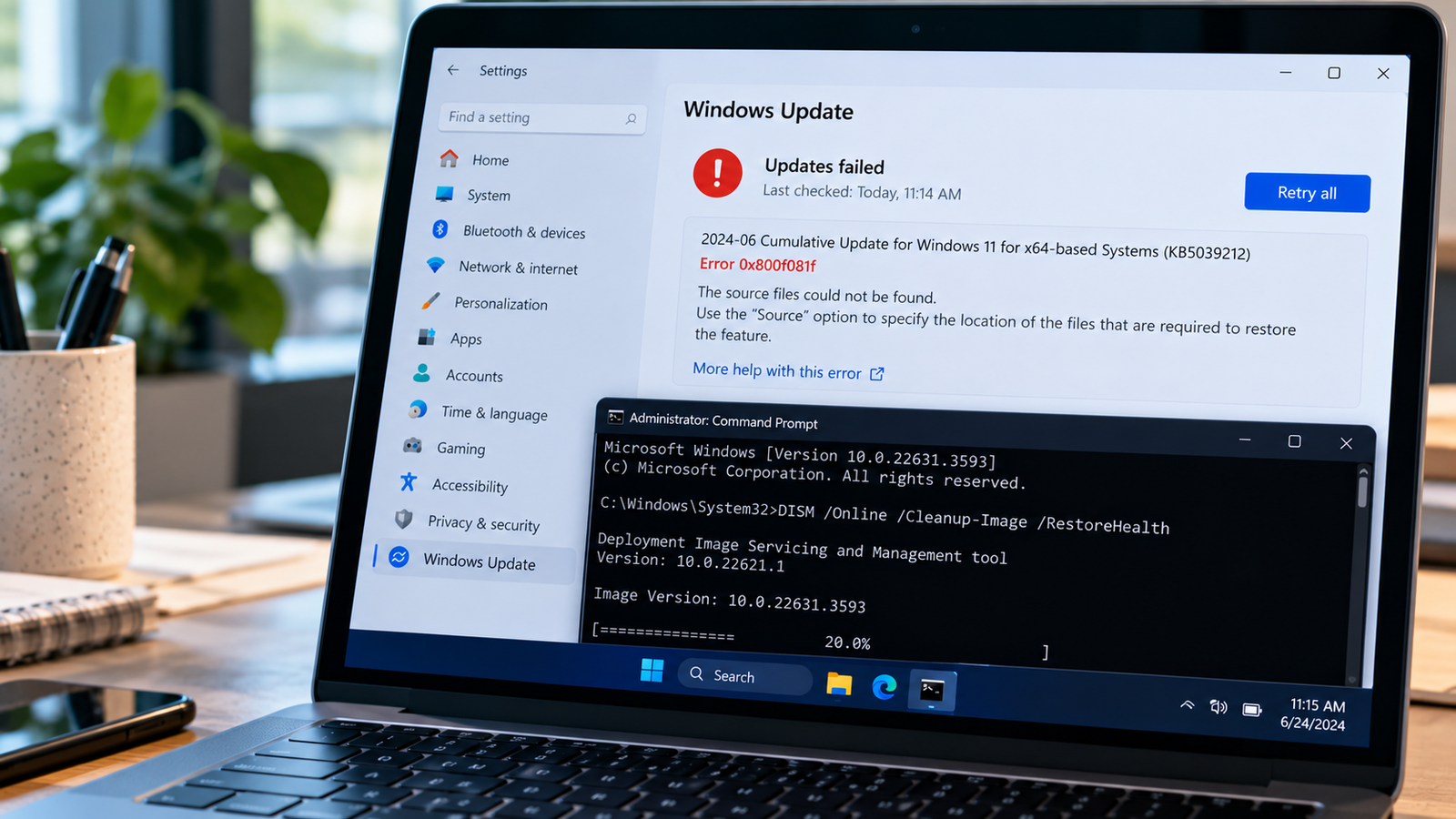
Windows Update error 0x800f081f can prevent your PC from installing an update or repairing a Windows component. You may see a message stating that the source files could not be found, even after Windows downloads the update or you run a repair command.
Microsoft identifies this error as CBS_E_SOURCE_MISSING, which means Windows could not find the source files required for a package or component. The issue can involve Windows component-store corruption, an unavailable repair source, or a problem with the files needed to complete a specific operation.
The right fix depends on where the error appears. If Windows Update fails, start with the update troubleshooting steps. If the DISM repair command returns the error, focus on locating a compatible repair source.
This guide walks you through seven fixes, from basic checks to advanced Windows repair options.
🎧 Listen to the quick guide: Windows Update Error 0x800f081f
Quick Diagnosis: Start Here
| Problem or symptom | Start here |
|---|---|
| Windows Update fails with error 0x800f081f | Go to Fix 1 ↗ |
| The update troubleshooter does not resolve the issue | Go to Fix 2 ↗ |
| Windows system files may be corrupted | Go to Fix 3 ↗ |
| DISM says the source files could not be found | Go to Fix 4 ↗ |
| Windows Update downloads repeatedly fail | Go to Fix 5 ↗ |
| One particular Windows update keeps failing | Go to Fix 6 ↗ |
| The error persists after the other repair attempts | Go to Fix 7 ↗ |
Fix 1: Run the Windows Update Troubleshooter
The Windows Update troubleshooter checks for common problems that can prevent updates from downloading or installing. Run it first if the error appears in Windows Update rather than during a DISM command.
On Windows 11
- Press
Windows + Ito open Settings. - Select System > Troubleshoot > Other troubleshooters.
- Find Windows Update and select Run.
- Follow the on-screen instructions.
- Restart your computer if prompted.
On Windows 10
- Open Settings.
- Select Update & Security > Troubleshoot > Additional troubleshooters.
- Select Windows Update.
- Run the troubleshooter and follow the instructions.
Menu names may vary slightly depending on your Windows version.
After the troubleshooter finishes, return to Windows Update and try installing the failed update again.
If error 0x800f081f returns, continue to the next fix. The troubleshooter may not be able to repair a damaged Windows component store or supply missing source files.
Fix 2: Check Your Internet Connection and Available Storage
Windows may need to download update packages or repair files. An unreliable connection or insufficient disk space can interfere with that process.
Try these checks:
- Open a few websites to confirm that your internet connection is working.
- If possible, try another reliable network.
- Check whether a VPN or network restriction is interfering with access to Microsoft Update. If you use a work-managed device, consult your IT administrator before changing network settings.
- Open Settings > System > Storage.
- Check how much free space is available and remove unnecessary temporary files using Windows Storage settings or Disk Cleanup.
Avoid deleting files manually from Windows system folders.
Once you have checked the connection and freed up space if necessary, restart your computer and try Windows Update again.
If the error persists, move on to system-file repair.
Fix 3: Repair Windows with DISM and System File Checker
Windows includes two tools that can help repair component-store and system-file problems:
- DISM: Repairs the Windows image and component store.
- System File Checker (SFC): Scans protected system files and attempts to replace corrupted files with valid copies.
Microsoft recommends running DISM before SFC.
Step 1: Open Command Prompt as administrator
- Open Start.
- Type
Command Prompt. - Right-click the result and select Run as administrator.
- Approve the permission prompt.
Step 2: Run the DISM repair command
Enter:
DISM.exe /Online /Cleanup-Image /RestoreHealth
Press Enter and wait for the operation to finish. It may take several minutes or longer.
If the operation completes successfully, proceed to the next step.
Step 3: Run System File Checker
Enter:
sfc /scannow
Press Enter and wait until verification reaches 100%. Do not close the window while the scan is running.
Step 4: Restart your computer
After both commands finish, restart Windows and try installing the update again.
What if DISM returns error 0x800f081f?
If DISM itself displays “The source files could not be found,” repeating the same command may not solve the problem. Windows may be unable to access the files needed for repair.
In that case, continue to Fix 4.
Fix 4: Resolve the DISM “Source Files Could Not Be Found” Error
This is the most important distinction when troubleshooting error 0x800f081f.
DISM normally attempts to obtain the files required for repair through Windows Update. If the necessary files are unavailable or the configured repair source is unsuitable, DISM may fail with this code.
Step 1: Check the exact error message
Run the DISM command from Fix 3 again only if you need to confirm the failure.
If the output includes:
Error: 0x800f081f
and:
The source files could not be found.
then focus on the repair source rather than the Windows Update download cache alone.
Step 2: Check access to Windows Update
Make sure your computer has a working internet connection and can access Microsoft update services.
If the PC is managed by an organisation, its update policies may control where Windows obtains repair files. Contact your IT administrator if you cannot change those settings.
Step 3: Consider compatible Windows installation media
If Windows Update cannot supply the required files, a compatible Windows installation source may be needed.
The repair source must contain the components required by the installed Windows image. Compatibility can depend on the Windows release, edition, architecture, language, and component version.
For advanced users, Microsoft’s DISM documentation explains how to specify a repair source with the /Source option. The exact command depends on the source location and format.
Do not copy system files from another computer or download replacement DLL files from unofficial websites. A source that does not match your installation may fail to repair the component store.
Step 4: Check the DISM log if the error continues
Open File Explorer and navigate to:
C:\Windows\Logs\DISM\dism.log
The log may contain details about which repair operation failed. If you are unsure how to interpret it, share the relevant error entries with a qualified technician or Microsoft support.
If you do not have a suitable repair source or cannot identify the underlying issue, proceed to the supported recovery options in Fix 7.
Fix 5: Reset the Windows Update Download Cache
If DISM completes successfully but Windows Update continues to fail, resetting the update download cache may help when the downloaded update files or cache are damaged.
This step is intended for persistent Windows Update download problems. It does not replace the need to fix a missing DISM repair source.
Step 1: Open an administrator Command Prompt
Save your work, open Start, search for Command Prompt, and select Run as administrator.
Step 2: Stop the update services
Run these commands one at a time:
net stop wuauserv
net stop bits
If a service is not running, note the message and continue where appropriate.
Step 3: Rename the SoftwareDistribution folder
Enter:
ren C:\Windows\SoftwareDistribution SoftwareDistribution.old
This folder stores Windows Update data that Windows can recreate as needed.
If the command fails because the folder is in use or access is denied, do not force the operation. Restart the computer and try again, or use another supported troubleshooting method.
If SoftwareDistribution.old already exists, choose a different unused backup name rather than overwriting it.
Step 4: Restart the services
Run:
net start wuauserv
net start bits
Restart your computer, open Windows Update, and check for updates again.
Windows may need to download update files again after the cache is reset. If the error continues, try the next fix.
Fix 6: Install the Failed Update Manually
If one particular update repeatedly fails, check whether Microsoft provides a standalone package for it.
Step 1: Identify the failed update
- Open Settings > Windows Update > Update history.
- Find the failed update.
- Note its KB number, if displayed.
Step 2: Search the Microsoft Update Catalog
Visit the official Microsoft Update Catalog.
Search for the exact KB number and review the available packages.
Step 3: Choose the correct package
Check that the package matches your Windows version and system architecture. Review any prerequisites before downloading it.
Do not install a similarly named package simply because its description looks relevant.
Step 4: Run the installer
Download the appropriate package, open it, and follow the installation instructions. Restart the computer if requested.
If the standalone installer fails with error 0x800f081f as well, the underlying component-store or servicing problem may remain unresolved. Return to Fix 4 or consider the recovery options below.
Fix 7: Use a Supported Windows Repair or Recovery Option
If the previous fixes do not resolve the problem, consider a supported Windows repair option instead of repeatedly running the same commands.
Option A: Use the Windows Update recovery option
On supported Windows 11 installations, you may see Fix problems using Windows Update under Settings > System > Recovery.
When available, this feature reinstalls the current Windows version using Windows Update while aiming to preserve your apps, files, and settings. Availability can vary depending on the Windows version, device configuration, and update policies.
Review the on-screen information before starting.
Option B: Consider a repair installation
If the recovery option is unavailable or fails, an in-place repair installation using compatible Windows installation media may be appropriate. Microsoft lists an in-place upgrade among the possible approaches for error 0x800f081f.
Before proceeding:
- Back up important files.
- Confirm your Windows edition and version.
- Use official Microsoft installation media.
- Follow the instructions for the appropriate repair method.
- If the device is managed by an organisation, contact IT first.
A repair installation is more involved than running a troubleshooter or repairing system files. Do not begin it without understanding the available recovery options and their implications.
If you are unsure which repair path applies, consult Microsoft support or a qualified technician.
Why Does Windows Update Error 0x800f081f Occur?
The error code is associated with a missing source for a required Windows package or component. It can occur in several situations.
1. Windows component-store corruption
Windows relies on its component store to service the operating system and install updates. If required components are missing or damaged, servicing operations may fail.
2. The repair source is unavailable
DISM may be unable to obtain the files it needs from Windows Update or another configured repair source.
3. The repair source is incompatible
A source that does not contain the required components for the installed Windows image may not be able to complete the repair.
4. A particular update or feature cannot locate its required files
The error may occur when Windows tries to install a package or optional feature whose required source files are unavailable.
The important point is that the code does not automatically identify one universal cause. The operation that failed and the accompanying error message help determine the appropriate fix.
How to Prevent Windows Update Errors
Not every update error can be prevented, but these practices can reduce avoidable problems:
- Keep sufficient free disk space available.
- Use a stable internet connection while downloading updates.
- Restart your computer when Windows requests it.
- Avoid interrupting an update during installation.
- Use Windows Update and official Microsoft installation sources.
- Avoid unofficial system-file downloads and unverified repair utilities.
- Keep a backup of important files before major repairs.
Frequently Asked Questions
1. What does Windows Update error 0x800f081f mean?
It means Windows could not find the source files required for a package or component. Microsoft identifies the code as CBS_E_SOURCE_MISSING. The cause may involve component-store corruption or an unavailable repair source.
2. Can I fix error 0x800f081f without reinstalling Windows?
Yes, in many cases. Start with the Windows Update troubleshooter, then run DISM followed by SFC. If DISM cannot find its source files, investigate the repair source before considering a more extensive recovery option.
3. Why does DISM return error 0x800f081f?
DISM may return this error when it cannot locate the files required to repair the Windows image. Check access to Windows Update and whether your system has an appropriate repair source. If necessary, consult Microsoft’s documentation on using the DISM /Source option.
4. Is error 0x800f081f the same as 0x800f0831?
No. They are different error codes. Microsoft associates 0x800f081f with a missing component source and 0x800f0831 with component-store corruption. Both can involve Windows servicing problems, but they should not be treated as identical errors.
5. Should I download a tool to fix error 0x800f081f?
Avoid unknown third-party tools that promise to repair the error automatically. Use built-in Windows tools and official Microsoft sources. Unverified repair utilities can introduce additional problems.
6. Where can I find the DISM log?
The DISM log is normally located at:
C:\Windows\Logs\DISM\dism.log
It can provide additional details when a repair operation fails.
Final Thoughts
Windows Update error 0x800f081f is associated with missing source files required for a Windows package or component. Start with the Windows Update troubleshooter if the update itself fails. If the DISM repair command produces the error, focus on whether Windows can access a compatible repair source.
Running DISM and SFC, checking the update process, and using official recovery options can help you identify the next step. If the error persists, review the relevant logs or seek qualified assistance rather than repeatedly running commands that return the same result.