
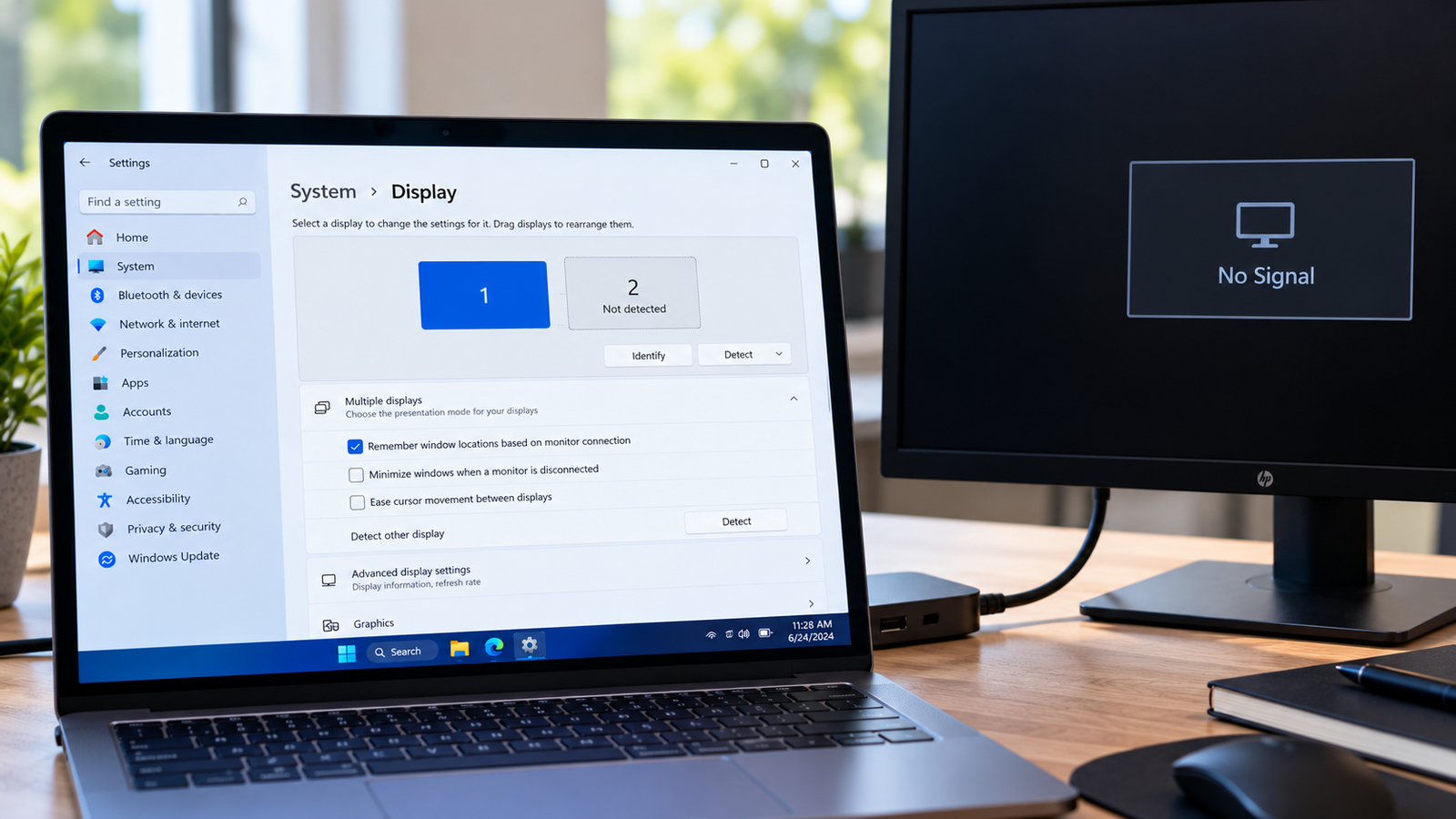
Windows 11 Second Monitor Not Detected? How to Fix It
When Windows 11 does not detect a second monitor, the cause could be as simple as the wrong display mode or an incorrect input source. It can also involve a USB-C adapter that does not support video, a docking station limitation or a graphics driver that stopped recognising the display.
The key is to find out whether Windows is failing to detect the monitor at all, or whether it detects the monitor but cannot display the desktop on it. These are different problems and need different fixes.
This guide focuses on a second monitor that does not appear in Windows Display settings, including setups using HDMI, DisplayPort, USB-C and docking stations.
Quick Diagnosis: Start Here
Quick Diagnosis: Start Here
| What you’re experiencing | Start here |
|---|---|
| The monitor is connected but Windows shows only one display | Go to Fix 1 ↗ |
| The monitor displays No Signal or stays black | Go to Fix 2 ↗ |
| The monitor works directly but not through a dock or adapter | Go to Fix 3 ↗ |
| The monitor stopped working after sleep or a graphics glitch | Go to Fix 4 ↗ |
| The problem began after a graphics driver update | Go to Fix 5 ↗ |
| Windows detects the display inconsistently or not at all | Go to Fix 6 ↗ |
| The setup uses two or more external monitors | Go to Fix 7 ↗ |
Why Windows 11 Does Not Detect a Second Monitor
Windows needs to receive a usable display signal and identify the connected screen before it can show that monitor in Display settings.
A connection can fail at several points. The monitor might be listening to the wrong input, a cable or adapter might not carry a compatible video signal, or Windows might have a display configuration that disables the second screen. Graphics drivers and docking stations can introduce additional complications.
The distinction between no signal and a detected but blank display is especially useful. A monitor showing No Signal usually points toward the input, connection or video output path. If Windows lists the monitor but its screen remains blank, display mode, resolution or refresh-rate settings may be more relevant.
Fix 1: Force Windows to Detect and Enable the Display
Start by checking whether Windows has disabled the second screen or simply failed to refresh its display list.
- Connect the monitor and turn it on.
- Press Windows + P.
- Select Extend if you want to use both screens independently. Choose Duplicate if you want the same image on both.
- Open Settings → System → Display.
- Scroll to Multiple displays.
- Select Detect if the option is available.
- Check whether the second monitor appears.
If the monitor appears, select it and review its display mode and arrangement. You can use Identify to see which numbered display corresponds to each physical screen.
If Windows still lists only one display, move to the connection checks. Repeatedly pressing Detect will not solve a missing or incompatible video signal.
Fix 2: Check the Monitor’s Input, Cable and Video Port
A monitor can be powered on and still receive no usable video signal. This is particularly common when a monitor has multiple inputs or the computer uses an adapter.
Confirm the selected input
Use the monitor’s physical buttons or on-screen menu to select the input that matches your connection, such as HDMI 1, HDMI 2 or DisplayPort.
Do not assume that automatic input selection has chosen correctly.
Reseat the cable
- Disconnect the video cable at both ends.
- Reconnect it firmly to the computer and monitor.
- Check that the monitor’s power light is on.
- If possible, try a known-working compatible cable.
- Try another video output on the computer, if available.
A cable that works for one display mode may not support every resolution or refresh rate. If a replacement cable resolves the issue, the original connection was likely the problem.
Test the monitor separately
Connect the monitor to another computer or compatible video source if one is available.
- If it works there, investigate the original computer, port or adapter.
- If it also fails with another source, inspect the monitor’s input, cable and hardware.
This comparison helps isolate the fault without changing Windows settings unnecessarily.
Fix 3: Test the Dock, USB-C Adapter or HDMI Converter
If your monitor connects through a docking station, hub or adapter, test that component separately. The display may work when connected directly but fail through the intermediate hardware.
First, disconnect the dock or adapter and connect the monitor directly to the computer using a compatible video port, if possible.
If the direct connection works, check the following:
- USB-C video support: Not every USB-C port supports video output. The port and computer must support a suitable display mode, such as DisplayPort Alt Mode or a compatible Thunderbolt connection.
- Adapter compatibility: A passive cable or adapter may not convert between every combination of video standards.
- Dock power: A dock may need its own power supply to operate all connected displays reliably.
- Dock firmware or drivers: Some docks require manufacturer-specific software or firmware.
- Port limitations: Certain docks support fewer displays, lower resolutions or different refresh rates than expected.
If the monitor fails only through the dock, avoid reinstalling Windows or resetting all display settings. Focus on the dock, its compatibility and the specific connection path.
Fix 4: Reset the Graphics Output and Restart the PC
If the second monitor worked previously but stopped appearing after sleep, undocking or a graphics glitch, Windows may not have refreshed the display connection correctly.
Try this keyboard shortcut:
- Press Windows + Ctrl + Shift + B.
- Wait a few seconds. The screen may briefly go black or you may hear a beep as Windows attempts to reset the graphics driver.
- Check whether the external monitor becomes active.
- If it remains undetected, save your work and restart the computer normally.
After restarting, reconnect the monitor and check Settings → System → Display → Multiple displays → Detect.
This shortcut is a graphics-reset attempt, not a guaranteed repair. If the problem returns after every sleep or docking cycle, investigate the graphics driver and dock rather than relying on the shortcut each time.
Fix 5: Update or Roll Back the Graphics Driver
Graphics drivers help Windows communicate with the GPU and connected displays. A driver update can sometimes introduce a compatibility problem, while an outdated or damaged driver can prevent a monitor from being detected properly.
Check the current driver
- Right-click Start and open Device Manager.
- Expand Display adapters.
- Identify the graphics adapter listed.
- Right-click it and select Properties.
- Open the Driver tab to review the installed driver information.
If the problem started after an update
If the monitor stopped working immediately after a driver update, select Roll Back Driver if that option is available.
Follow the prompts and restart if requested.
If the driver is outdated or malfunctioning
Use Windows Update or the official support utility for your computer or graphics hardware to check for a suitable driver.
For laptops, the computer manufacturer’s driver may be important because the graphics configuration can be customised for that model.
Avoid downloading display drivers from unknown websites. Also, do not uninstall the only working graphics driver without knowing how to restore it. If you choose to reinstall a driver, have the appropriate replacement available first.
Fix 6: Check Whether Windows recognizes the Monitor at All
This step helps distinguish a Windows display configuration issue from a problem in the hardware or driver connection.
Check Display settings
Open Settings → System → Display and inspect the display diagram. Select Detect under Multiple displays if the option is available.
If the second display appears, Windows can identify it. The next step is to choose the desired mode and check the display settings.
Inspect Device Manager
- Right-click Start and select Device Manager.
- Expand Monitors.
- Check whether a monitor entry appears when the external display is connected.
- Expand Display adapters and look for warning symbols beside the graphics device.
A monitor entry in Device Manager does not prove that every part of the video connection is working, but it provides useful evidence that Windows is registering a display device.
If the monitor is missing and Display settings cannot detect it, revisit the physical connection, adapter compatibility and graphics driver. If the graphics adapter itself shows a warning, investigate that driver issue first.
Avoid repeatedly uninstalling monitor entries without a clear reason. Windows may recreate these entries automatically, and removing them does not repair a failed cable or unsupported port.
Fix 7: Verify Multi-Monitor and Docking Limitations
If one external monitor works but adding a second or third causes the problem, your setup may be exceeding the capabilities of the computer, graphics adapter or dock.
Check these points before buying new hardware:
- Supported monitor count: The GPU and computer model may have a maximum number of supported displays.
- Dock specifications: A dock’s maximum monitor count can depend on the connected computer, resolution and refresh rate.
- Display splitter limitations: A basic HDMI splitter generally duplicates one signal. It does not create two independent extended desktops.
- Port routing: On some desktop computers, video outputs on the motherboard and a separate graphics card have different capabilities. Check the computer’s documentation and use the appropriate graphics output.
- Resolution and refresh rate: Multiple high-resolution displays can exceed the bandwidth available through a particular port, cable or dock.
Test one external monitor at a time. If each works individually but the complete setup does not, investigate the supported display configuration rather than treating it as a faulty monitor.
For wireless displays, check the wireless display connection separately. The steps for detecting a wireless display are different from troubleshooting a physically connected HDMI or DisplayPort monitor.
How to Prevent Windows Display Detection Problems
A few checks can prevent recurring issues with external monitors:
- Use cables and adapters that support your intended resolution and refresh rate.
- Confirm USB-C video support before relying on a USB-C port for display output.
- Install graphics drivers intended for your specific computer or GPU.
- Check docking station compatibility before adding more monitors.
- Avoid disconnecting a dock while display or driver updates are in progress.
- Record which cable, port and adapter combination works when troubleshooting a complex setup.
If the monitor fails only after sleep or undocking, note that pattern. It can point toward a driver, dock or power-state issue rather than a permanently faulty screen.
Frequently Asked Questions
Why does Windows 11 show only one monitor?
Windows may not be receiving a usable signal from the second display, or the display may be disabled in the current configuration. Check Windows + P, the physical connection and the Detect option in Display settings.
Why does my second monitor say No Signal?
The monitor is not receiving a usable video signal on its selected input. Confirm the correct HDMI or DisplayPort input, reseat the cable and test another compatible port or cable.
Why is my monitor detected but the screen is black?
If Windows lists the monitor, check the selected display mode, resolution and refresh rate. Also confirm that the monitor is powered on and using the correct input.
Why does my second monitor work directly but not through my docking station?
The dock, adapter, cable or computer’s port may not support the required video connection. Check the dock’s display capabilities, power supply, firmware and compatibility with your computer.
Can a USB-C port connect an external monitor?
Yes, if the port and computer support video output. A USB-C connector alone does not guarantee that the port can transmit a display signal.
Will updating Windows fix a second monitor that is not detected?
It may help if the issue is caused by a software or driver problem, but it will not fix a faulty cable, an unsupported adapter or a monitor connected to the wrong input. Diagnose the connection first.
Conclusion
When Windows 11 cannot detect a second monitor, identify where the connection is failing before changing drivers or system settings. Check the display mode and monitor input, test the cable and port, and isolate any dock or adapter.
If the connection is sound but Windows still cannot identify the screen, investigate the graphics driver and display recognition. For multi-monitor setups, confirm that the computer and dock support the required number of displays.
The aim is to isolate the failing component rather than apply every possible fix to the entire system.






