
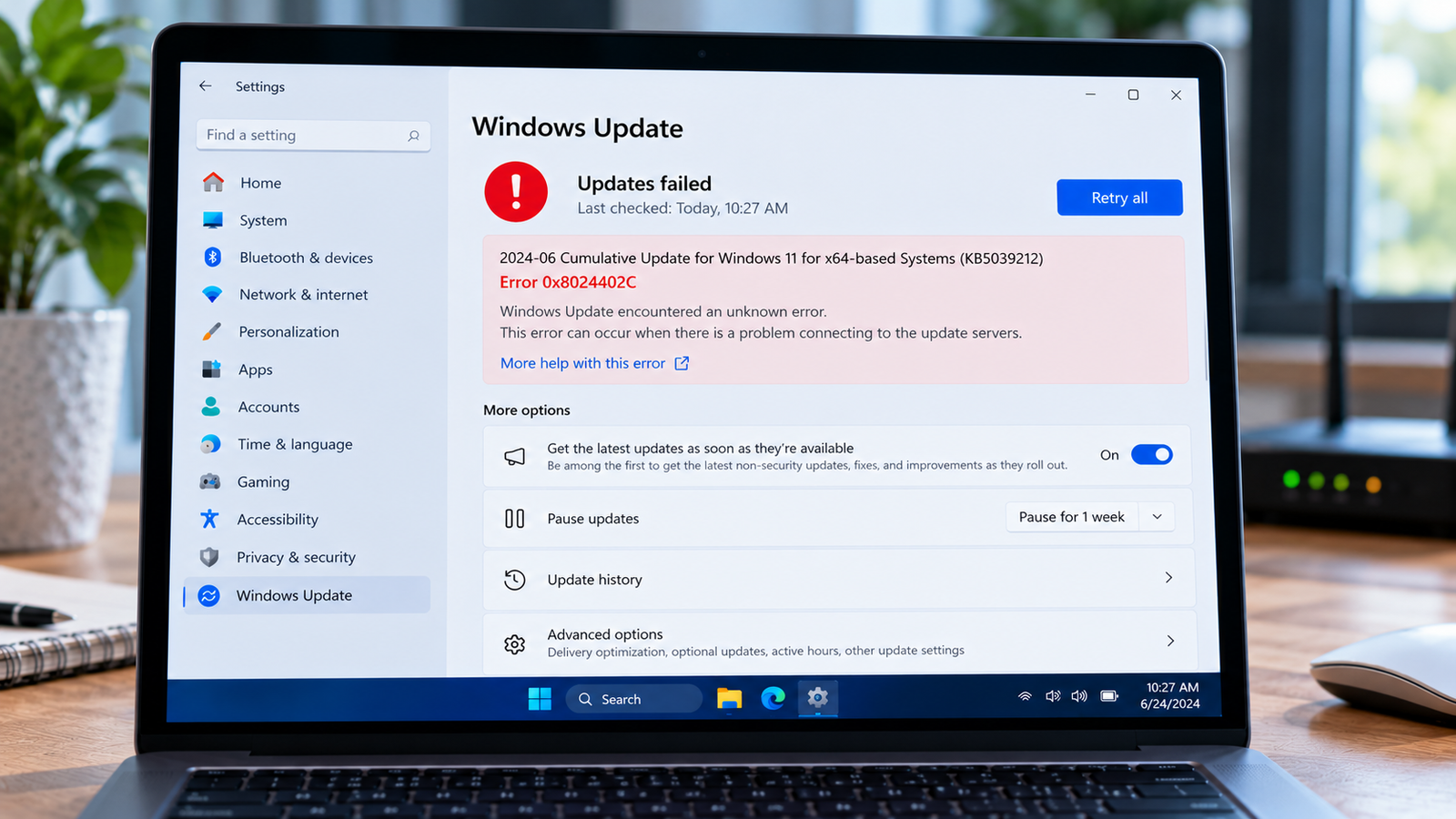
Windows Update Error 0x8024402C: How to Fix Connection Problems
Windows Update Error 0x8024402C can appear when Windows cannot locate or connect to the server it needs to check for updates. You may see the error when checking for updates, installing an optional Windows feature or trying to download an update package.
Unlike errors caused by missing component files or denied access, this code points towards a server name resolution or network configuration problem. Incorrect proxy settings, DNS issues, firewall restrictions or a managed update server that cannot be reached may be responsible.
The most useful first question is whether your computer can access the internet normally and whether the problem affects only Windows Update. The answer determines which connection to investigate next.
Listen to the quick guide: Windows Update Error 0x8024402C
Quick Diagnosis: Start Here
| What you’re experiencing | Start here |
|---|---|
| Windows Update fails, but ordinary websites load | Go to Fix 1 ↗ |
| Other apps also struggle to connect to the internet | Go to Fix 2 ↗ |
| The PC uses a VPN, proxy or custom network configuration | Go to Fix 3 ↗ |
| The error persists and DNS resolution may be failing | Go to Fix 4 ↗ |
| The computer connects to a company or school network | Go to Fix 5 ↗ |
| The network connection works, but Windows Update still cannot connect | Go to Fix 6 ↗ |
| The error began after a network or security configuration change | Go to Fix 7 ↗ |
Why This Happens
Windows Update needs to resolve server names and establish a connection to its configured update source. If the computer cannot resolve the required server name, the update process may stop before it can retrieve the necessary information.
The cause depends on how the computer receives updates.
A personal computer that connects directly to Microsoft’s update service may be affected by local DNS settings, an incorrectly configured proxy or a network restriction. A company-managed computer may instead use an internal update server, such as Windows Server Update Services (WSUS).
This distinction matters because changing internet settings on a managed device may not fix a problem with its internal update server. The following checks help identify the relevant connection path.
Fix 1: Check Whether Windows Update Is the Only Service Affected
Before changing network settings, determine whether the problem is limited to Windows Update.
- Open a browser and visit a few familiar websites.
- Try another internet-dependent application.
- If possible, check whether the same websites load on another device connected to the same network.
- Return to Settings → Windows Update and try checking for updates again.
Interpret the results carefully:
- Other websites and apps work: The general internet connection is probably available. Focus on proxy settings, DNS resolution for the update service or update-specific restrictions.
- Several apps cannot connect: Investigate the network connection before changing Windows Update settings.
- Other devices also have connection problems: The router, internet service or network DNS configuration may be involved.
A working browser does not prove that every Windows service can reach its destination. Different applications may use different connection settings, which is why the next checks are important.
Fix 2: Check the Network Connection and DNS Configuration
If multiple applications are experiencing connectivity problems, start with the computer’s network connection.
- Confirm that Wi-Fi or Ethernet shows a connected status.
- If using Wi-Fi, reconnect to the intended network.
- Restart the router only if other devices or services suggest a network-level issue. Save any important activity first.
- If practical, test the computer using another trusted network.
- If the error disappears on another network, investigate the original network’s DNS, proxy and firewall configuration.
You can also inspect basic network information.
Open Command Prompt and run:
ipconfigReview the active network adapter. If the computer has no usable network address or its network configuration looks unexpected, resolve that issue before troubleshooting Windows Update itself.
Avoid immediately resetting every network component. A broad reset can remove saved network settings and may create additional work without identifying the original problem.
Fix 3: Inspect Proxy and VPN Settings
A proxy server routes network traffic through an intermediary. If Windows is configured to use a proxy that no longer exists or cannot resolve its server name, Windows Update may fail even when a browser appears to work.
Check Windows proxy settings
- Open Settings.
- Select Network & internet → Proxy.
- Review the automatic proxy detection, setup script and manual proxy options.
- Look for a proxy address or script that you no longer use.
- If you recognize an obsolete setting that you configured yourself, correct or remove it.
Do not disable a proxy that your workplace, school or network administrator requires.
Inspect the WinHTTP proxy
Windows services may use WinHTTP proxy settings, which can differ from the settings used by your browser.
Open Command Prompt and run:
netsh winhttp show proxyReview the result.
- If it reports direct access with no proxy, there may be no WinHTTP proxy configured.
- If it lists a proxy server, confirm that the address is still valid and can be resolved.
- If the computer is managed, ask the administrator whether the listed configuration is required.
If you have confirmed that a manually configured WinHTTP proxy is obsolete and the computer should connect directly, an administrator can reset it with:
netsh winhttp reset proxyUse this only when direct access is appropriate. Do not run it blindly on a managed computer or one that requires a proxy to access the update service.
If you use a VPN, check whether the error appears only while it is connected. Do not bypass workplace VPN or security controls without authorisation.
Fix 4: Test Whether DNS Can Resolve Server Names
DNS translates server names into network addresses. If name resolution fails, Windows may be unable to locate the destination required for an update.
You can use Windows’ built-in diagnostic tools to investigate this possibility.
- Open Command Prompt.
- Run:
nslookup microsoft.com- Review whether the command returns an address or reports a resolution failure.
- If you have a specific update-server hostname from your logs or network administrator, test that hostname as well.
The result requires careful interpretation. Successfully resolving microsoft.com confirms that this particular name resolves, but it does not prove that every update endpoint is reachable.
If DNS resolution fails for multiple unrelated hostnames, check the configured DNS server and network connection. If only a particular update endpoint fails, a proxy, firewall, DNS filtering rule or incorrect server address may be involved.
You can also clear the local DNS resolver cache:
ipconfig /flushdnsThis removes cached DNS entries from the computer. It does not repair an unavailable DNS server or correct an invalid proxy configuration.
After making a confirmed DNS or proxy correction, retry Windows Update.
Fix 5: Check Whether a Managed Update Server Is Involved
Company and school computers may receive updates from an internal server rather than connecting directly to Microsoft’s public update service.
If your device is managed by an organization, the relevant server may be unavailable or its name may not resolve correctly from your network.
Check whether the computer is organization-managed and whether it is connected to the required network or VPN.
If you have access to the update server’s hostname, you can test its resolution:
nslookup servernameReplace servername with the actual hostname provided by your IT administrator. Do not use this literal example as a real server address.
If the hostname cannot be resolved, the issue may involve the DNS configuration or the server’s availability. If it resolves but Windows Update still fails, connectivity, proxy rules or update-service configuration may need investigation.
On a managed device, share the error code and the results of your tests with the administrator. Do not change organizational update policies or replace the configured update server with an arbitrary address.
Fix 6: Review Firewall and Network Filtering Rules
A firewall, security product or network filter may prevent Windows from reaching an update endpoint. This is especially worth investigating if the error began after a security configuration change.
Check the following:
- Review recent alerts from your security software.
- Check whether a proxy, DNS-filtering service or firewall rule was recently changed.
- If the computer is on a home network, review any custom filtering settings you have configured.
- If the device is managed, ask the administrator to verify that the required update endpoints are reachable.
Do not permanently disable Windows Firewall or antivirus protection as a test. If a specific rule is blocking the connection, correct that rule through the relevant security tool.
If you suspect a third-party security product, use its documented diagnostics or consult its support team. A general connection failure is not sufficient evidence that antivirus software is responsible.
Fix 7: Recheck Windows Update After Correcting the Connection
Once you have identified and corrected a DNS, proxy or network issue, retry the update.
- Close any open network diagnostic windows.
- Confirm that the computer can resolve the relevant server names.
- Verify that the intended proxy or direct connection is configured correctly.
- Open Settings → Windows Update.
- Select Check for updates.
If the error persists, note the exact time of the failure and whether it occurs while checking for updates, downloading a package or installing an optional feature.
For a more detailed diagnosis, Windows Update logs may contain the failed server request and related network error. Generating a readable Windows Update log can help an experienced technician identify the destination or operation that failed.
If your computer uses WSUS or another managed update service, the update logs and server configuration may be more useful than repeating general consumer troubleshooting steps.
Do not clear the Windows Update cache, run system-file repair commands or reinstall Windows merely because this network-related error remains. Those actions address different potential causes and should be considered only when the evidence points to them.
How to Prevent Windows Update Error 0x8024402C
These practices can reduce the chance of similar connection failures:
- Remove obsolete proxy settings when they are no longer required.
- Keep custom DNS and network filtering configurations documented.
- Check VPN or corporate network requirements before changing connection settings.
- Avoid using untrusted utilities to modify network configuration.
- Keep a record of network changes made shortly before update failures begin.
- On managed computers, report recurring update errors instead of bypassing the configured update system.
If the error appears only on one network, preserve that clue. It can help narrow the problem to a router, DNS service, proxy or network policy.
Frequently Asked Questions
What does Windows Update error 0x8024402C mean?
It indicates a name-resolution problem involving the proxy server or target server. Windows may be unable to resolve the destination needed to check for or retrieve updates.
Can a working internet connection still produce error 0x8024402C?
Yes. Browsing may work while Windows Update fails because system services can use different proxy settings or contact different server endpoints.
Is error 0x8024402C caused by corrupted Windows files?
The code specifically points towards server name resolution. Corrupted system files are not the first explanation to investigate unless other evidence indicates a separate system problem.
Should I change my DNS server to fix this error?
Not automatically. First determine whether DNS resolution is actually failing and whether the computer uses a personal or organization-managed network configuration. Changing DNS without identifying the problem may not help.
Can a VPN or proxy cause error 0x8024402C?
Yes. An invalid or unreachable proxy, or a network configuration that prevents the update service from resolving its destination, can cause this error. Check the configuration rather than disabling security controls indiscriminately.
What if the error occurs on a work computer?
Contact your IT administrator if the computer uses WSUS, a managed proxy or organizational network policies. The update source may be an internal server, and changing local settings could interfere with the organization’s configuration.
Conclusion
Windows Update Error 0x8024402C is best approached as a connection and name-resolution problem. Start by checking whether the internet works, then investigate proxy settings, DNS resolution and the route to the configured update server.
If the computer is managed by an organization, establish whether it uses an internal update service before changing network settings. The goal is to identify the failing connection, not to repeat unrelated Windows repair procedures.






