
Windows Update Error 0x80070422: How to Fix a Disabled Service
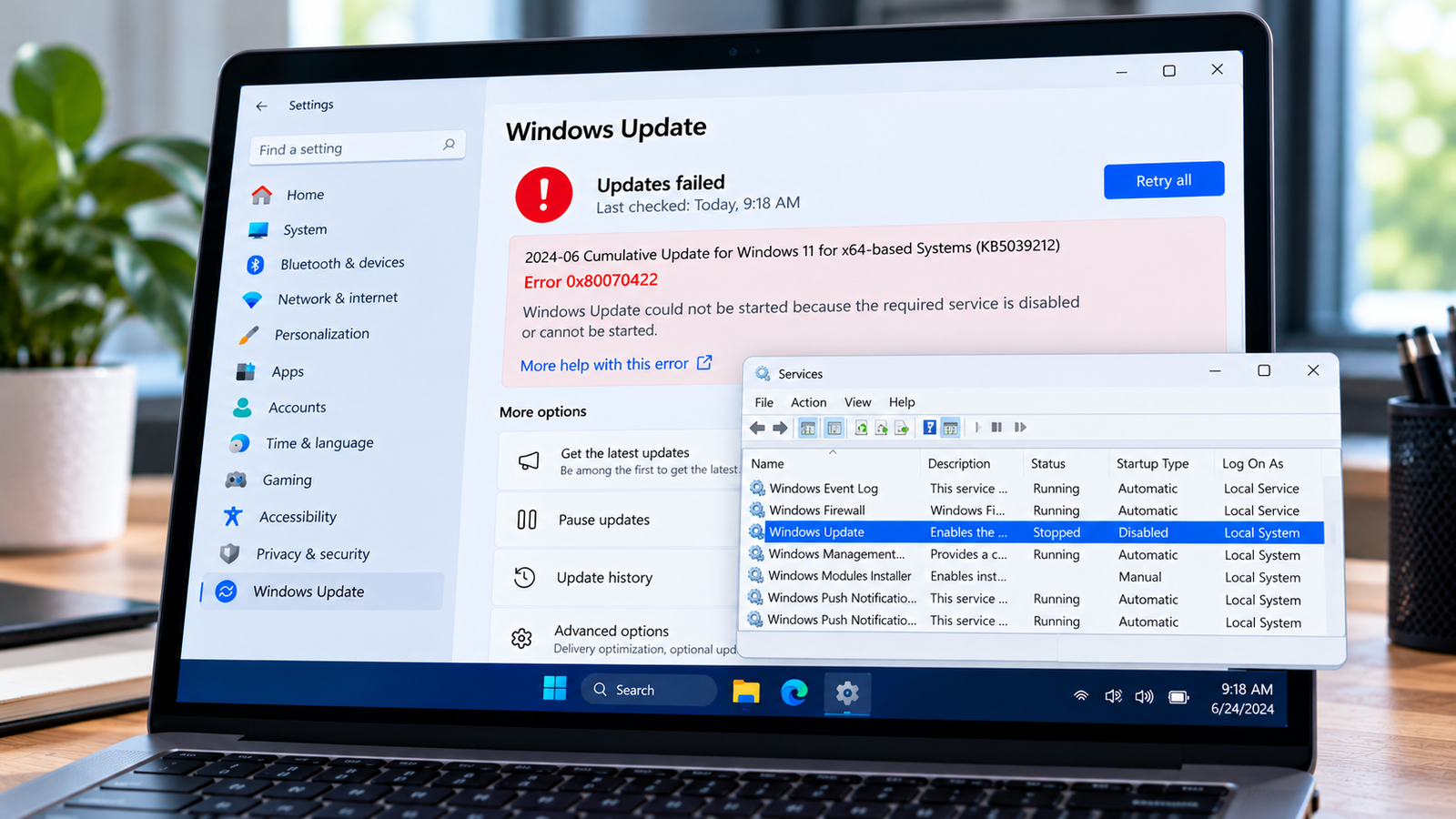
Windows Update error 0x80070422 can appear when Windows cannot start a service required to check for, download or install updates. You may encounter this error when selecting Check for updates in Settings or while attempting to install an update.
The problem is often associated with a disabled service or a service that cannot start. A manual configuration change, a system-optimisation utility or an organization’s policy may be responsible.
Instead of immediately resetting Windows Update components, start by checking the relevant services and identifying why they are not running as expected.
Listen to the quick guide: Windows Update error 0x80070422
Quick Diagnosis: Start Here
| What you’re experiencing | Start here |
|---|---|
| Error 0x80070422 appears when checking for Windows updates | Go to Fix 1 ↗ |
| The Windows Update service is marked Disabled | Go to Fix 2 ↗ |
| The Windows Update service refuses to start | Go to Fix 3 ↗ |
| A supporting service may be disabled or unable to start | Go to Fix 4 ↗ |
| The service becomes disabled again after restarting the PC | Go to Fix 5 ↗ |
| The service appears correctly configured, but the error persists | Go to Fix 6 ↗ |
Why Does Windows Update Error 0x80070422 Happen?
Windows relies on background services to manage update-related operations. If a required service is disabled or cannot start, Windows may be unable to check for or install updates.
Common causes include:
- The Windows Update service was disabled manually.
- A system-optimisation or privacy utility changed a service setting.
- A supporting service cannot start.
- An administrator applied a policy that controls Windows updates.
- A service configuration problem is preventing the update process from running.
The error code alone does not establish which underlying condition is responsible. Begin with the Windows Update service and use any additional error messages to decide what to investigate next.
Fix 1: Confirm the Error in Windows Update
First, confirm that the error appears during a Windows Update operation.
- Press
Windows + Ito open Settings. - On Windows 11, select Windows Update.
- On Windows 10, select Update & Security, then Windows Update.
- Select Check for updates.
- Note the error code and any additional message.
If the code is 0x80070422, continue with the service checks below. If it appears in another Windows feature, do not assume that the Windows Update service is responsible.
Fix 2: Check the Windows Update Service
The Windows Update service is the first place to investigate.
- Press
Windows + R. - Type
services.mscand press Enter. - Find Windows Update in the list.
- Double-click it to open its Properties window.
- Check Service status and Startup type.
If the startup type is Disabled, the service cannot start normally.
On a personal computer where the service has not been intentionally restricted, restore an appropriate startup configuration. Manual is commonly used for Windows Update on modern Windows installations. Do not assume that every Windows service must be set to Automatic.
- Select Apply.
- If the service is stopped and the Start button is available, select it.
- Select OK.
- Return to Windows Update and try checking for updates again.
If the service is already configured appropriately and running, leave it unchanged and continue to the next fix.
Important: If your computer is managed by your employer or school, consult the administrator before changing service settings.
Fix 3: Find Out Why the Windows Update Service Will Not Start
If the Windows Update service refuses to start, Windows may display a separate error message. That message is an important diagnostic clue.
- Open the Services console using
services.msc. - Double-click Windows Update.
- If the service is stopped, select Start.
- Record the exact message if Windows reports a failure.
Next, open the Dependencies tab in the Properties window. Review the services and components listed there.
Return to the Services console and inspect any listed service that appears disabled or unable to start. Do not change every dependency to Automatic, because different services have different startup requirements.
If a supporting service produces its own error, investigate that error before repeatedly attempting to start Windows Update.
If the service starts successfully, return to Settings and retry the update check.
Fix 4: Inspect Supporting Services
A supporting service may also prevent an update operation from completing. Check the relevant service only when the previous steps or an error message point to it.
One service worth inspecting is Background Intelligent Transfer Service (BITS), which supports background data transfers.
- Press
Windows + R. - Enter
services.msc. - Find Background Intelligent Transfer Service.
- Double-click it.
- Review its status and startup type.
A stopped BITS service is not necessarily faulty; Windows may start it when needed. If its startup type is Disabled, investigate why before changing it.
On a personal PC without a policy that intentionally restricts the service, restore an appropriate configuration if you have confirmed it was incorrectly disabled. Do not change it to Automatic simply because it is stopped.
You can also inspect other services listed under the Windows Update service’s Dependencies tab if the evidence points to them. Avoid making unrelated service changes.
Fix 5: Check Whether a Policy or Utility Keeps Disabling the Service
If the Windows Update service works temporarily but becomes disabled again after a restart, look for something that is changing its configuration.
Consider whether you recently:
- Used a Windows debloating or privacy-tweaking utility.
- Ran a script that modified Windows services.
- Applied a custom system configuration.
- Connected the computer to a work or school environment.
- Received instructions from an administrator to restrict updates.
If you used a configuration utility, review its settings and reverse the specific change where appropriate.
Avoid generic scripts that claim to reset all Windows services. They can alter unrelated components and introduce additional problems.
On a managed computer, contact your IT administrator. An organizational policy may control Windows Update, and a local change may be overwritten when the policy is reapplied.
Do not edit the registry or use unverified service-modification commands as a first response.
Fix 6: Run the Windows Update Troubleshooter
If the service appears correctly configured but error 0x80070422 continues, run the built-in Windows Update troubleshooter.
On Windows 11:
- Open Settings.
- Select System, then Troubleshoot.
- Select Other troubleshooters.
- Find Windows Update and select Run, if available.
- Follow the instructions and apply any recommended repairs.
On Windows 10:
- Open Settings.
- Select Update & Security.
- Open Troubleshoot, then Additional troubleshooters, if available.
- Select Windows Update and run the troubleshooter.
The available options can vary by Windows version.
When the troubleshooter finishes, restart the PC if prompted and try checking for updates again.
If the error persists, review the exact service-start message or Windows event logs to identify a more specific cause. Avoid clearing the update cache or running system-image repair commands without evidence that they address the underlying issue.
How to Prevent Error 0x80070422 From Returning
- Avoid disabling Windows services simply to improve performance.
- Review the changes made by system-optimisation utilities.
- Keep a record of service settings changed during troubleshooting.
- Follow organizational update policies on managed computers.
- If the error returns after a restart, investigate what is changing the service configuration instead of repeatedly enabling it.
Frequently Asked Questions
What does Windows Update error 0x80070422 mean?
It is associated with a disabled or non-running service, commonly the Windows Update service. Checking its status and startup configuration is the appropriate first step.
Is error 0x80070422 caused by corrupted Windows files?
Not necessarily. The error points first to a service problem. Check the service configuration and any reported startup error before attempting system-file repairs.
Should I set the Windows Update service to Automatic?
Not automatically. The appropriate startup configuration can vary by Windows version and configuration. If the service is Disabled, establish why and restore an appropriate setting rather than changing every service to Automatic.
Can a debloating utility cause error 0x80070422?
Yes. Some system-tweaking utilities disable Windows services. If the problem began after using one, review its changes and reverse the specific setting where appropriate.
Why does the error return after I enable the service?
A configuration utility, script or organizational policy may be changing the service again. Identify the source rather than repeatedly modifying the same setting.
Does error 0x80070422 affect Windows 10 and Windows 11?
The error can occur on both. The Settings layout and troubleshooting options differ by version. Windows 10 support ended on October 14, 2025, so users should also consider supported upgrade options for their devices.
Conclusion
Windows Update error 0x80070422 is commonly associated with a disabled or non-running Windows Update service. Start by confirming the error, checking the service’s status and investigating any service-start failure.
If the service becomes disabled again, look for a utility or policy that is changing its configuration. Identifying the underlying cause is more effective than repeatedly resetting Windows Update or changing unrelated services.






