
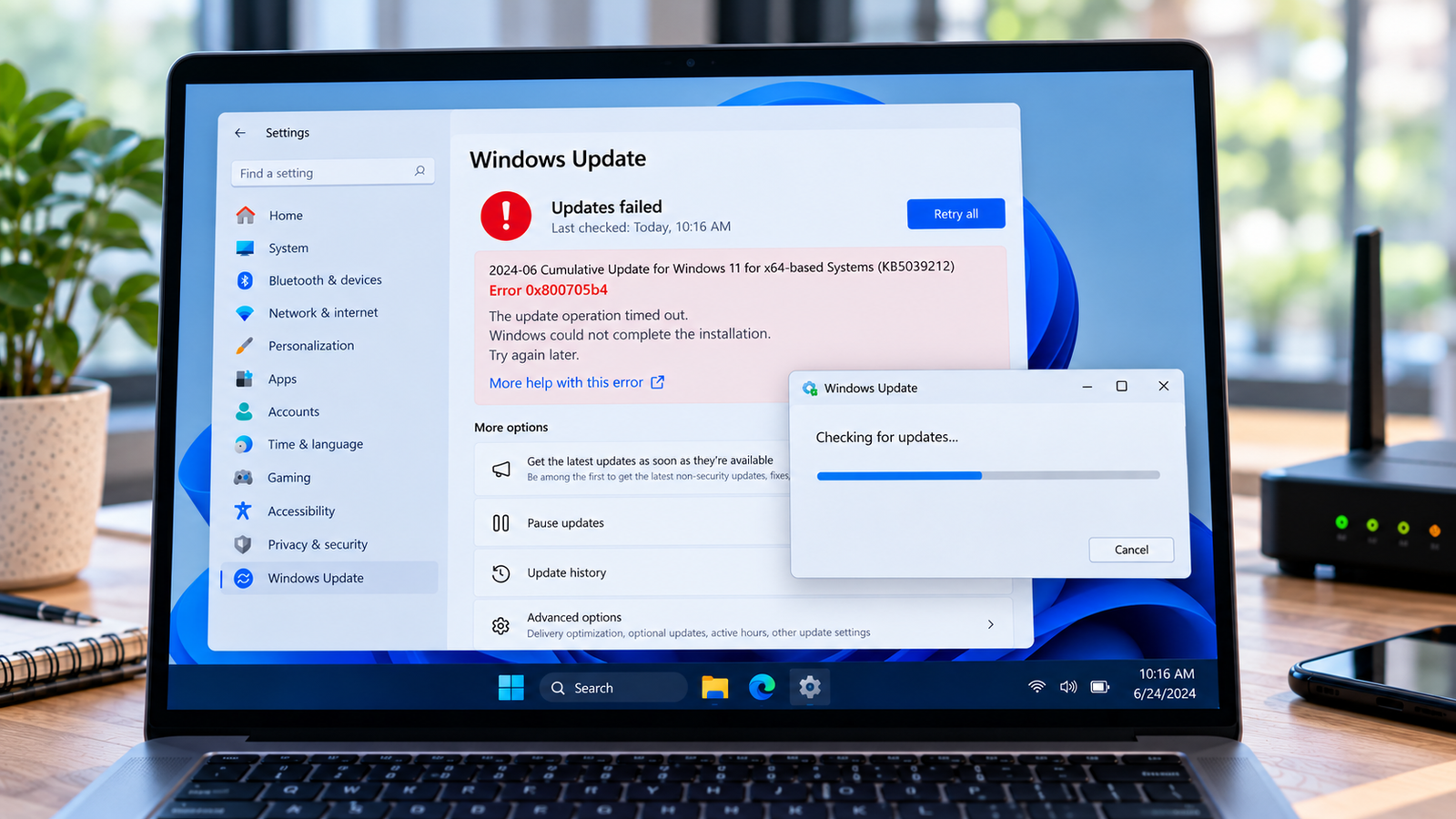
Windows Update Error 0x800705b4: How to Fix Update Timeouts
Windows Update error 0x800705b4 can appear when Windows takes too long to complete an update operation and the process times out. You may see it while checking for updates, downloading an update or installing one.
A timeout does not necessarily mean that Windows is damaged. The operation may be delayed by an interrupted update process, a temporary connection problem, security software or another condition that prevents the update from completing in time.
The key is to determine whether the update is genuinely stalled, whether a particular update keeps failing, or whether the problem occurs every time Windows checks for updates. This guide walks through those checks without jumping straight to advanced repairs.
Listen to the quick guide: Windows Update error 0x800705b4
Quick Diagnosis: Start Here
| What you’re experiencing | Start here |
|---|---|
| Windows Update fails with error 0x800705b4 | Go to Fix 1 ↗ |
| An update appears stuck or takes unusually long to complete | Go to Fix 2 ↗ |
| The update fails while other internet services work | Go to Fix 3 ↗ |
| A VPN or security application may be interfering with the update | Go to Fix 4 ↗ |
| The update keeps timing out after a restart | Go to Fix 5 ↗ |
| The timeout continues after the basic checks | Go to Fix 6 ↗ |
Why Does Windows Update Error 0x800705b4 Happen?
Error 0x800705b4 is associated with a timeout. Windows has not completed an operation within the time allowed, but the code alone does not identify the underlying cause.
Possible reasons include:
- A temporary interruption during the update process.
- An update that repeatedly stalls or fails to finish.
- Network conditions that interrupt communication with update services.
- A VPN, firewall or security application interfering with the operation.
- A pending restart or an earlier update that has not completed properly.
- A problem that requires more detailed Windows Update diagnostics.
The following steps help narrow down the cause. Start with the simplest checks and move to more involved troubleshooting only if the error continues.
Fix 1: Check the Failed Update and Its Status
First, determine which update is failing and whether Windows is still processing it.
- Press
Windows + Ito open Settings. - On Windows 11, select Windows Update, then open Update history if needed.
- On Windows 10, select Update & Security, then Windows Update and View update history.
- Look for the failed update and note its name or KB number, if shown.
- Check whether the same update has failed repeatedly.
If Windows is actively installing an update, do not force a shutdown simply because progress appears slow. Some updates take longer than others, particularly on older computers.
If the installation has clearly failed and Windows has returned to Settings, record the error and continue with the next checks.
Fix 2: Restart the Computer and Retry the Update
A pending restart or an interrupted update operation can prevent a later attempt from completing successfully.
- Save your open work.
- Open Start, select Power, then Restart.
- Wait for Windows to finish restarting.
- Open Settings and return to Windows Update.
- Select Check for updates and allow the operation to run.
Choose Restart, rather than Shut down, for this test. Restarting gives Windows an opportunity to complete pending operations and reload its services.
If the update succeeds, check the update history to confirm that the installation completed.
If the same error returns, continue instead of repeatedly restarting the computer.
Fix 3: Check the Internet Connection and Update Activity
A working browser does not guarantee that every Windows Update connection is working correctly. However, test the basic connection before changing network settings.
- Open a browser and load several websites.
- If pages load slowly or fail, resolve the general connection problem first.
- If you use Wi-Fi, check whether the connection is stable.
- If possible, try another trusted network to see whether the update behaves differently.
- Return to Windows Update and retry the failed operation.
If the error occurs only on one network, the network configuration, filtering or connection quality may be contributing to the problem.
If other internet services work normally but Windows Update still times out, avoid repeatedly changing DNS settings or resetting the network without further evidence. Continue to the next fix.
Fix 4: Check Whether a VPN or Security Application Is Interfering
A VPN, firewall or third-party security product can sometimes affect connections used by Windows Update.
If you use a VPN, disconnect it temporarily and retry the update on a trusted network, provided your organization does not require the VPN for internet access.
Also consider whether you recently installed or updated security software around the time the problem began.
Do not permanently disable your firewall or antivirus protection to test this. Instead:
- Review any recent security-software notifications or blocked-connection records.
- Check whether the product reports that it blocked a Windows Update component.
- If a specific rule appears responsible, follow the software vendor’s guidance to correct that rule.
- Reconnect your VPN and restore normal protection after testing.
On a work-managed computer, consult your IT administrator before changing security settings.
If there is no evidence that security software is involved, leave those settings unchanged and continue troubleshooting.
Fix 5: Check for a Repeated Failure After Restarting
If the same update repeatedly fails with error 0x800705b4, check whether the problem affects one update or the entire Windows Update process.
- Open Settings and view the Windows Update history.
- Note whether the same KB update appears repeatedly as failed.
- Check whether other available updates install successfully.
- If only one update fails, record its KB number and the Windows version installed on your PC.
- If every update fails, note that pattern as well.
This distinction matters. A single failed update may have a specific installation requirement or compatibility issue, while repeated failures across different updates suggest a broader update-process problem.
If Windows reports that a restart is required, complete the restart before attempting another installation.
Avoid manually deleting update files or changing Windows services without evidence that the affected component is responsible.
Fix 6: Run the Windows Update Troubleshooter and Review the Failure
If the timeout continues after the basic checks, run the Windows Update troubleshooter.
On Windows 11:
- Open Settings.
- Select System, then Troubleshoot.
- Open Other troubleshooters.
- Find Windows Update and select Run, if available.
- Follow the instructions and apply any recommended repairs.
On Windows 10:
- Open Settings.
- Select Update & Security.
- Open Troubleshoot, then Additional troubleshooters, if available.
- Select Windows Update and run the troubleshooter.
The available options may vary by Windows version.
After the troubleshooter finishes, restart the computer if prompted and retry the update.
If the same update still fails, record its KB number and review the relevant error details in Windows Update history. More advanced diagnosis may require Windows Update logs or the Windows servicing logs, depending on where the installation fails.
Do not jump straight to resetting the update cache, running system-image repair commands or installing unrelated updates manually. Those steps should be chosen based on the failure details, not just the timeout code.
How to Prevent Windows Update Error 0x800705b4
- Keep the computer connected to a stable network while updates are running.
- Restart Windows when an update requests it.
- Avoid forcing the computer to shut down during an active installation.
- Keep security software updated and review genuine blocked-connection alerts.
- Record the KB number when an update repeatedly fails.
- Avoid running multiple update or system-repair utilities simultaneously.
Frequently Asked Questions
What does Windows Update error 0x800705b4 mean?
It is a timeout error. Windows has not completed an operation within the expected time, but the code does not identify one universal cause.
Is error 0x800705b4 caused by a slow internet connection?
A poor or interrupted connection can contribute to update failures, but it is not the only possible cause. Check the connection and then investigate whether a particular update or security setting is involved.
Should I keep clicking Check for updates?
Repeatedly retrying without investigating the failure is unlikely to help. Restart the computer once, check the failed update and follow the troubleshooting steps if the same error returns.
Can antivirus software cause error 0x800705b4?
Security software can sometimes interfere with update-related connections. Look for evidence of a blocked connection and correct a specific rule if necessary. Do not permanently disable antivirus or firewall protection.
Why does the same Windows update keep failing?
The update may have a specific installation problem, or a broader issue may be preventing Windows Update from completing. Check the failed KB number and compare it with the results of other update attempts.
Does error 0x800705b4 affect Windows 10 and Windows 11?
The error can occur in Windows update operations on both systems. The Settings layout and troubleshooting options differ by version. Windows 10 support ended on October 14, 2025, so users should also consider supported upgrade options for their devices.
Conclusion
Windows Update error 0x800705b4 indicates that an update operation has timed out, but it does not reveal the cause on its own. Start by identifying the failed update, restarting the computer and checking the network and security configuration.
If the error keeps returning, use the update history and troubleshooter to narrow down the failure before attempting advanced repairs. Targeted troubleshooting is safer and more useful than applying a generic collection of Windows repair commands.






