
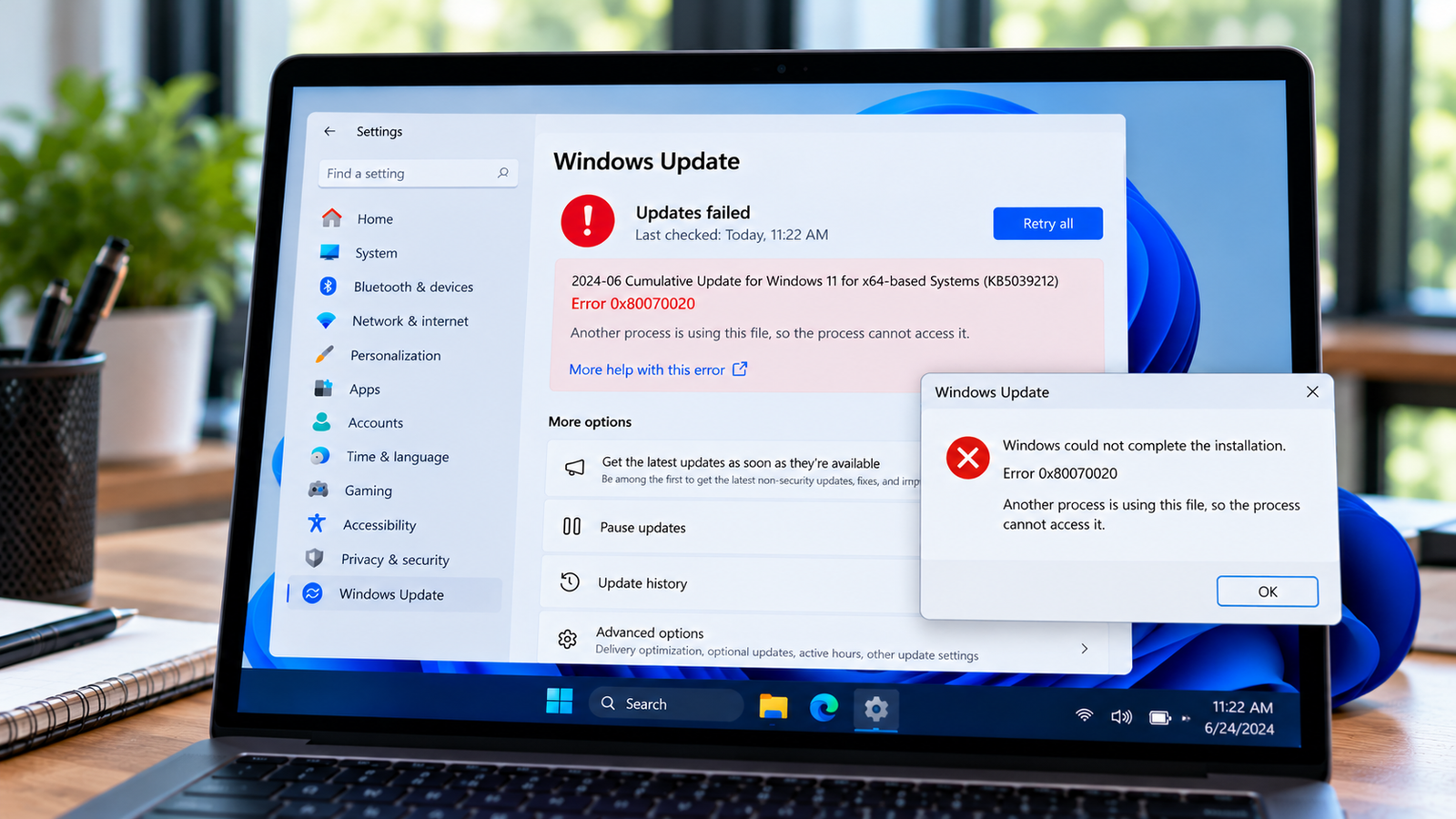
Windows Update Error 0x80070020: How to Fix a Process Conflict
Windows Update error 0x80070020 can occur when another process interferes with an update operation. Windows may be unable to access a file or resource because another program or a file-system filter driver is using it.
You may encounter the error while downloading or installing an update, particularly when the same update fails repeatedly.
The code does not identify the conflicting application by itself. Instead of closing random programs or disabling security software, work through the checks below to identify a possible conflict and address it safely.
Listen to the quick guide: Windows Update error 0x80070020
Quick Diagnosis: Start Here
| What you’re experiencing | Start here |
|---|---|
| Windows Update fails with error 0x80070020 | Go to Fix 1 ↗ |
| The update fails while another application is running | Go to Fix 2 ↗ |
| A security application may be interfering with the update | Go to Fix 3 ↗ |
| The same update fails after restarting the computer | Go to Fix 4 ↗ |
| The error continues and the conflicting process is unclear | Go to Fix 5 ↗ |
| Basic checks do not resolve the update failure | Go to Fix 6 ↗ |
Why Does Windows Update Error 0x80070020 Happen?
Windows needs access to particular files and system resources to complete an update. If another process or a file-system filter driver interferes with that access, the update may fail.
Possible causes include:
- Another application is holding a file or resource needed during installation.
- Third-party security software is interfering with update activity.
- A background utility or system-management tool is affecting the installation.
- A file-system filter driver is preventing the update process from accessing a resource.
- An earlier failed update has left an operation that needs to be completed or investigated.
The code alone does not prove which program is responsible. Start with a restart and a controlled retry before investigating more advanced possibilities.
Fix 1: Confirm the Failed Update
First, identify the update that produces the error.
- Press
Windows + Ito open Settings. - On Windows 11, select Windows Update, then open Update history.
- On Windows 10, select Update & Security, then Windows Update, and open View update history.
- Find the failed installation and note its name or KB number, if available.
- Check whether the same update has failed more than once.
If several updates fail with the same code, the problem may affect the update process more broadly. If only one update fails, keep its KB number for further investigation.
Do not manually delete update files or change system permissions at this stage.
Fix 2: Close Unnecessary Applications and Restart
A running application may interfere with an update, although the error code alone cannot confirm which application is involved.
- Save your work in all open applications.
- Close unnecessary programs, including installers and system-tuning utilities.
- Press
Ctrl + Shift + Escto open Task Manager. - Review the running applications and close only programs you recognize and no longer need.
- Restart Windows using Start > Power > Restart.
- After signing in, open Windows Update and retry the failed update.
Do not end unfamiliar processes or terminate essential Windows tasks just to free resources. Closing random background processes can cause instability without resolving the underlying conflict.
If the update succeeds after restarting, check Update history to confirm that installation completed. If the error returns, continue with the next fix.
Fix 3: Check Security Software for a Specific Conflict
Third-party antivirus products, endpoint-security tools and their associated filter drivers can sometimes interfere with update operations. However, security software should not automatically be treated as the cause.
- Open your security application’s interface.
- Review recent notifications, blocked-activity reports and protection logs.
- Look for an event that coincides with the failed update.
- If a specific rule or action appears responsible, follow the vendor’s guidance to resolve it.
- Retry Windows Update after making the targeted correction.
Do not permanently disable antivirus protection or the Windows Firewall. Avoid uninstalling security software simply because the error mentions a process conflict.
If this is a work-managed device, contact your IT administrator before changing endpoint-security settings.
If the security logs show no relevant activity, leave the configuration unchanged and investigate other possibilities.
Fix 4: Retry the Update After a Clean Restart
If closing ordinary applications does not help, a clean boot can help determine whether a non-Microsoft background service or startup application is involved.
A clean boot starts Windows with a restricted set of startup programs and services. It is a diagnostic test, not a permanent operating configuration.
Before proceeding, note any settings you change so you can restore them afterward.
- Press
Windows + R, typemsconfig, and press Enter. - Open the Services tab.
- Select Hide all Microsoft services before changing any service settings.
- Review the remaining services and disable only the non-Microsoft services needed for the test.
- Open Task Manager and review the Startup apps section. Disable appropriate nonessential startup applications for the test.
- Restart the computer and retry Windows Update.
Important: Never disable all services indiscriminately, and do not change the boot configuration or disable Microsoft services as part of this test.
If the update succeeds in the clean-boot environment, a background application or service may be involved. Re-enable the disabled items in stages to identify the likely cause. Restore normal startup settings after testing.
If the update still fails, return to normal startup and continue investigating rather than leaving the computer in a diagnostic state.
Fix 5: Identify the Conflicting Process Through Error Details
If the error persists, use available diagnostic information instead of guessing which program is responsible.
Start by checking the time of the failed update in Settings > Windows Update > Update history. Then inspect Windows event logs for relevant errors recorded around the same time.
- Press
Windows + R. - Type
eventvwr.mscand press Enter. - Open Windows Logs > System.
- Review errors and warnings recorded around the time the update failed.
- Look for entries that identify a specific service, driver or file-access problem.
Not every update conflict will appear clearly in the System log. If the available entries do not identify a cause, avoid changing permissions or removing drivers based on guesswork.
More advanced investigations may require Windows Update logs or a file-system trace. These tools can help identify which operation is failing, but their results need to be interpreted in context.
If the device belongs to an organization, provide the error code, failed update’s KB number and relevant timestamps to the IT team.
Fix 6: Run the Windows Update Troubleshooter
If the earlier checks do not resolve the issue, run the built-in Windows Update troubleshooter.
On Windows 11:
- Open Settings.
- Select System > Troubleshoot > Other troubleshooters.
- Find Windows Update and select Run, if available.
- Follow the instructions and apply any recommended repairs.
On Windows 10:
- Open Settings.
- Select Update & Security > Troubleshoot.
- Open Additional troubleshooters, if available.
- Select Windows Update and run the troubleshooter.
The available options vary by Windows version. Follow any instructions to restart the computer, then retry the failed update.
If error 0x80070020 continues, use the failed update’s KB number and relevant diagnostic details to determine the next step. Avoid applying a generic update-cache reset or system-file repair without evidence that it addresses the specific failure.
How to Prevent Error 0x80070020 From Returning
- Save your work and close unnecessary applications before installing updates.
- Avoid running multiple installers or system-maintenance utilities during an update.
- Keep security software and its definitions up to date.
- Review security alerts when an update fails repeatedly.
- Use a clean boot only as a diagnostic test, and restore normal startup settings afterward.
- Record the failed update’s KB number if the same error returns.
Frequently Asked Questions
What does Windows Update error 0x80070020 mean?
It is associated with a process or resource conflict that interferes with an update operation. A program or file-system filter driver may be preventing Windows from accessing something it needs.
Is error 0x80070020 always caused by antivirus software?
No. Security software is one possible cause, but another application, service or filter driver may be involved. Look for supporting evidence before changing security settings.
Should I disable my antivirus to install the update?
Do not permanently disable your protection. Check its logs for a specific blocked operation and follow the vendor’s guidance. On a managed device, consult your IT administrator.
What is a clean boot, and why can it help?
A clean boot starts Windows with a restricted set of non-Microsoft services and startup applications. If an update works in that environment, a background component may be involved. Re-enable items in stages to identify the cause.
Why does the same update keep failing with 0x80070020?
The same application, service or driver conflict may be recurring, or the update may be encountering another problem. Record the failed update’s KB number and examine relevant logs rather than repeatedly trying the same steps.
Can I delete Windows Update files to fix this error?
Deleting update-cache files is not the first step for a process-conflict error. First investigate whether another process or driver is interfering. Consider cache-related repairs only when the diagnostic evidence supports them.
Conclusion
Windows Update error 0x80070020 can indicate that another process or a file-system filter driver is interfering with an update. Begin by identifying the failed update, restarting the computer and closing unnecessary applications.
If the error persists, check security logs, use a clean boot as a controlled test and review relevant diagnostic information. Identifying the conflict is safer and more effective than randomly disabling services, removing software or changing system permissions.






