
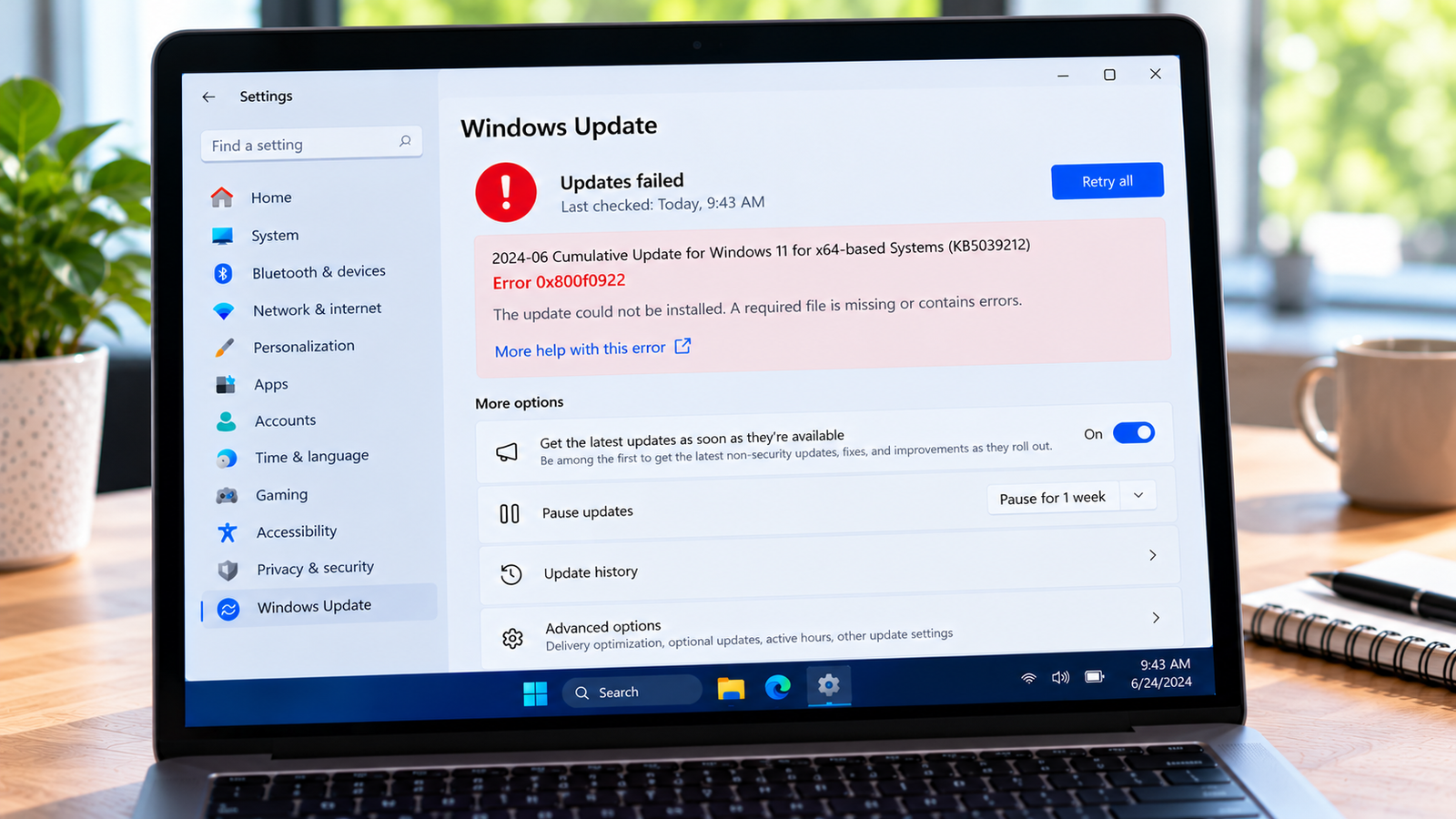
Windows Update Error 0x800f0922: How to Fix Installation Failures
Windows Update error 0x800f0922 appears when a Windows update or upgrade fails to complete. In some cases, the computer may attempt to install an update, restart and then roll back the changes.
This error can have more than one cause. Windows may be unable to connect to update services, the system partition may have insufficient free space, or a particular update may be failing during installation. Recent update-specific issues can also produce the same code.
The most useful first step is to identify when the failure occurs. A problem during downloading calls for different checks from an update that fails during the restart phase.
Listen to the quick guide: Windows Update error 0x800f0922
Quick Diagnosis: Start Here
| What you’re experiencing | Start here |
|---|---|
| Windows Update fails with error 0x800f0922 | Go to Fix 1 ↗ |
| The update fails while downloading or checking for updates | Go to Fix 2 ↗ |
| The update fails while using a VPN or work network | Go to Fix 3 ↗ |
| The update fails during restart and Windows rolls back changes | Go to Fix 4 ↗ |
| The failure may involve low system partition space | Go to Fix 5 ↗ |
| The same update keeps failing after the basic checks | Go to Fix 6 ↗ |
Why Does Windows Update Error 0x800f0922 Happen?
Error 0x800f0922 can occur for different reasons, so it should not automatically be treated as a storage problem or a network problem.
Potential causes include:
- Windows cannot connect successfully to the update service.
- A VPN or network configuration interferes with the update operation.
- The EFI System Partition or System Reserved partition has insufficient free space for a particular update operation.
- A specific update fails during the servicing or restart phase.
- An update-specific compatibility issue or servicing problem prevents installation.
The timing of the failure is an important clue. Check whether the error occurs before the download completes, during installation or after the computer restarts.
Fix 1: Identify the Failed Update and When It Fails
Start by recording the exact update and failure stage.
- Press
Windows + Ito open Settings. - On Windows 11, select Windows Update, then open Update history.
- On Windows 10, select Update & Security, then Windows Update, and open View update history.
- Find the failed update and note its KB number, if available.
- Record any additional error message.
If Windows displays a message such as “We couldn’t complete the updates. Undoing changes”, note whether it appears after a restart.
This information helps distinguish a connection problem from a failure during the installation or servicing phase.
Do not attempt to resize a partition or modify system files based only on the error code.
Fix 2: Check Windows Update Connectivity
If the update fails while checking for updates or downloading files, first check the network connection.
- Open a browser and visit a few websites.
- If websites are also failing to load, resolve the general connection problem first.
- If you use Wi-Fi, check that the connection is stable.
- If possible, test the update using another trusted network.
- Return to Windows Update and retry the operation.
A working browser connection does not guarantee that every Windows Update connection is functioning correctly. However, if the error occurs only on one network, that is a useful clue.
If the update downloads successfully but fails after restarting, move to the installation-stage checks rather than repeatedly changing network settings.
Fix 3: Test Whether a VPN Is Interfering
A VPN connection, particularly one used to access a workplace network, can sometimes interfere with access to Windows Update services.
If you use a VPN:
- Save any work that depends on the VPN.
- Disconnect from it temporarily, provided your network and workplace policies allow this.
- Confirm that the computer has an appropriate internet connection.
- Open Windows Update and retry the failed operation.
If the update works without the VPN, the network path or its configuration may be contributing to the failure.
Do not uninstall the VPN or permanently change network settings simply because the error occurred. If the computer requires a VPN for internet access or is managed by your organization, ask the network administrator to investigate.
If disconnecting the VPN makes no difference, restore your normal connection and continue to the next fix.
Fix 4: Investigate Failures During Restart
If Windows downloads the update but installation fails during restart, the problem may be occurring during the servicing phase rather than during the initial connection.
First, make sure the computer has enough free space on its Windows drive.
- Open Settings.
- Select System > Storage on Windows 11, or open Storage under System on Windows 10.
- Check how much space is available on the drive containing Windows.
- If space is low, use Temporary files or Disk Cleanup to remove files you no longer need.
- Keep personal files and downloads you still need, and do not delete unfamiliar system folders manually.
- Restart the computer if requested, then retry the update.
Free space on the Windows drive is worth checking, but it is not the same as free space on the EFI System Partition or System Reserved partition. If the error continues after a restart, do not assume that clearing the Windows drive will resolve it.
For repeated failures, the update’s KB number and relevant Windows servicing logs may be needed to identify the actual cause.
Fix 5: Check Whether the System Partition Has Enough Space
Microsoft identifies insufficient space in the System Reserved partition as one possible cause of error 0x800f0922. Some newer update failures can also involve limited free space in the EFI System Partition.
These partitions are separate from the ordinary Windows drive and may not appear as normal drives in File Explorer.
Before attempting any partition changes, establish whether the evidence actually points to a partition-space problem.
- Record the failed update’s KB number and when the installation fails.
- Check whether the update has a known issue related to EFI or System Reserved partition space.
- If Windows servicing logs report insufficient space in the relevant partition, investigate that specific finding.
- If the evidence is unclear, seek qualified assistance before modifying the partition.
Do not delete files from the EFI System Partition or System Reserved partition manually. Do not resize or format either partition based only on error 0x800f0922. An incorrect change can make Windows unbootable.
If partition resizing is genuinely necessary, back up important files and use a reliable procedure appropriate to your partition layout. If you are unsure which partition Windows uses, consult a qualified technician.
Fix 6: Run the Windows Update Troubleshooter and Review the Failure
If the previous checks do not resolve the error, use the Windows Update troubleshooter.
On Windows 11:
- Open Settings.
- Select System > Troubleshoot > Other troubleshooters.
- Find Windows Update and select Run, if available.
- Follow the instructions and apply any recommended repairs.
On Windows 10:
- Open Settings.
- Select Update & Security > Troubleshoot.
- Open Additional troubleshooters, if available.
- Select Windows Update and run the troubleshooter.
The available options may vary by Windows version.
If the same update continues to fail, note the KB number and review the error details. For persistent installation failures, the Windows servicing log at C:\Windows\Logs\CBS\CBS.log may contain useful information about the failed operation.
Do not run generic repair scripts or change registry settings without evidence that they address the specific failure. If the log indicates an update-specific problem, check whether Microsoft has published a fix or workaround for that particular update.
How to Prevent Error 0x800f0922 From Returning
- Keep a reasonable amount of free space on the Windows drive.
- Use a stable network when downloading updates.
- Check whether a VPN or managed network is required before changing connectivity settings.
- Restart Windows when an update requests it.
- Record the KB number when an update fails repeatedly.
- Avoid manually modifying EFI or System Reserved partitions without a confirmed need and a reliable procedure.
Frequently Asked Questions
What does Windows Update error 0x800f0922 mean?
It indicates that an update or upgrade has failed, but it does not identify one universal cause. Possible explanations include update connectivity, insufficient system partition space or an update-specific servicing failure.
Is error 0x800f0922 always caused by insufficient disk space?
No. Microsoft also identifies update-server connectivity as a possible cause. The timing of the failure and the available error details help determine which direction to investigate.
Can a VPN cause error 0x800f0922?
Yes, a VPN connection to a work network can sometimes interfere with access to Windows Update. If appropriate, test the update without the VPN and restore your normal connection afterward.
Should I resize the EFI System Partition to fix this error?
Not without evidence that partition space is the problem. Resizing or modifying boot partitions can make Windows unbootable if performed incorrectly. Check the failed update and diagnostic details first.
Why does Windows undo changes after installing an update?
Windows may roll back an update when installation cannot complete successfully. The rollback message alone does not identify the cause, so check the error code, failed update and relevant diagnostic details.
Does error 0x800f0922 affect Windows 10 and Windows 11?
The code can occur during Windows update or upgrade operations, but the underlying cause can vary. The exact update and installation stage are more useful diagnostic clues than the code alone.
Conclusion
Windows Update error 0x800f0922 can have several causes, including connectivity problems, insufficient system partition space and update-specific installation failures.
Identify the failed update and the stage at which it fails before making changes. Check connectivity when the download fails, investigate partition space only when the evidence supports it, and use update diagnostics for repeated installation failures. Avoid risky partition modifications or generic repair scripts without a confirmed reason.






