
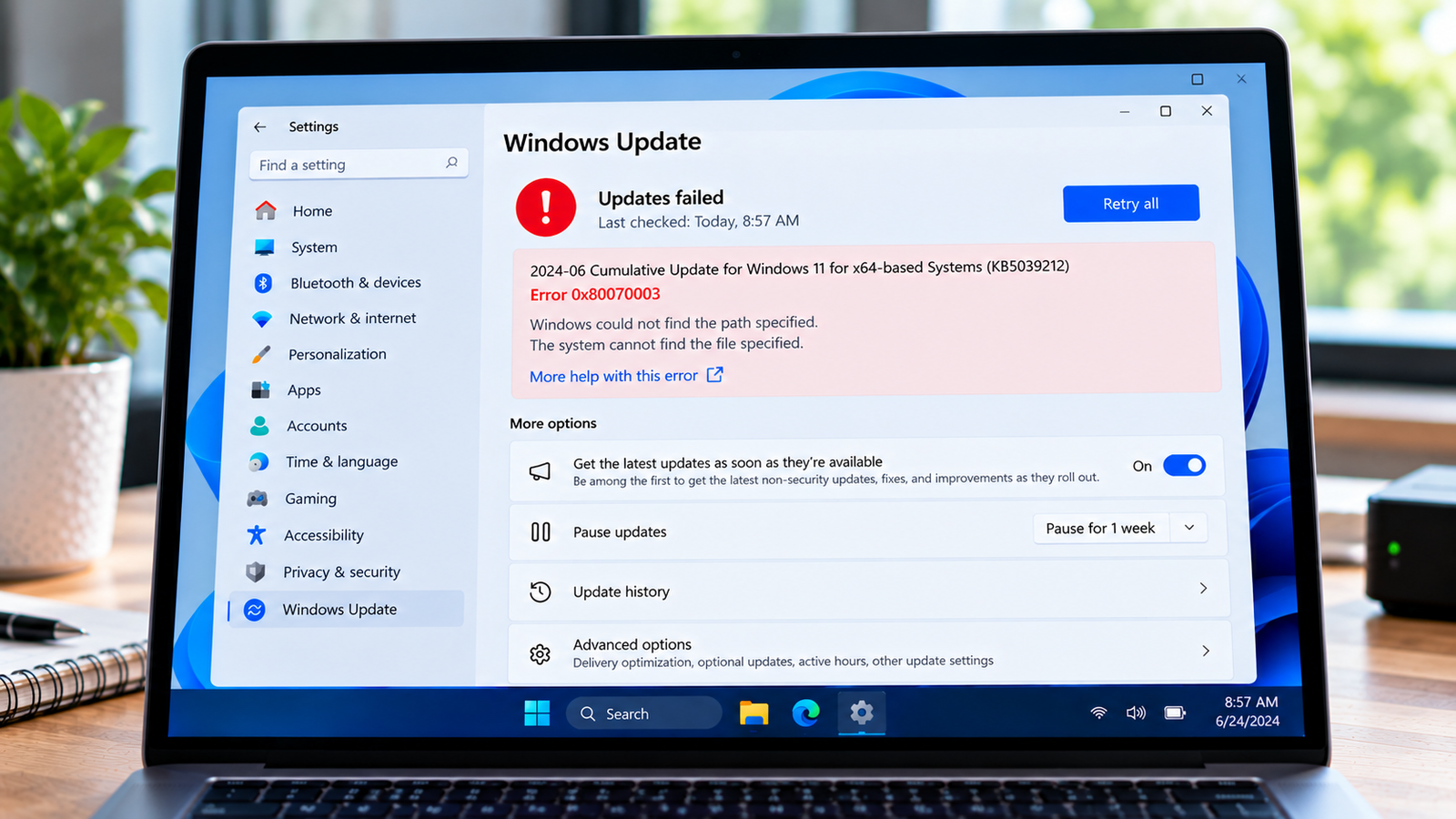
Windows Update Error 0x80070003: How to Fix a Missing File Path
Windows Update error 0x80070003 can occur when Windows cannot locate a path or file required to complete an update operation. You may see the code when checking for updates, installing a downloaded update or completing an earlier update attempt.
The error does not identify one universal missing file. The underlying issue may involve an incomplete update, an inaccessible path or a problem encountered during Windows servicing.
The most useful approach is to identify which update fails and when the error occurs. This guide explains how to narrow down the cause without deleting system files or changing Windows settings unnecessarily.
Listen to the quick guide: Windows Update error 0x80070003
Why Does Windows Update Error 0x80070003 Happen?
Windows uses files, folders and servicing components to download and install updates. If an operation refers to a path that Windows cannot locate, the update may fail.
Possible causes include:
- An update did not complete properly during an earlier attempt.
- A required file or folder is missing.
- Windows servicing encounters an invalid or unavailable path.
- A particular update fails while applying its changes.
- An underlying system component needs further investigation.
The error code alone does not tell you which file or folder is involved. Avoid creating replacement folders, downloading individual system files from unofficial websites or modifying registry entries without identifying the actual failure.
Quick Diagnosis: Start Here
| What you’re seeing | Start here |
|---|---|
| The update failed, and Windows needs a restart or another attempt | Go to Fix 1 ↗ |
| You need to identify the failed update or understand when the error began | Go to Fix 2 ↗ |
| The error appeared after an incomplete update or unexpected shutdown | Go to Fix 3 ↗ |
| Windows or a log identifies a missing file or path | Go to Fix 4 ↗ |
| The basic checks haven’t resolved the update failure | Go to Fix 5 ↗ |
| The same error persists, and servicing logs need further investigation | Go to Fix 6 ↗ |
Fix 1: Identify the Failed Update
Start by finding the update associated with the error.
- Press
Windows + Ito open Settings. - On Windows 11, select Windows Update, then open Update history.
- On Windows 10, select Update & Security, then Windows Update, and open View update history.
- Locate the failed update.
- Record its name and KB number, if available.
Check whether the same update has failed repeatedly or whether several different updates are affected.
If only one update fails, keep its KB number for further investigation. If multiple updates fail, the problem may involve a broader Windows servicing issue.
Fix 2: Restart Windows and Retry the Update
An earlier interrupted operation may leave Windows needing a restart before it can proceed normally.
- Save your open work.
- Open Start > Power > Restart.
- Allow Windows to finish restarting.
- Open Settings and return to Windows Update.
- Select Check for updates and retry the failed operation.
Use Restart rather than repeatedly shutting down and powering the computer back on. If Windows displays a message that it is completing or undoing updates, allow the process to finish.
If the update installs successfully, check Update history to confirm the result.
If error 0x80070003 returns, move to the next check rather than repeatedly restarting the computer.
Fix 3: Check for an Incomplete Previous Update
If the error started after a failed installation or an unexpected shutdown, check whether Windows is still reporting a pending restart or a failed update.
- Open Settings > Windows Update.
- Review the current update status and any restart notification.
- Open Update history and identify the last failed installation.
- Complete any requested restart before retrying the update.
If Windows repeatedly attempts to install the same update and fails, record the KB number and the stage at which the failure occurs.
Do not manually remove files from C:\Windows, WinSxS or other servicing folders. These locations contain components Windows needs to maintain and repair the operating system.
If no pending restart is shown and the same error continues, investigate the file or path involved rather than assuming the update cache is responsible.
Fix 4: Check the Reported File or Path
If Windows or a diagnostic log identifies a missing file or path, investigate that specific location.
For a general update failure, the CBS servicing log may contain more detail:
- Press
Windows + Eto open File Explorer. - Navigate to
C:\Windows\Logs\CBS. - Locate
CBS.log. - Open the log with Notepad.
- Search for
0x80070003or nearby error entries around the time of the failed update.
The log can contain a large amount of technical information. Focus on entries near the failure timestamp rather than treating every warning as the cause.
If an entry identifies a particular file or folder, record its path. Check whether the location exists and whether the log points to a missing component, an invalid path or another servicing failure.
Do not create an empty replacement folder or copy system files from another computer just because a path appears in the log. The correct repair depends on what the missing item belongs to and why it is missing.
If the log does not reveal a clear cause, proceed to the Windows Update troubleshooter.
Fix 5: Run the Windows Update Troubleshooter
The built-in troubleshooter can identify some common update problems and recommend repairs.
On Windows 11:
- Open Settings.
- Select System > Troubleshoot > Other troubleshooters.
- Find Windows Update and select Run, if available.
- Follow the instructions and apply any recommended repairs.
On Windows 10:
- Open Settings.
- Select Update & Security > Troubleshoot.
- Open Additional troubleshooters, if available.
- Select Windows Update and run the troubleshooter.
The available options may vary by Windows version.
When the troubleshooter finishes, restart the computer if prompted and retry the failed update.
If the error continues, use the failed update’s KB number and the information gathered from the logs to determine whether a more targeted repair is needed.
Fix 6: Investigate Persistent Servicing Errors
If the same update continues to fail and the earlier checks have not identified the cause, further investigation may be necessary.
Review the entries around the failure timestamp in C:\Windows\Logs\CBS\CBS.log. Look for details that identify the component, file or servicing operation that failed.
If the log points to damaged Windows components, a component-repair procedure may be appropriate. If it identifies a specific update problem, check whether Microsoft has documented a known issue or workaround for that update.
Do not run registry modifications, copy individual system files or delete servicing folders based only on the error code. Those actions can make the installation more difficult to repair.
If the logs are too technical to interpret, seek assistance from a qualified Windows technician or your organization’s IT team. Provide the failed update’s KB number, the error code and the relevant log entries.
How to Prevent Error 0x80070003 From Returning
- Allow updates to finish and complete requested restarts.
- Avoid forcing a shutdown while Windows is actively installing an update.
- Keep a record of the KB number when an update fails repeatedly.
- Do not manually delete files from Windows servicing directories.
- Investigate the specific missing path before attempting advanced repairs.
- Keep a current backup of important personal files.
Frequently Asked Questions
What does Windows Update error 0x80070003 mean?
The code is associated with a path or file that Windows cannot find during an operation. In Windows Update, the exact cause depends on the file, path or servicing operation involved.
Is error 0x80070003 the same as error 0x80070002?
They are different error codes, although both can appear in situations involving missing files or failed update operations. The specific error details and logs should guide troubleshooting.
Should I delete the Windows Update cache to fix error 0x80070003?
Not as the first step. Identify the failed update and investigate the reported path or servicing error before changing update-cache files. A cache reset should be considered only when the evidence supports it.
Can a previous interrupted update cause this error?
An incomplete update can be one possible cause. Restart Windows, check Update history and investigate the relevant servicing logs if the same failure continues.
Is it safe to create a missing Windows folder manually?
Not without confirming what the folder is used for and why it is missing. Some Windows directories contain protected servicing or boot components. Creating an empty folder may not restore the missing component and can complicate troubleshooting.
Does error 0x80070003 affect Windows 10 and Windows 11?
The code can occur during Windows update operations, but the underlying cause can vary. The Settings layout and available troubleshooting options differ between Windows versions.
Conclusion
Windows Update error 0x80070003 can indicate that an update operation cannot locate a required file or path. Start by identifying the failed update, restarting Windows if needed and checking the relevant servicing details.
If the error persists, investigate the specific path or component identified in the logs. Avoid deleting system files, creating replacement folders or applying registry changes without evidence of the underlying problem.






